Installing Factry Historian using Docker for testing purposes
Factry Historian is an open data platform designed to collect, store, and query time series data from industrial processes. It acts as the central hub for operational data, making it easier to access, analyze, and integrate information across your production environment.
Traditionally, process data is scattered across different systems such as PLCs, SCADA, databases, and spreadsheets. A historian brings this information together in one place, providing:
- Long-term storage of high-resolution process data.
- Fast access to both recent and historical trends.
- Integration capabilities with dashboards, analytics tools, and external applications.
- A single source of truth for engineers, operators, and managers to base decisions on.
With Factry Historian, you get an open system that is API-first, flexible, and built to integrate with modern data workflows.
This guide will help you get started by running Factry Historian locally using Docker Compose. You will set up the core components, start the system, and install a first collector to bring in some data.
The goal of this tutorial is not to create a production-ready installation. After completing the steps, you will have a local environment where you can explore the platform, run queries, and visualize real-time data.
It provides a safe way to test Factry Historian without touching production systems. You can use it to explore the API, try out data queries, and visualize real-time signals.
This guide also serves as a practical way to evaluate how Factry Historian can replace legacy historians, giving you insight into compatibility and functionality before a full-scale deployment.
Target Audience
This guide is written for technical users who are comfortable working with a CLI, Docker, and basic networking concepts.
Prerequisites
Before you start, make sure your environment meets the following requirements.
Required Software
- Docker and Docker Compose
- Windows: Install Docker Desktop (Incl. Docker Compose)
- Mac: Install Docker Desktop (Incl. Docker Compose) or Install with a command (using Homebrew package manager): brew install docker docker-compose
- Linux: Install Docker Desktop (Incl. Docker Compose) or Install Docker Engine (or use a command to install both with your OS package manager)
To verify your Docker and Docker Compose installation:
docker -v
docker compose version
If docker compose v1 is installed, you need to use docker-compose instead of docker composewhich is only supported from v2 onwards (recommended).
Optional Software
- Git (to clone the setup files)
Recommended System Resources
For a smooth experience when running Factry Historian locally, we suggest at least:
- CPU: 2 cores
- Memory: 4 GB RAM
- Disk space: 5 GB free
Networking
All services will run on your local machine and are accessible through localhost. By default, the following ports are used:
- Factry Historian webpage and REST API : 8000
- Factry Historian gRPC : 8001
- Grafana webpage: 3000
Make sure these ports are available before starting the setup. If any of them are already in use, you can adjust the mappings later in the advanced Docker Compose configuration.
Security
During this guide, you will create multiple credentials for the services. It is recommended to store these credentials securely in your password manager.
Downloading the Docker Setup
To run Factry Historian locally, use the main Docker Compose file from the factrylabs repository. It includes all required services and sensible defaults for a quick setup.
Clone repo with Git
git clone https://github.com/factrylabs/historian
cd historian
docker compose up -d
The repository provides a top-level docker-compose.yml and a README with quick-start instructions. An advanced/ directory contains a more customizable setup.
Alternative: Download manually
You can also download the Docker Compose file manually by browsing the repository on Github and downloading the docker-compose.yml file to a directory of choice.
In bash (Mac or Linux):
curl -O https://raw.githubusercontent.com/factrylabs/historian/refs/heads/main/docker-compose.ymlIn powershell (Windows):
Invoke-WebRequest -Uri https://raw.githubusercontent.com/factrylabs/historian/refs/heads/main/docker-compose.yml -OutFile docker-compose.ymlCan't clone or download from the repo? Go to the factrylabs repository > Click the green <> Code button > Download ZIP and unzip the file.
What's included
The Compose setup runs these services together on a local Docker network:
- Factry Historian (webpage + API): exposed at http://localhost:8000
- Grafana: exposed at http://localhost:3000
Default credentials and URL's are documented in the repo’s README. Change defaults if you keep the stack running beyond a short test.
About the “advanced” setup
If you need more control (environment variables, cloud-init automation), use the advanced/ directory described in the repo. It’s intended for tailored evaluations beyond this out-of-the-box quick start.
Have a look at the Advanced Setup and come back here once Historian is running.
Starting Factry Historian
Once you have downloaded the setup (and optionally configured your .env file), you can start the stack with Docker Compose.
1. Start the services
From the root of the project, run:
docker compose up -dThis starts all containers in the background.
If you prefer to run the stack in the foreground, use:
docker compose upLogs from each service will appear in your terminal.
2. Verify the containers
Check that all containers are running:
docker psYou should see entries for:
- historian
- postgres
- influxdb
- grafana
If any container has an error STATUS, inspect the logs. For example:
docker compose logs historian3. Confirm service availability
After a short startup time, the services should be available at:
- Historian API: http://localhost:8000
- Grafana: http://localhost:3000
Make sure to use http:// in your browser. Some browsers override it automatically to https://, in which case use an incognito window.
Completing the Onboarding Wizard
Open your browser and head to http://localhost:8000, or an alternative URL if you changed it. You should see the login screen.
1. Login screen
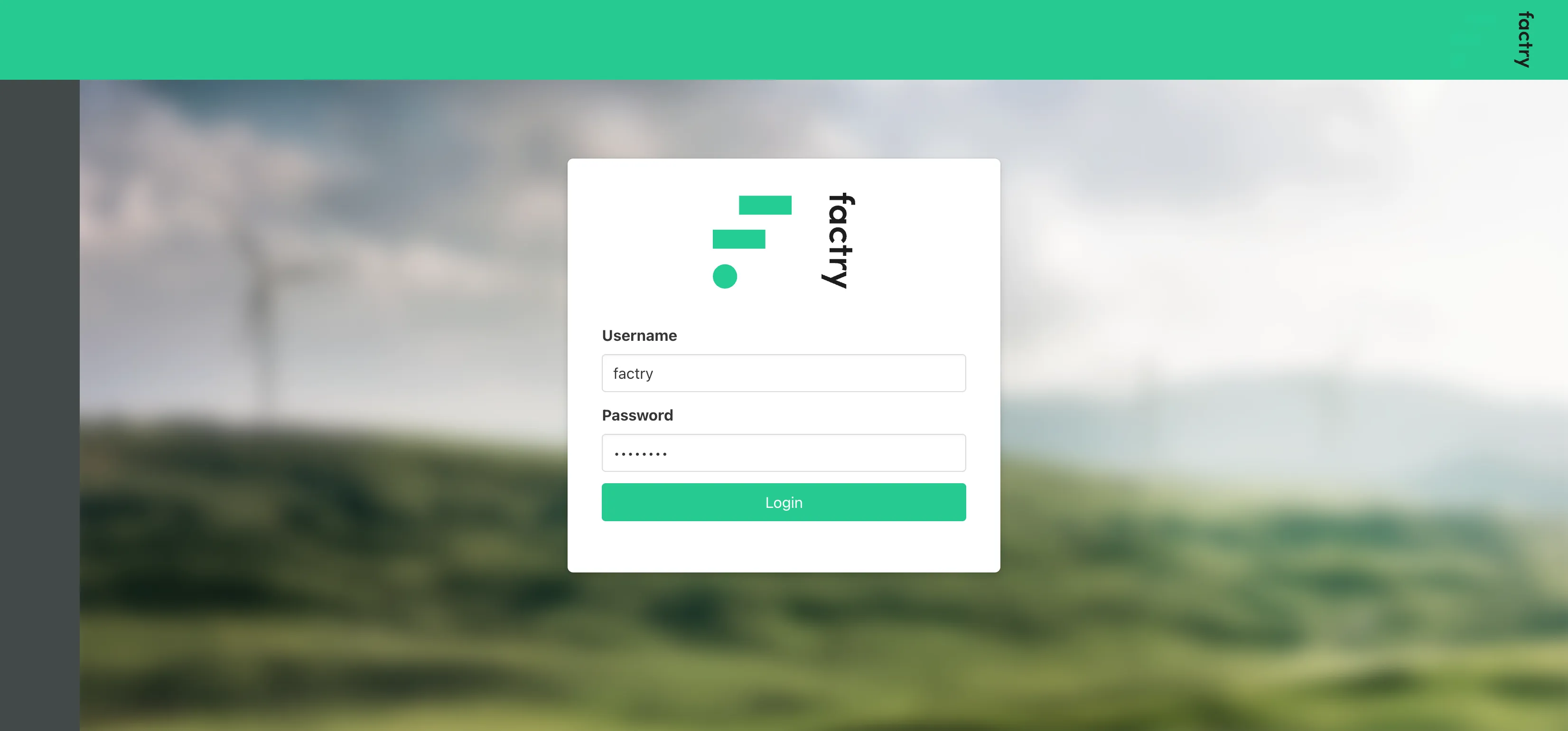
- Username: default is factry
- Password: default is password
Click Login. You will be asked to change the default password after first login.
2. Change default password
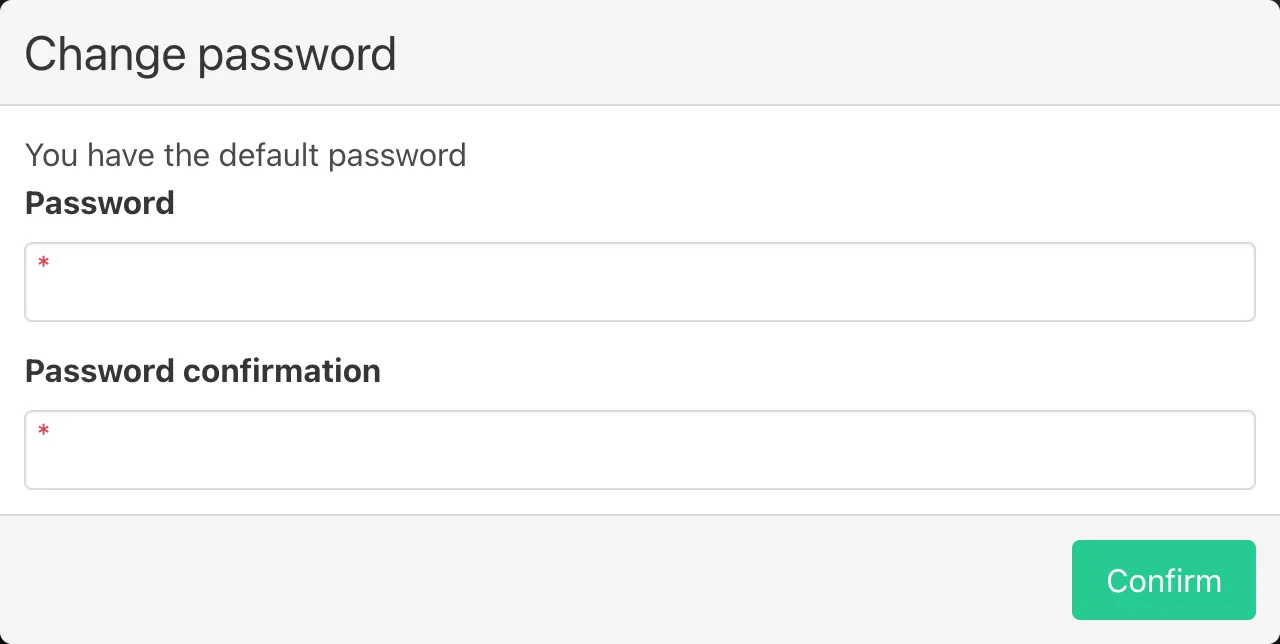
- Password: enter a new password of your choice.
- Password confirmation: re-enter the same password.
Click Confirm to continue.
3. Setup wizard - Welcome screen
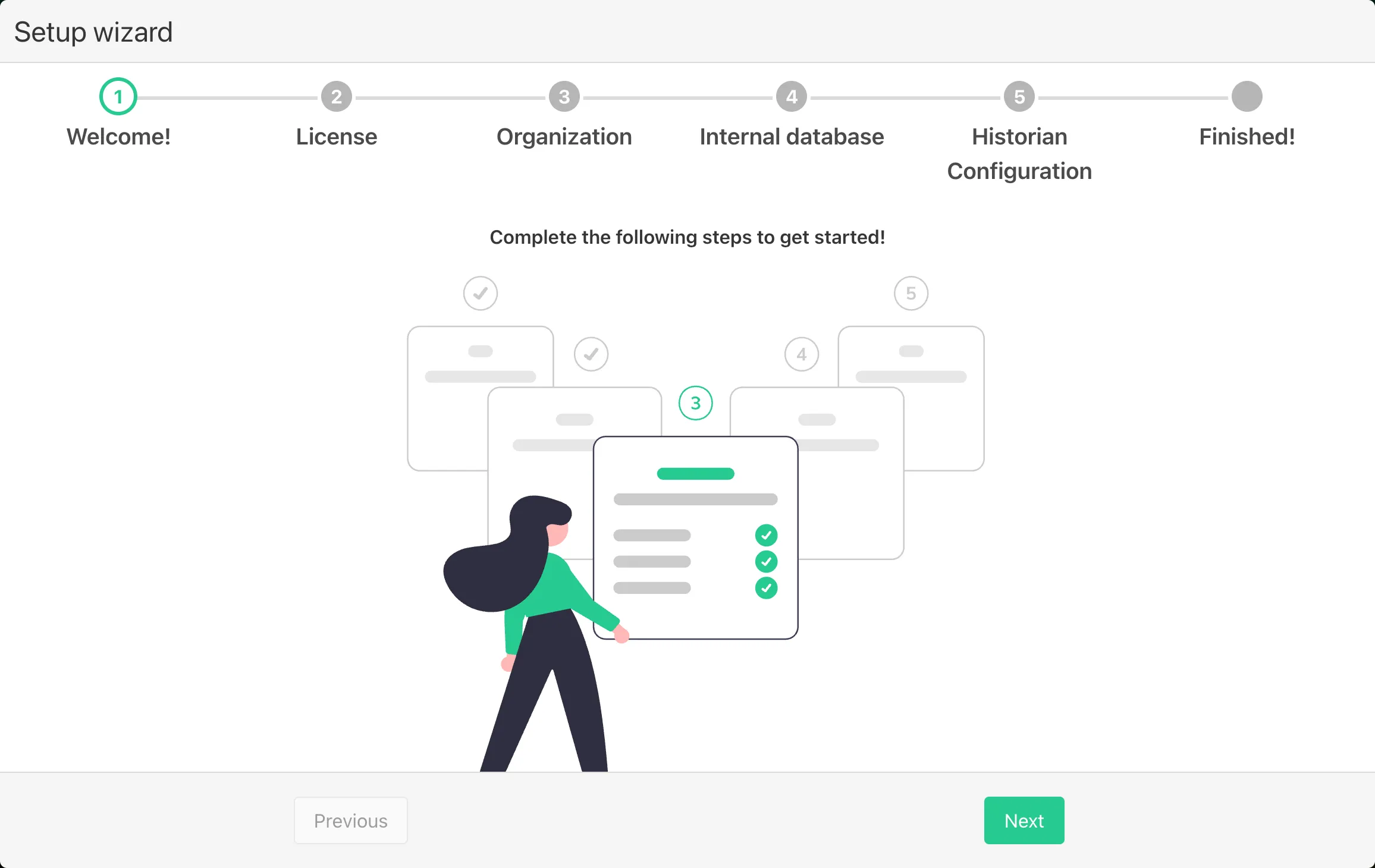
Just click Next to start the setup wizard.
4. Setup wizard - License or trial mode
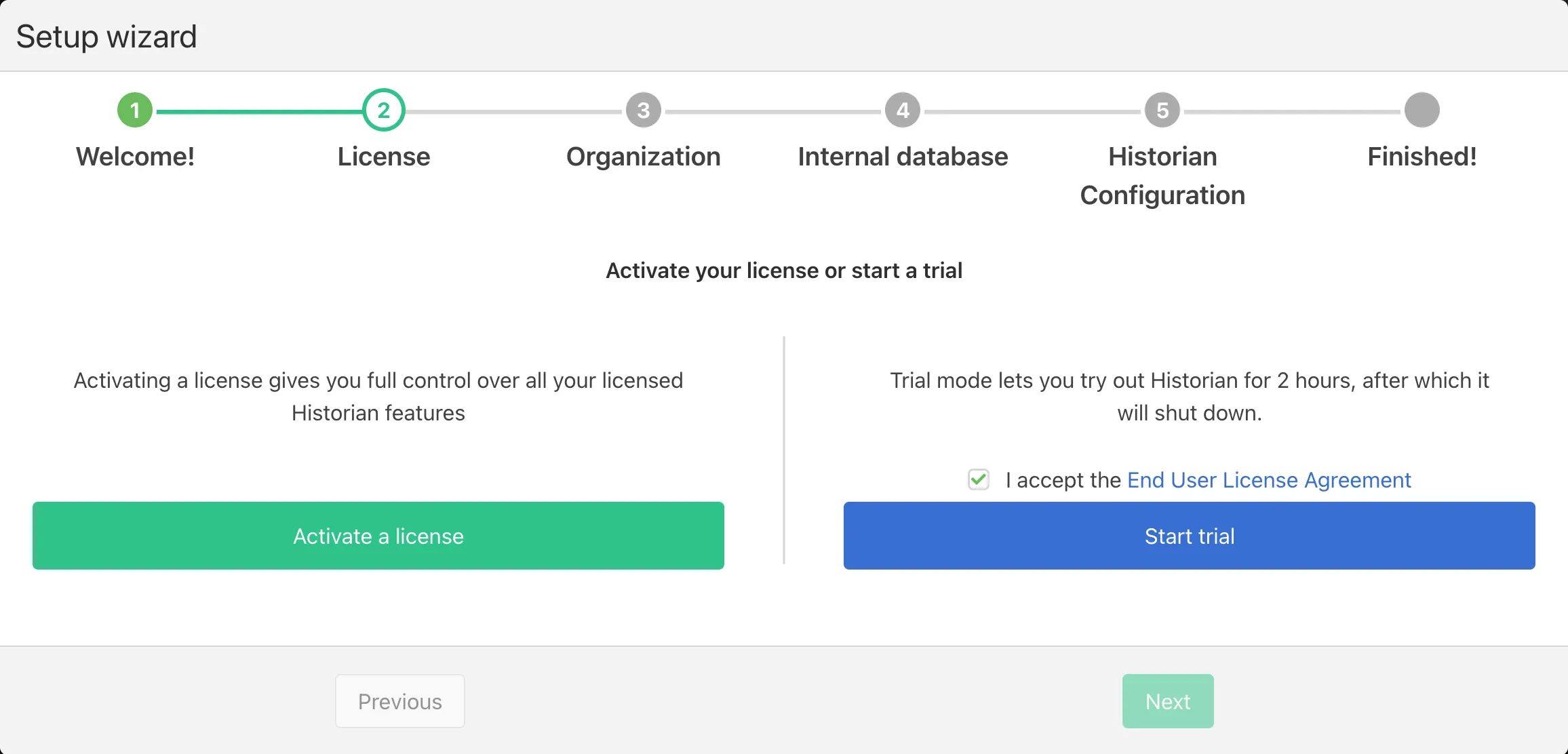
Two options:
- Activate a license: enter a valid license key. This is intended for production setups.
- Start trial mode: read and check “I accept the End User License Agreement” and click 'Start trial'.
When in trial mode, Factry Historian will shutdown every 2hFactry Historian will shutdown every 2h. All configuration is kept upon restarting the service.
5. Setup wizard - Organization
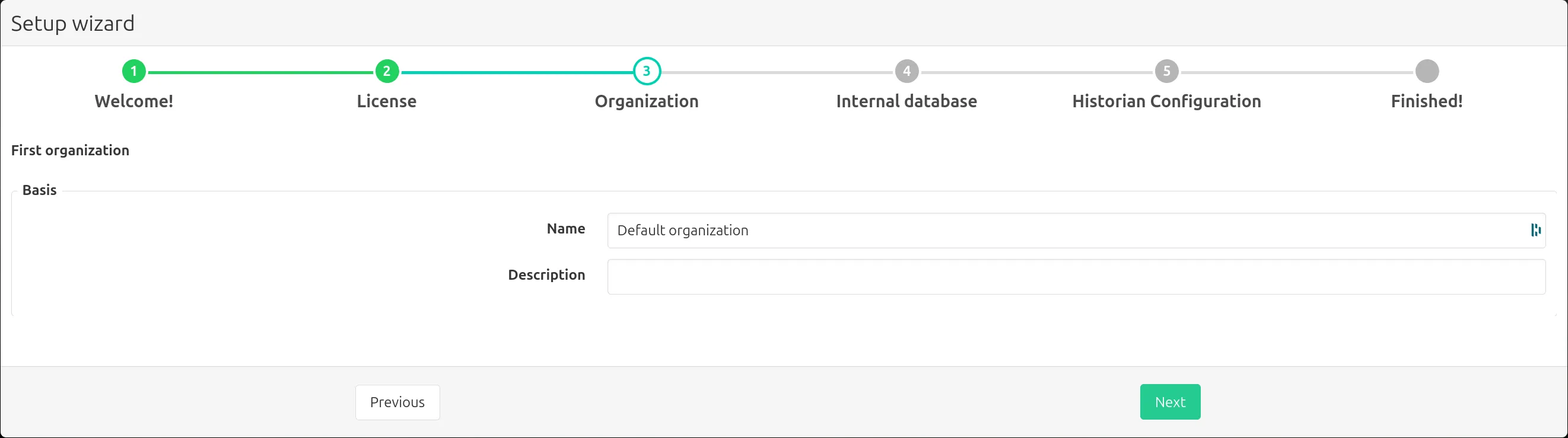
Fill in details for the first organization:
- Name: choose an organization name (e.g. Default organization).
- Description: optional description.
Click Next to continue.
6. Setup wizard - Internal database (InfluxDB)
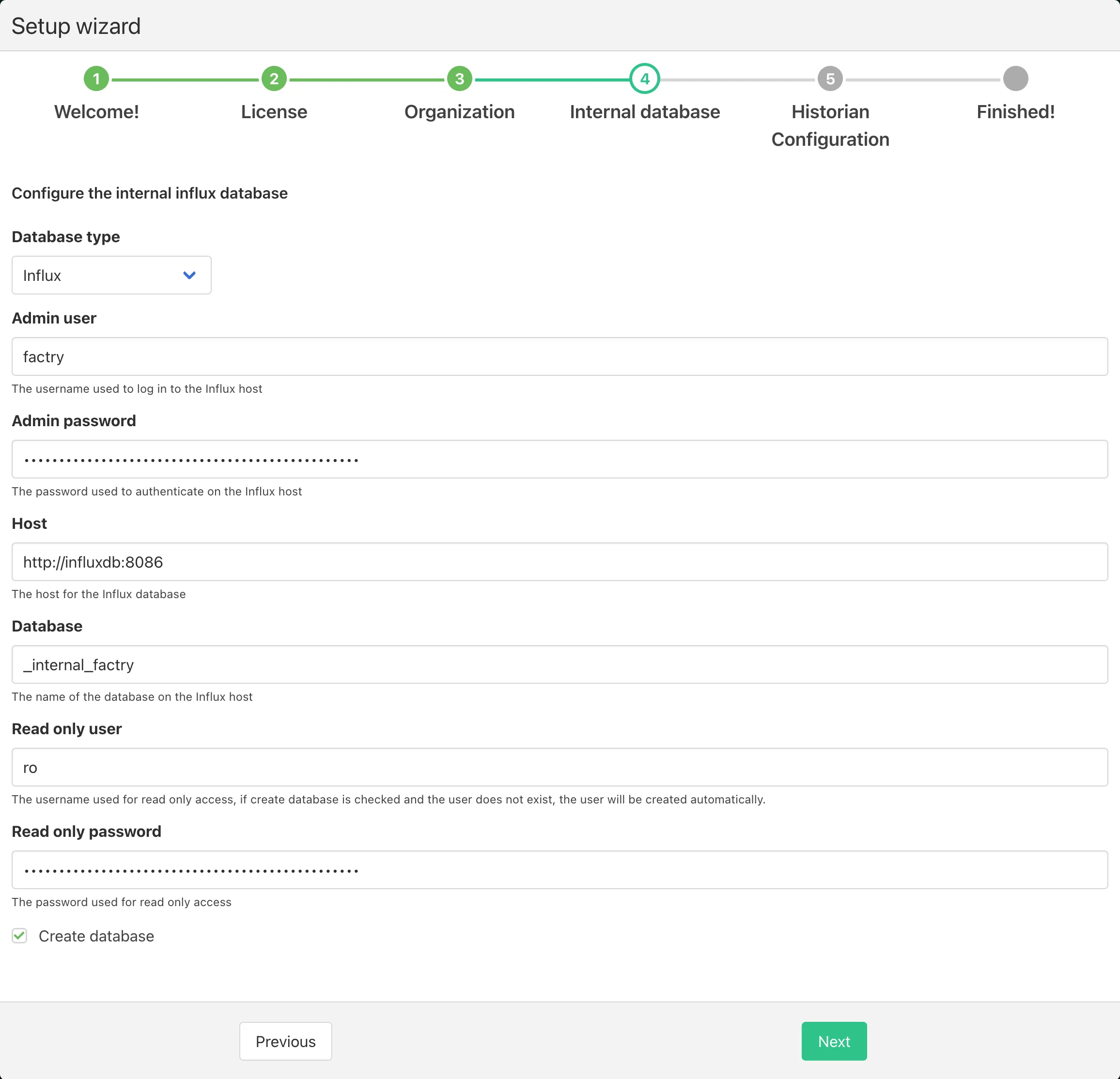
Configure the internal time-series database. This database is used to store metrics and logs about Factry Historian itself.
- Database type: select Influx.
- Admin user: enter the username for the InfluxDB admin. If you did not change it, use factry.
- Admin password: enter the password of the InfluxDB admin. If you did not change it, use password.
- Host: the host for InfluxDB, enter http://influxdb:8086.
- Database: database name (default _internal_factry).
- Read only user: choose a username for read-only access (e.g. ro). This user will be created automatically.
- Read only password: choose a password for the read-only user.
- Leave the default check Create database (recommended for a fresh setup).
Click Next to continue.
7. Setup wizard - Historian Configuration
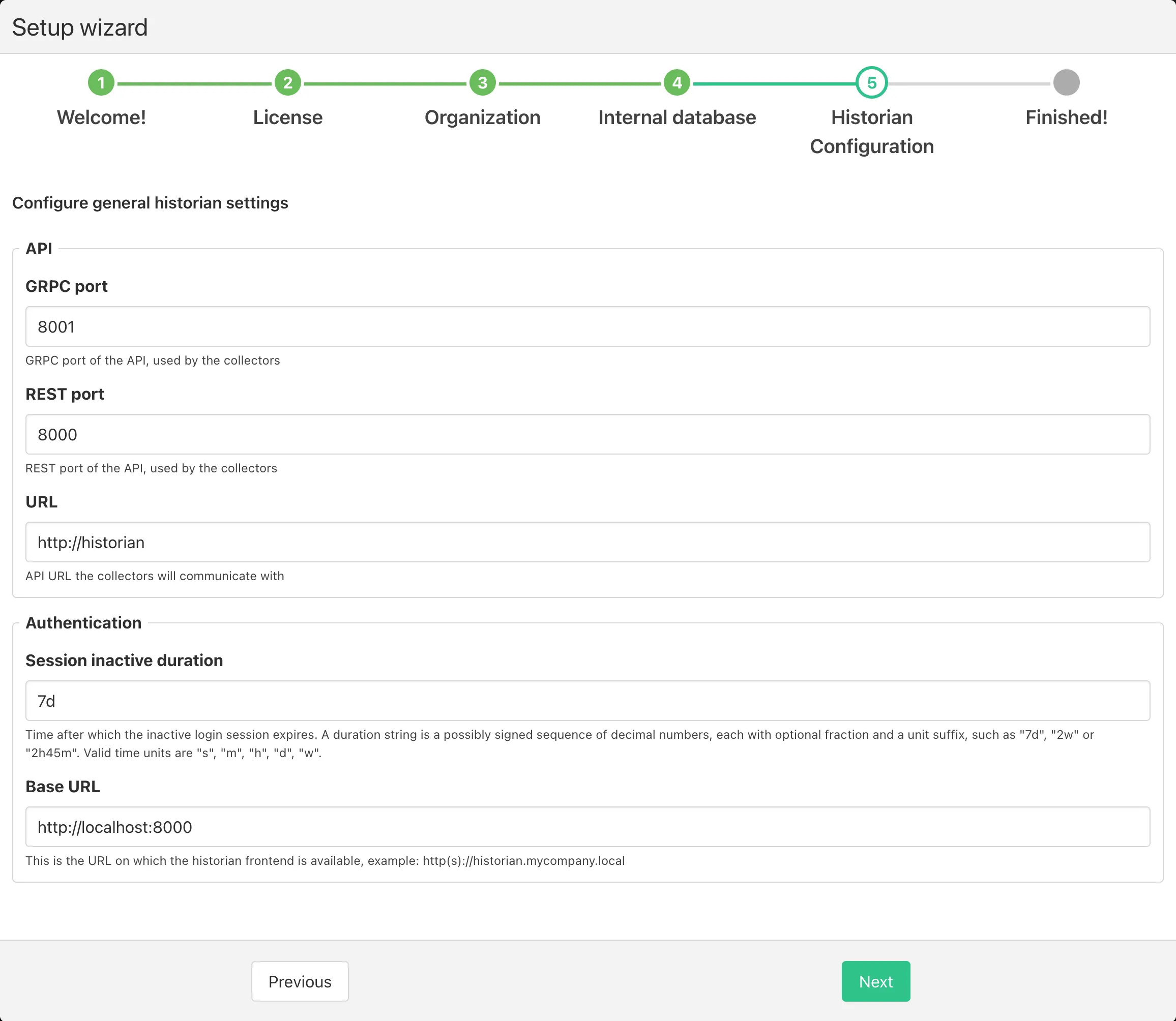
General historian settings:
- gRPC port: port used by collectors (default 8001).
- REST port: port used by collectors (default 8000).
- URL: internal API URL collectors will communicate with (enter http://historian).
- Session inactive duration: login session timeout, default 7d.
- Base URL: external URL for the Historian webpage, e.g. http://localhost:8000 (or your hostname if running the docker compose stack remotely).
Click Next to continue.
8. Setup wizard - Finished
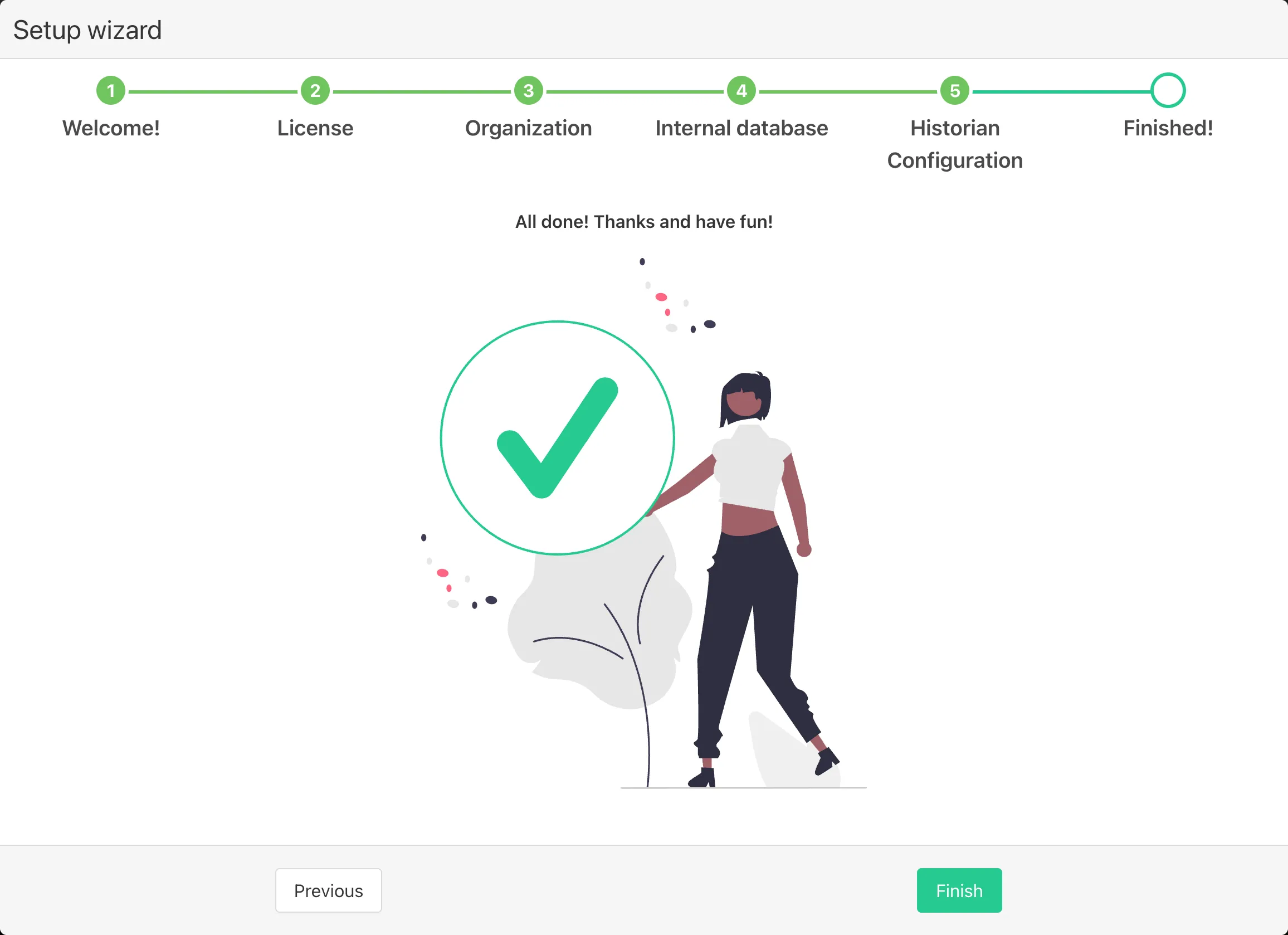
Factry Historian orders you to have fun. We agree and comply.
- Click Finish to enter the application.
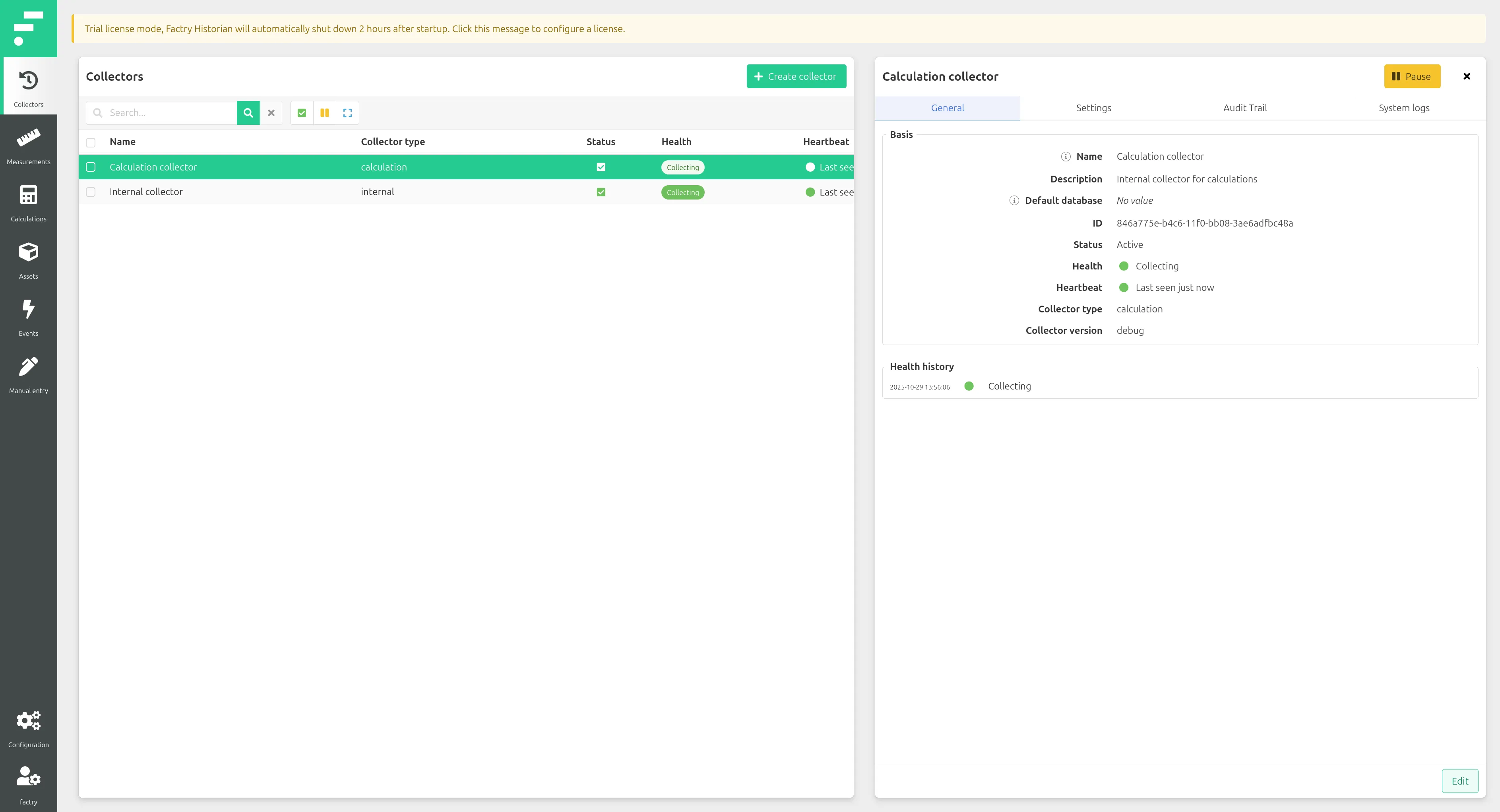
9. Collectors screen (after setup)
Creating a Time Series Database
Before you install your first collector, you need to create a time-series databasetime-series database where measurements will be stored.
1. Open the Time Series Databases page
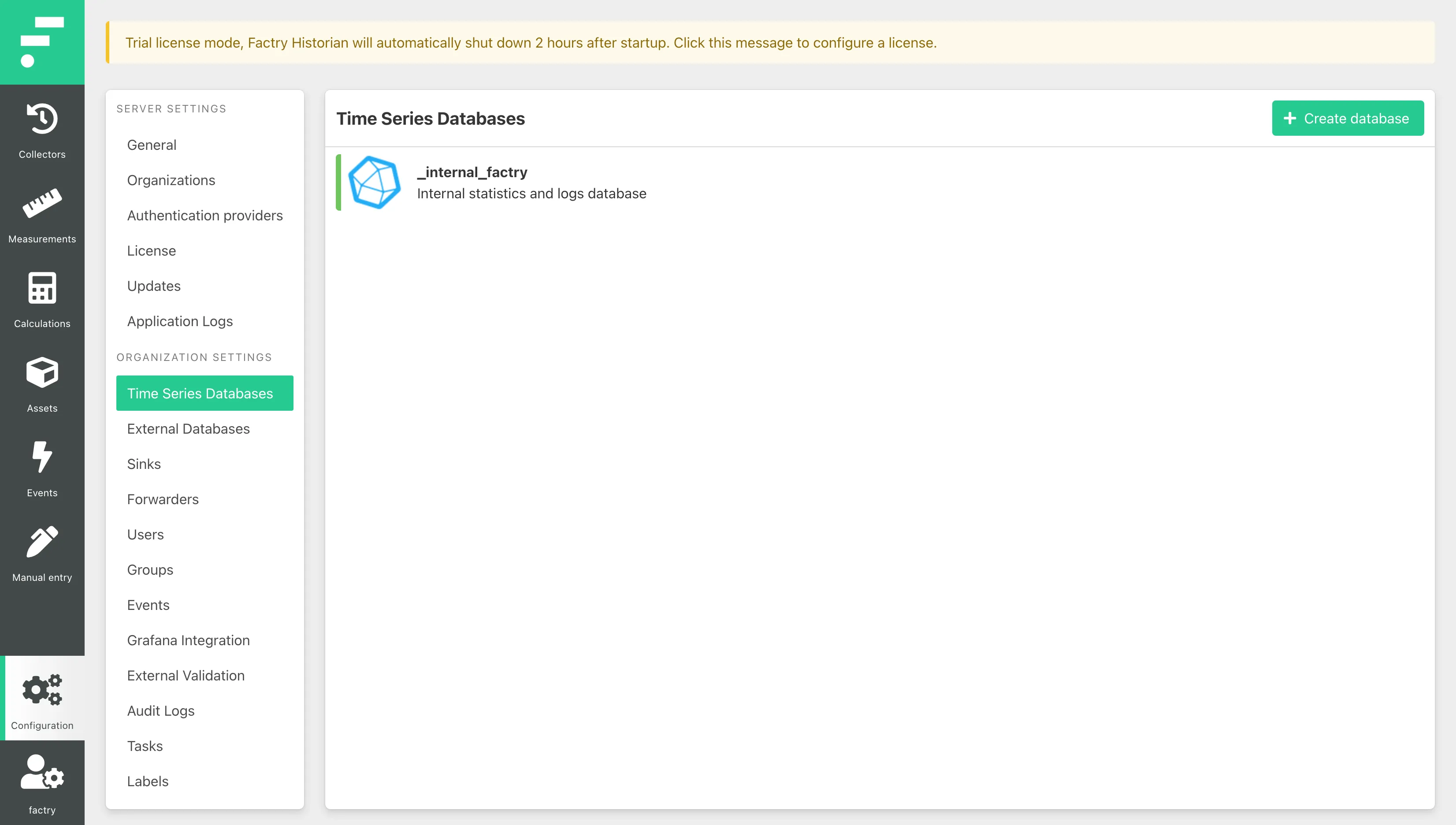
- In the Historian webpage, go to Configuration > Time Series Databases.
- You’ll see the internal system database ( _internal_factry ) already present, which stores metrics and logs about Factry Historian itself.
- Click + Create database to add a new one for your own process data.
2. Fill in the database details
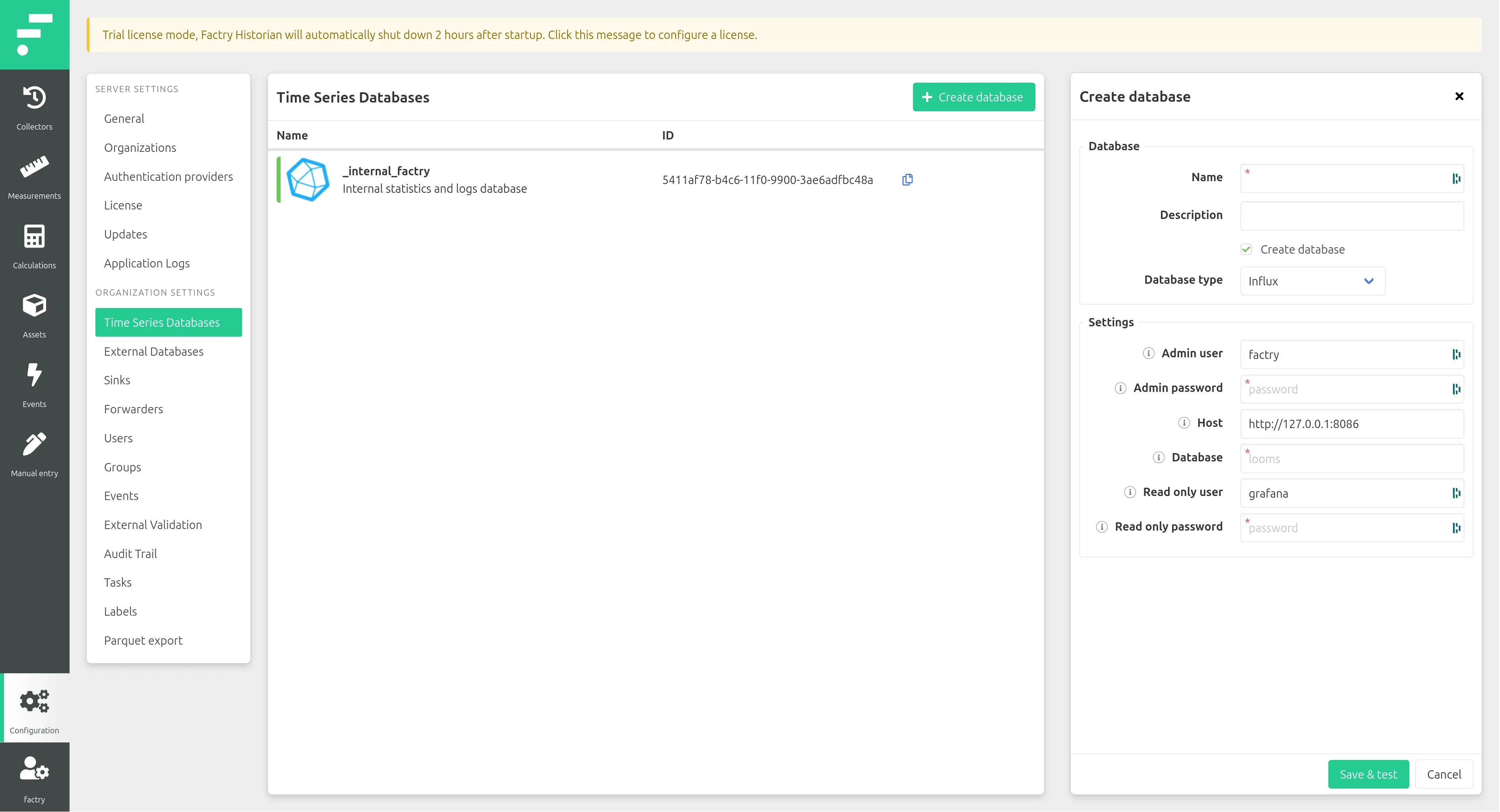
In the Create database form, provide:
- Name: enter a descriptive name (e.g. historian).
- Description: optional (e.g. stores test data from realfakedata.com)
- Database type: select Influx (default database for time-series data).
Under Settings:
- Admin user: username for the InfluxDB admin. If you did not change it, use factry.
- Admin password: password for the admin user. If you did not change it, use password.
- Host: the InfluxDB host. Use http://influxdb:8086 by default.
- Database: database name, for example historian.
- Read only user: username for Grafana access (e.g. grafana). The user will be created or foreseen with the according permissions automatically.
- Read only password: password for the read-only user.
Make sure Create database is checked so Historian will initialize it if it does not exist yet.
Do not check Create Grafana data source. That feature is deprecated in favor of the Factry Historian Datasource plugin for Grafana.
3. Save and test
Click Save & test. Historian will validate the connection and create the database.
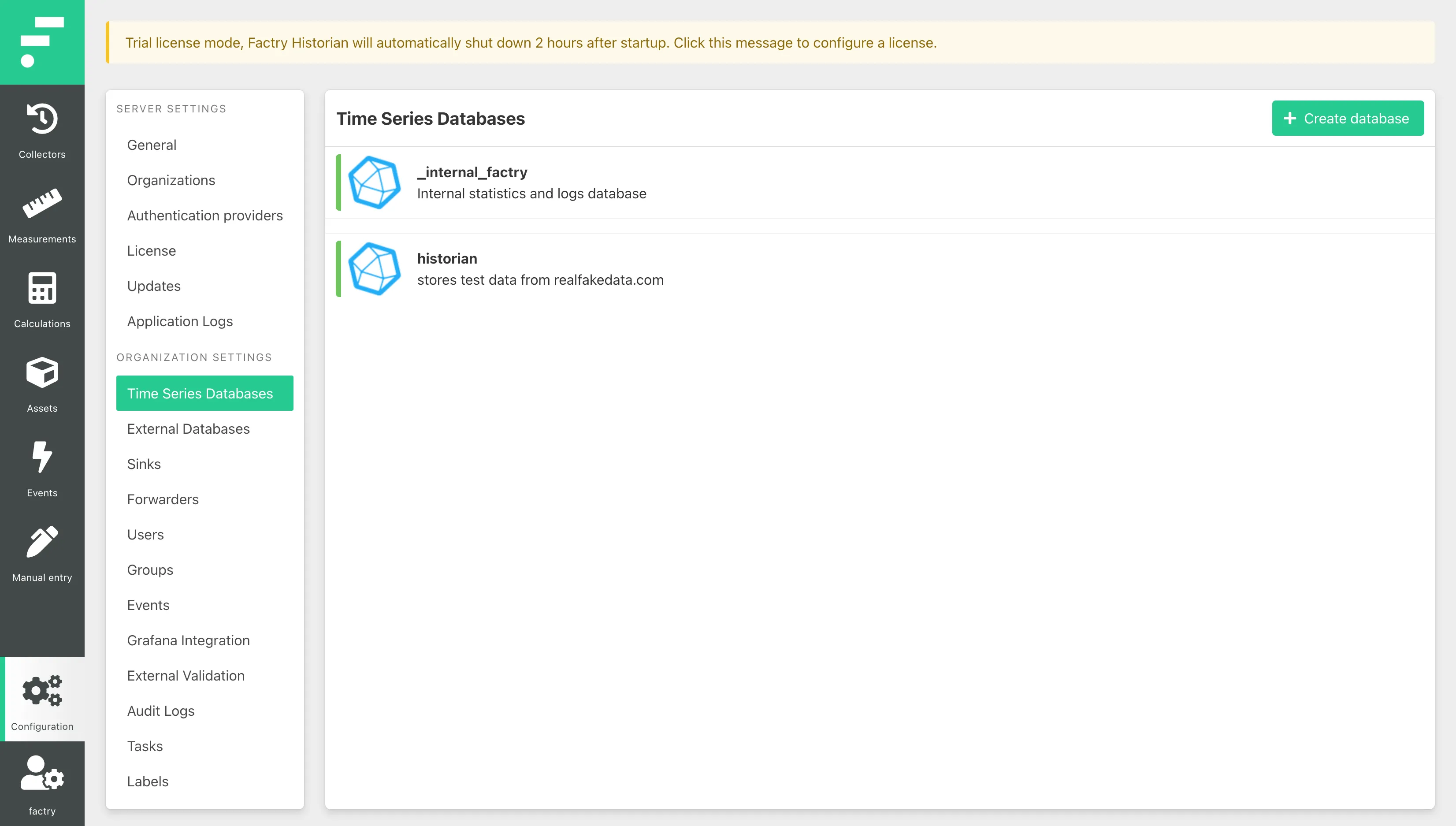
- If successful, the new database appears in the Time Series Databases list.
- If the test fails, check the InfluxDB container is running and that the host/port matches your Docker Compose setup.
Installing your first collector
CollectorsCollectors connect to external data sources (like OPC-UA servers, MQTT brokers, or SQL servers) and retrieve data points from them. In this guide, each collector runs as a separate Docker container.
You create a collector in the Factry Historian webpage to obtain a token, then run the collector container with that token.
1. Open the Collectors page
- In the Historian webpage, go to Collectors. You’ll see built-in system collectors (such as the calculation collector) already listed.
- Click + Create collector to start adding a new one.
2. Create a new collector
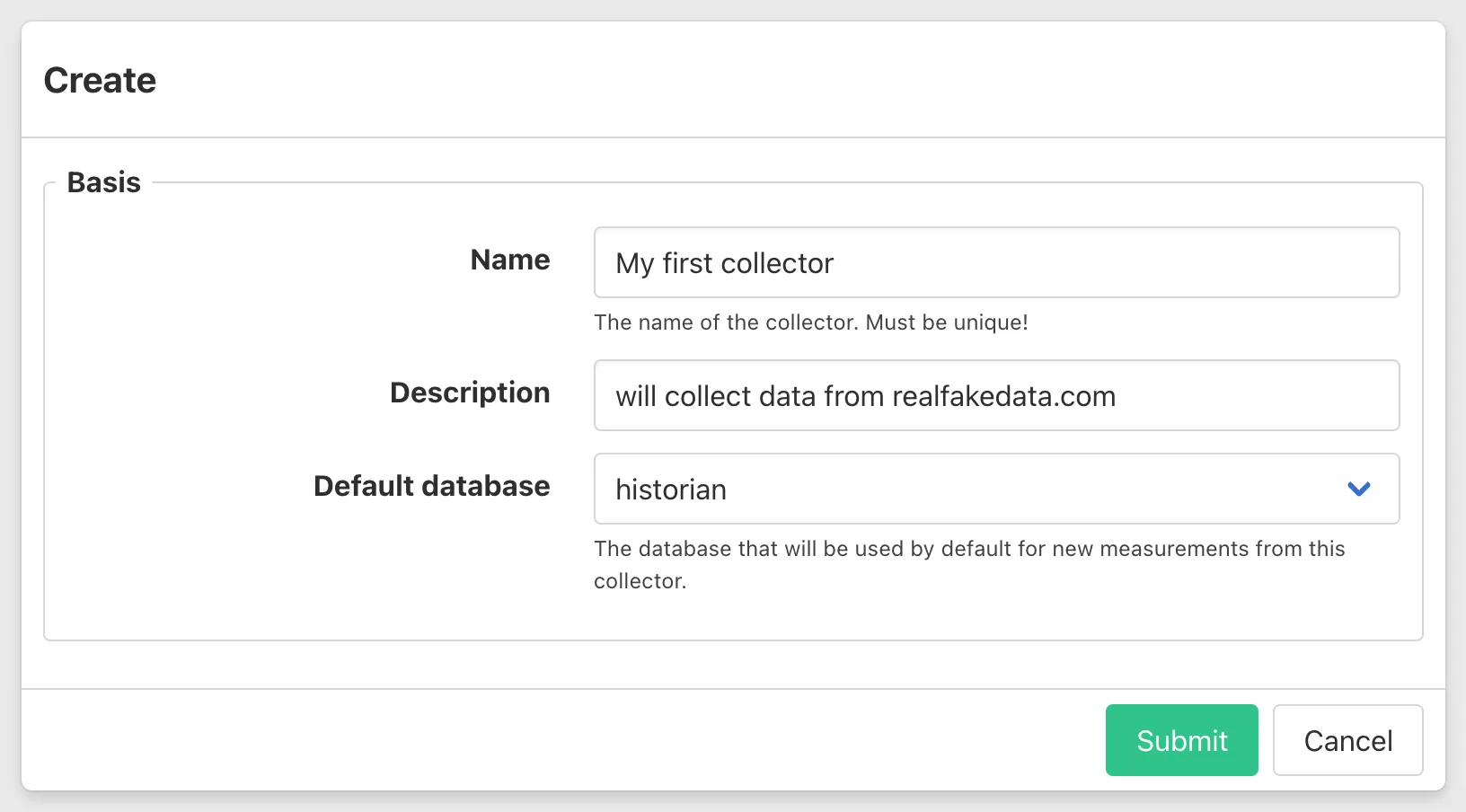
In the Create collector form:
- Name: enter a descriptive name (e.g. realfakedata)
- Description: optional (e.g. collects data from realfakedata.com)
- Default database: select the time-series database you just created (e.g. historian).
- Click Submit.
You will return to the collector overview page. The collector will appear in the list in an Initial state until its container is running with the correct token.
3. Generate a token
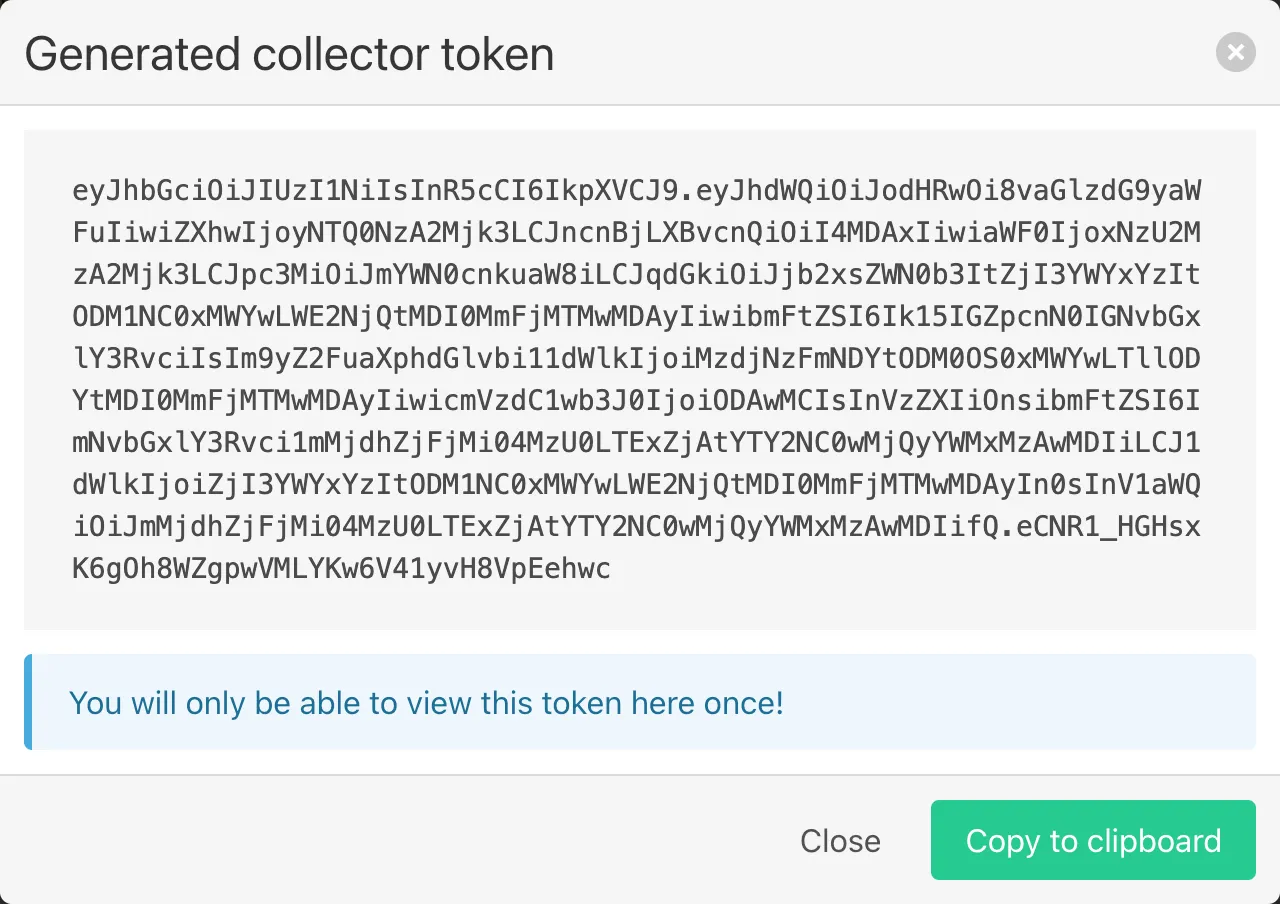
- Back on the Collector overview page, select your newly created collector and click Generate token.
- Copy the generated token somewhere safe by either selecting and copying, or by clicking Copy to clipboard. You’ll use it to start the collector container.
- The collector will appear in the list in an Initial state until its container is running with the correct token.
4. Run the collector container
Collecting data from realfakedata.com
In your CLI, run the collector Docker image with the token and mqtt-sparkplugb product type:
docker run -d --restart unless-stopped --name factry-collector-realfakedata --network=historian_default -e PRODUCT=mqtt-sparkplugb -e API_TOKEN=<PASTE_YOUR_TOKEN_HERE> ghcr.io/factrylabs/collector:latest- Optionally, give the collector a unique name (e.g. --name factry-collector-realfakedata)
Replace <PASTE_TOKEN_HERE> with the token from the previous step.
For the remainder of this quickstart guide though, we will configure the Sparkplug B MQTT collector in favor of other collector types.
Other data sources
Instead of mqtt-sparkplugb, you could also use any of the following supported protocols.
- opc-ua (for OPC-UA data sources)
- opc-da (for OPC-DA data sources, can only run on a Windows host)
- modbus (for Modbus TCP data sources)
- mqtt-sparkplugb (for MQTT data sources with SparkplugB messages)
- mqtt-generic (for MQTT data sources with JSON messages)
- sql (for SQL data sources)
- rest-api-json (for REST API sources with JSON payload)
For example:
OPC-UA collector
docker run -d --restart unless-stopped --name factry-collector --network=historian_default -e PRODUCT=opc-ua -e API_TOKEN=<PASTE_YOUR_TOKEN_HERE> ghcr.io/factrylabs/collector:latestREST API collector (JSON payload, from preview channel)
docker run -d --restart unless-stopped --name factry-collector --network=historian_default -e PRODUCT=rest-api-json -e RELEASE_CHANNEL=preview -e API_TOKEN=<PASTE_YOUR_TOKEN_HERE> ghcr.io/factrylabs/collector:latestModbus TCP collector
docker run -d --restart unless-stopped --name factry-collector --network=historian_default -e PRODUCT=modbus -e API_TOKEN=<PASTE_YOUR_TOKEN_HERE> ghcr.io/factrylabs/collector:latest5. Verify the collector is online
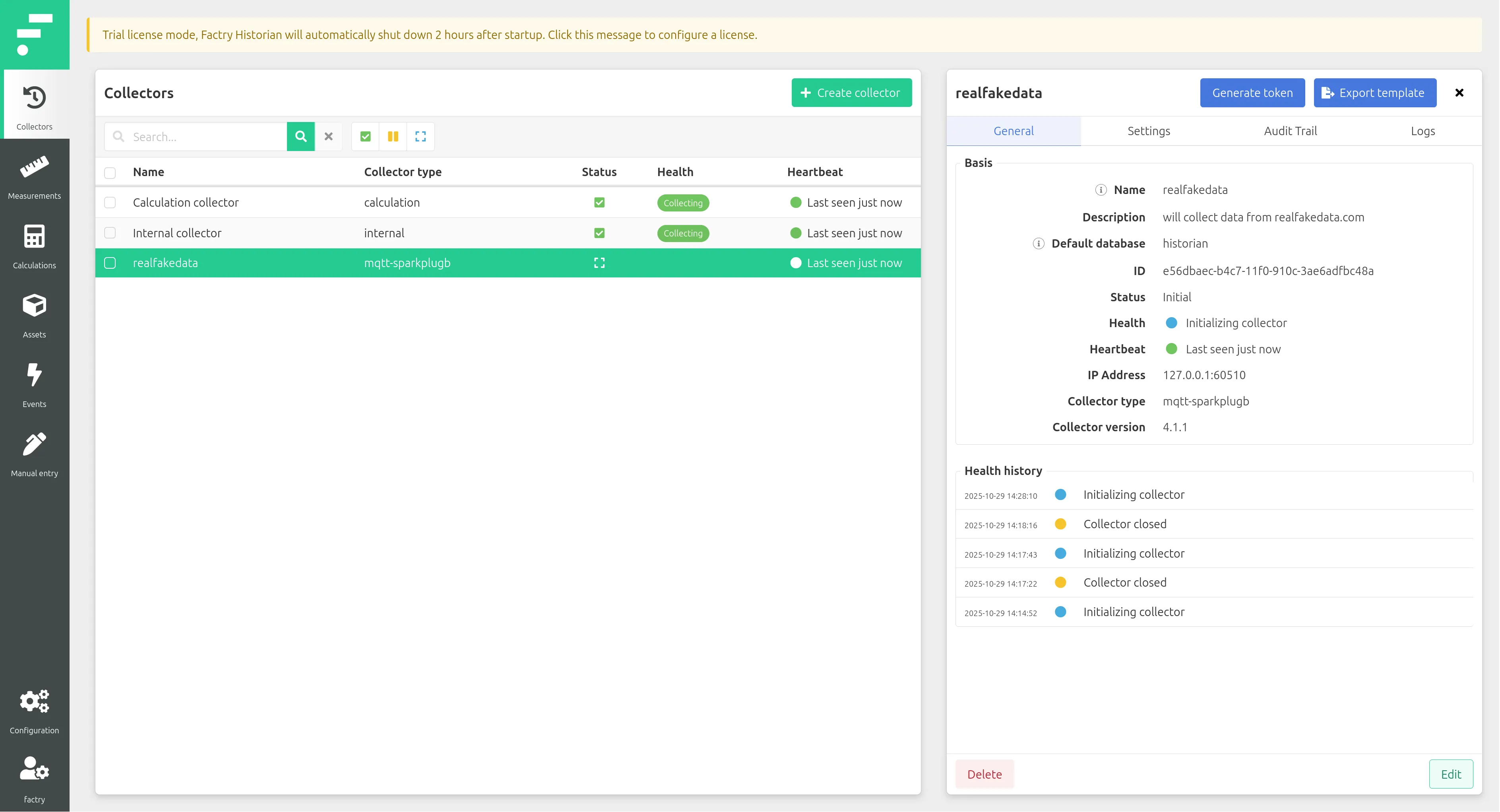
- The new collector should now show as Initializing collector. When you select it, its Heartbeat should be green with status "Last seen just now".
- If it remains offline, check the logs:
docker logs -f factry-collector-realfakedata6. Configure the collector
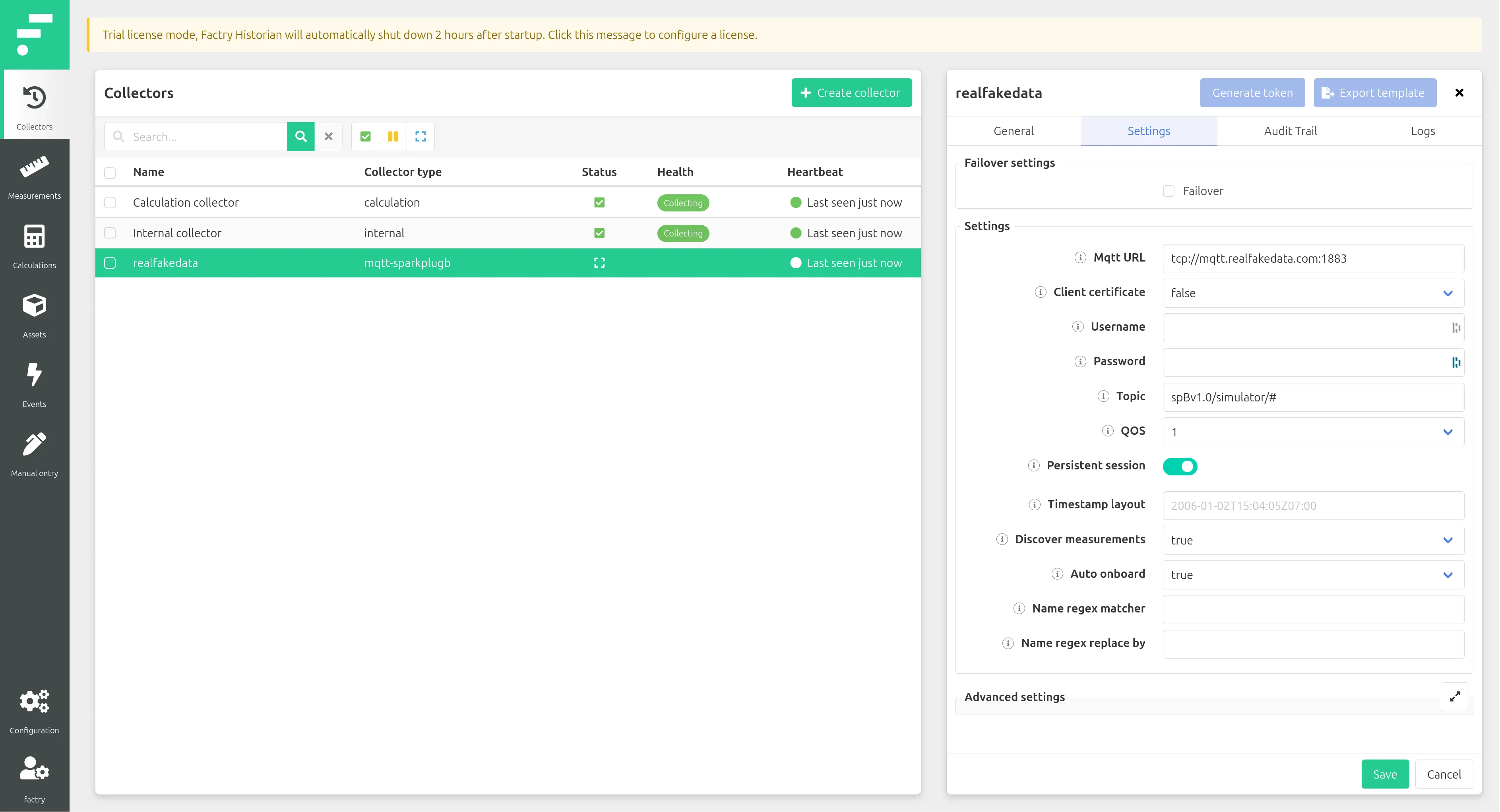
With the collector selected, click Edit. Complete the collector-specific settings for Sparkplug B data from realfakedata.com:
- Failover: off
- MqttURL: tcp://mqtt.realfakedata.com:1883
- ClientCertificate: false
- Username: empty
- Password: empty
- Topic: spBv1.0/simulator/#
- QOS: 1
- PersistentSession: on
- TimestampLayout: empty
- DiscoverMeasurements: true
- AutoOnboard: true
Click Save. Now, with the collector selected in the Collector overview page, click Start.

After a couple of seconds, the collector health should turn green with the status Collecting.
Note that when stopping the collector, the data collection stops. When resuming the collector, the data collection starts again and any missed data points are stored (the data points were buffered in the MQTT broker). This is not according to the MQTT SparkpluB specification but given specific settings configured on the MQTT broker and the MQTT publishing client under the hood of realfakedata.com.
Verify auto-onboarding of Measurements
Because you configured the Sparkplug B collector with autodiscovery and auto-onboarding turned on, Factry Historian will automatically detect new measurements on the MQTT broker and onboard them with the original names.
1. Open the Measurements page
- In the Historian webpage, go to Measurements. You’ll see a list of measurements already listed.
- Select a measurement to review its settings.
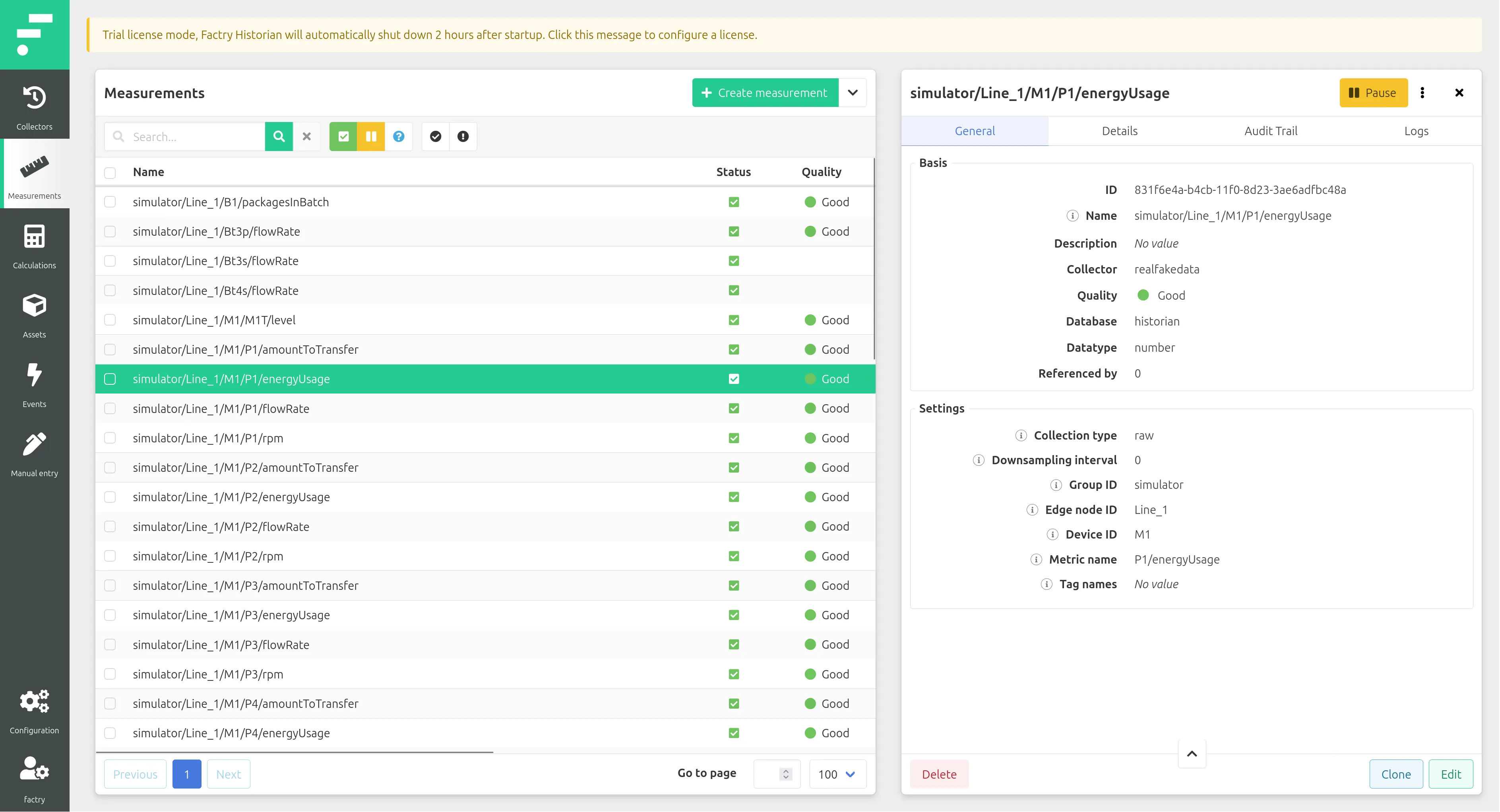
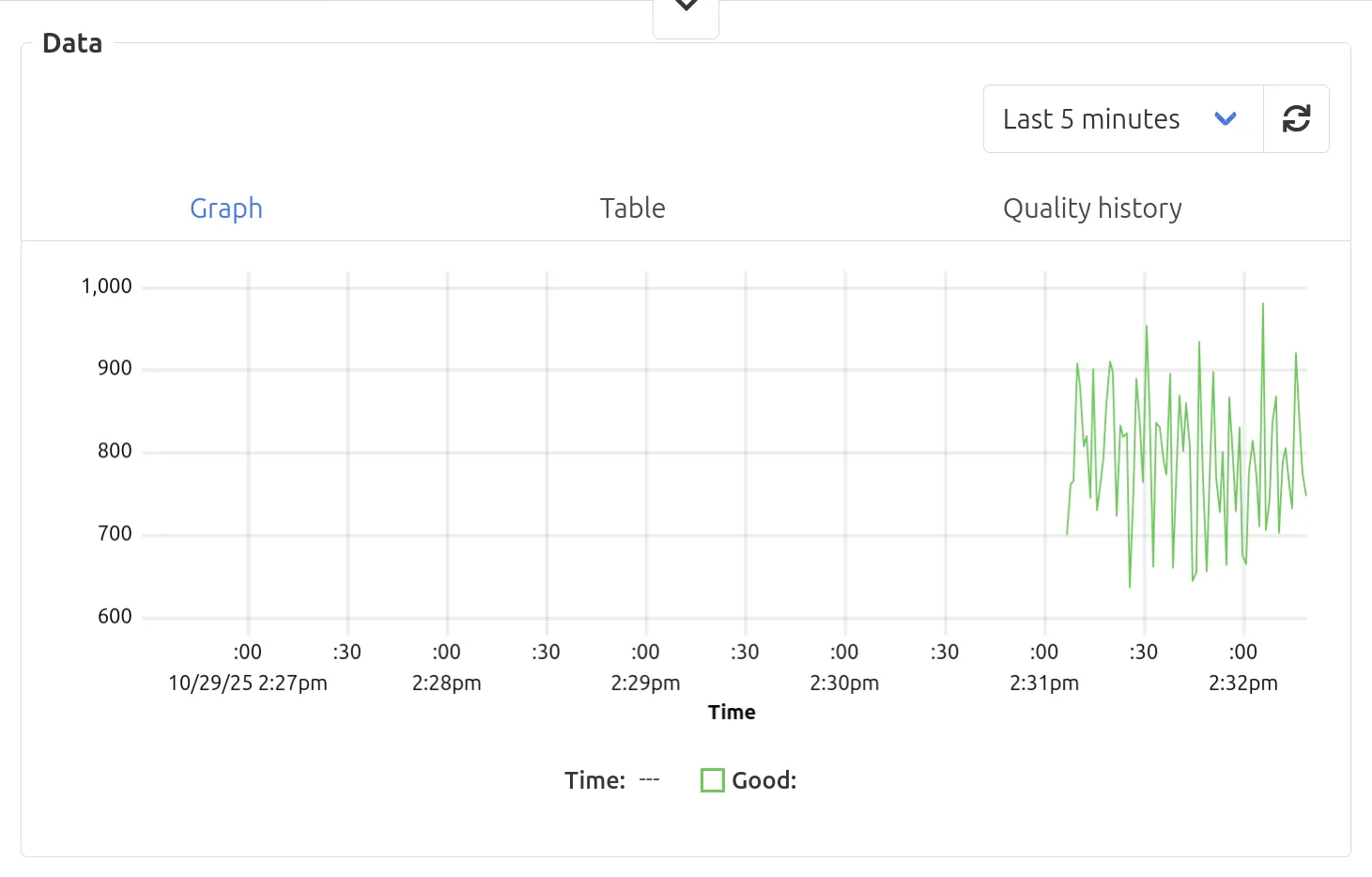
- Scroll down to see a preview of the data coming in. After a few minutes of data collection, the Data preview should look similar to this.
Configuring the Factry Historian Datasource plugin for Grafana
Grafana OSS is included in the Docker Compose setup and provides dashboards and visualizations for your Historian data. To connect it to Factry Historian, you need to configure the Factry Historian datasource plugin.
1. Log in to Grafana
- Open http://localhost:3000 in your browser.
- Log in with the Grafana admin credentials you defined in the setup (default is admin / admin if you didn’t override them).
- If prompted, change the default password.
2. Configure the datasource
In Grafana, go to Connections > Data sources > Add Data source and select Factry Historian Datasource from the list. Fill in the required fields:
- Name: choose a recognizable name, e.g. Factry Historian.
- URL: http://historian:8000.
- Token:
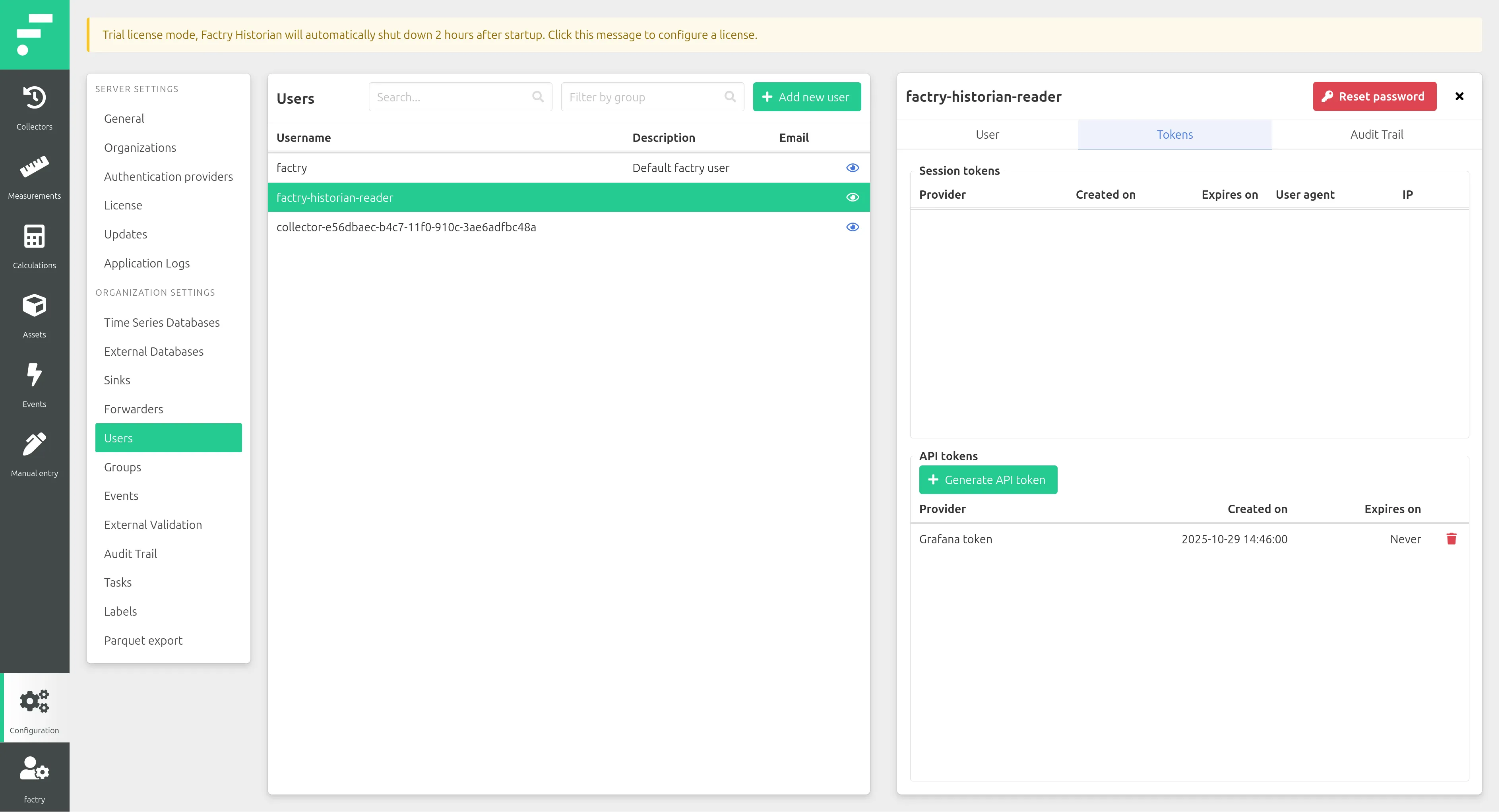
- Go to the Historian web app Configuration > Users.
- Select the factry-historian-reader user.
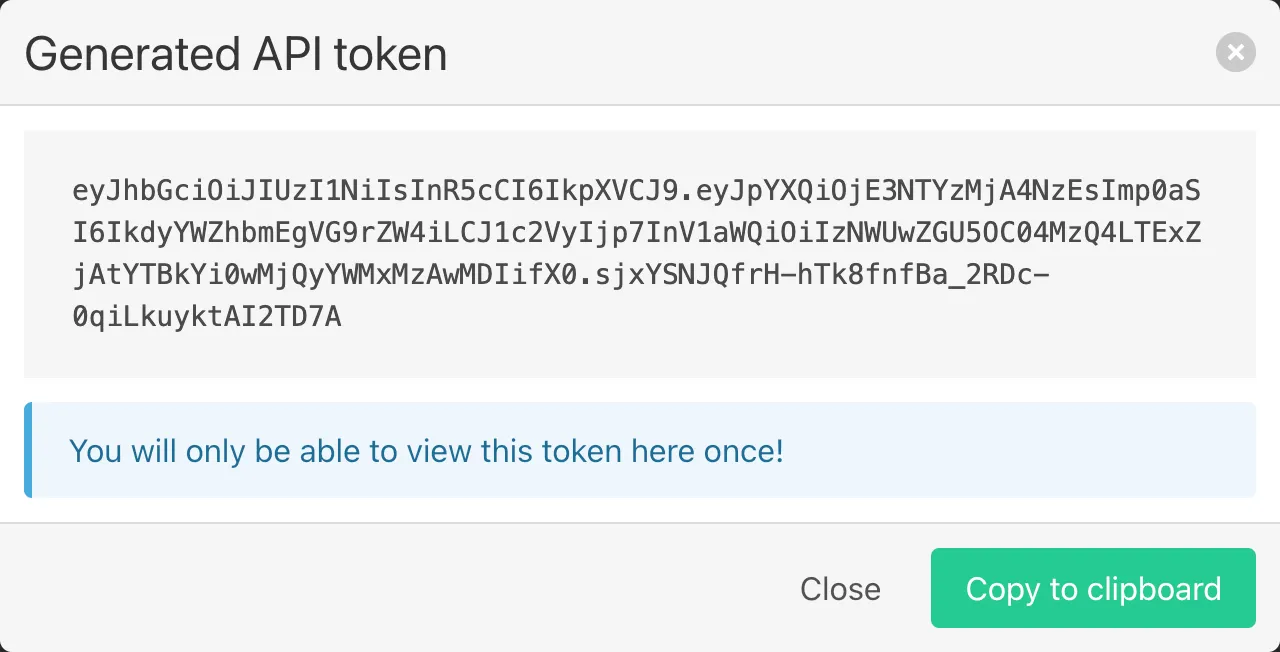
- Navigate to the 'Tokens' tab and click + Generate API token.
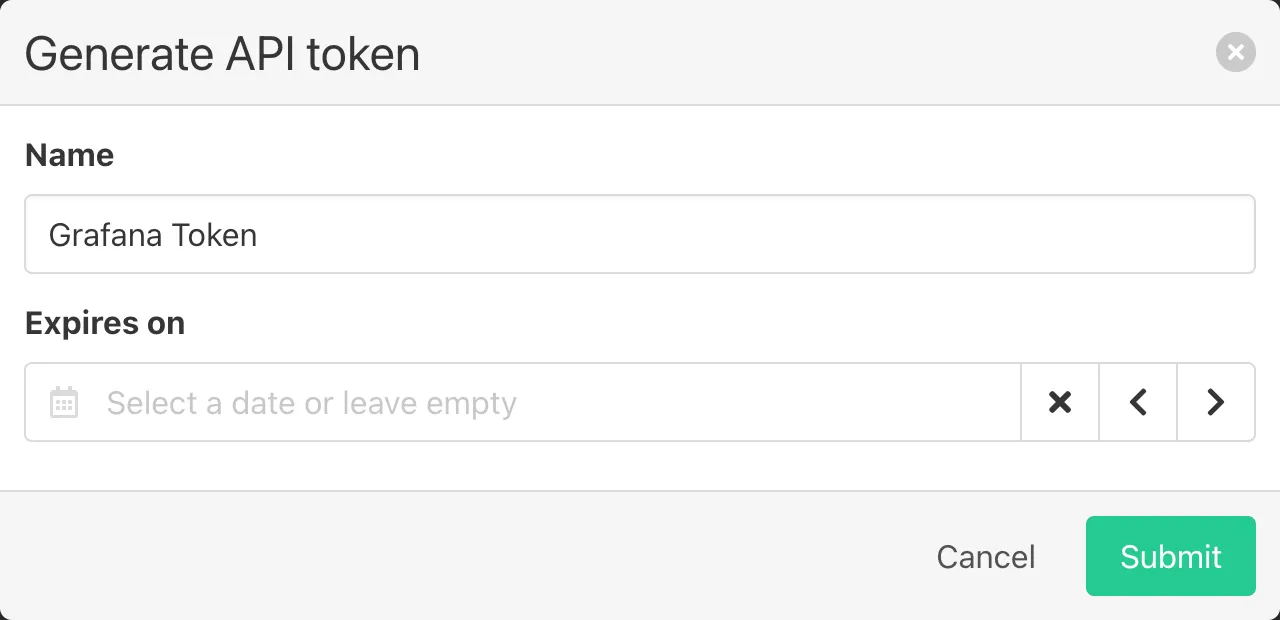
- Give the token a Name and an optional expiry date. Then click Submit.
- Copy the generated token somewhere safe by either selecting and copying, or by clicking Copy to clipboard.
- Paste the token in the Token field in Grafana.
- Organization:
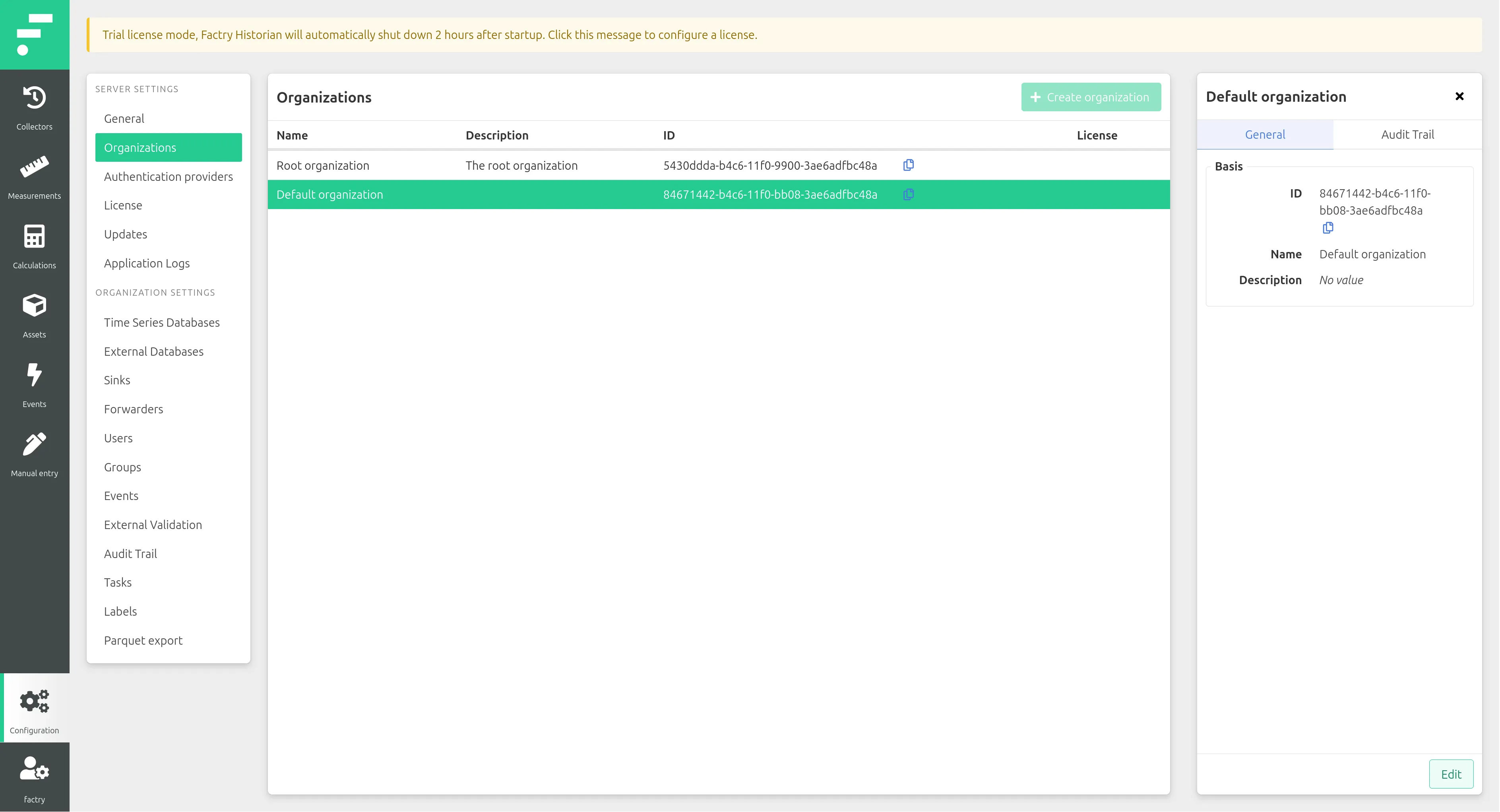
- Go to the Historian webpage Configuration > Organizations.
- Select the Default organization (unless you defined another name during the Onboarding Wizard), and copy the UUID using the double file icon on the far right.
- Paste the Organization UUID in the Organization field in Grafana.
- Select Measurements as the Default tab.
4. Save & test
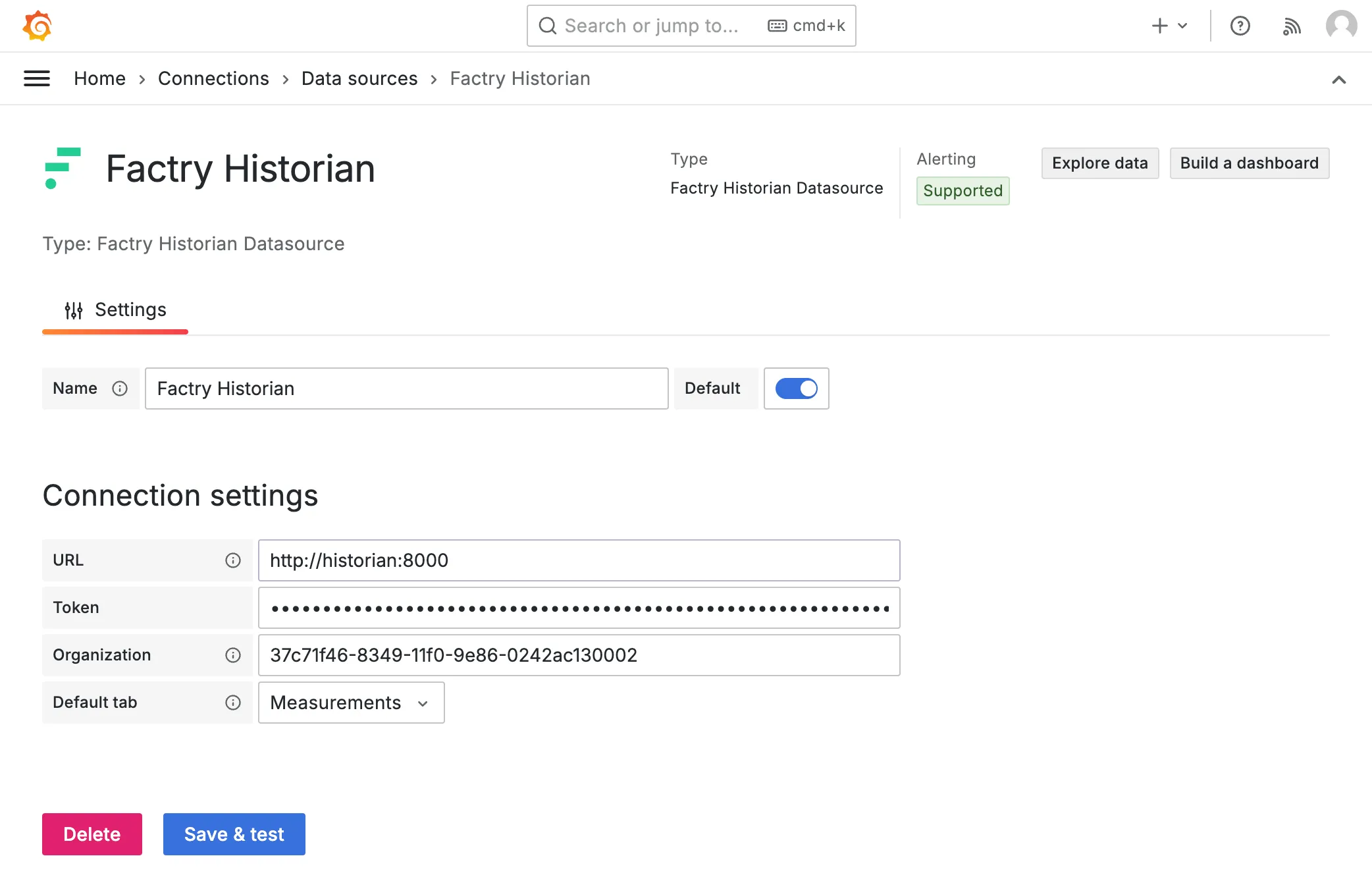
- Click Save & test.
- Grafana should confirm a successful connection.
If Grafana gives a 403 Forbidden error, restart the Factry Historian docker container with docker compose restart historian, and click Save & test again. Go to the Historian webpage to confirrm the Onboarding Wizard.
Visualizing data in Grafana
Once the Factry Historian Datasource is configured, you can begin exploring your data in Grafana:
If Grafana gives a 412 Error: Endpoint not available until setup wizard is completed, go the Historian webpage to confirrm the Onboarding Wizard.
- Go to Explore in Grafana.
- Select your Factry Historian datasource.
- In the Measurements tab, select the database you created in the Creating a time-series database step.
- Choose a measurement (for example, simulator/Line_1/Bt1s/flowRate).
- Run the query and confirm that data points appear in the time-series graph.
To build a dashboard:
- Go to Dashboards > Create Dashboard.
- Add a new panel with Add Visualization.
- Select the Historian datasource and configure your query.
- Adjust visualization options (time series, gauge, table, …).
- Save the dashboard.
This gives you a real-time view of the signals collected by Factry Historian.
More information
You now have a running Factry Historian environment, with data flowing in from your first collector and visualizations available in Grafana. From here, you can expand your evaluation and explore more advanced capabilities.
Organize your data
- Define AssetsAssets and link measurements to equipment in your plant.
- Use EventsEvents to capture production states, downtime, or process changes.
- Apply CalculationsCalculations for derived values or KPIs.
Add more collectors
- Connect to different protocols such as OPC-UA, MQTT, Modbus, or SQL.
- Run multiple collectors in parallel to cover various data sources.
- Fine-tune collector configuration for performance and reliability.
Extend dashboards
- Build Grafana dashboards tailored to your use case.
- Set up alerts based on thresholds or conditions.
- Explore dashboard variables and annotations
Explore the API
- Use the REST APIREST API to query raw measurement data, events, and asset information.
- Integrate Historian data into external applications or analysis pipelines.
Move towards production
- Try the Advanced Setup for more control over credentials, ports, and volumes.
- Explore deployment on dedicated infrastructure (Linux VM).
- Contact Factry for licenses, support, or migration assistance from legacy historians.
Stopping and Removing the Setup
When you are done testing Factry Historian, you can stop the containers and optionally remove all related resources.
1. Stop the containers
From the project directory, run:
docker compose downThis stops all Historian, database, and Grafana containers while keeping the volumes and networks intact. Your data will still be available the next time you start the stack.
2. Remove containers, networks, and volumes
If you want to completely reset the environment, add the --volumes flag:
docker compose down --volumesThis will also delete all PostgreSQL and InfluxDB data stored in Docker volumes, so you’ll start fresh next time.
If you want to preserve test data (e.g. to continue your evaluation later), run docker compose downwithout --volumes. This way, data remains available when you restart the stack with docker compose up -d.
3. Remove unused images (optional)
To free up disk space, remove the Docker images as well:
docker image prune -aThis deletes all images that are not used by running containers.
4. Verify cleanup
Run:
docker ps -a
docker volume ls
docker network ls
These commands let you check if any containers, volumes, or networks from the Historian setup remain.