Configuring Kepware for OPC-UA
Creating a read-only OPC-UA user
Kepware uses user groups to control OPC-UA access rights.
- Open User Manager:
- Right-click on the Kepware system tray icon → Settings → User Manager
- Create a user group (e.g., OPCUA_readers) and assign the following minimum privileges:
- Allow access to tags
- Allow read
- Deny all write or config permissions
- Add a user (e.g., factry-collector) to this group.
- Optionally, allow anonymous access:
- Open Project Properties → Allow Anonymous Login → Set to Yes
- Perform a runtime reinitialization (explained later).
Enabling anonymous login lets any client connect without the read-only user restrictions configured above. Only use this on a trusted, isolated network.
Enable the OPC-UA server endpoint
- Open the OPC-UA Configuration:
- Right-click the Kepware tray icon → OPC-UA Configuration
- Verify or edit the endpoints:
- For local installations, use:opc.tcp://127.0.0.1:49320
- For remote installations, replace 127.0.0.1 with the server IP address or hostname.
- Set allowed security policies and modes:
- Each endpoint can allow multiple policies and security modes:
- None: No encryption or signing, insecure but easy to configure
- Sign: Messages are signed for integrity
- Sign & Encrypt: Messages are signed and encrypted for full confidentiality
- Policies include:
- Basic256Sha256 (recommended for secure connections)
- Basic128Rsa15, None, and others (for legacy compatibility)
- Match these security settings with the client or collector you're connecting to.
- If Sign or Sign & Encrypt are used, you will need to manually trust the collector’s certificate:
- Go to Trusted Clients in the OPC-UA Configuration tool
- Accept the certificate after the first connection attempt
OPC-UA Project Settings
- Open Project Properties → OPC tab.
- Recommended settings:
- Return Data ASAP: Enabled
- Shutdown Wait Period: Default or as per system requirement
- Synchronous Request Timeout: Time Kepware waits before failing a read request
- OPC Diagnostics: Enable this for easier debugging
Reinitialize Kepware Runtime
Many configuration changes (e.g., users, security, namespaces) require reinitialization.
- Right-click the Kepware tray icon → Reinitialize
- Wait a few seconds for the runtime to restart
Save and Restore Kepware Configuration
Saving and restoring configurations allows you to back up your setup or clone it across environments.
- Save: Export the current configuration as a project file
- Restore: Load the configuration file to apply the setup on another instance
Troubleshooting
Here are common issues you may encounter when working with Kepware:
Missing drivers
- Problem: You cannot find the desired driver when creating a channel.
- Cause: The driver was not installed.
- Solution: Re-run the Kepware installer → Choose Modify → Add the missing driver.
Historian status shows “Bad” after renaming tags or devices
- Problem: Tags show a Bad status in Historian after changes.
- Solution: Perform a Reinitialize Runtime in Kepware to apply renaming.
Good tag in Kepware, but not in OPC-UA collector
- Problem: Collector has never received data, even though the tag appears correct in Kepware.
- Solution: Reinitialize Kepware Runtime to ensure all changes are loaded by the OPC-UA server.
Tag read fails in monitored mode but works in polled mode
Problem: Namespace mismatch (e.g. ns=2 vs ns=3). The OPC-UA server may expose multiple namespaces.
Cause: The tag is being referenced with the wrong namespace, which can cause it to succeed in one mode (polled) but fail in another (monitored), or vice versa.
Solution:
- Verify which namespace the tag actually resides in on the server.
- Adjust the configuration accordingly.
- If issues persist, try switching between polled and monitored collection modes.
OPC-UA collector always reads same value
- Problem: Value remains static in the collector, even though it changes in Kepware.
- Possible Fix: Reinitialize Kepware runtime, OPC-UA may not be exposing the updated tag state correctly.
Changing namespaces causes unstable data
- Problem: After a namespace change, you see incorrect or unstable data.
- Solution: Confirm correct namespace index and restart the runtime.
The connection from the OPC-UA collector to Kepware is suddenly interrupted
- Problem: The OPC-UA collector reports Error connecting to OPC-UA server without any apparent changes to the Kepware side. This might coincide with a restart / reinitialize of Kepware.
- Cause: The Kepware OPC-UA server certificate may be expired. This should be listed in the Kepware logs.
- Solution: An expired OPC-UA server certificate can be fixed in the Kepware OPC-UA Manager. It is advisable to take note of the new expiry date so further data loss can be prevented by renewing before expiry.
All measurements show StatusBadConfigurationError / StatusBadNodeIDUnknown when reading from Kepware
Problem: All measurements on a collector fail with these statuses.
Cause: The Kepware license has probably expired.
Solution:
- Check the status of the Kepware license.
- Renew or reactivate the license to restore normal operation.
StatusBadTimeout (0x800A0000)
Problem: The OPC-UA request sent to the OPC-UA server (and its underlying PLC's) and back to the OPC-UA collector does not return in time (in a time period ≤ OPC-UA request ReadTimeoutOPC-UA request ReadTimeout).
Cause: More often than not, this is caused by one or more PLC's responding slowly (or being turned off), which slows down the OPC-UA request that also holds data of PLC's that respond faster (more info: OPC-UA time synchronization).
Solution: Choose one or a combination of the solutions below:
1. Try increasing the ReadTimeoutReadTimeout setting (it is recommended to keep it ≤ 30000 milliseconds)
2. Make use of Channels in Kepware in which you can group devices or separate them from each other:
- For devices in one channel: Kepware requests data from each device consecutively. This means that the total time needed to answer the OPC-UA request of the collector increases with each device added, potentially surpassing the OPC-UA ReadTimeout configured and resulting in a BadTimeout.
- For devices in separate channels: Kepware requests data from each device in parallel. This means that the total time needed to answer the OPC-UA request of the collector is similar to the slowest responding PLC, which minimally slows downs the OPC-UA request.
It is recommended to maximally keep a few devices in a channel if:
- the devices respond similarly fast
- the devices are generally turned off at the same time
To maximally benefit from the channels, each device is configured in a separate channel.
In Kepware a PLC can be ignored using Auto-Demotion for a configured time period when it's slowly or not responding, to not slow down the entire OPC-UA request. In Kepware: right-click the device (in the pane on the left) > Properties > Auto-Demotion and set the following settings for each device:
Depending on the type of driver configured for the device in Kepware, the Auto-Demotion settings may not be available to you. If the auto-demotion setting is not available for your device, put the device in a separate Kepware channel and move the according measurements to a separate OPC-UA collector.
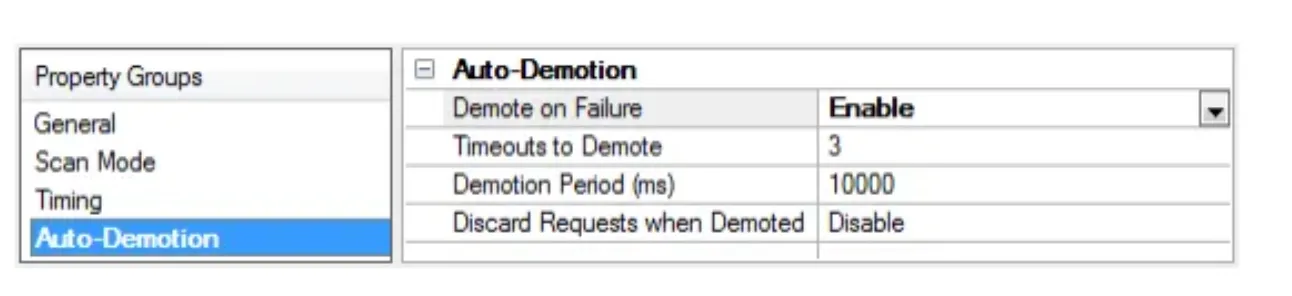
- Demote on Failure: Enable
- Timeouts to Demote: Set the number of successive timeouts the device may encounter when Kepware requests data from it before the device is indicated as demotede.g. 3.
- Demotion Period: The time period (in milliseconds) for Kepware to not request data from the device when the device is demoted e.g. 10000 (= 10 seconds)
- Discard Requests when Demoted: Disable
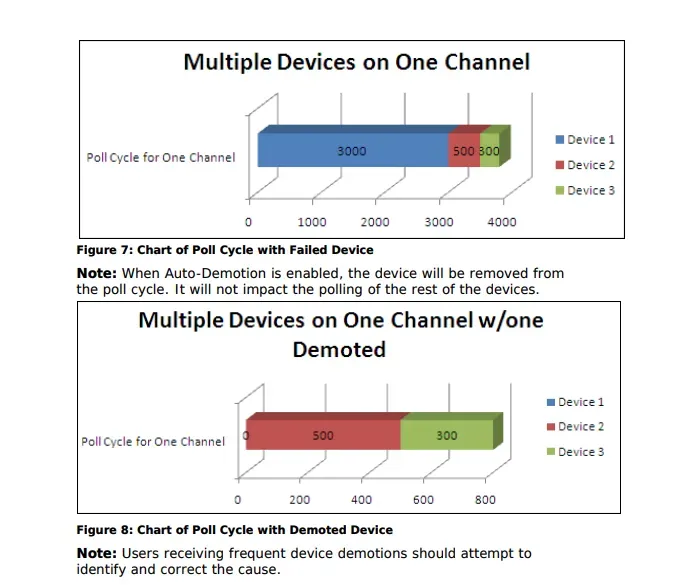
In the figure below, the total time needed to respond to the OPC-UA request is decreased from 3800 milliseconds (for 3 devices in one channel without auto-demotion) to 800 milliseconds (for the same devices in one channel with auto-demotion).
If by making use of channels and/or auto-demotion in Kepware, you still receive a statusBadTimeout on the collector: (re)move the measurements on the collector to decrease the number of Kepware devices that you're requestion data from. In exceptional cases, that might bring you down to one slowly responding device that is isolated in a Kepware channel and isolated on a OPC-UA collector.
Minimum system requirements
Check Kepware System Requirements to ensure compatibility with your operating system and hardware.
This guide ensures a clean and professional setup of Kepware as a single OPC-UA bridge for industrial devices. If you're working in a Factry environment, this setup will allow seamless collection of legacy or multi-brand PLC data through one standardized interface