Installation
To install the Excel Add-in for Factry Historian, first you will need to determine whether you want to install it locally or deploy it via Microsoft 365.
Local Installation
Follow Microsoft's guide at https://support.microsoft.com/en-us/office/get-an-office-add-in-for-excel-d3df5854-0a4e-4169-9cc3-25177a288d3d.
When browsing the Add-in store, search for 'Factry' and select the Excel Add-in. Click 'Add' to install the Add-in.
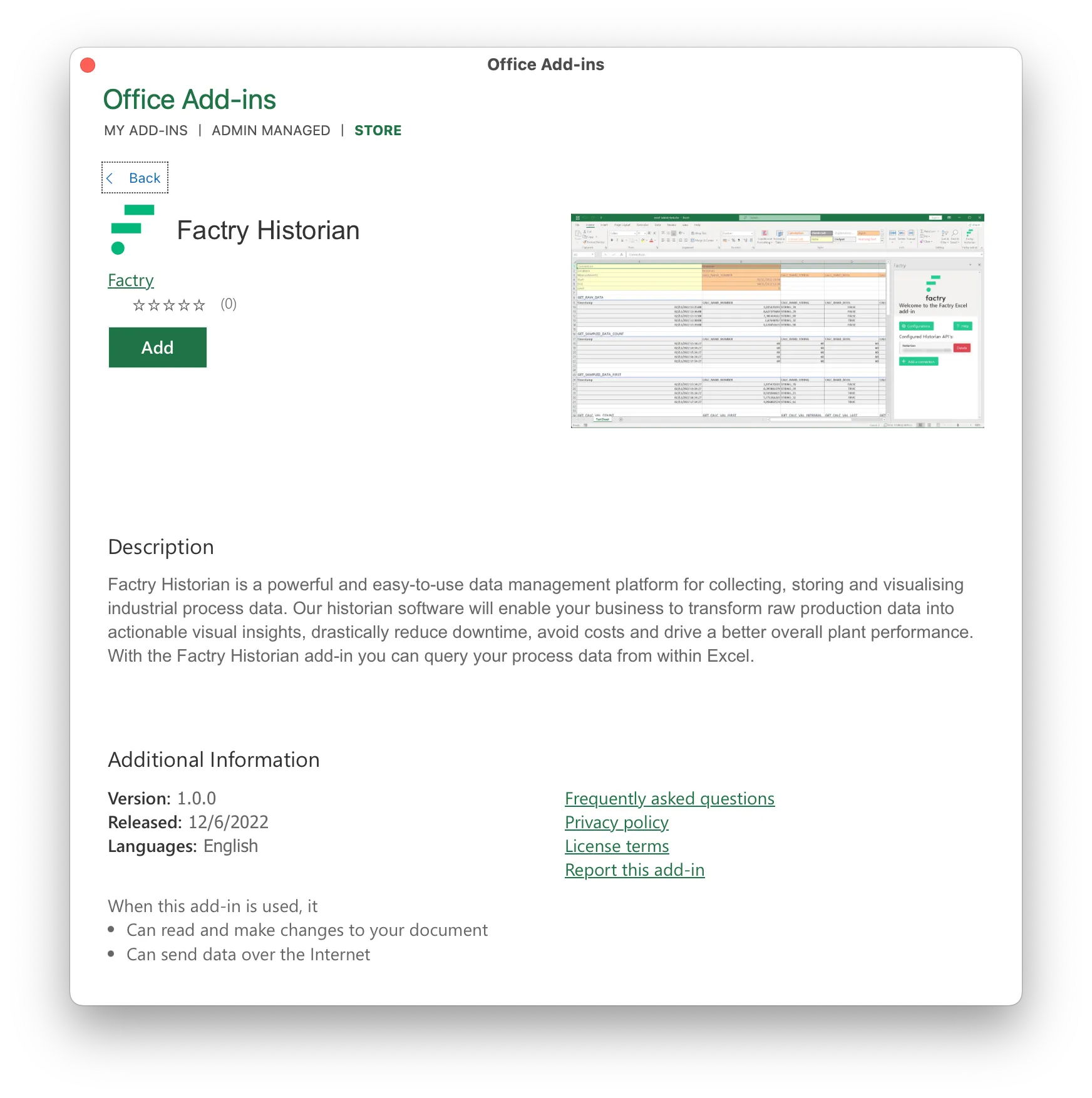
Install via Microsoft 365 / Excel online as a user
Follow these steps to install the Excel Add-in for Factry Historian using Microsoft 365.
- Open Excel in your browser and click the Home tab.
- At the far right of the ribbon, click the Add-ins icon.
- Type "Factry Historian" in the search box and click Add next the add-in.
- The Factry Historian add-in should appear at the far right of the ribbon.
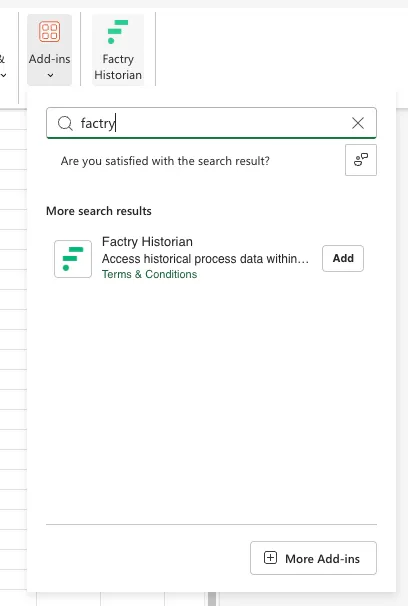
Search for the add-in
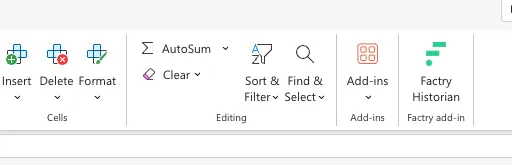
The add-in installed in the ribbon
Central deployment via Microsoft 365
This method lets administrators deploy the add-in centrally to users or groups.
- Download the Factry Historian Excel Add-in manifest XML file from the Factry Portal.
- Open the Microsoft 365 Admin Center.
- Navigate to Integrated Apps by clicking Settings > Integrated Apps.
- Upload the manifest by clicking Upload custom apps. In the dialog that appears, click Choose file and select the manifest XML file you downloaded in Step 1. Click Next.
- Assign users by selecting which users or groups should have access, or choose Everyone. Click Deploy.
This should make the add-in available to all these users without them having to install it individually.