Setting up Google OAuth authentication in Factry Historian
Requirements
Before setting up Google authentication, make sure that:
- Factry Historian is accessible over HTTPS.
- You have administrative access to a Google Cloud project.
- Users exist in Factry Historian with a username matching their Google login.
Factry Historian does not automatically create user accounts upon Google login. Each user must first be added manually in the Historian administration interface.
Configure authentication
Step 1: Creating a project in Google Cloud
Go to https://console.cloud.google.com and create a new project or open an existing one.
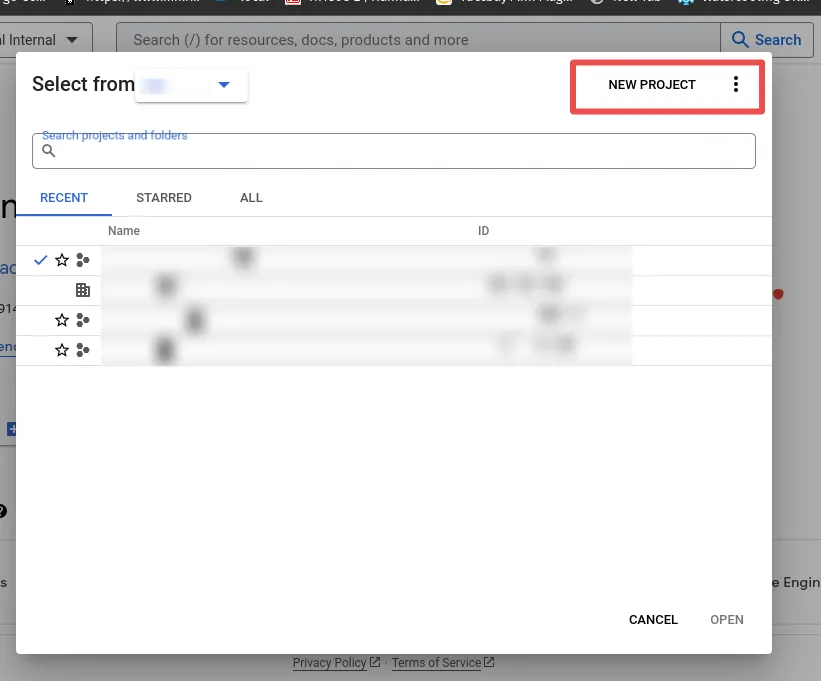
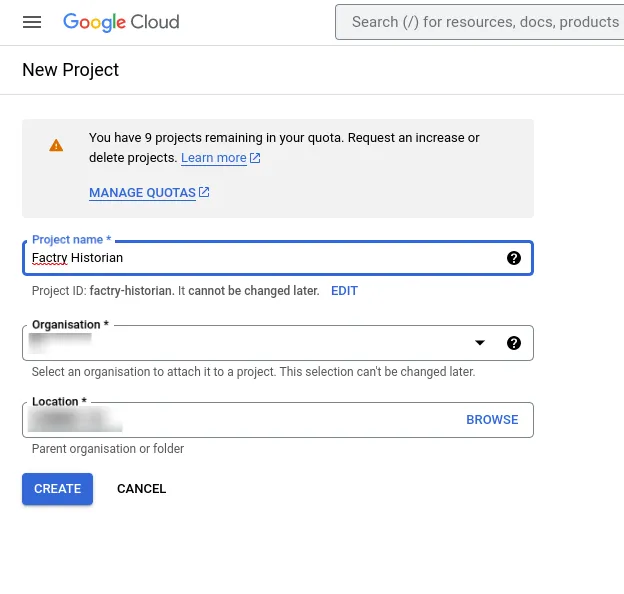
Step 2: Oauth consent screen
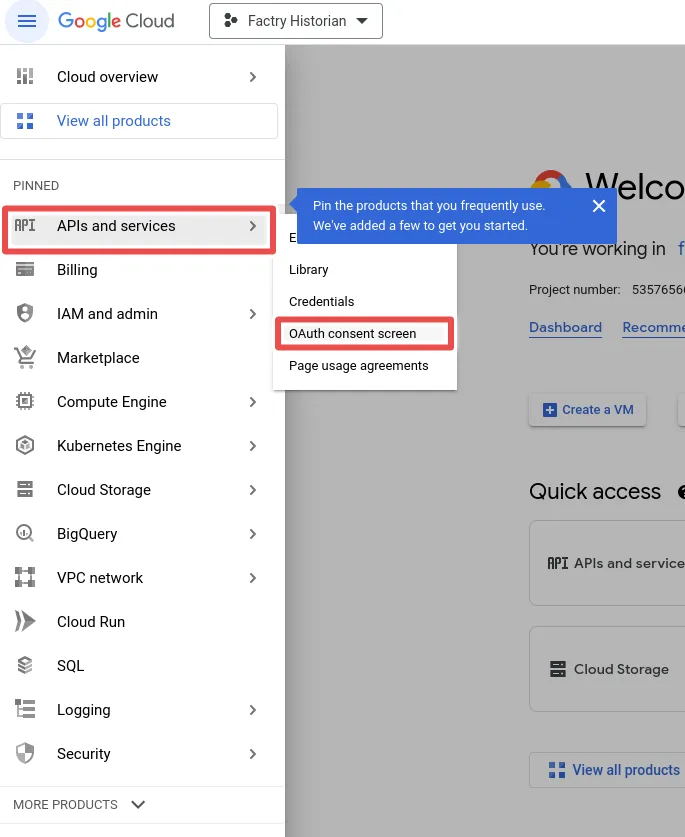
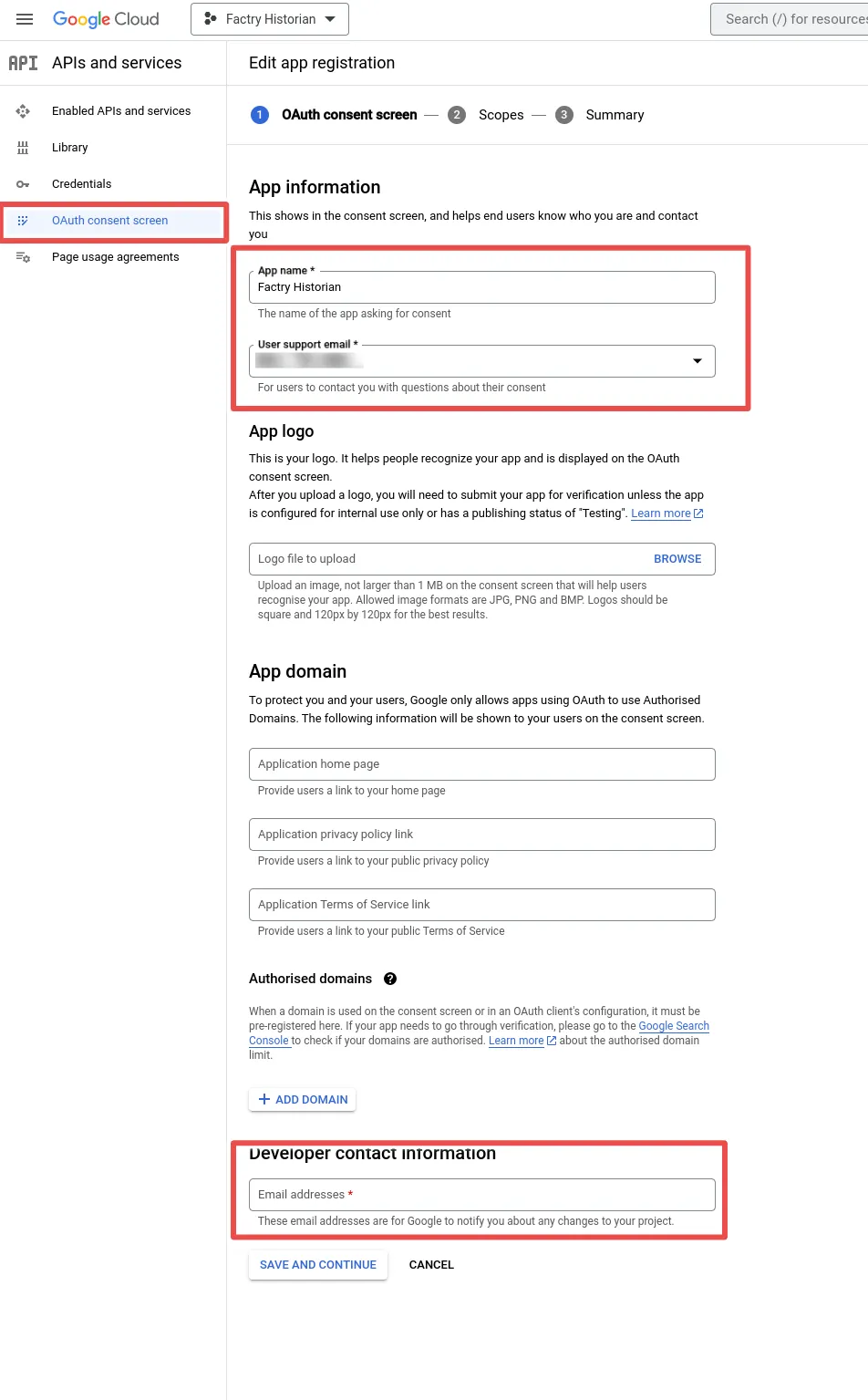
Open the menu on the top and click on OAuth consent screen under APIs and services.
Step 3: Allow Oauth login
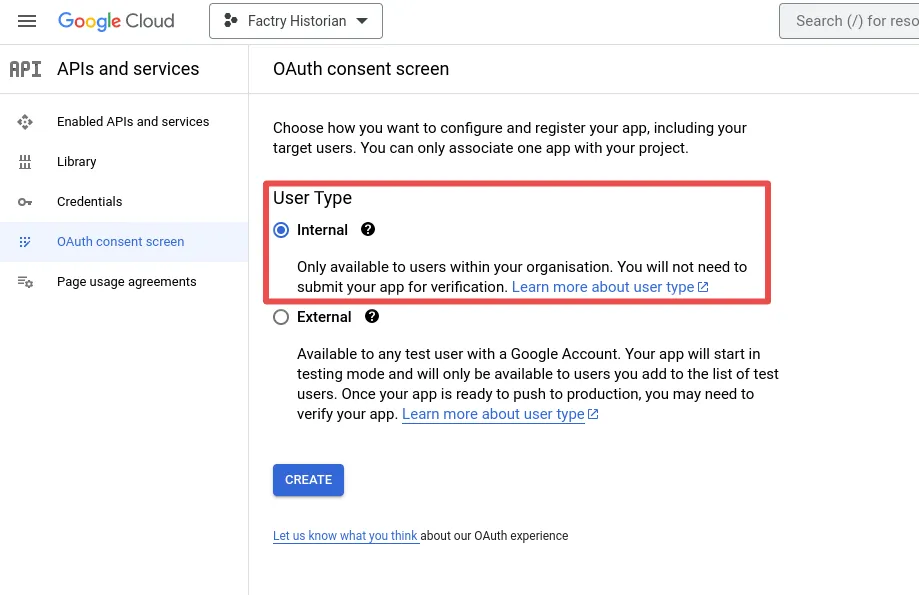
Select User Type Internal to allow authentication of users configured within your Google organization and click Create.
Step 4: Fill in app details
Fill in the app information for the OAuth consent screen and leave the Scopes step empty.
Step 5: Create credentials
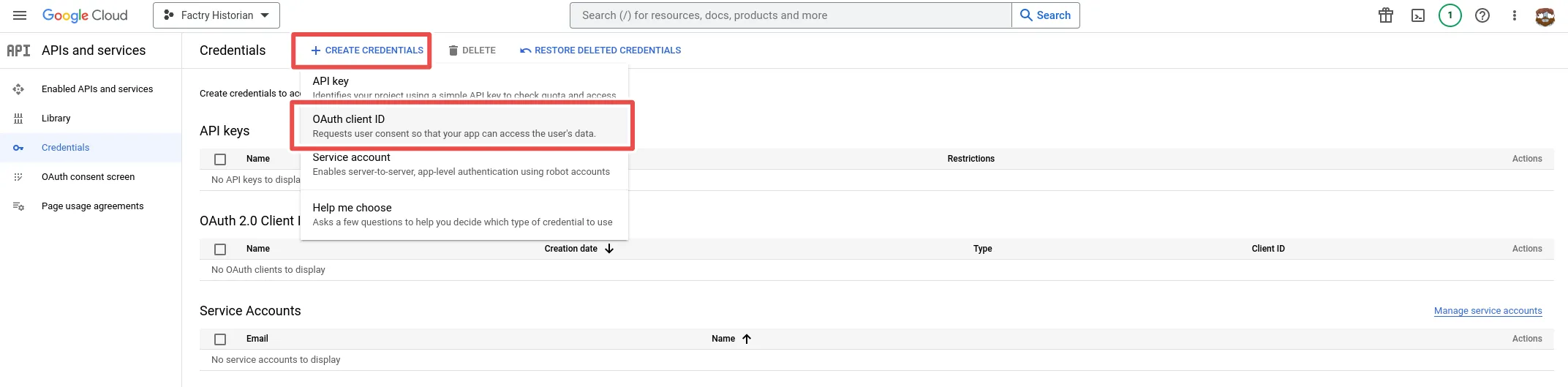
Open the credentials menu on the left and click create credentials on top. Select OAuth client ID.
Step 6: Select application type
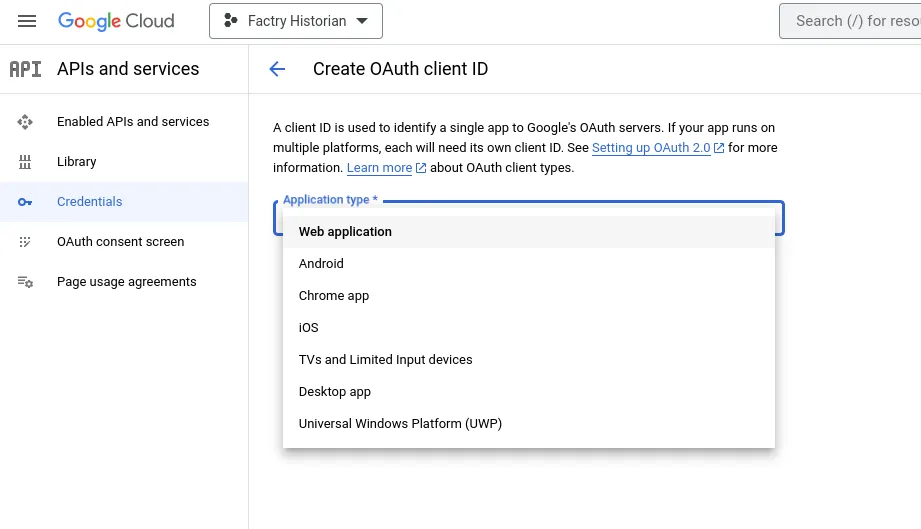
Select Web application under Application type.
Step 7: Fill in authorized origins
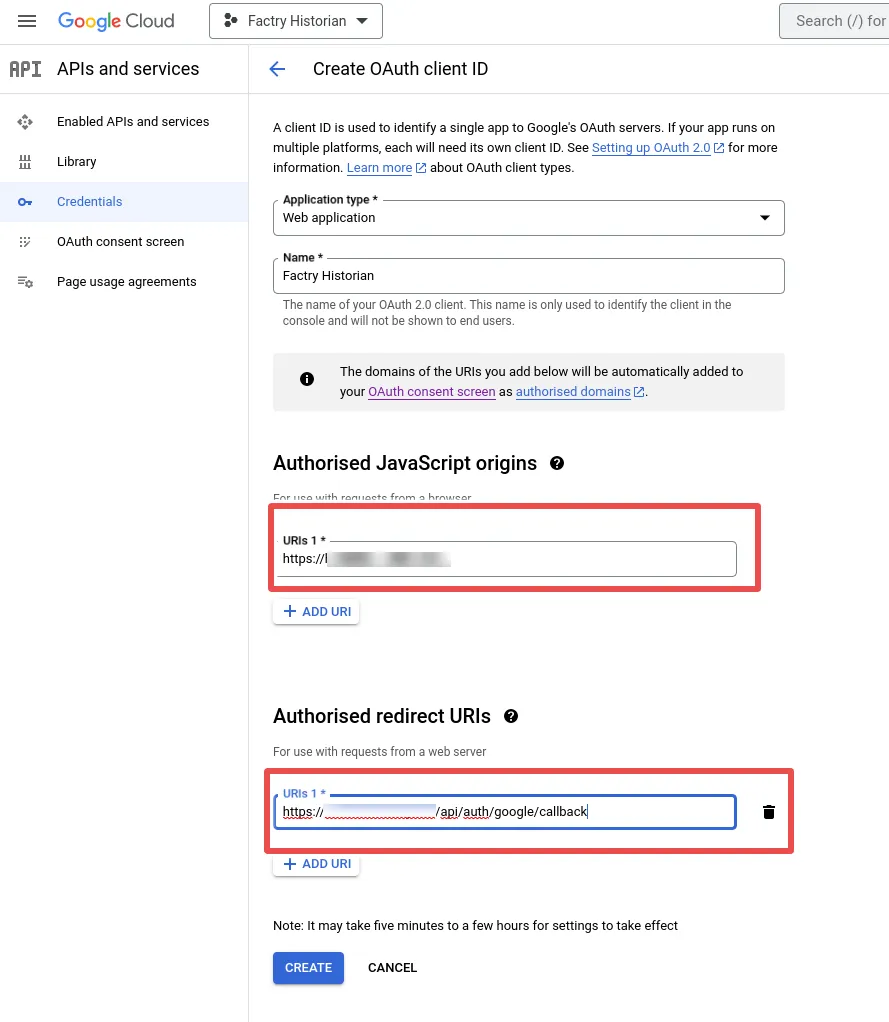
Fill in the fully qualified domain name into Authorized Javascript Origins on which the Factry Historian web application is reachable. E.g. https://historian.mycompany.local. This should be the same URL as configured under Configuration -> Server Settings -> General -> BaseURL in Factry Historian.
Under authorized redirect URI, fill in this base URL + /api/auth/name/callback and replace name with the name you will give the authentication provider you will configure in Factry Historian. E.g. if you name it MyGoogle, the redirect URI is https://historian.mycompany.local/api/auth/MyGoogle/callback.
Finally click Create.
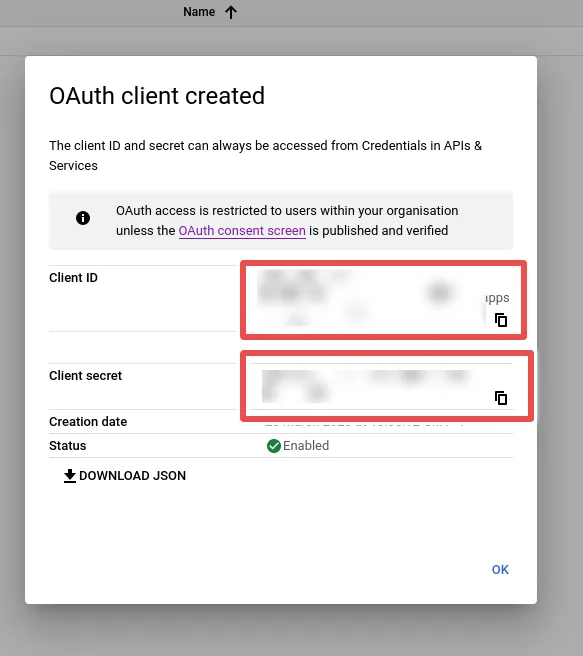
Step 8: Get credentials
Note the Client ID and Client Secret.
Step 9: Factry Historian configuration
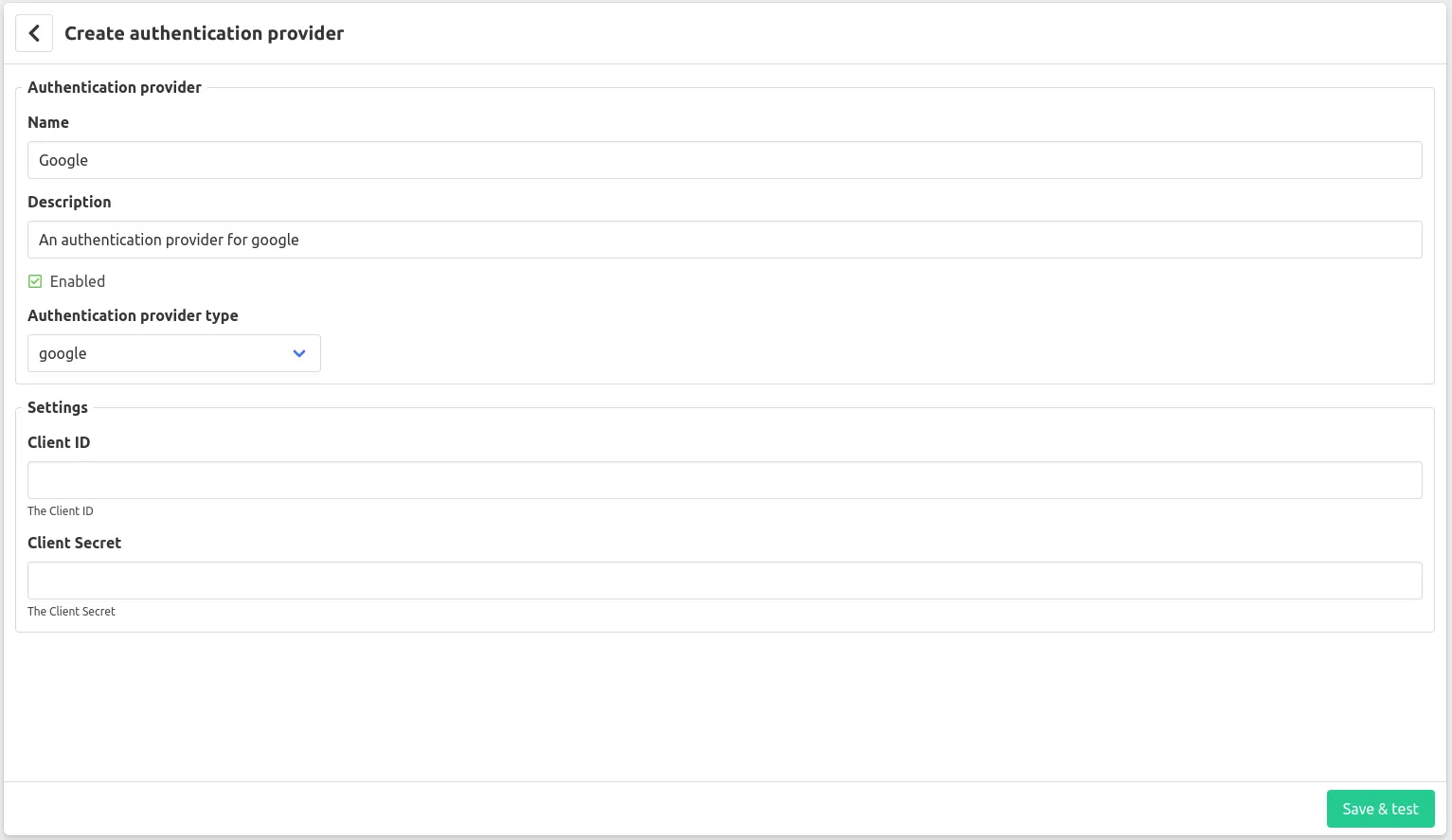
Go to the administration interface of Factry Historian and go to Configuration -> Server Settings -> Authentication Providers and click the Create provider button.
Fill in the name, Client ID and Client secret from the previous steps and click Save.
Step 10: Create users in Factry Historian
In order to allow users to use Google Authentication you will need to create users in Factry Historian with a username equal to their Google login.
Configure group mapping (manual only)
Currently Google oAuth does not allow an application (e.g. Factry Historian) to retrieve the groups that a users belongs to. This means that the Google oAuth authentication provider does not support automatic group mapping. To grant privileges in Factry Historian to a user matching a Google login, manually assign the user to a user group in Factry Historian.
Alternatively: LDAP authentication can be configured with a Google Workspace to support automatic group mapping in Factry Historian.