Managing alerts & notifications
The Factry Portal provides automatic alerting to monitor the health, performance, and licensing status of your Historian installations and collectors.
Alerts help detect connectivity issues, system overload, storage problems, and license risks before they cause downtime.
Managing Alerts
Alerts are managed per installation via:https://portal.factry.cloud/installations
Viewing Alerts
- Go to Factry Portal.
- Navigate to Installations.
- Click the eye icon next to your Historian server.
- Open Alert configurations.
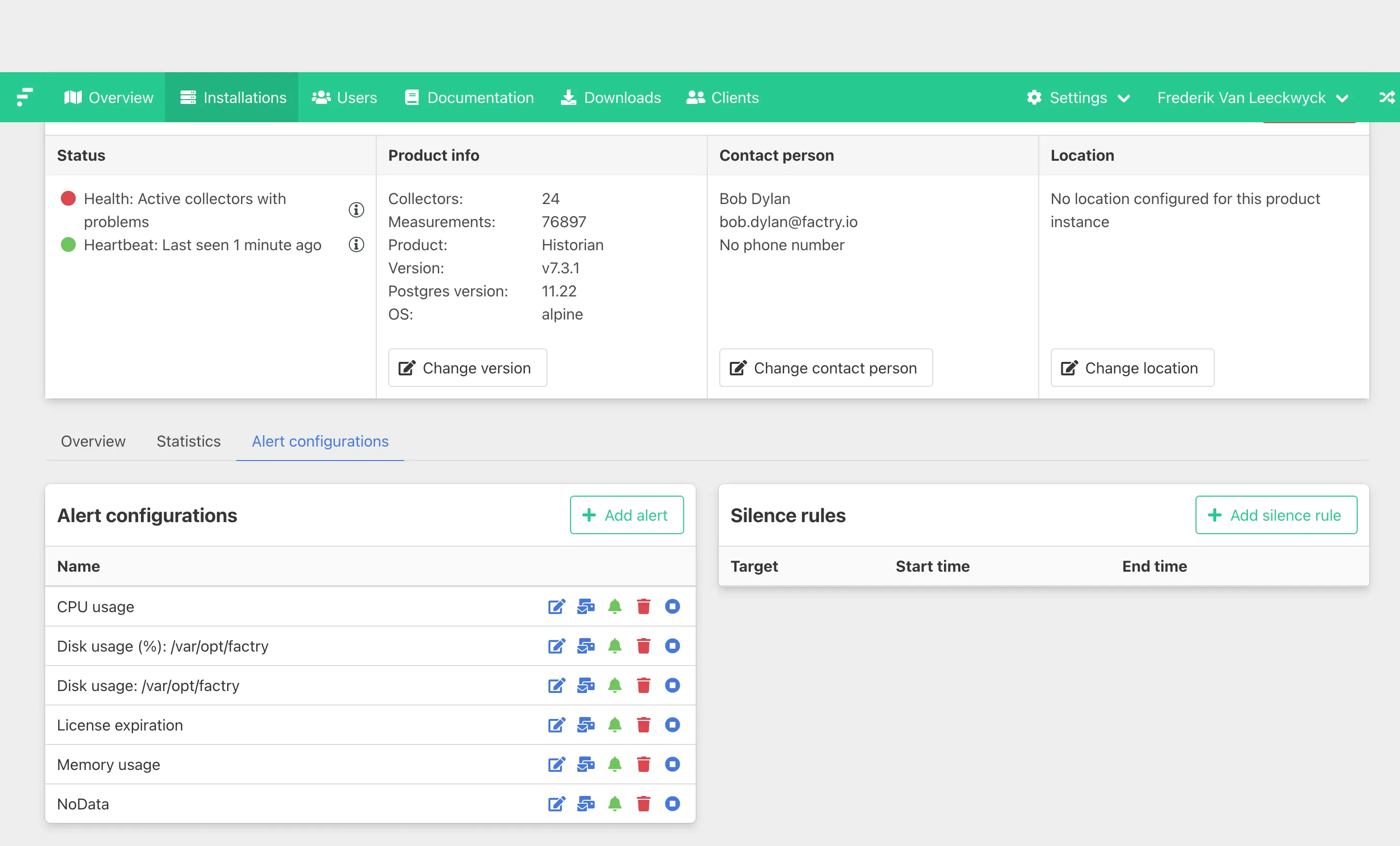
You can filter alerts by installation, severity, or status.
Creating Custom Alerts
Installations → Eye icon → Alert configurations → + Add alert
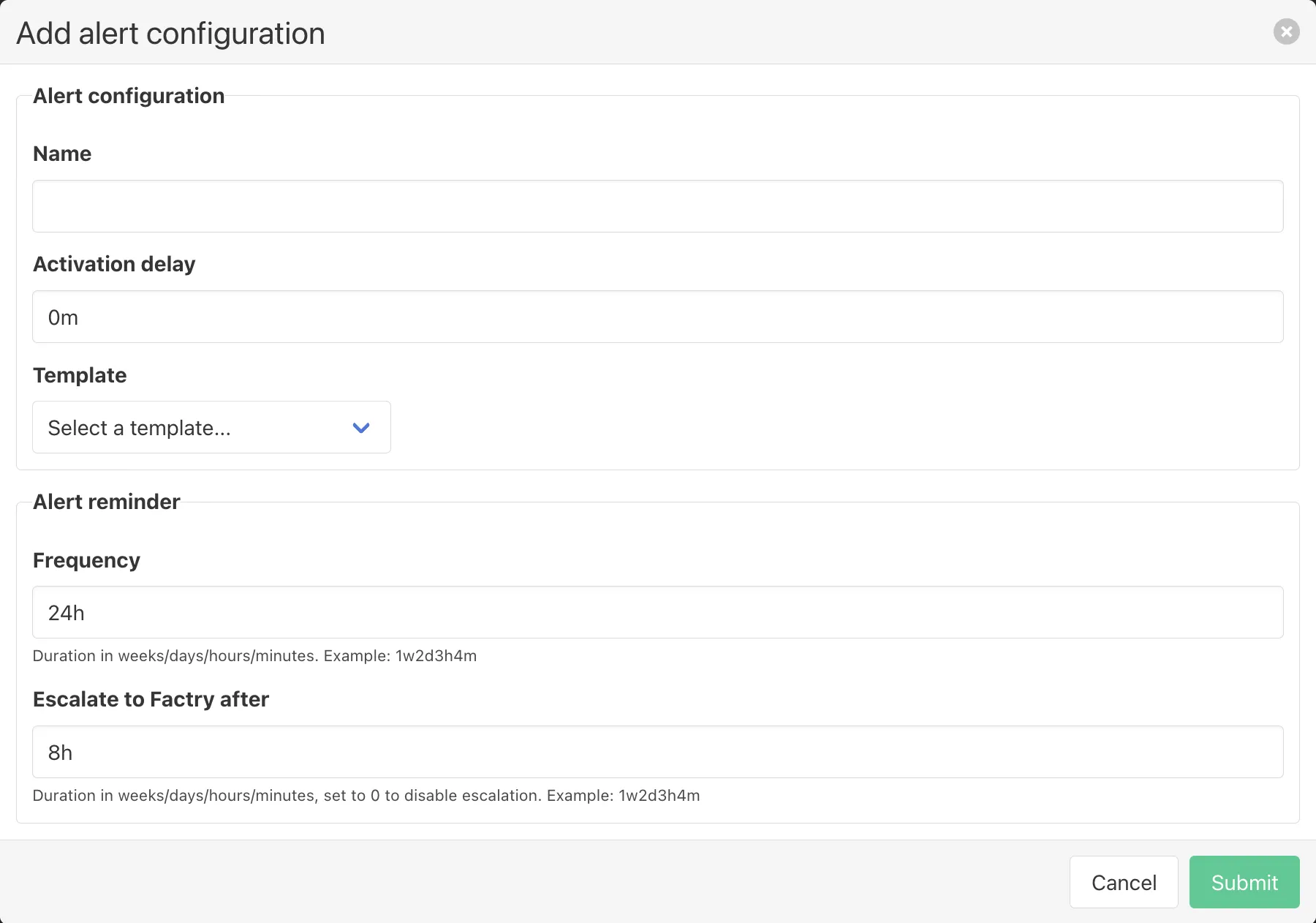
Complete the following fields:
- Name – Clear and descriptive name
- Activation delay – Duration the condition must remain active before triggering
- Template – Select a message template
- Frequency – Interval for repeated notifications if still active
- Escalate to Factry after – Duration after which Factry is notified if the alert remains High
Custom alerts can be edited, disabled, deleted, or silenced.
Editing Alerts
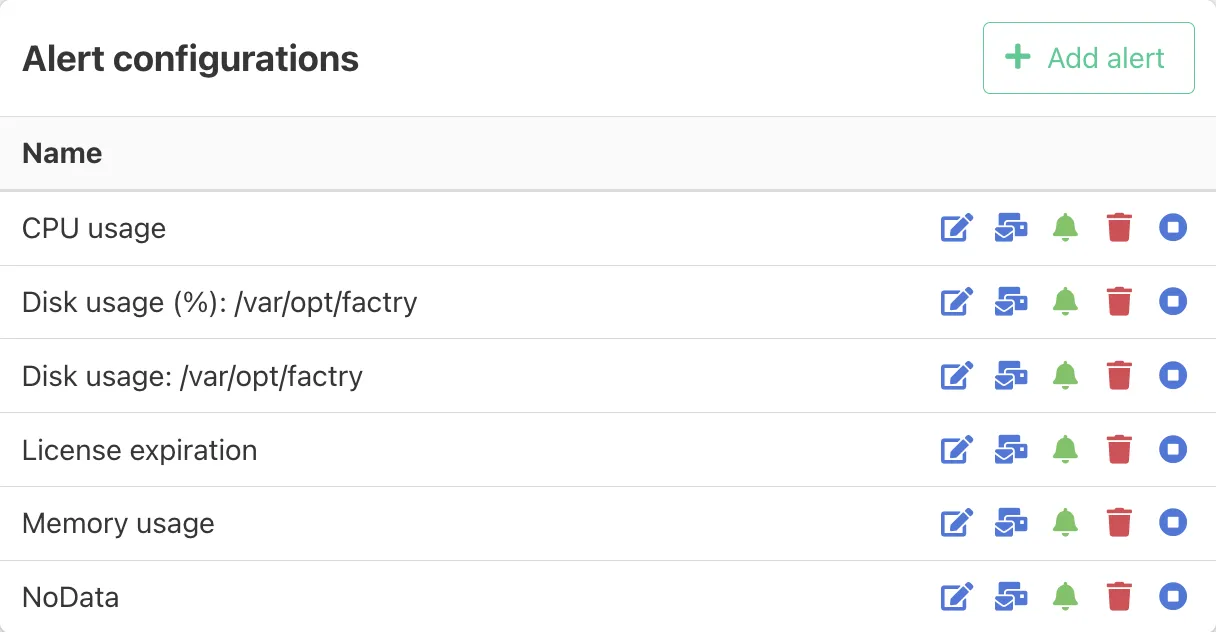
For each alert in the configuration list, you can:
- Edit the alert
- Configure notification channels (e.g. Email, Webhook)
- Enable or disable the alert
- Delete the alert
- Silence the alert
Acknowledging Alerts
When an alert fires:
- Use the Ack button to mute notifications until the issue is resolved.
- Alerts that are not acknowledged will trigger reminder notifications based on the configured frequency.
Acknowledging suppresses notifications but does not resolve the underlying issue.
Silences (Planned Maintenance)
Silences temporarily suppress notifications (maximum 7 days).
Silence all alerts for an installation
Installations → Eye icon → Alert configurations → +Add silence rule
Silence a single alert
Installations → Eye icon → Alert configurations → Silence alert ( )
Silencing does not disable the alert, it only suppresses notifications during the selected period.
Auto-Created Alerts
The Factry Portal automatically creates alerts for all new instances.
They are created when:
- A Historian first connects to the Portal
- A new collector is onboarded
Auto-created alerts:
- Cannot be modified
- Cannot be deleted
- Can be linked to notification channels
Auto-Created Alerts for Historians
- No monitoring data received for > 5 minutes
- Issue writing data to the time-series database
- CPU or memory usage > 80%
- Disk usage > 85%
- Free disk space < 5000 MB
- License expiry in less than 30 days
Auto-Created Alerts for Collectors
- No heartbeat for > 5 minutes
- Bad health
- No data collection (while health = Collecting)
- More points with bad quality than with Good quality
- CPU or memory usage > 80%
- Disk usage > 85%
- Free disk space < 5000 MB
Managing Notification Channels
To add or modify notification channels, go to Settings → Notification channels or visit: https://portal.factry.cloud/notification-channels
For full details on configuring and linking notification channels, see the Settings page.
Best Practice
- Link alerts to at least one notification channel
- Use silences during planned maintenance
- Review auto-created alerts when onboarding new instances