Configuring a CSV Collector
The CSV collector in Factry Historian allows you to parse and collect data from CSV files. Once measurements are configured and a valid CSV file is available in the collector’s incoming path, the data is automatically processed into data points according to the measurement configuration, making it available for historization, reporting, and analysis in Factry Historian.
Prerequisites
- Permissions in Factry Historian to manage collectors. See PrivilegesPrivileges.
- An installed CSV collector. If you have not done so already, first install the collector.
- A configured time-series database to write the collected data to.
- Collector access to a shared folder/disk with readable CSV files.
Configure the collector
After installation, the collector should appear in an initial state and be actively running. This indicates that it has successfully connected to Factry Historian and is ready for configuration.
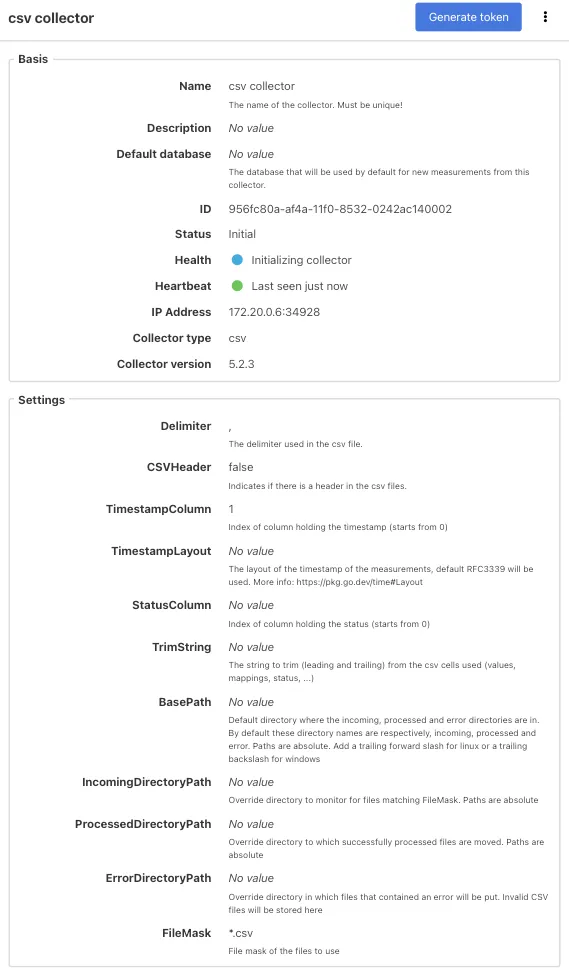
To configure the collector, select it from the Collectors overview in Factry Historian and click the Edit button. Configure the following fields:
Delimiter
Specifies the delimiter used in the CSV file to separate values.
For example:
CSVHeader
Indicates whether the CSV files contain a header or not. If a header is present, the header record will be skipped when parsing the CSV file.
TimestampColumn
Indicates the column index of where the timestamp can be found in the CSV file.
Index starts from 0.
BasePath
The default directory containing the incoming, processed, and error subdirectories.
- Default subdirectory names:
- incoming
- processed
- error
Paths are absolute.
Add a trailing forward slash (/) for linux or a trailing backslash (\) for windows.
For example:
FileMask
Defines the file mask pattern used to identify which CSV files should be used.
For example:
Example
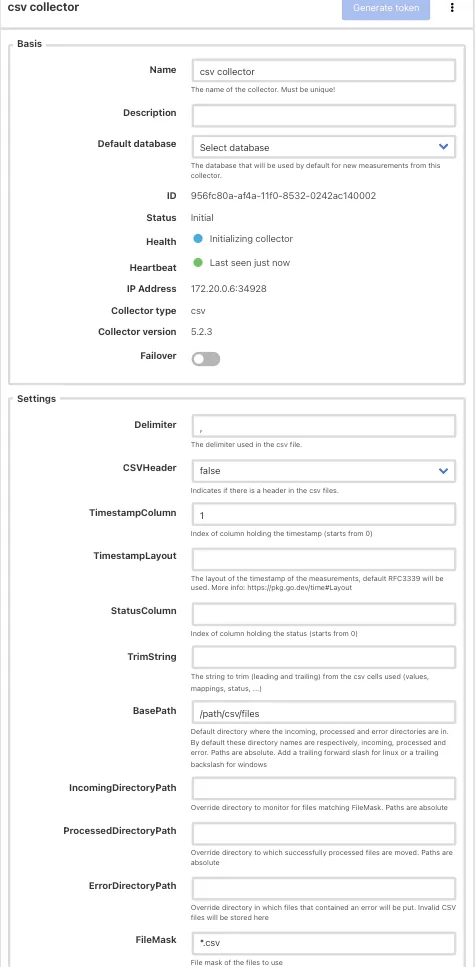
Then, click Save.
Expected outcome
After you have configured the collector, a green Start button will appear in the top right corner of the collector page.
- Click Start to launch the collector.
If the connection is successful, you should observe the collector status change to Collecting.
Troubleshooting
Error occured while parsing file
- Make sure you set the correct delimiter in collector settings according to the delimiter used in your CSV file.
Adding measurements
Follow the guide on Read data from CSV.