Line overview dashboard
Introduction
This document describes how to set up a line overview dashboard. It gives a real-time, at-a-glance overview of every production line simultaneously. It shows input tank levels, mixer status, and storage tank state without the operator having to navigate between separate dashboards.
Audience: Floor operators, shift leads
Purpose: Real-time awareness of the full production line across multiple lines
Dashboard layout
The dashboard is organized into three rows:
- Input tanks Fill levels of all input tanks per line
- Mixer Running status, current batch step, quality pass rate and availability per mixer
- Storage tanks Input pump RPMs, storage tank levels and cleaning flags per line
At the top of each section, a text panel repeats per line to clearly label which line is being shown.
Key design decisions
Panels repeat per $line. Most panels are configured to repeat horizontally by the $line variable. This means the dashboard scales automatically as lines are added.
The $mixer variable repeats per mixer. Within the Mixer row, panels that are specific to a single mixer (status, batch step, availability) repeat by the $mixer variable instead, so one block of panels appears per mixer value.
Transformations filter and rename by line. Because asset queries return data for all lines at once, each repeating panel uses a Filter fields by name transformation with the pattern ${line:text}.* to keep only the fields relevant to the currently rendered line, followed by a Rename by regex to strip the path prefix and leave clean display names like Tank 1 or Input pump 2.
Step-by-step
This dashboard relies on a set of asset variables that cascade from the selected lines downward. Most variables are hidden from the dashboard header. Only $line is visible to the operator.
Why use variables at all? Rather than hardcoding asset names in each panel, variables make the dashboard dynamic: if a third line or a new tank is added to the asset tree, the variables pick it up automatically without any panel edits. The hidden variables ($mixer, $tank, etc.) also enable panel repetition: when a panel is set to repeat by $line, Grafana renders one copy of that panel per line value. Without a variable, this repeat mechanism is not available.
Why the cascade? Each variable is scoped to its parent: $line → $mixer / $tank / $storage_tank → $mixer_input_pump / $storage_input_pump. When the operator selects Line 1, all child variables automatically resolve to only Line 1's assets, so every panel on the dashboard stays in sync.
Create variable $line
This is the only visible variable. It lets the operator filter the dashboard to one or more lines.
- General
- Name: line
- Label: Line
- Query options
- Query Type: Asset
- Parent assets: No parent
- Selection options
- Multi-value: Checked
- deselect 'Allow custom values'
Create variable $mixer
- General
- Name: mixer
- Hide: Variable
- Query options
- Query Type: Asset
- Filter by asset path: /Mixer/
- Parent assets: $line
- Use asset path as value: Checked (This makes the row title $mixer display a readable name like Line 1\Mixer rather than a UUID.)
- Selection options
- Include all option: Checked
- Multi-value: Checked
- deselect 'Allow custom values'
Create variable $tank
- General
- Name: tank
- Hide: Variable
- Query options
- Query Type: Asset
- Filter by asset path: /Tank/
- Parent assets: $line
- Selection options
- Include all option: Checked
- deselect 'Allow custom values'
Create variable $storage_tank
- General
- Name: storage_tank
- Hide: Variable
- Query options
- Query Type: Asset
- Filter by asset path: /Storage/
- Parent assets: $line
- Selection options
- Include all option: Checked
- deselect 'Allow custom values'
Create variable $mixer_input_pump
- General
- Name: mixer_input_pump
- Hide: Variable
- Query options
- Query Type: Asset
- Parent assets: $mixer
- Selection options
- Include all option: Checked
- Multi-value: Checked
- deselect 'Allow custom values'
Create variable $storage_input_pump
- General
- Name: storage_input_pump
- Hide: Variable
- Query options
- Query Type: Asset
- Parent assets: $storage_tank
- Selection options
- Include all option: Checked
- Multi-value: Checked
- deselect 'Allow custom values'
This static row acts as a section divider for the input tank panels below it.
Click > Row and configure the row options
- Title: Input tanks
Click Update
A simple text panel at the top of each repeated section makes it immediately clear which line is being displayed, even when multiple lines are shown side by side.
Click > Visualisation and select the built-in -- Dashboard -- data source (no query needed)
Change visualisation to Text and configure the panel options
- Panel options
- Title: (leave empty)
- Content (Markdown mode):
<font size="6">
  <b><p style="text-align: center">${line:text}</p></b>
</font>
The :text format modifier returns the display label of the variable rather than its value, so it shows Line 1 instead of an internal ID.
Configure the repeat options
- Repeat by variable: line
- Repeat direction: Horizontal
- Max per row: 2
This panel shows the current fill level of every input tank for the selected line as a vertical bar gauge, giving an instant visual read of supply levels.
Click > Visualisation and select Data source: Factry Historian Datasource
Configure the data source
- Tab: Assets
- Assets: $tank
- Properties: Level
- Aggregation: mean, Period: $__interval
- Include last known point: Checked
- Use engineering specs: Checked
Add transformation 1: Filter fields by name
In the Transformations tab, click + Add transformation and select Filter fields by name.
This is needed because the query returns Level data for every tank across all lines at once, with columns like Line 1\Tank 1 · Level, Line 2\Tank 1 · Level, etc. Since this panel repeats per $line, each copy needs to throw away the columns that don't belong to it.
Under Include, switch to Filter by regex and enter:
${line:text}.*|timeThis pattern has two parts separated by |:
- ${line:text}.*: keep any column whose name starts with the current line (e.g. Line 1). When Grafana renders the Line 1 copy of the panel, only Line 1\... columns pass through; Line 2 columns are discarded.
- time: also keep the time column, which is required by the Join by field transformation below.
Add transformation 2: Rename by regex
Click + Add transformation and select Rename by regex.
After filtering, column names still look like Line 1\Tank 1 · Level. This transformation strips everything except the tank number:
- Regex: .*(Tank \d).*
- Rename pattern: $1
The result is clean display names like Tank 1, Tank 2 in the bar gauge.
Add transformation 3: Join by field
Click + Add transformation and select Join by field.
Leave the options at their defaults. This merges the individual per-tank time series into one wide table so the bar gauge can display all tanks side by side in a single panel.
Add transformation 4: Organize fields
Click + Add transformation and select Organize fields.
Under Order, set: Order by name (ascending). This ensures the tanks always appear in a consistent left-to-right order (Tank 1, Tank 2, ...) regardless of the order the query returns them.
Change visualisation to Bar gauge and configure panel options
- Panel options
- Title: (leave empty)
- Bar gauge options
- Orientation: Vertical
- Display mode: Basic
- Name placement: Auto
- Value options
- Reduce: Last (not null)
- Thresholds
- 0 → dark-red
- 10000 → text (default color) (Adjust the threshold value to match your tank capacity.)
Configure the repeat options
- Repeat by variable: line
- Repeat direction: Horizontal
- Max per row: 2
Click > Row and configure the row options
- Title: Mixer
Click Update and drag the row below the Input tanks panels
This panel shows the current RPM of every input pump feeding the mixer, repeated per line. It gives a quick check that all pumps are spinning at expected speeds.
Click > Visualisation and select Data source: Factry Historian Datasource
Configure the data source
- Tab: Assets
- Assets: $mixer_input_pump
- Properties: RPM
- Aggregation: last, Period: $__interval
- Include last known point: Checked
- Use engineering specs: Checked
Add transformations
- Filter fields by name
- Include pattern: ${line:text}.*|time
- Rename by regex
- Regex: .*(Input pump \d).*
- Rename pattern: $1
- Join by field
- Organize fields
- Exclude: time
- Order by: Name (ascending)
Change visualisation to Stat and configure panel options
- Value options
- Fields: All fields (/.*/)
- Reduce: Last (not null)
- Stat styles
- Color mode: Value
- Graph mode: None
Configure the repeat options
- Repeat by variable: line
- Repeat direction: Horizontal
- Max per row: 2
This panel shows three properties side by side as stat cells for each mixer: whether it is running, which recipe is currently active, and whether it needs cleaning. It repeats once per mixer.
Click > Visualisation and select Data source: Factry Historian Datasource
Configure the data source
- Tab: Assets
- Asset: $mixer
- Properties: Running, Current recipe, Needs cleaning
- Aggregation: last, Period: $__interval
- Include last known point: Checked
Add transformation 1: Join by field
Click + Add transformation and select Join by field. Leave the options at their defaults.
This joins the three separate property time series into one wide table so the stat panel can display them as individual side-by-side cells.
Add transformation 2: Labels to fields
Click + Add transformation and select Labels to fields.
- Keep labels: AssetProperty
- Value label: AssetProperty
This promotes the AssetProperty label into a column name, giving you Running, Current recipe and Needs cleaning as separate fields.
Add transformation 3: Organize fields
Click + Add transformation and select Organize fields.
- Hide: time
- Reorder fields: Running first, Current recipe second, Needs cleaning third
Change visualisation to Stat and configure panel options
- Panel options
- Title: (leave empty)
- Transparent background: Checked
- Value options
- Fields: All fields
- Reduce: Last (not null)
- Stat styles
- Orientation: Vertical
- Color mode: Background
- Text mode: Value
- Field overrides
- Running: value mappings: true → text RUNNING, color dark-green; false → text STOPPED, color dark-red
- Needs cleaning: value mappings: true → text NEEDS CLEANING, color orange; false → text -, color transparent
- Current recipe: color → Fixed color #8080804d (muted grey); value mapping: empty → text No recipe, color transparent
Configure the repeat options
- Repeat by variable: mixer
- Repeat direction: Horizontal
- Max per row: 2
This panel shows the name of the most recently started batch step (Filling, Mixing or Emptying) for each mixer. It repeats once per mixer.
Click > Visualisation and select Data source: Factry Historian Datasource
Configure the data source
- Tab: Events
- Query type: Simple
- Assets: $mixer
- Event types: Filling step, Mixing step, Emptying step
- Limit: 1 (Only the most recent event is needed.)
Change visualisation to Stat and configure panel options
- Panel options
- Title: (leave empty)
- Transparent background: Checked
- Value options
- Fields: /^EventType$/
- Reduce: Last (not null)
- Stat styles
- Color mode: None
- Graph mode: None
- Text mode: Value
Configure the repeat options
- Repeat by variable: mixer
- Repeat direction: Horizontal
- Max per row: 2
This single panel combines three metrics into one stat display per mixer: availability (percentage of time the mixer was running), quality pass rate (fraction of emptying steps that passed visual inspection), and finished batch count (number of completed Mixing Batch events). Combining them in one panel saves horizontal space in the repeated mixer row.
Click > Visualisation and select Data source: Factry Historian Datasource
Configure query A: Quality pass rate (Emptying step events)
- Tab: Events
- Query type: Simple
- Assets: $mixer
- Event types: Emptying step
- Properties: Visual inspection result
Configure query B: Availability (Running asset property)
- Tab: Assets
- Assets: $mixer
- Properties: Running
- Aggregation: mean, Period: 1m
- Fill: Previous (Forward-fills the last known running state into any gap so that availability is calculated correctly.)
Configure query C: Finished batch count (Mixing Batch events)
- Tab: Events
- Query type: Simple
- Assets: $mixer
- Event types: Mixing Batch
Add transformations (applied to query A to compute pass rate)
- Group by
- Field: Visual inspection result, Operation: Group by, Aggregation: count
- Transpose (Pivots the outcome values pass, fail and needs_review into separate columns.)
- Calculate field (Leave options empty. This adds a Total column by summing all value columns.)
- Calculate field: Mode: Binary operation
- Left: pass
- Operator: /
- Right: Total
- Replace all fields: Checked
- Reduce: Mode: Reduce fields, Reducers: Mean (Collapses the pass-rate series to a single value.)
- Filter fields by name
- Include pattern: EventType (Isolates the batch count field from query C.)
- Reduce: Mode: Reduce fields, Reducers: Count (Counts the number of Mixing Batch events.)
- Rename by regex
- Regex: .*(Running).*
- Rename pattern: Running
- Concatenate fields (Brings the availability, pass rate and batch count values into a single row.)
- Organize fields
- Order: Running (availability) first, pass / Total (quality) second, Mixing Batch · EventType (batch count) third
Change visualisation to Stat and configure panel options
- Value options
- Reduce: Mean
- Standard options
- Field override matching /.*ity/ (matches availability): Unit → Percent (0–1)
- Stat styles
- Color mode: Value
- Graph mode: None
Configure the repeat options
- Repeat by variable: mixer
- Repeat direction: Horizontal
- Max per row: 2
Click > Row and configure the row options
- Title: Storage tanks
Click Update and drag the row below the Mixer panels
This panel mirrors the mixer input pump RPM panel but targets the pumps feeding the storage tanks. It repeats per line.
Click > Visualisation and select Data source: Factry Historian Datasource
Configure the data source
- Tab: Assets
- Assets: $storage_input_pump
- Properties: RPM
- Aggregation: last, Period: $__interval
- Include last known point: Checked
- Use engineering specs: Checked
Add transformations
- Filter fields by name
- Include pattern: ${line:text}.*|time
- Rename by regex
- Regex: .*tank (\d).*(Input pump).*
- Rename pattern: $2 Tank $1 (Produces readable names like Input pump Tank 1, Input pump Tank 2.)
- Join by field
- Organize fields
- Exclude: time
- Order by: Name (ascending)
Change visualisation to Stat and configure panel options
- Value options
- Fields: All fields (/.*/)
- Reduce: Last (not null)
- Stat styles
- Color mode: Value
- Graph mode: None
Configure the repeat options
- Repeat by variable: line
- Repeat direction: Horizontal
- Max per row: 2
This panel shows the current fill level of every storage tank per line, using the same layout as the input tank bar gauges above.
Click > Visualisation and select Data source: Factry Historian Datasource
Configure the data source
- Tab: Assets
- Assets: $storage_tank
- Properties: Level
- Aggregation: mean, Period: $__interval
- Include last known point: Checked
- Use engineering specs: Checked
Add transformations
- Filter fields by name
- Include pattern: ${line:text}.*|time
- Rename by regex
- Regex: .*(Storage tank \d).*
- Rename pattern: $1
- Join by field
- Organize fields
- Order by: Name (ascending)
Change visualisation to Bar gauge and configure panel options
- Orientation: Vertical
- Display mode: Basic
- Value options
- Reduce: Last (not null)
Configure the repeat options
- Repeat by variable: line
- Repeat direction: Horizontal
- Max per row: 2
This panel shows the Needs cleaning flag for each storage tank per line, alerting operators to tanks that require attention before the next batch.
Click > Visualisation and select Data source: Factry Historian Datasource
Configure the data source
- Tab: Assets
- Assets: $storage_tank
- Properties: Needs cleaning
- Aggregation: last, Period: $__interval
- Include last known point: Checked
- Use engineering specs: Checked
Add transformations
- Filter fields by name
- Include pattern: ${line:text}.*|time
- Rename by regex
- Regex: .*(Storage tank \d).*
- Rename pattern: $1
- Join by field
- Organize fields
- Exclude: time
- Order by: Name (ascending)
Change visualisation to Stat and configure panel options
- Value options
- Fields: All fields (/.*/)
- Reduce: Last (not null)
- Value mappings
- true → NEEDS CLEANING, color: orange
- false → -, color: transparent
Configure the repeat options
- Repeat by variable: line
- Repeat direction: Horizontal
- Max per row: 2
End result
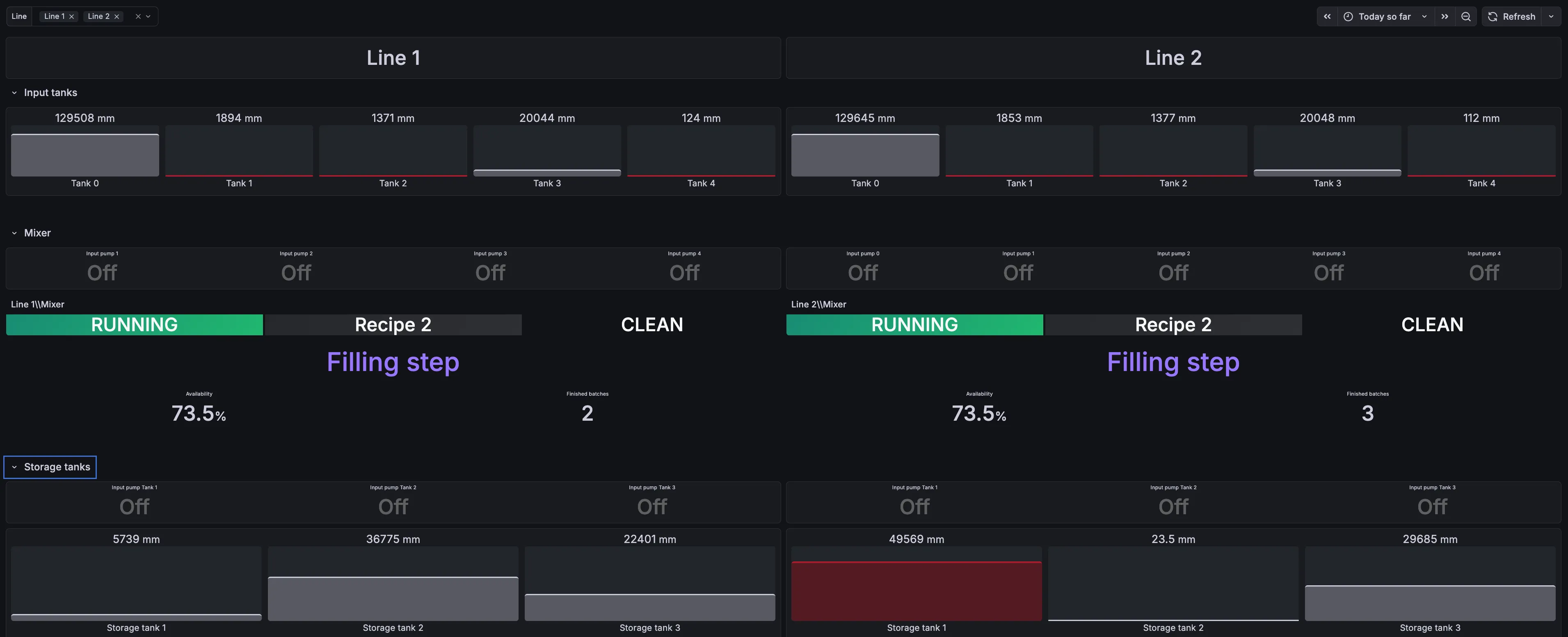
The finished dashboard shows one column per production line, updating in real time. Operators can see input tank supply levels, mixer running state and batch progress, and storage tank availability on a single screen, without drilling into individual asset dashboards.