Query with regular expressions
What is a regular expression?
Regular expressions (regex) are a powerful way to search and filter text patterns. In the context of Factry Historian, regex can help you:
- Select groups of measurements without typing each name manually.
- Create dynamic dropdown filters in Grafana that adapt to new data.
- Work with large or inconsistent naming conventions across assets.
A regex is essentially a pattern. For example:
- ^Temp_.* → matches all measurements starting with Temp_.
- .*_Pressure$ → matches all measurements ending with _Pressure.
Why use regex?
- Faster configuration when you have hundreds of sensors.
- Reduces human error by relying on naming patterns.
- Keeps dashboards flexible, even when new sensors are added in the future.
Use Regex to Trend Sensor Data or Create Dropdown Filters
Imagine you’re working with the Faketory demo dataset. You want to see how temperature and flow behave across multiple mixers. Instead of manually selecting each measurement, regex can help you target the right group.
When creating a Grafana variable, the Grafana regex option in the variable configuration works on the underlying UUIDs, not the displayed values. So while you see the labels (e.g. Mixer01_Temp), the regex actually applies to their UUIDs. In practice, this means the regex option in Grafana variables is not very usable with Factry Historian datasource. Instead, use regex directly in your measurement or asset queries.
1. Measurements
Measurements are the raw data records stored in Historian. Suppose your Factry Historian has these measurements:
- Mixer01_Temp
- Mixer02_Temp
- Mixer03_Flow
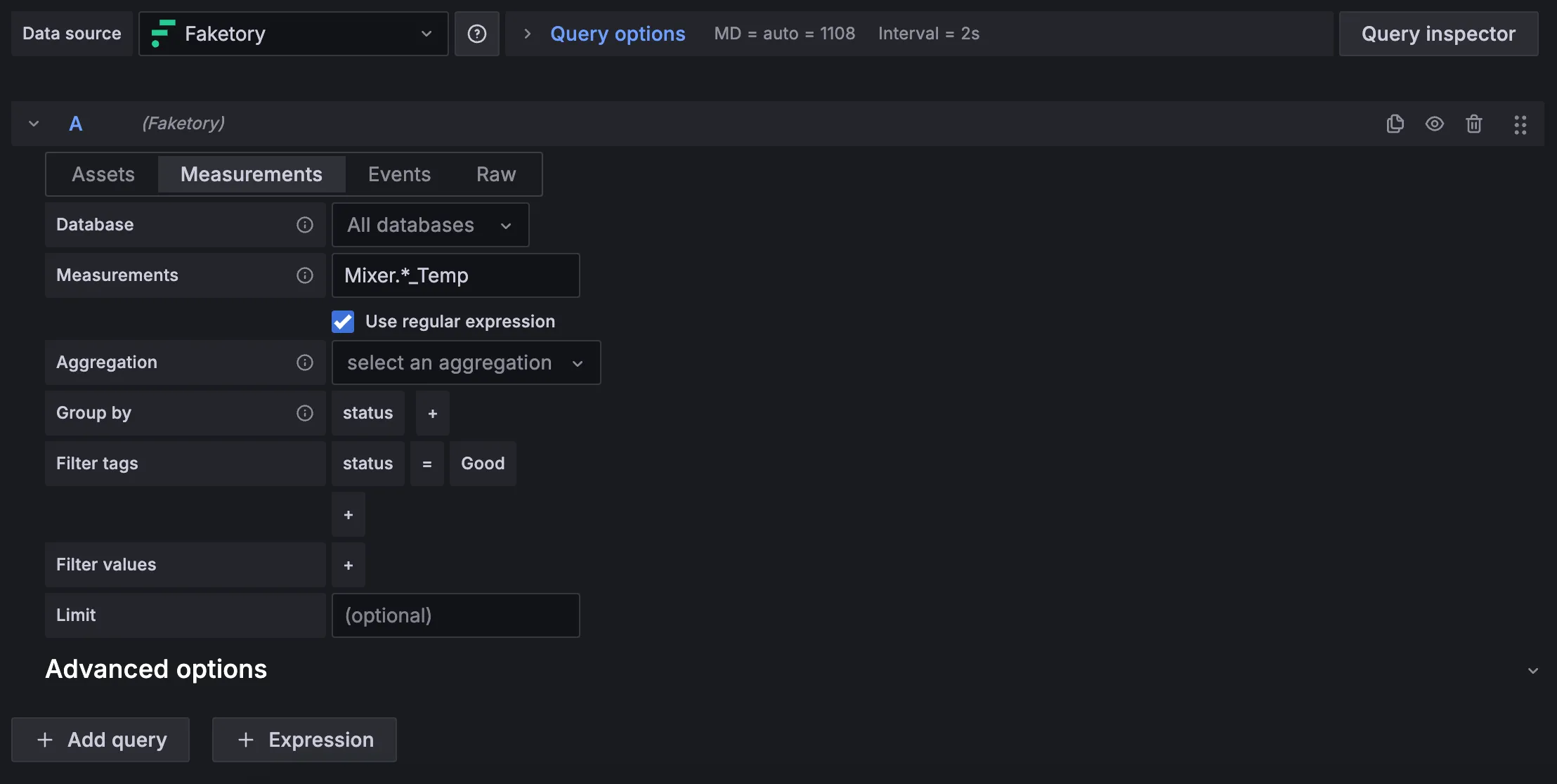
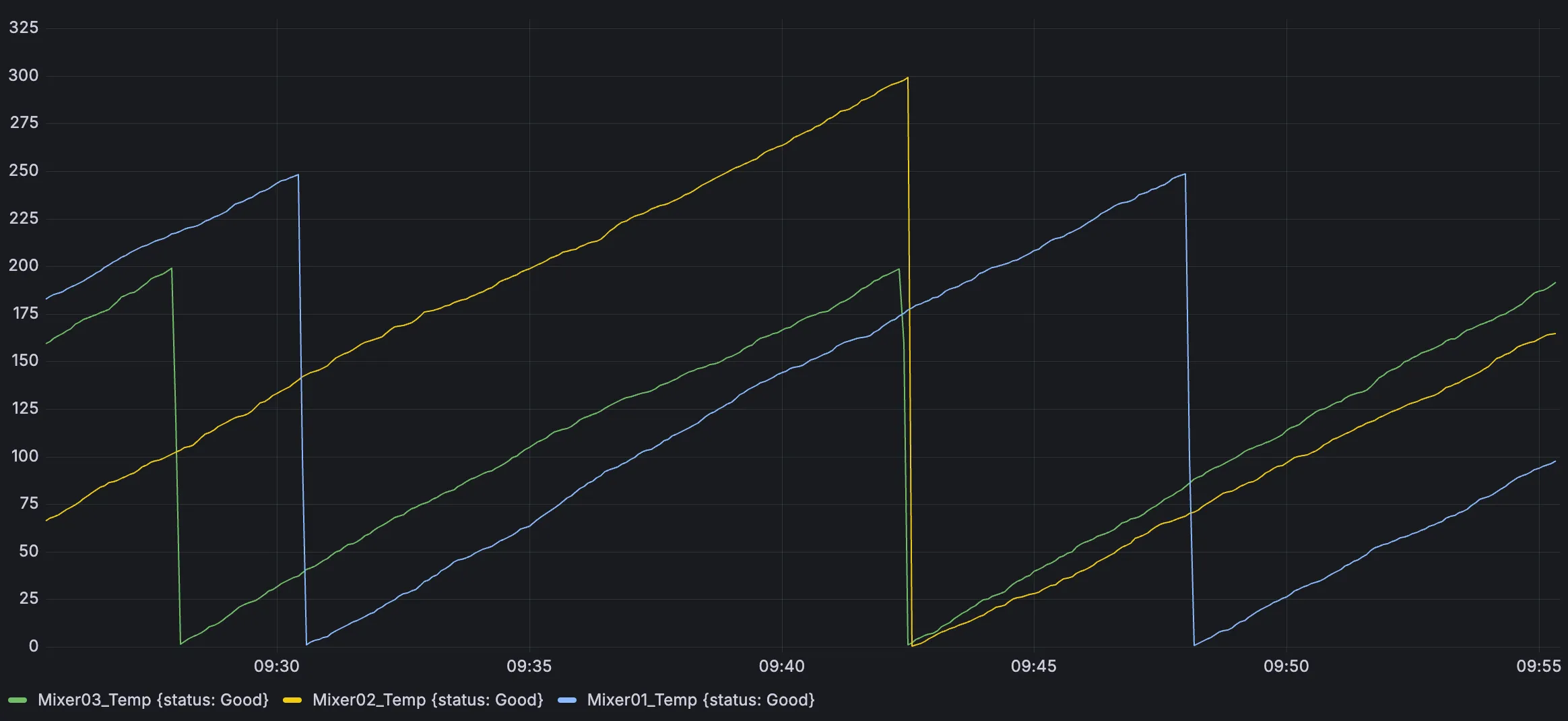
You can use a regex like Mixer.*_Temp to fetch all temperature measurements from all mixers in one query.
2. Assets
Assets represent real-world equipment in your plant. For example, your Factry Historian might have assets:
- Mixer01
- Mixer02
- Mixer03
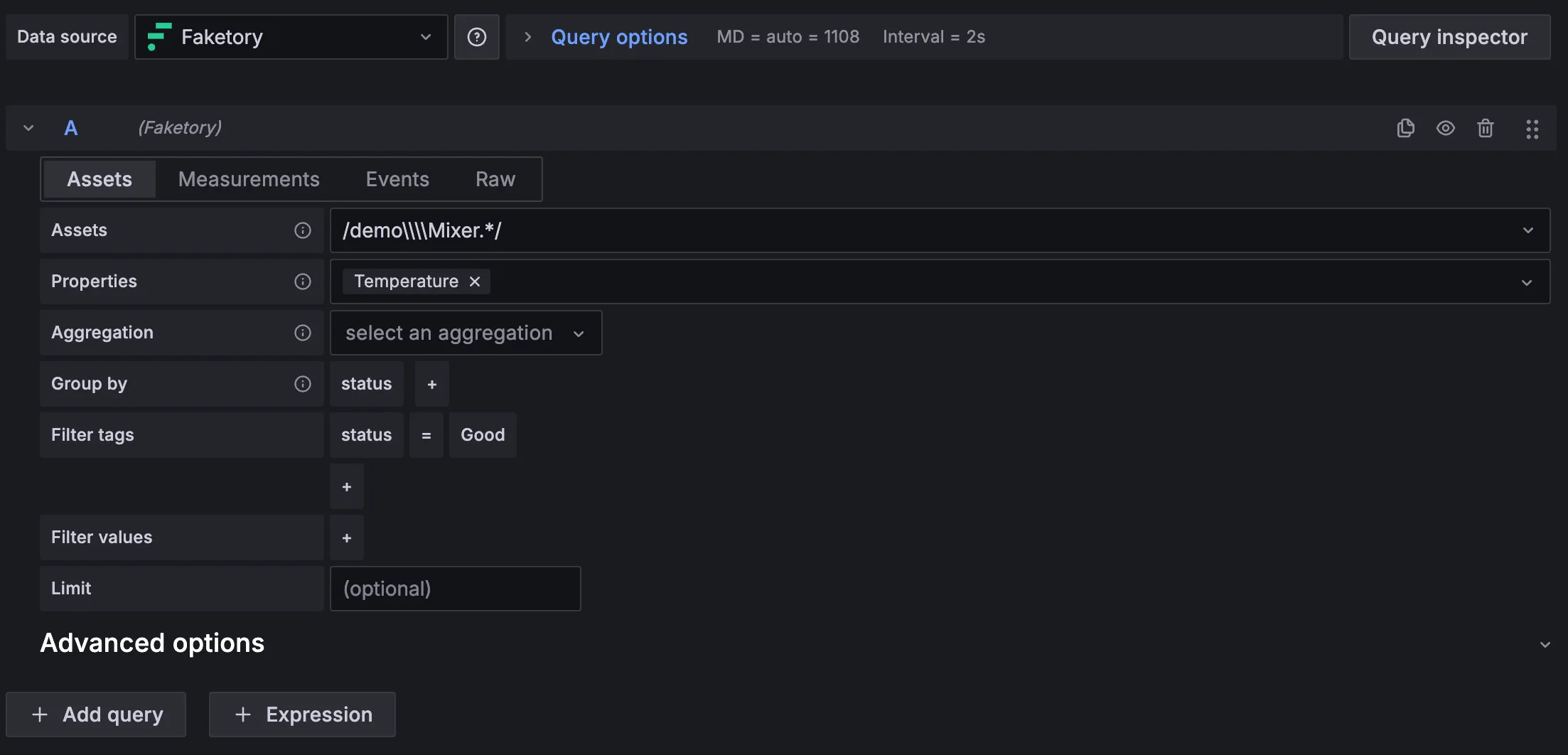
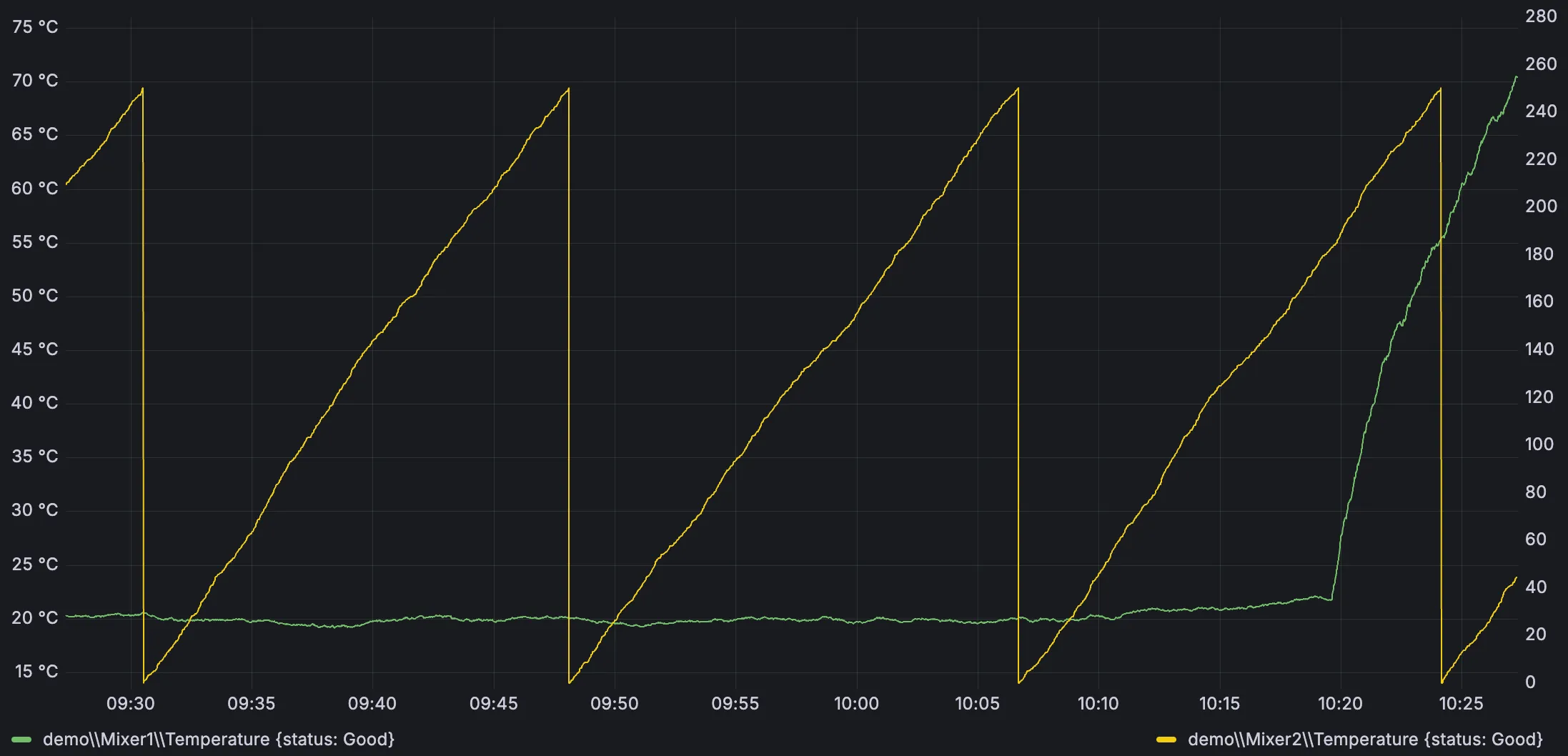
Instead of selecting each asset manually, you can configure the query editor to fetch data with a regex that matches all mixers: Mixer.*.
This is particularly useful when new assets are added later, they’ll automatically be included in your dashboard.
For more details, see: Regex patterns in Grafana datasourceRegex patterns in Grafana datasource
Troubleshooting
When using regex in the Factry Historian datasource, you might encounter some recurring issues. Here’s how to spot and resolve them.
Regex returns no results
Cause: The regex pattern doesn’t match the actual measurement or asset names in Historian.
- Example: Your measurement is Mixer01_Temp, but your regex is ^Temp_.*. → No match.
Fix:
- Copy the exact measurement/asset names from Historian.
- Adjust your regex until the match works (e.g. Mixer.*_Temp).
Regex is too broad
Cause: Greedy patterns like .* include far more than you intended.
- Example: Regex .*Temp.* → matches Mixer01_Temp, but also AmbientTemp, TempSensorBackup, etc.
Fix:
- Narrow down the regex scope.
- Use anchors (^ for start, $ for end) to target exactly what you want.
- Example: ^Mixer01_.*Temp$ → only returns Mixer01_Temp.
Regex in Grafana variables doesn’t work as expected
Cause: In Grafana, the regex in variable configuration is applied to the UUIDs, not the display names.
- You might see Mixer01_Temp in the dropdown, but the regex is actually applied on its UUID.
Fix:
- Avoid using regex inside Grafana variable config.
- Instead, apply regex directly in your Factry Historian datasource query (measurements, assets, or asset properties).
Aggregation mismatch across data types
Cause: Mixing numeric and non-numeric values with an unsupported aggregation.
- Example: Applying mean() across both temperature (numeric) and state (boolean).
- The datasource automatically falls back to last() for all measurements.
Fix:
- Split queries by data type:
- Numeric values → use aggregations like mean, min, max.
- String/boolean values → use last, first, mode.
- Add separate queries to the same panel so each data type trends correctly.