Testing an MQTT connection
This guide shows how to connect and read data with MQTT Explorer for both MQTT collector types in Factry Historian:
- MQTT (Generic): free-form topics with JSON payloads
- MQTT (Sparkplug B): Sparkplug v1.0 topics/payloads
The goal: see paths/topics and payloads arriving. We won’t publish anything.
Example broker uses unencrypted TCP: tcp://mqtt.realfakedata.com:1883. In production, use TLS (e.g., ssl://host:8883) with authentication.
Prerequisites
- MQTT Explorer installed (Windows/macOS/Linux)
- Network access to mqtt.realfakedata.com:1883
Steps
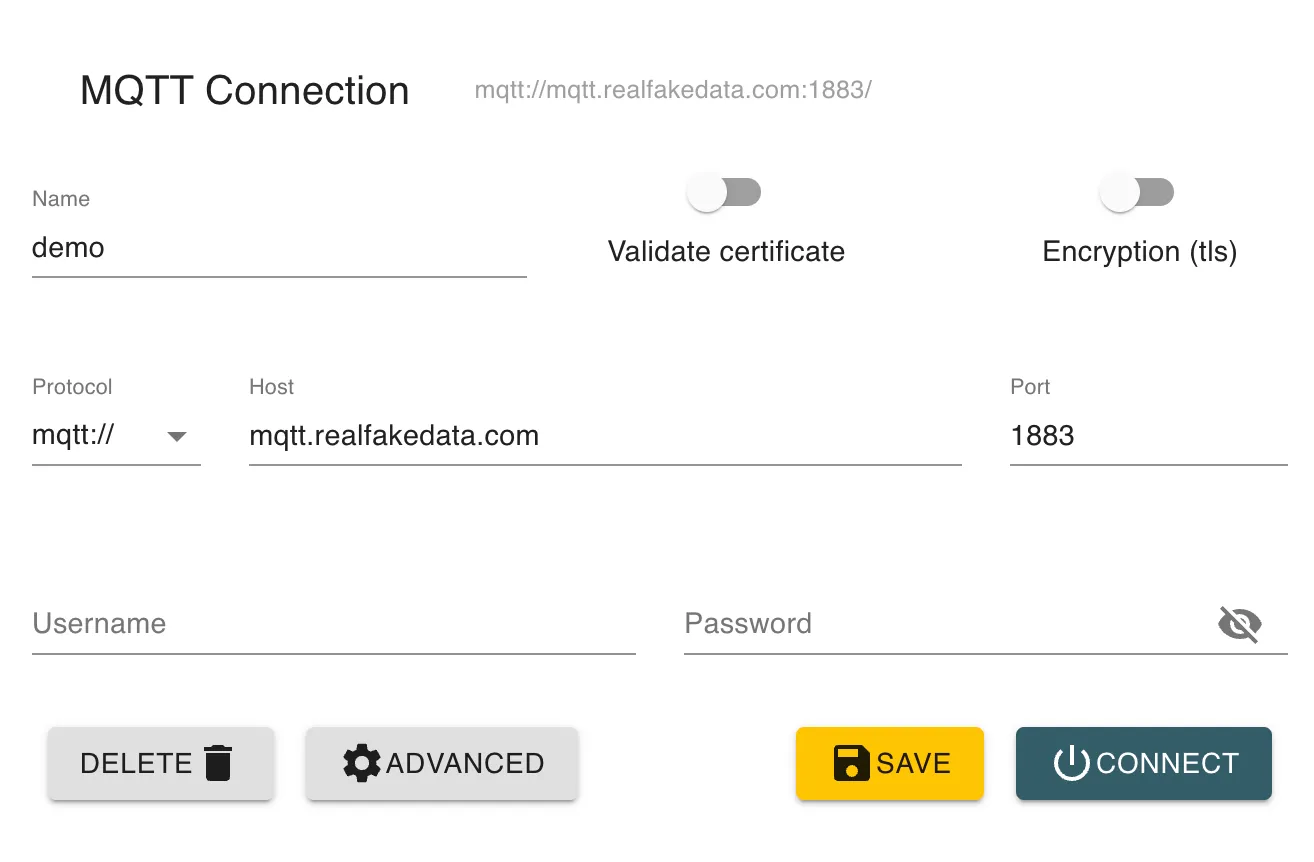
- Add new connection in MQTT Explorer
- Host: mqtt.realfakedata.com
- Port: 1883
- Protocol: MQTT/TCP (no TLS)
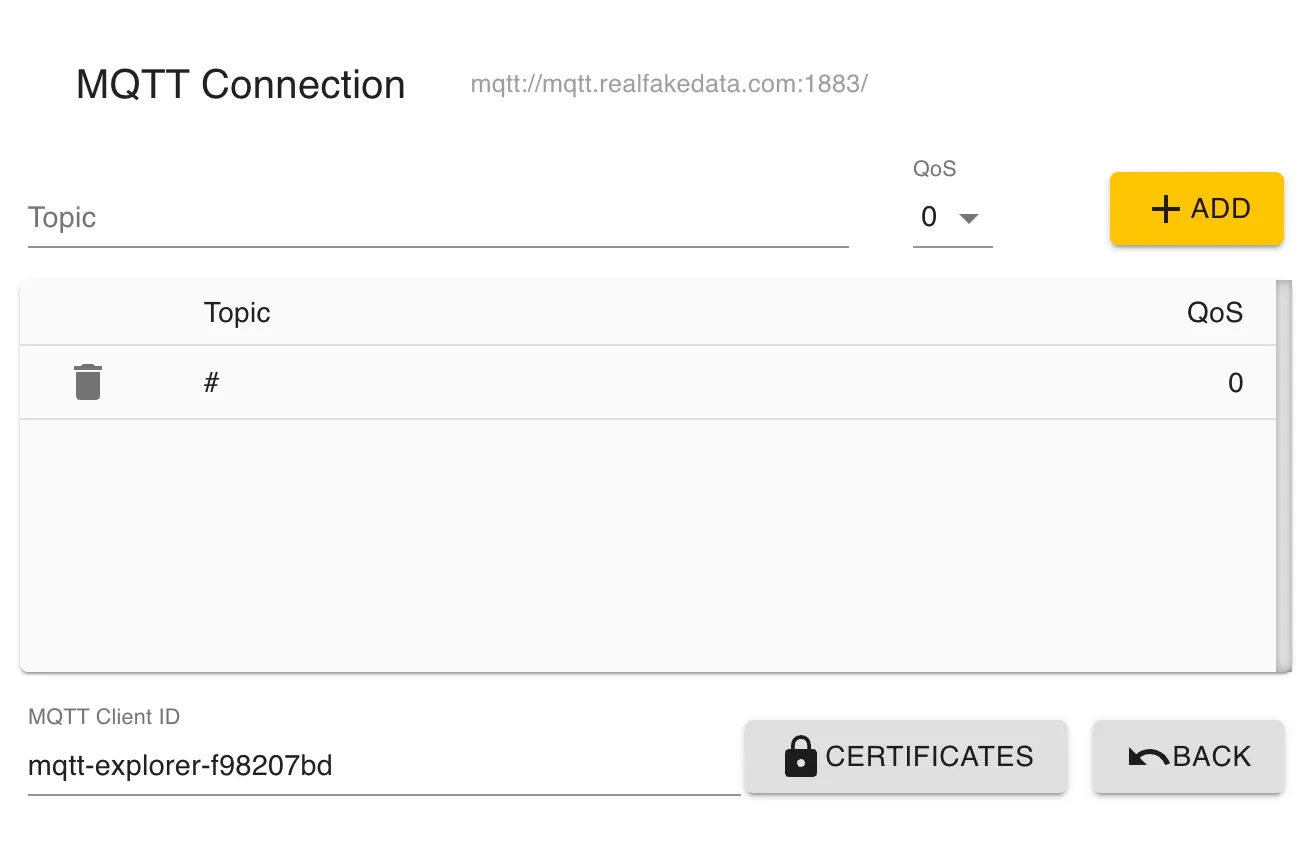
- In Advanced → Topic, add an initial topic (see below per collector).
- Connect and watch the left topic tree; click nodes to inspect payloads on the right.
- Note the exact topic paths and payload fields you’ll use when configuring Historian.
MQTT (Generic)
Subscribe filters
Start broad to discover, then narrow:
- Discovery: # (briefly, for exploration only)
- Typical: factry/demo/#
- Narrow: factory/line-1/mixer-01/metrics
Wildcards
- + = one level (factory/+/metrics)
- # = multi-level, last (factory/#)
What to look for
- Topic paths under your filter
- Payload format: usually JSON
- value fields (e.g., temperature, pressure)
- timestamp field (e.g., ts)
- quality/status (e.g., status)
- identifiers/tags (e.g., machineId, line)
Example payload you might see
Map to Historian (Generic)
- Collector
- MqttURL: tcp://mqtt.realfakedata.com:1883
- Topics: the filter you confirmed (e.g., factry/demo/#)
- QoS: 1 (recommended)
- TimestampLayout (default): RFC3339 (or UNIX/UNIXMILLIS/UNIXMICROS/UNIXNANOS)
- Measurement (per datapoint)
- MeasurementPath: $.temperature
- TimestampPath: $.ts
- TimestampLayout: RFC3339
- StatusPath: $.status
- TagNamesAndTagValuePaths: {"machine":"$.machineId"}
If TimestampPath/TimestampLayout are omitted on the measurement, the collector’s TimestampLayout is used.
MQTT (Sparkplug B)
Subscribe filters (Sparkplug v1.0)
Sparkplug topic schema: spBv1.0/<group>/<message_type>/<edgeNode>[/<device>] <message_type> ∈ NBIRTH, NDEATH, DBIRTH, DDEATH, NDATA, DDATA, NCMD, DCMD
Start with one of:
- Discovery (group): spBv1.0/<group>/#
- All node data for an edge node: spBv1.0/<group>/NDATA/<edgeNode>/#
- All device data under an edge node: spBv1.0/<group>/DDATA/<edgeNode>/+
What to look for
- Birth messages (NBIRTH/DBIRTH): inventory of metrics and initial state
- Data messages (NDATA/DDATA): live metric updates
- Payload: binary
Map to Historian (Sparkplug B)
- Collector
- MqttURL: tcp://mqtt.realfakedata.com:1883
- Topics: your confirmed Sparkplug filter (e.g., spBv1.0/<group>/NDATA/<edgeNode>/#)
- TimestampLayout (default): set per your publisher (e.g., UNIXMILLIS)
- Measurement (per metric)
- GroupID: <group>
- EdgeNodeID: <edgeNode>
- DeviceID: <device> (if applicable)
- MetricName: e.g., Temperature
Troubleshooting
- Connected, no data: widen your filter (# briefly to discover), then narrow again. Some topics only update periodically.
- Too much noise: tighten the filter (e.g., factry/demo/hello or spBv1.0/<group>/NDATA/<edgeNode>/+).
- Connection blocked: ensure mqtt.realfakedata.com:1883 is reachable (firewall/VPN/proxy).
Once you can see the paths and payloads in MQTT Explorer, copy those exact topics and JSON fields into your Historian collector/measurement settings.