Bulk updating measurements and calculations
Historian supports bulk updating measurements and calculations, allowing you to quickly change the status of multiple measurements or calculations, or, in the case of measurements, update common settings.
By clicking the checkbox next to a measurement's name, it becomes part of the selection. Once you have selected at least one measurement, a status bar will appear containing buttons for performing various bulk operations. These include:
- Starting and pausing the selected measurements.
- Deleting the selected measurements and/or their stored data.
- Changing various data-adjacent values such as labels, engineering specs or other metadata.
- Editing common settings. This is especially useful for configuration-heavy collectors, where each measurement might have 10 or more settings that could be equal for all measurements.

Deleting data
Analogous to deleting the data of a single measurement, the data of multiple measurements can be removed in bulk. After selecting the desired measurements, click Delete data which will open the data deletion modal, as explained in Deleting measurement data.
Changing labels
Measurement labels can be edited using the Change labels button. The following modal will open:
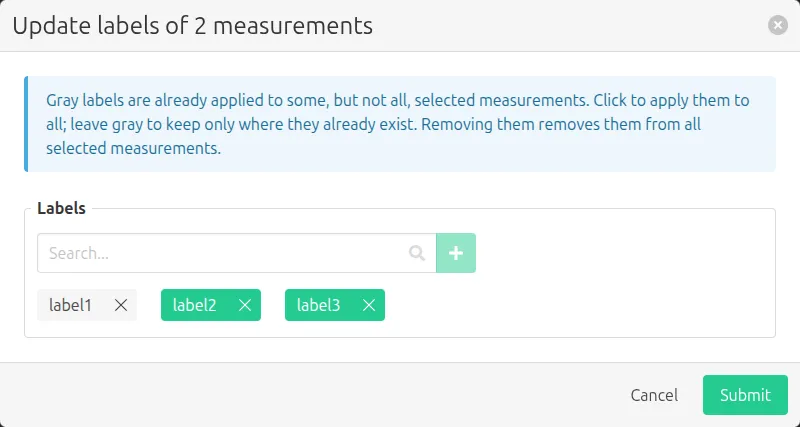
You will see the list of already applied labels, with green labels being present on all selected measurements and gray labels only on some. The search bar can be used to search for additional existing labels, or to create new labels. Clicking Submit will apply the new labels to all selected measurements.
Changing metadata
Measurement metadata can be bulk edited using the Change metadata button, showing the following modal:
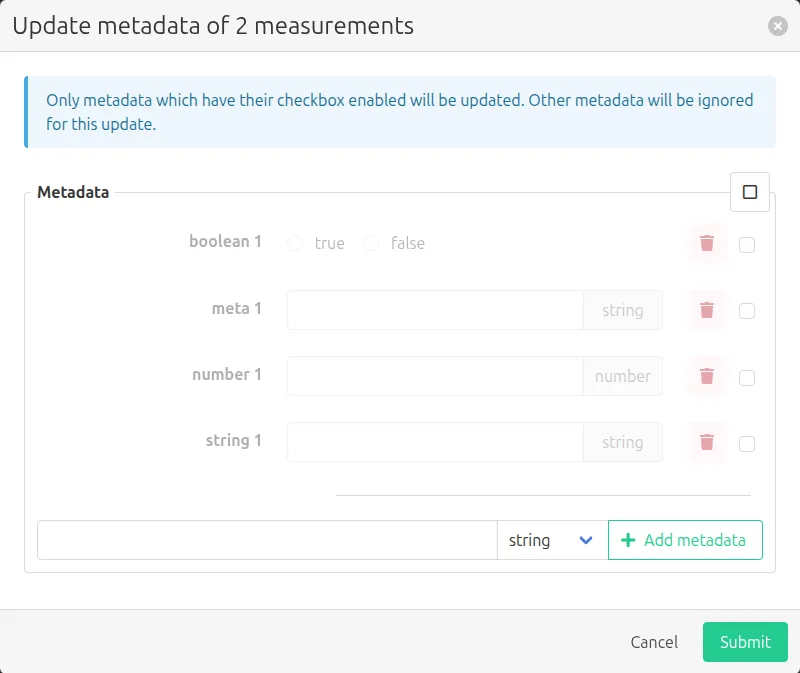
The list will contain all metadata fields already present on one or more of the selected measurements. By checking the metadata's checkbox, it will be enabled and added to the list of metadata values to update on the measurements. The input field below also allows creating new metadata values. After hitting Submit, the metadata values will be applied to all measurements.
It's possible for some of the selected measurements to have metadata fields with the same key, but different types. If this happens, a warning will be shown in the update modal telling you that all measurements will get the same value and type assigned to this metadata key, if selected.
Changing engineering specifications
Engineering specifications can be updated in bulk by selecting the relevant measurements and clicking Change engineering specs. Analogous to the other bulk editing modals, only the checked values will be updated on the measurements, after clicking Submit.
Changing settings
Measurement settings can be updated in bulk using the Change Settings button. This will open the following modal:
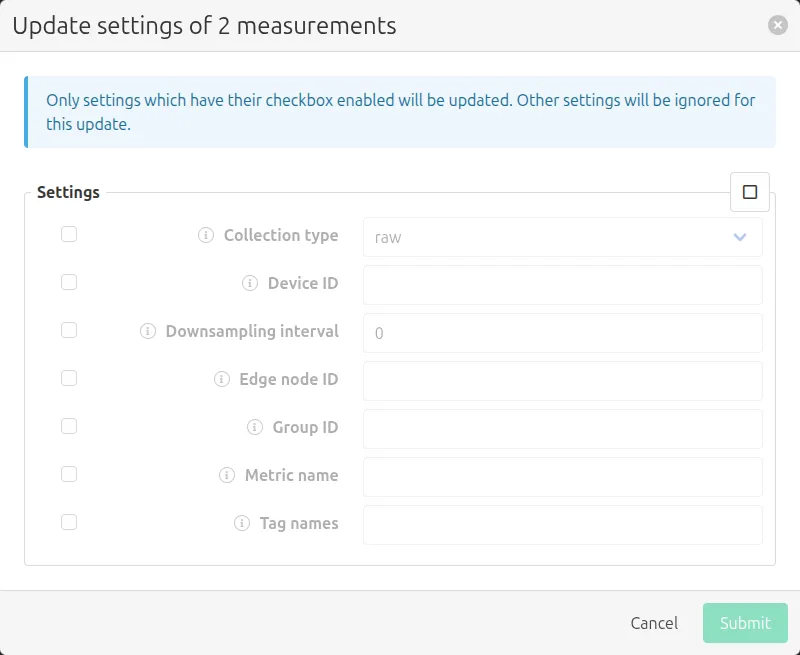
The list of settings will only include settings that are available for all selected measurements.
Select the settings that you wish to change and enter a new value. Then click Submit to apply the settings to all selected measurements.