Creating a measurement
Prerequisites
- Permissions in Factry Historian to manage measurements. See PrivilegesPrivileges.
- An installed collector. If you have not done so already, first install a collector.
Create the measurement
In Factry Historian, navigate to Measurements. On the overview, click + Create Measurement.
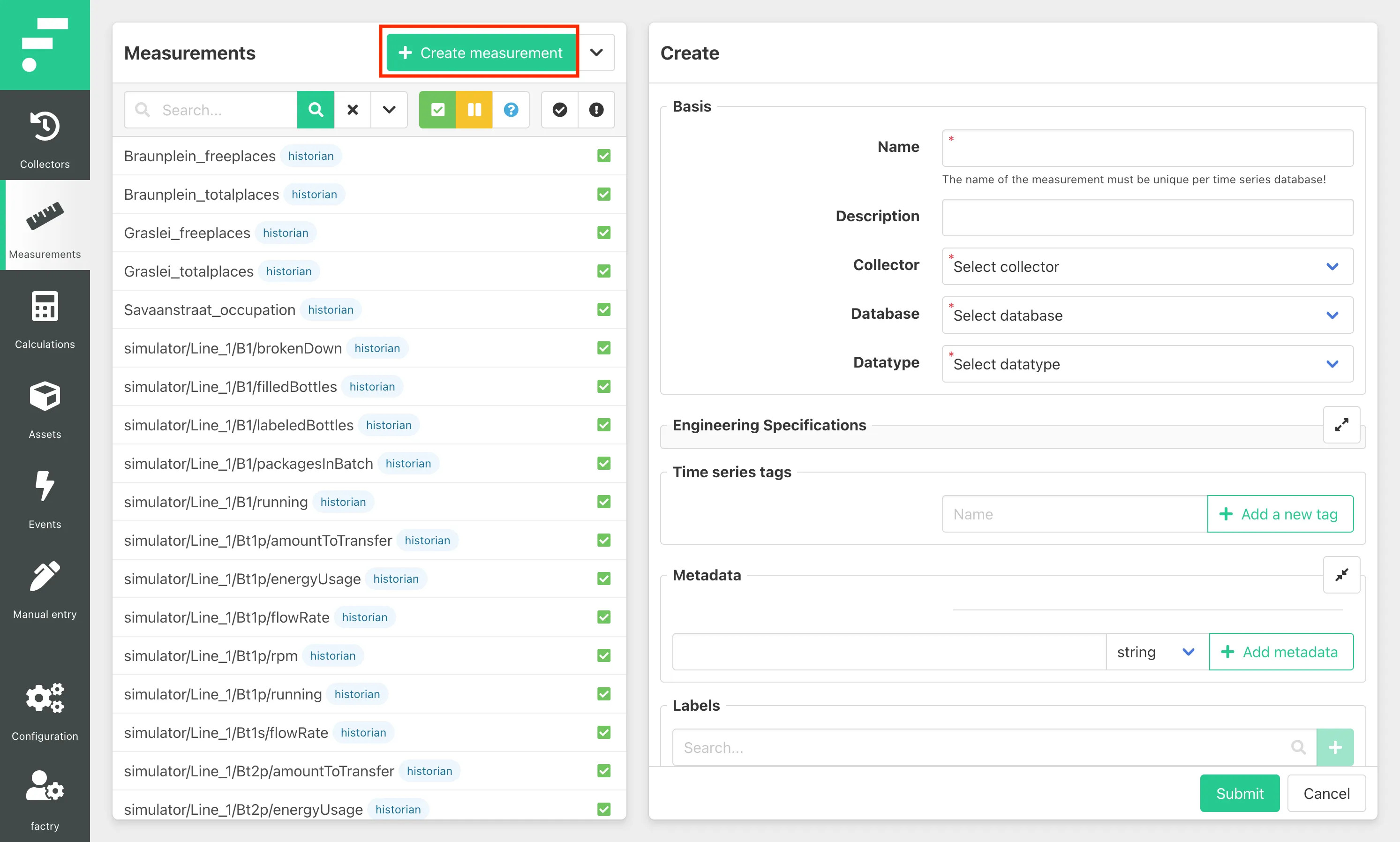
General measurement settings
In the form on the right, complete the fields in the Basis form fieldset:
- Enter a unique name (unique for one time series database)
- Optionally enter a description
- Select a collector (further settings will appear depending on the collector type)
- Select a database (might be prefilled if the selected collector has a default database)
- Select a datatype
The measurement name and database can’t be changed afterwards!
Collector-specific settings
Specific settings will need to be completed depending on the type of the collector you select. Read more about Collectors, protocols and data formats.
Additional settings
Engineering specifications
The engineering specifications can be used to give more meaning the values and set limits on them. Furthermore, the Factry Historian Datasource plugin will automatically fetch these settings for labeling of axes, scaling, and configuring thresholds.
The fields are:
- Units of Measurement
- ValueMin & ValueMax: min. and max. expected value of the measurement
- LimitLO & LimitHI: low and high threshold of the measurement
Time series tags
Tags will be stored for every data point written to the time series database. In most cases, we recommended using Labels instead.
Metadata
Metadata can be used to store additional information about the measurement, this information is not stored in the time series database.
Labels
Labels can be used to group measurements together and can be used to selective forward measurements using sinks and forwarders. A measurement can have multiple labels.
External validation
If External Validation is enabled, Factry Historian will perform a check against (an) external endpoint(s) to verify the measurement settings. After creating a measurement, the external validation status will appear in the measurement detail view.
Read more about configuring external validation.