Testing an OPC-UA connection
Step 1: Install an OPC-UA client (Explorer/Browser)
You need a tool to connect to and browse your OPC-UA server. Here are some free options:
Some paid OPC-UA servers (like Kepware and Ignition) offer a built-in explorer (OPC Quick Client) to browse the server without extra setup.
Step 2: Gather connection details
To connect, you’ll need:
- Endpoint: The IP address and port of the OPC-UA server (holding a valid OPC-UA server certificate)
- Authentication: Username and password (if required)
- Security Mode (details):
- None: No encryption, just authentication
- Sign: Authentication + signed messages (needs certificates)
- Sign and Encrypt: Authentication + signed + encrypted messages
- Security Policy: Which signature/encryption algorithms to use (details)
Tip: If your client and server are on the same machine, you can often connect without encryption or authentication. For remote connections, always use encryption and authentication.
Step 3: Browse NodeIDs
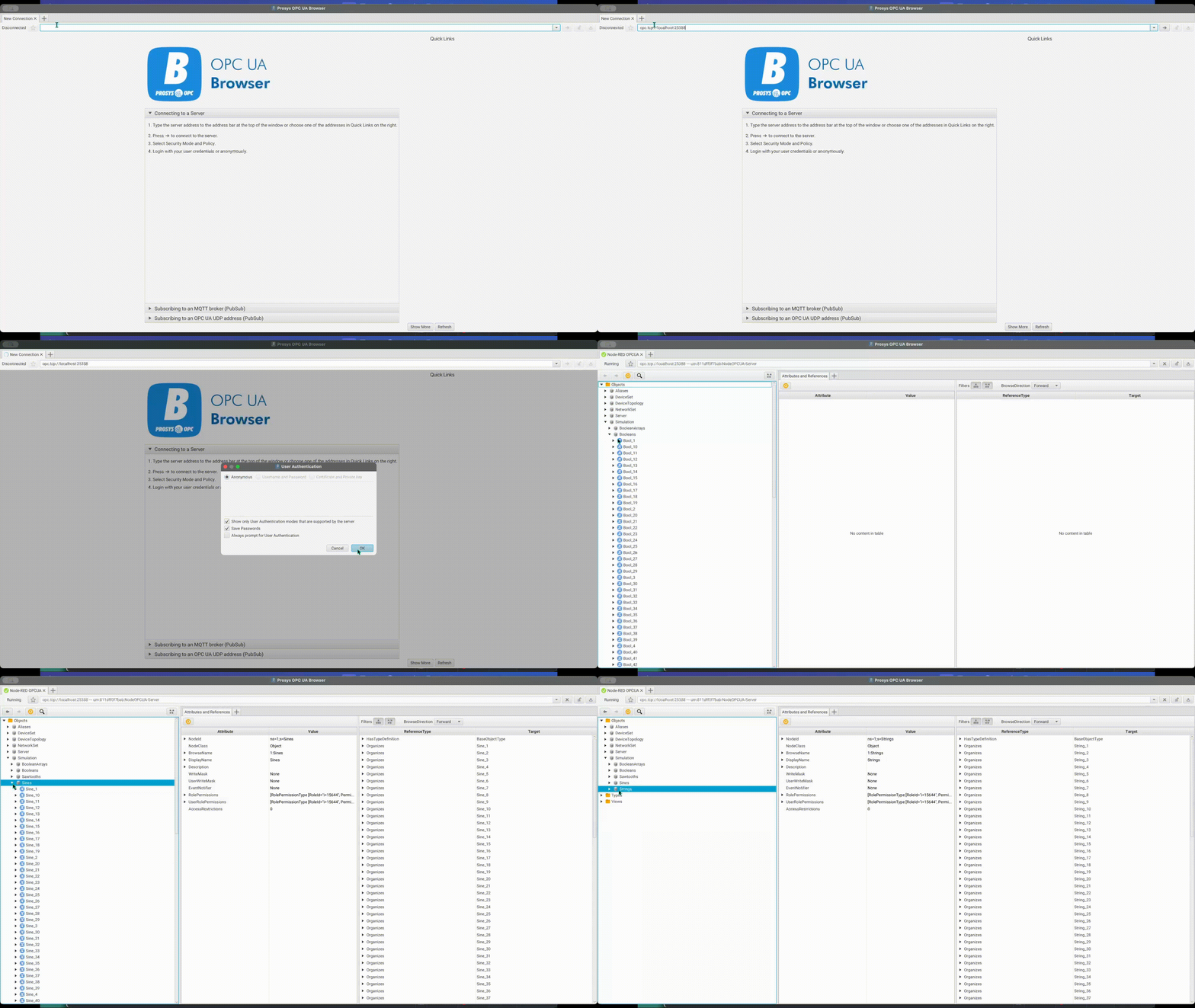
Once connected, you can browse the server to see available data points (NodeIDs), their current values, and more.
The example below shows how this works using Prosys OPC-UA Browser.
Some servers allow you to export a list of NodeIDs for bulk configuration.