Adding measurements to an OPC-UA collector
Measurements can be added to an OPC-UA collector by:
- Manually adding measurements
- Bulk importing measurements
- Adding measurements using the APIAdding measurements using the API
Manually add a measurement
Follow the guide on Creating a measurement for general instructions on how to create a measurement.
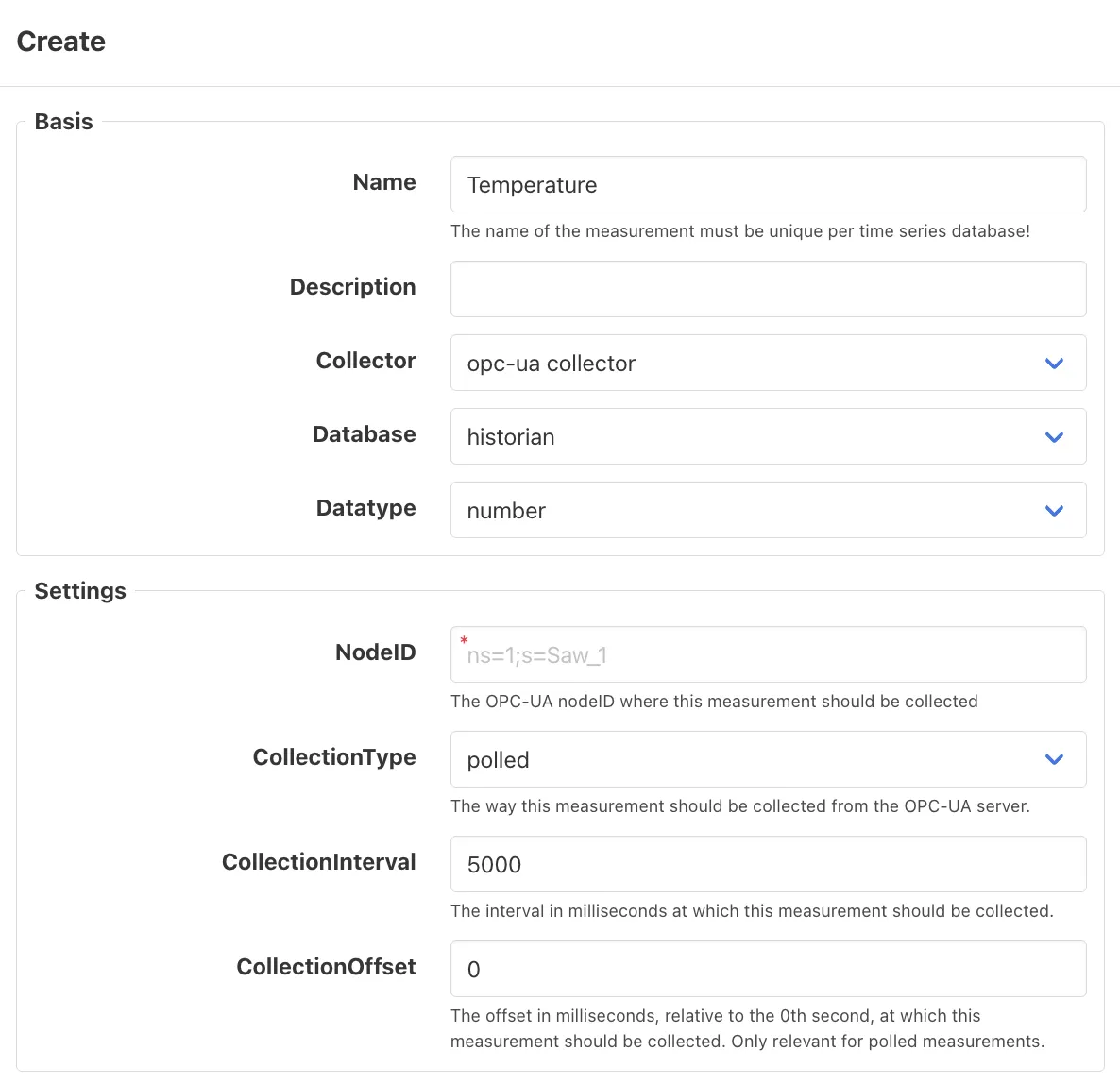
Open the Measurements page in Factry Historian web interface and click + Create Measurement.
Fill in the Name of the measurement and optionally add a short Description. This will make it easier to find and recognize the measurement later when searching for measurements to trend or configure.
Choose the OPC-UA Collector you configured before, and select the time-series Database where the data should be stored.
Select the correct Datatype (for example, Boolean, Number, or String) based on what the OPC-UA server reported for this node in the discovery step.
Basic settings
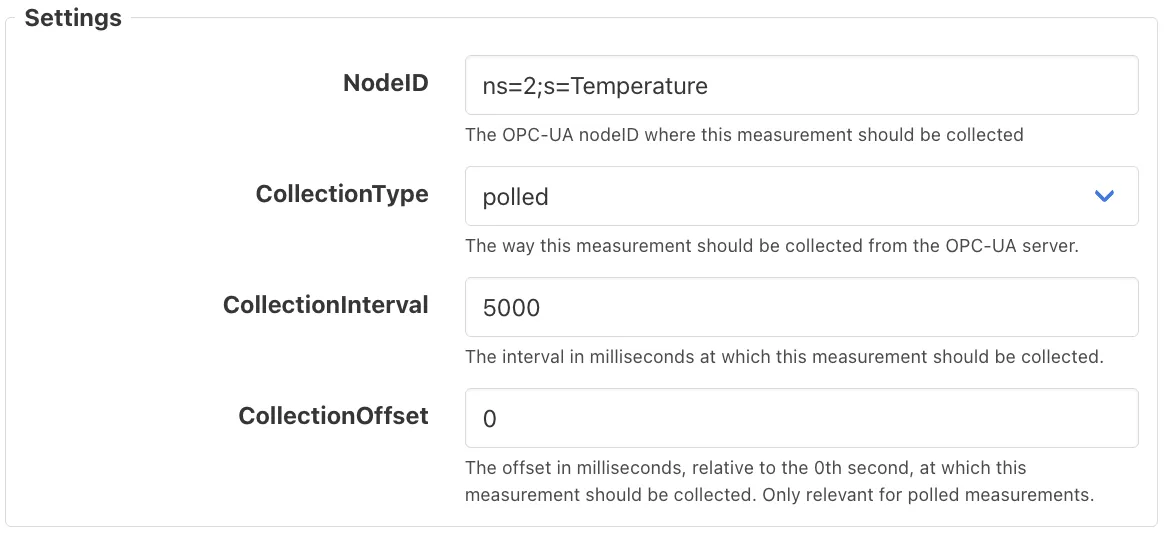
In the settings panel below, provide the NodeID. This tells the collector exactly which node to read from the OPC-UA server.
For an initial test, you can leave the fields CollectionType, CollectionInterval, and CollectionOffset at their default values. If you need more control, you can find detailed explanations of these optional settings in the reference documentation for the OPC-UA collectorOPC-UA collector.
Expected outcome
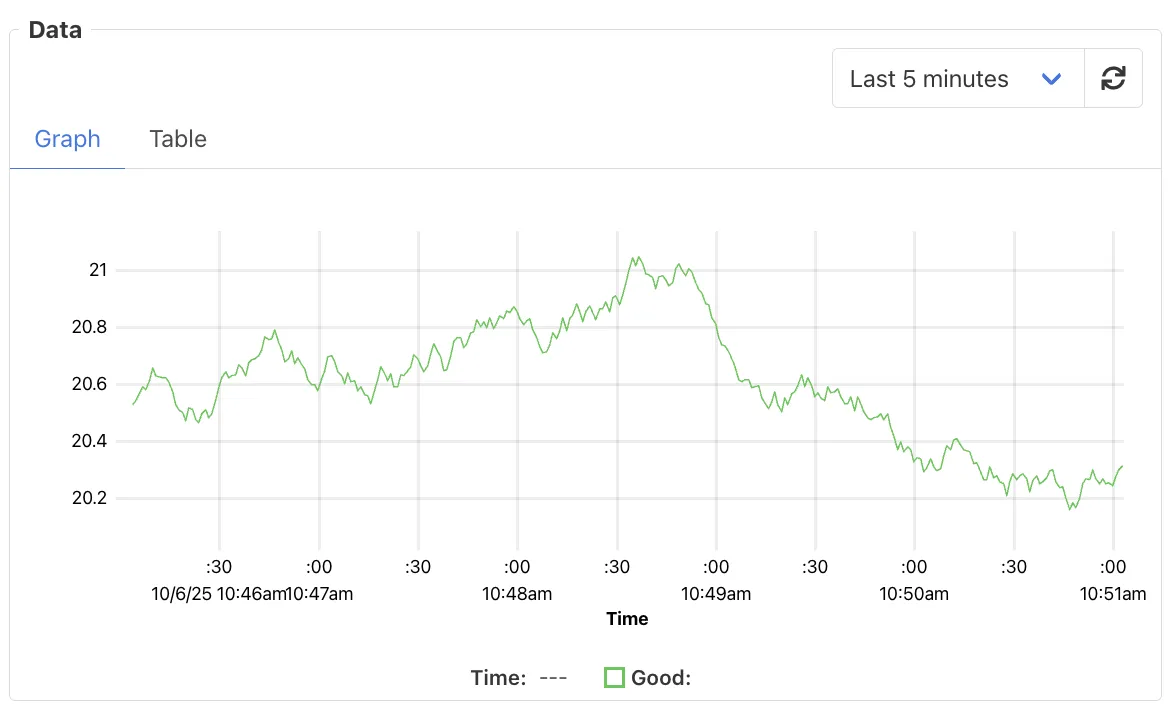
Once you have submitted your measurement, and all settings are correct, you should see the following:
- The measurement status changes to Good within about 10 seconds.
- The measurement appears in the list of configured measurements.
- The data preview panel begins to display live values coming from the selected OPC-UA node. Click the refresh icon if it does not refresh automatically.
If you need to configure a large number of nodes, you can also bulk import the measurements to speed up the process.
Bulk import measurements
Follow the guide on Importing measurements in bulk for general instructions.