Energy Monitoring with Factry Historian
Introduction
In this document, we describe how to set up an example dashboard for energy monitoring. We will do so using the Faketory demo datasetFaketory demo dataset.
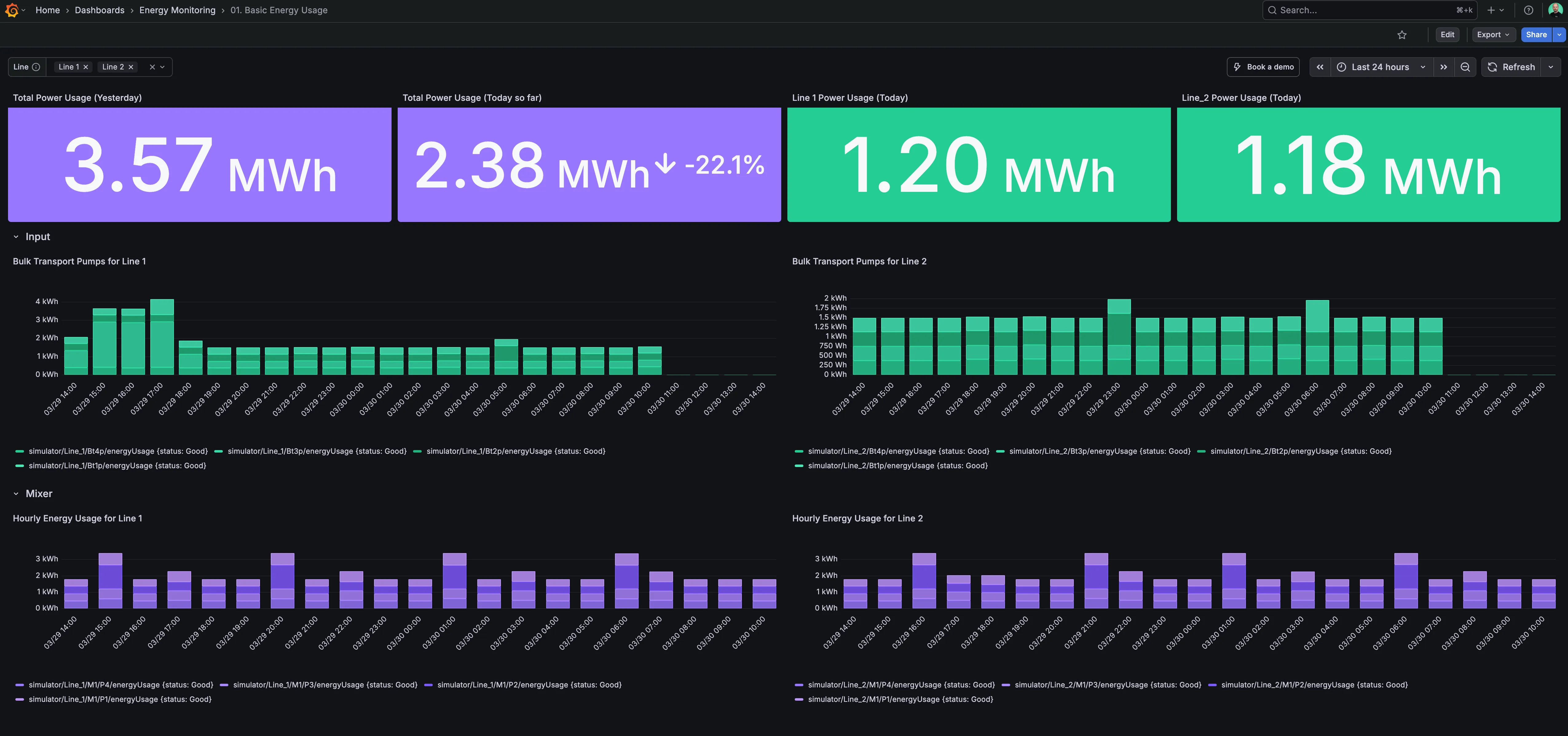
In the energy monitoring use case, we will build a basic dashboard showing the following metrics:
- A KPI row on top, showing the total energy usage across the whole plant yesterday, today, and per line.
- A breakdown of energy usage per hour for every input pump per production line.
- A breakdown of energy usage per hour for every input pump per mixer, the heart of our production line.
To make the dashboard a bit dynamic, we will also add a variable to select a specific line or all lines.
You can see the end result of this dashboard on the Factry demo environment.
Prerequisites
Consult the prerequisites of Energy Monitoring & Attribution.
Configuring Grafana
Create a new dashboard
Start by creating a new dashboard in Grafana.
Configuring the dashboard variables
In the newly created dashboard, navigate to Settings > Variables. Click + New variable. Then, configure the new variable as follows:
- Variable type: Custom
- General:
- Name: line
- Label: Line
- Description: Select the appropriate line from the dropdown menu.
- Hide: Nothing
- Custom Options:
- Values separated by comma: Line 1 : Line_1,Line 2 : Line_2 This uses key/value mapping.
- Selection options:
- Select Multi-value and Include All option.
Then, click Save dashboard and give your dashboard a fitting name e.g. 01. Basic Energy Monitoring.
Adding the KPI row
In our KPI row, we want to display the total energy usage across the whole plant yesterday, today, and per line. The stat panel is ideal for displaying single values like KPIs.
For each panel, click Add > Visualization. Then, select the Factry Historian datasource.
Total Power Usage (Yesterday)
In the Queries tab, open the Query options dropdown and enter the following:
- Time shift: 1d/d. This will select yesterday, and round on the full day.
- Optionally, check Hide time info.
In the same Queries tab, select the Measurements tab from the Factry Historian datasource. Then, configure the following:
- Database: select the database that contains your faketory data.
- Measurements: tick Use regular expression and then enter energyUsage$. This will retrieve all measurements from Factry Historian that end with energyUsage.
- Aggregation: select mean, grouped by 24h, and fill with 0.
- Under Advanced settings, uncheck Use engineering specs, as we will be setting them manually in this example.
All other query settings can remain at their defaults.
Finally, in the Transformations tab, click + Add transformation and select the Merge seres/tables transformation. This will merge the datasets from all energyUsage measurements together.
Now, slide open the Visualization selection on the right. Select the Stat panel type and configure the following:
- Panel options:
- Title: Total Power Usage (Yesterday)
- Value options:
- Show: select Calculate
- Calculation: Total
- Fields: Numeric fields
- Standard options:
- Kilowatt-Hour (kWh)
- Color scheme: Single color
Then, click <- Back to dashboard and resize your Stat panel to sit neatly on top.
Total Power Usage (Today so far)
As this panel is very similar to the "Total Power Usage (Yesterday)" we just created, we will duplicate this panel. On the dashboard view, hover over the previously created panel, click the ⋮button, and click More > Duplicate.
A duplicate Stat panel is created. Click the ⋮button and select Edit. Now change the following settings:
In the Queries tab, open the Query options dropdown and enter the following:
- Relative time: now/d (this will round the time to today)
- Time shift: make sure this is empty
- Optionally, check Hide time info.
Slide open the Visualization selection on the right. Configure the following:
- Panel options:
- Title: Total Power Usage (Today)
- Stat styles:
- Check the Show percent change toggle.
Line 1 Power Usage (Today)
Duplicate the "Total Power Usage (Today)" panel we created earlier by hovering over it, clicking the ⋮button, and clicking More > Duplicate. Then edit the panel and change the following:
In the same Queries tab, select the Measurements tab from the Factry Historian datasource. Then, configure the following:
- Database: select the database that contains your faketory data.
- Measurements: tick Use regular expression and then enter Line_1.*energyUsage$. This will retrieve all measurements from Line 1 that end with energyUsage.
- Aggregation: select mean, grouped by 24h, and fill with 0.
Slide open the Visualization selection on the right. Configure the following:
- Panel options:
- Title: Line 1 Power Usage (Today)
Line 2 Power Usage (Today)
This follows the same logic as Line 1 above. Substitute Line_1 with Line_2.
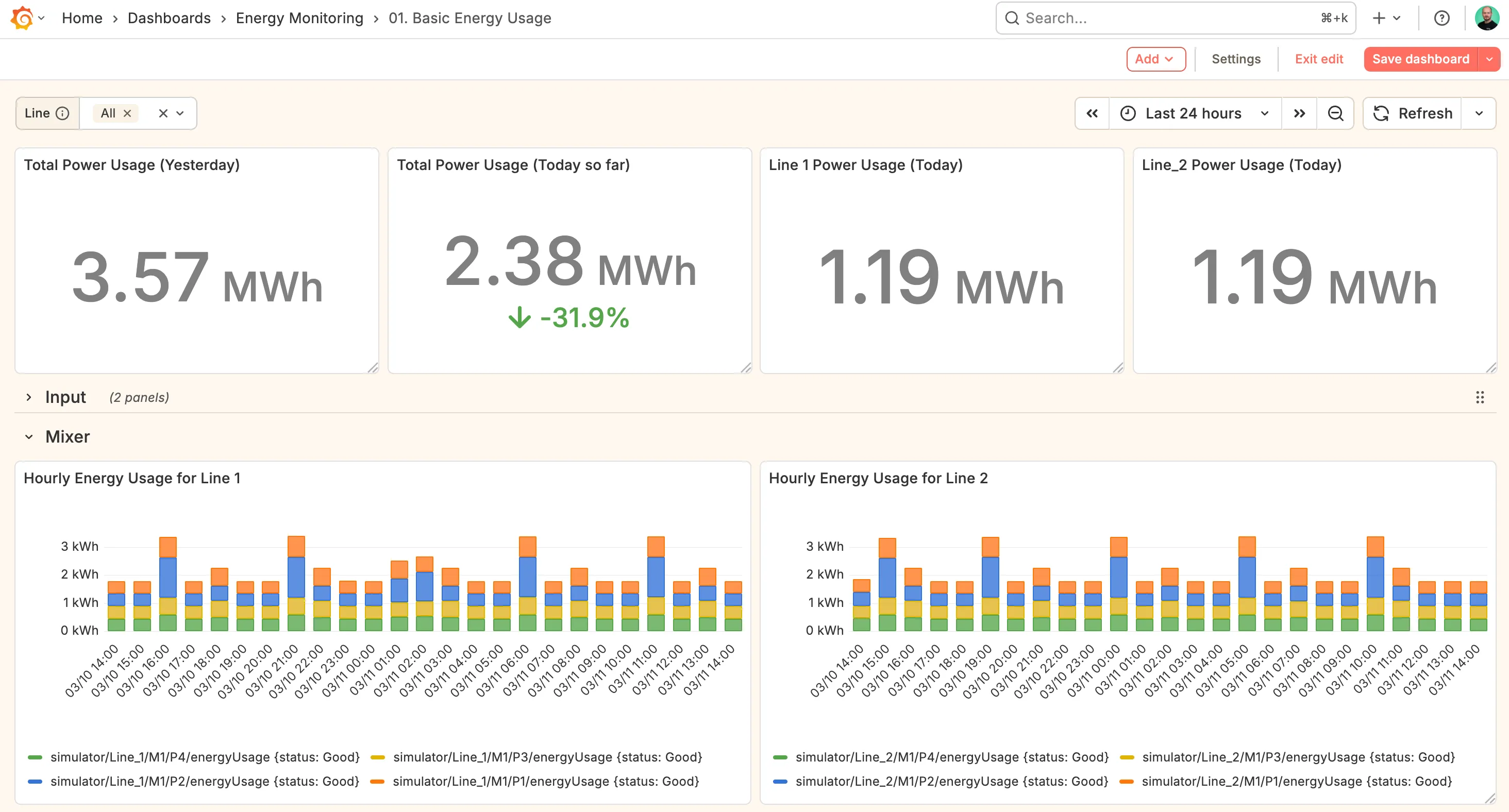
We should now have our KPI row that looks like this.

Now would be a good time to save your dashboard.
Adding the Bulk Transport Pumps row
On the dashboard view, click Add > Row. Click its gear icon and give it a Title Bulk Transport Pumps.
Then, click Add > Visualization. Select the Factry Historian datasource.
In the same Queries tab, select the Measurements tab from the Factry Historian datasource. Then, configure the following:
- Database: select the database that contains your faketory data.
- Measurements: tick Use regular expression and then enter ${line}.*/Bt.p/energyUsage. This will retrieve all measurements from Factry Historian that contain the value of the line variable, any Bt.p pump (with . being any character), and end with energyUsage.
- Aggregation: select mean, grouped by 1h, and fill with 0.
- Under Advanced settings, check Use engineering specs, as we will use the engineering specifications set in Factry Historian.
Slide open the Visualization selection on the right and select the Bar chart type. Configure the following:
- Panel options:
- Title: Bulk Transport Pumps for ${line}
- Repeat options:
- Repeat by variable: line
- Repeat direction: Horizontal
- Max per row: 2
- Bar chart:
- Rotate x-axis tick labels: -45°
- Show values: never
- Stacking: Normal
- Bar width: 0.8
Then, click <- Back to dashboard and place your Bar Chart panel under the "Bulk Transport Pumps" row. Try toggling the row to see if it's neatly nested underneath.
Select Line 1, Line 2, or All from the dropdown meny. The Bar chart panels should repeat automatically, and the title should show e.g. Bulk Transport Pumps for Line 1.
Adding the Mixer row
For the mixer row, we follow the same logic as the "Bulk Transport Pumps" row, with the exception of the following query in the Query tab:
Measurements: ${line}.*/M1/P.*energyUsage
End Result
Your basic energy dashboard show now look like this.