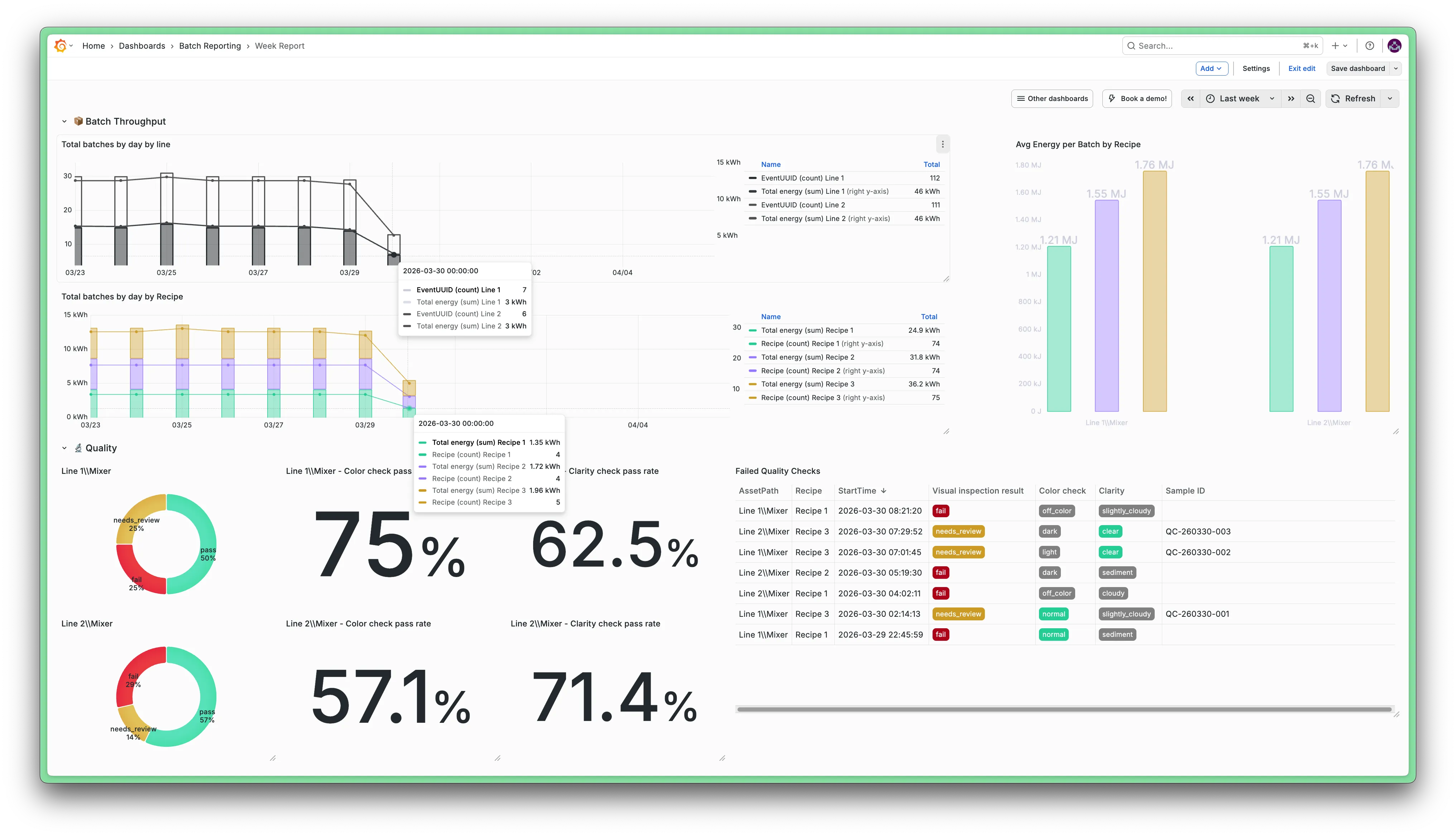
Weekly report dashboard
Introduction
This document describes how to set up a weekly production report dashboard. It gives shift leads and production managers a week-by-week overview of batch throughput, energy consumption and quality results across both production lines.
Audience: Shift leads, production managers
Purpose: Weekly production review and cross-line quality tracking
Dashboard layout
- Batch throughput (by line, by recipe)
- Average energy per batch by recipe
- Quality results per mixer
Key design decisions
Before building, two aspects of this dashboard are worth understanding because they shape how everything is wired together.
All variables are hidden. Unlike the Operator or Batch Comparison dashboards, $line, $mixer are all hidden from the dashboard header. Both lines are selected by default, all recipes are included by default, and the user never needs to touch a variable. The only control exposed to the user is the time picker, which is pre-configured with weekly quick ranges so the user can step back week by week with a single click.
The quality panels use $mixer** with repeat.** Rather than duplicating panels for Line 1 and Line 2, the donut and stat panels are configured to repeat vertically once per value of the $mixer variable. This means the quality section automatically scales if a third line is ever added.
Step-by-step
Create variable $line
Follow the same steps as in the Operator Dashboard guide, but with one difference: set Hide to Variable so it does not appear in the dashboard header. Both lines should be selected by default.
- General
- Name: line
- Label: Line
- Hide: Variable
- Query options
- Query Type: Asset
- Filter by asset path: /^Line/
- Parent assets: No parent
- Selection options
- Multi-value: Checked
- deselect 'Allow custom values'
Create variable $mixer
Same as the Operator Dashboard guide, but also hidden.
- General
- Name: mixer
- Label: Mixer
- Hide: Variable
- Query options
- Query Type: Asset
- Filter by asset path: /Mixer$/
- Parent assets: $line
- Use asset path as value: Checked (This is important. The asset path rather than the asset name is used as the value, because both mixers are called "Mixer", which could lead to confusion.)
- Selection options
- Include all option: Checked
- Multi-value: Checked
- deselect 'Allow custom values'
Rather than a variable, week navigation is handled entirely through the time picker. The default time range and week start day can be set through the Grafana UI, but you can also set custom quick ranges by editing the dashboard JSON directly.
Set the default time range and week start
In Dashboard settings > Time options:
- Week start: Monday
Open the dashboard JSON model
In Dashboard settings > JSON model, find the timepicker object. By default it looks like this:
"timepicker": {}Replace the timepicker object with the custom quick ranges
"timepicker": {
  "quick_ranges": [
    { "display": "This week",    "from": "now/w",    "to": "now/w+1w"  },
    { "display": "Last week",    "from": "now-1w/w", "to": "now/w"     },
    { "display": "2 weeks ago",  "from": "now-2w/w", "to": "now-1w/w" },
    { "display": "3 weeks ago",  "from": "now-3w/w", "to": "now-2w/w" },
    { "display": "4 weeks ago",  "from": "now-4w/w", "to": "now-3w/w" }
  ]
}
Save the dashboard. The time picker dropdown will now show these five options instead of Grafana's default ranges, making it immediately clear to any user how to navigate between weeks.
Adding quick_ranges replaces Grafana's built-in quick ranges entirely. If you want to keep any of the defaults (e.g. "Last 7 days"), add them explicitly to the list alongside the weekly options.
This panel shows how many batches ran each day, with each series representing one recipe on one line.
Click  > Visualisation and select Data source: Factry Historian Datasource
Configure the data source
- Tab: Events
- Query type: Simple
- Assets: $mixer
- Event types: Mixing Batch
- Properties: /
Add transformations
This is the most involved transformation pipeline in the dashboard. Each step is necessary:
- Format time Format StartTime as DD-MM-YYYY (browser timezone). This strips the time component so events on the same day can be grouped together correctly in the next step.
- Group by Group by StartTime and AssetPath, aggregate EventUUID as count. This gives a row per day per line with a batch count.
- Partition by values Partition by Recipe and AssetPath. This splits the single table into one series per Recipe+Line combination, which is what the time series panel needs to draw separate lines.
- Convert field type Convert StartTime from string back to time using format DD-MM-YYYY. The Format time step turned it into a string; this step turns it back into a proper timestamp so the time series panel can place it on the time axis correctly.
- Rename by regex Regex: (.*Line \d).*, rename pattern: $1. This trims the asset path down to just the line name (e.g. Faketory/Line 1/Mixer becomes Line 1) to keep the legend readable.
Change visualisation to Time series and configure panel options
- Panel options
- Title: Total batches by day by line
- Transparent background: Checked
- Graph styles
- Draw style: Line
- Fill opacity: 0 (default)
- Stacking: Normal
- Decimals: 0 (batch counts are whole numbers)
- Legend
- Mode: Table
- Values: Sum
- Placement: Right
- Width: 350
- Field overrides
- Fields matching /.*Line 2/: set Fill opacity to 0 and Color to #505050 (This visually separates the two lines. Line 1 gets a filled area, Line 2 gets a plain dark line.)
This panel shows the same data but partitioned by recipe instead of by line, so the viewer can see which recipes drove throughput on any given day.
Click > Visualisation and select Data source: Factry Historian Datasource
Use the same query as the previous panel: $mixer, event type Mixing Batch, property filter Recipe IN $recipe.
Add transformations
The pipeline is the same as the "by line" panel with two differences:
- Format time: same as before.
- Group by: Group by StartTime and Recipe, aggregate Recipe as count. (Group by Recipe this time, not AssetPath.)
- Sort by: Sort by Recipe before partitioning to ensure a consistent series order.
- Partition by values: Partition by Recipe and AssetPath.
- Convert field type: same as before.
- Rename by regex with regex (.*Recipe \d).* and rename pattern $1.
Change visualisation to Time series and configure panel options
- Panel options
- Title: Total batches by day by Recipe
- Transparent background: Checked
- Graph styles
- Draw style: Bars
- Bar width factor: 0.3
- Fill opacity: 40
- Stacking: Normal
- Legend
- Mode: Table
- Values: Sum
- Placement: Right
- Width: 350
- Field overrides
- Fields matching /energy/: set draw style to Line, unit to kWh, fill opacity to 0 (A future overlay of energy data would automatically render as a line rather than a bar.)
This panel sits to the right of the two throughput panels and spans both rows. It shows the average energy consumed per batch, grouped by recipe, with one bar per line. This makes it easy to compare whether Line 1 and Line 2 are equally efficient for the same recipe.
Click > Visualisation and select Data source: Factry Historian Datasource
Configure the data source
- Tab: Events
- Query type: Simple
- Assets: $mixer
- Event types: Mixing Batch
- Properties: Total energy usage, Recipe
Add transformations
- Group by Group by AssetPath and Recipe, aggregate Total energy usage as mean.
- Organize fields Rename Total energy usage (mean) to Avg Energy Usage.
- Sort by Sort by Recipe for consistent column ordering.
- Grouping to matrix Column field: Recipe, row field: AssetPath, value field: Avg Energy Usage. (This pivots the data so each recipe becomes a column and each line becomes a row. This becomes the shape the bar chart needs to draw grouped bars.)
- Sort by Sort by the field AssetPath\... to ensure lines appear in a consistent order.
Change visualisation to Bar chart and configure panel options
- Panel options
- Title: Avg Energy per Batch by Recipe
- Transparent background: Checked
- Bar chart options
- X field: AssetPath
- Orientation: Auto
- Bar width: 0.6
- Show value: Auto
- Text size: 30
- Legend
- Visibility: Unchecked (recipe names are already the bar group labels)
- Field overrides Assign consistent colors by recipe number:
- Fields matching /.*1$/ → #25cd93
- Fields matching /.*2$/ → #9977ff
- Fields matching /.*3$/ → #cd9b25
This donut chart shows the split of pass, fail and needs_review outcomes for the visual inspection quality check. It is configured to repeat per mixer, so one donut automatically appears for each line.
Click > Visualisation and select Data source: Factry Historian Datasource
Configure the data source
- Tab: Events
- Query type: Simple
- Assets: $mixer
- Event types: Emptying step
- Properties: Visual inspection result
Add transformations
- Filter by value Exclude rows where Visual inspection result is null. Without this, batches where the field was not filled in would count as a third outcome and distort the percentages.
- Group by Group by Visual inspection result, aggregate as count. This gives a row per outcome value with its count.
- Transpose Pivots the result values into columns (pass, fail, needs_review) with their counts as values. The pie chart expects one column per slice.
Change visualisation to Pie chart and configure panel options
- Panel options
- Title: $mixer
- Transparent background: Checked
- Pie chart options
- Pie type: Donut
- Display labels: Name, Percent
- Sort: Desc
- Field overrides Assign consistent colors:
- Field pass → #25cd93
- Field fail → dark-red
- Field needs_review → #cd9b25
Configure panel repeat
In the panel options, under Repeat options:
- Repeat by variable: mixer
- Repeat direction: Vertical
This creates one donut per mixer value (i.e. one per line) stacked vertically, without needing to duplicate the panel.
These two stat panels show the pass rate (as a percentage) for the color check and clarity quality properties. Both use the same transformation pattern and are also configured to repeat per mixer.
Click > Visualisation and select Data source: Factry Historian Datasource
Configure for Color check first, then duplicate for Clarity.
- Tab: Events
- Query type: Simple
- Assets: $mixer
- Event types: Emptying step
- Properties: Color check
Add transformations
This pipeline computes pass_count / total_count to produce a percentage:
- Filter by value Exclude rows where Color check is null.
- Group by Group by Color check, aggregate as count. This gives one row per outcome value.
- Transpose Pivots outcome values into columns (e.g. normal, abnormal) with counts as values.
- Calculate field Leave options empty. This step adds a Total column by summing all existing value columns.
- Calculate field Mode: Binary operation
- Left: normal
- Operator: /
- Right: Total
- Alias: normal
- Replace all fields: Checked
This divides the count of normal results by the total to produce a rate between 0 and 1.
Change visualisation to Stat and configure panel options
- Panel options
- Title: $mixer - Color check pass rate
- Transparent background: Checked
- Value options
- Fields: /^normal$/
- Reduce: Last (not null)
- Standard options
- Unit: Percent (0–1)
- Min: 0, Max: 1
- No value: No data
- Stat styles
- Color mode: None
- Graph mode: Area
Configure panel repeat
Same as the donut panel:
- Repeat by variable: mixer
- Repeat direction: Vertical
Duplicate for Clarity
Duplicate the panel and make two changes:
- Query property: Clarity instead of Color check
- Title: $mixer - Clarity check pass rate
- In the Filter by value transformation: change the field from Color check to Clarity
- In the binary Calculate field transformation: change both the left operand and alias from normal to clear (The Clarity field uses clear as its passing value rather than normal.)
This full-width table at the bottom of the dashboard lists every emptying step event across both lines where the visual inspection result was not pass. It gives reviewers a direct list of batches that need follow-up, including which recipe the failed batch belonged to.
Click > Visualisation and select Data source: Factry Historian Datasource
Configure the data source
- Tab: Events
- Query type: Simple
- Assets: $mixer
- Event types: Emptying step
- Properties: Visual inspection result, Color check, Clarity, Sample taken, Sample ID, parent:Recipe
- Include parent info: Checked
- Property filter: Visual inspection result != pass
Enabling Include parent info and adding parent:Recipe to the properties list pulls the recipe name from the parent Mixing Batch event into each emptying step row. This lets reviewers immediately see which recipe was involved without having to navigate to the batch detail.
Add transformations
- Organize fields Hide all internal fields: Asset, AssetUUID, Duration, EventType, EventTypeUUID, EventUUID, ParentEventUUID, StopTime, and all Parent_* fields except Parent_Recipe. Rename Parent_Recipe to Recipe. Keep AssetPath and StartTime visible.
- Sort by Field: StartTime, Reverse: Checked.
Change visualisation to Table and configure panel options
- Panel options
- Title: Failed Quality Checks
- Field overrides
- Visual inspection result: Cell type → Pill, map fail → dark-red, needs_review → #cd9b25
- Color check: Cell type → Pill, map normal → #25cd93
- Clarity: Cell type → Pill, map clear → #25cd93
End result
The finished dashboard gives a complete weekly production summary in three sections. Use the quick ranges in the time picker (Last week, 2 weeks ago, etc.) to step back through previous weeks. All variables are hidden. The only user-facing control is the time picker itself.