Registering an App in Entra ID
Introduction
In this guide, we will walk you through setting up an app registration in Microsoft Entra ID to be used for authentication in Factry Historian and Grafana.
Microsoft Entra ID was previously known as Azure Active Directory (Azure AD). It is a cloud-based identity and access management service used to manage users, groups, and permissions for secure sign-in to applications.
Step 1: Access Azure Portal
- Go to https://portal.azure.com and click on Microsoft Entra ID.

Step 2: Create App Registration
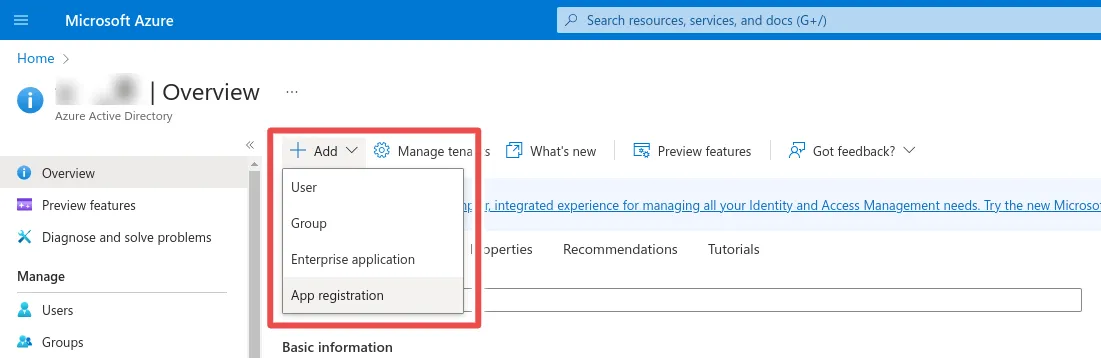
- Click Add > App registration.
Step 3: Configure App Registration
Factry Historian
- Name the application, e.g. Factry Historian.
- Supported account types: select Single tenant to limit login to your organization only (recommended).
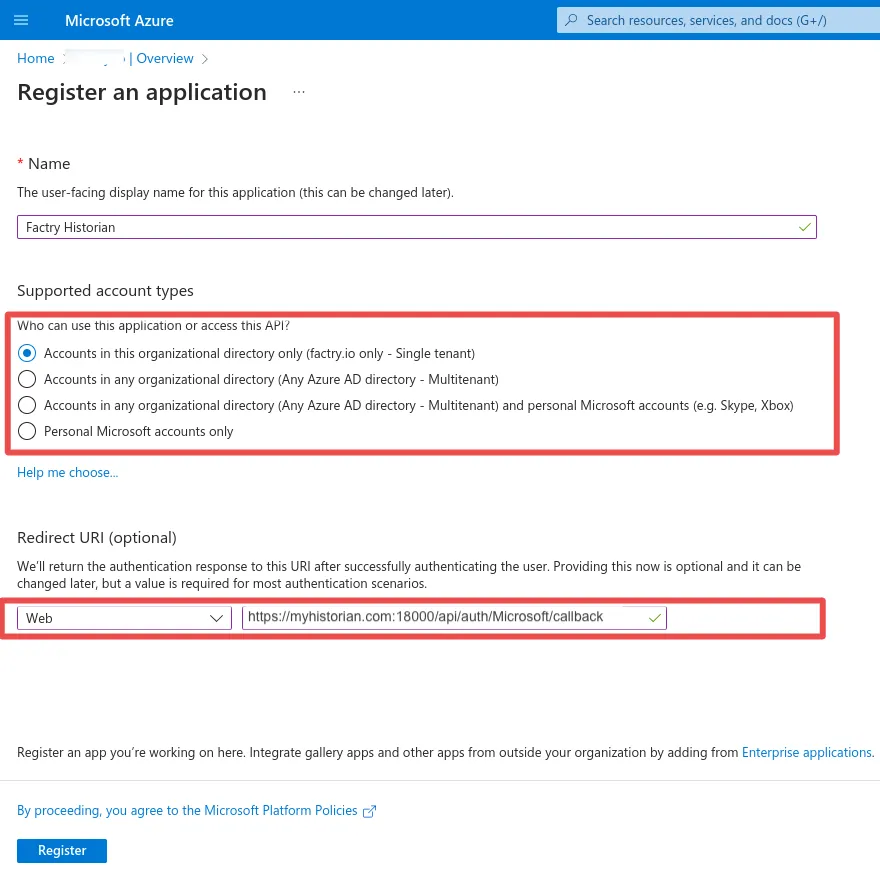
- Redirect URI:
- Example: https://myhistorian.com:18000/api/auth/Microsoft/callback
- Formula: <MY-HISTORIAN-BASE-URL> + /api/auth/<MY-AUTH-PROVIDER>/callback
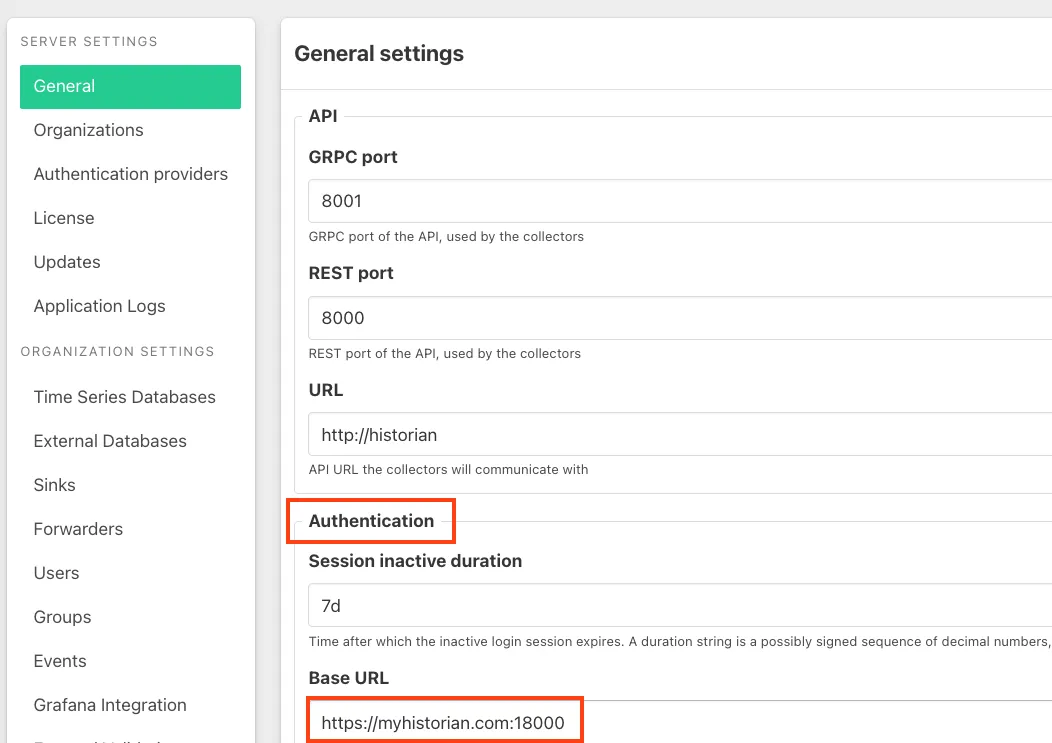
- Replace <MY-HISTORIAN-BASE-URL> with the Factry Historian base URL set in Configuration > Server Settings > General > Base URL:
- e.g. https://myhistorian.com:18000
- Replace <MY-AUTH-PROVIDER> with the name of the authentication provider you will set in Factry Historian in Configuration > Authentication providers:
- Example: if your redirect URI is /api/auth/Microsoft/callback, then use Microsoft.
- Note:
- The base URL must start with https://
- Must not contain an IP address or localhost
- May include a port number, e.g. :8000
- Save the App registration by clicking Register.
Grafana
- Name the application, e.g. Grafana.
- Supported account types: select Single tenant.
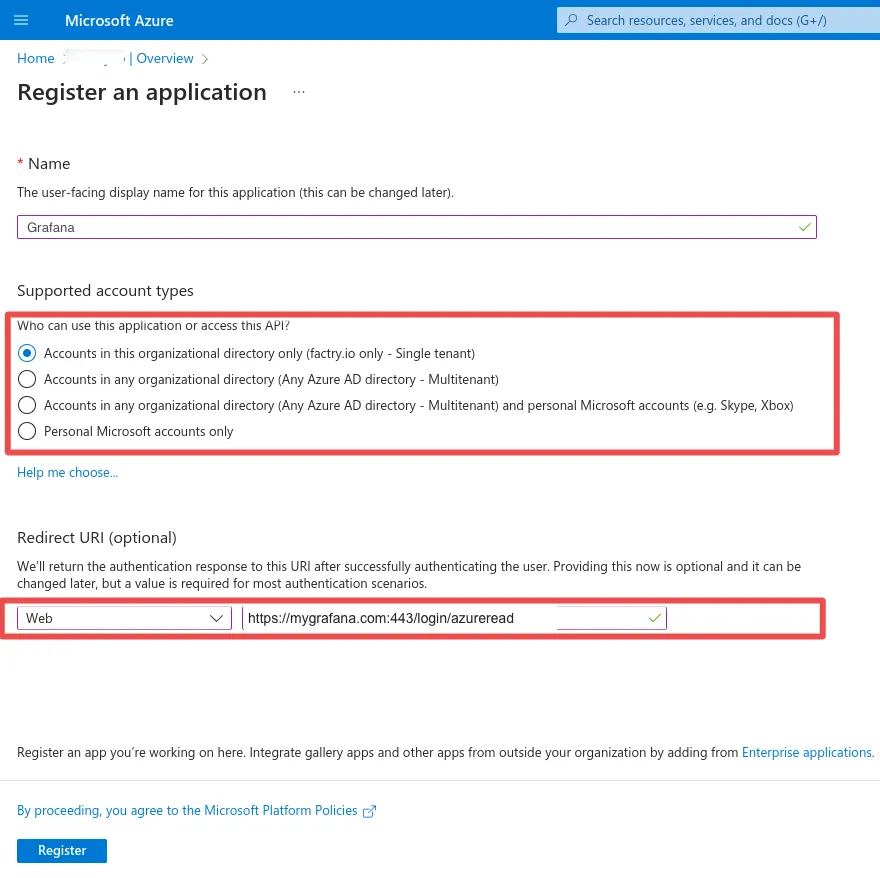
- First redirect URI:
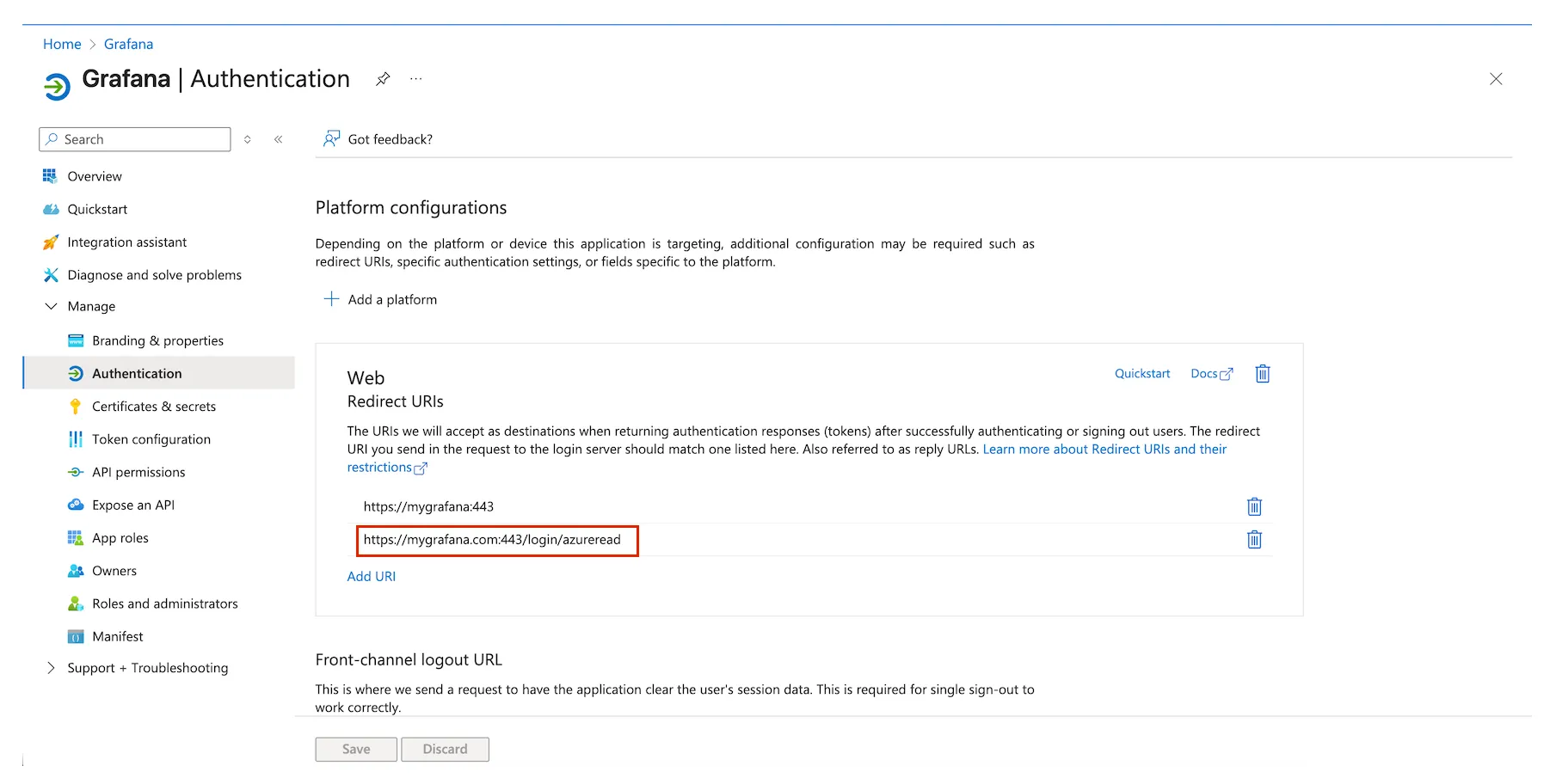
- Example: https://mygrafana.com:443/login/azuread
- Formula: <MY-GRAFANA-ROOT-URL> + /login/azuread
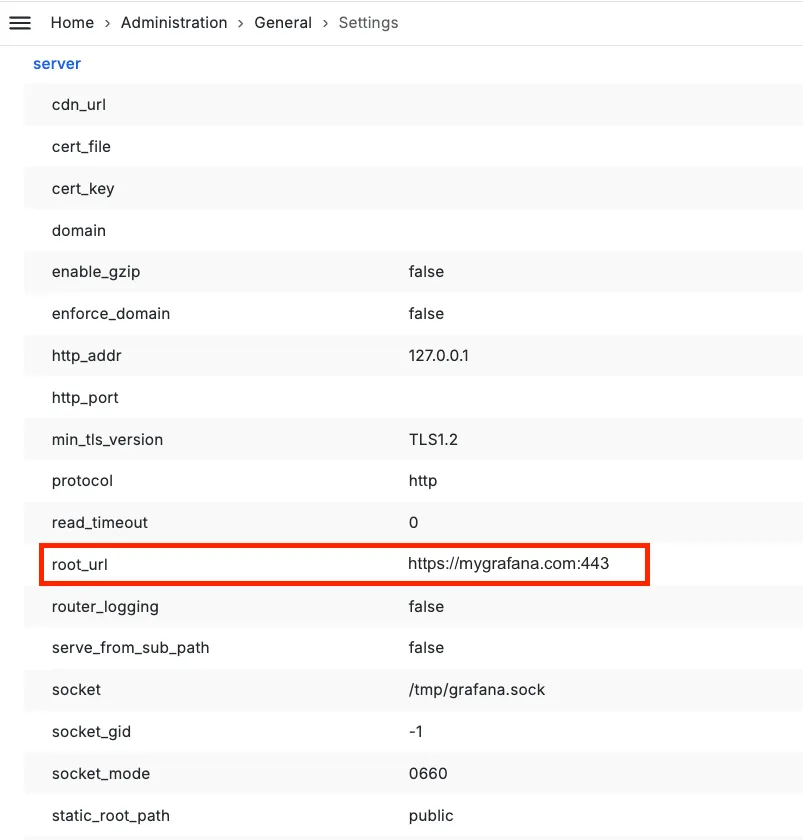
- Replace <MY-GRAFANA-ROOT-URL> with the Grafana root URL set in Home > Administration > General > Settings:
- e.g. https://mygrafana.com:443
- Note:
- Must start with https://
- Must not contain an IP address or localhost
- May include a port number, e.g. :3000
- Second redirect URI:
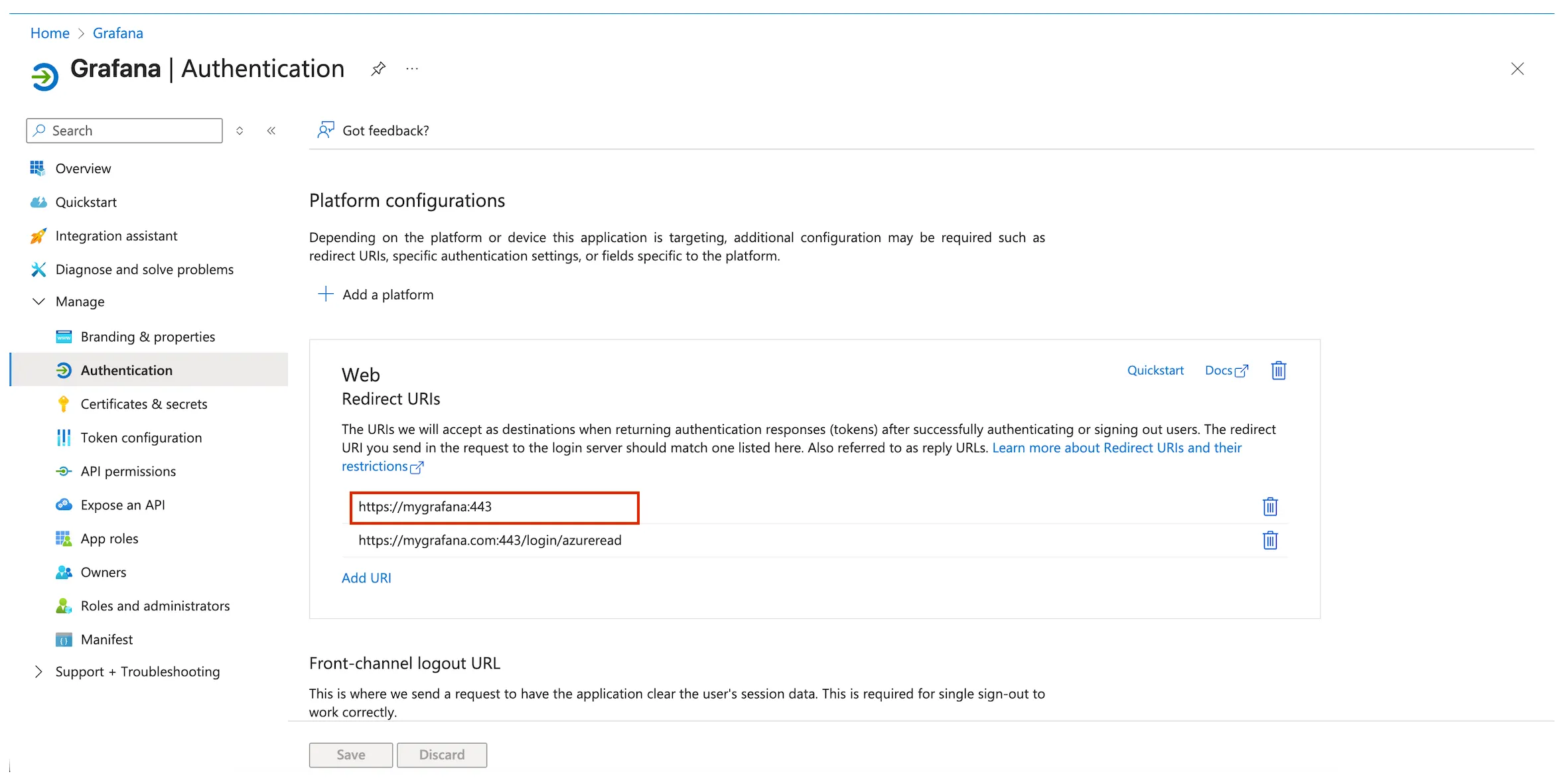
- Example: https://mygrafana.com:443
- Formula: <MY-GRAFANA-ROOT-URL>
- e.g. https://mygrafana.com:443
- Save the App registration.
Step 4: Application/Directory ID and Client Secret
- In Entra ID, go to Manage > App registrations.
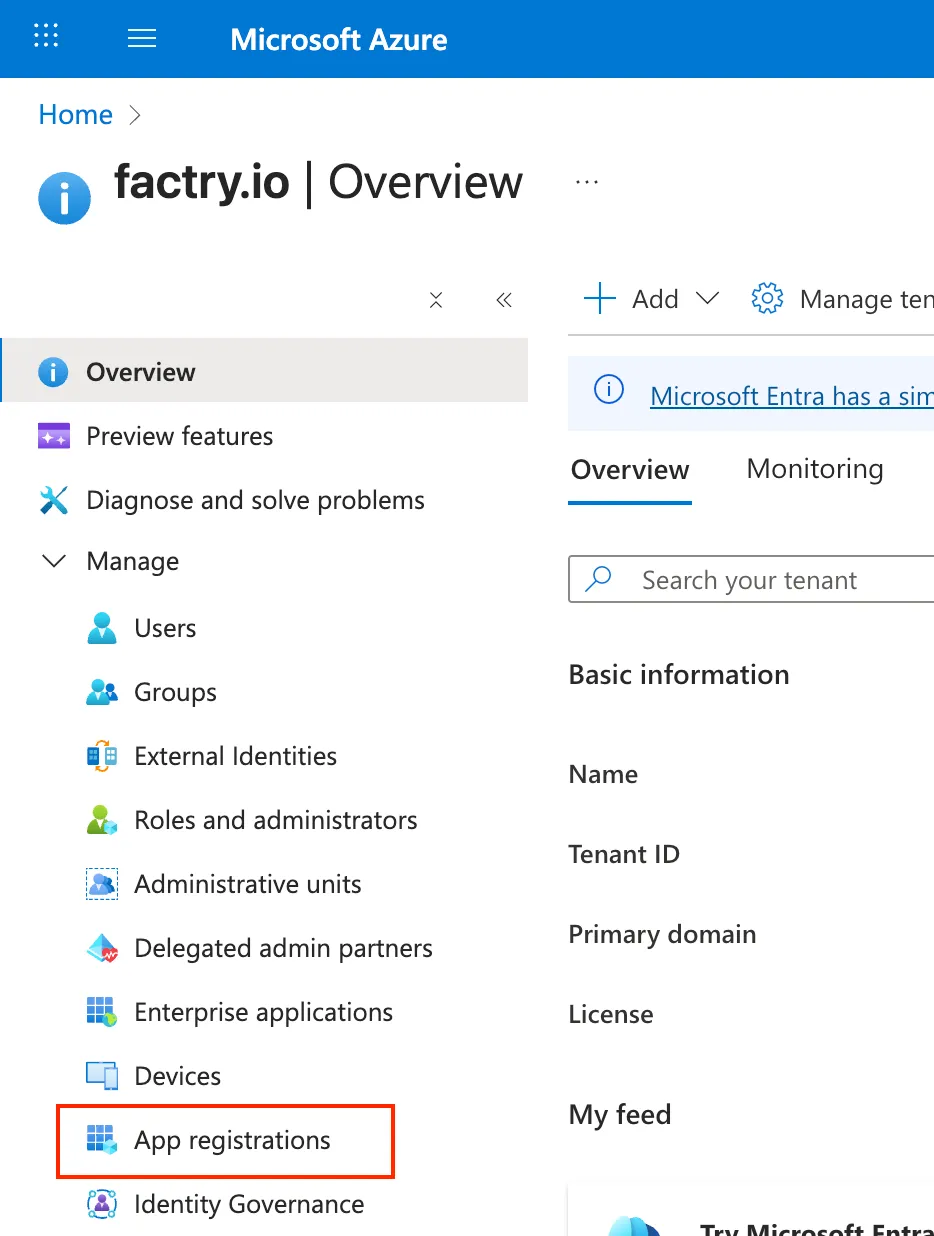
- Select an Application you have created in the previous steps. There should be one for Factry Historian, and one for Grafana.
- From the specific App registration's overview in Entra ID, copy the following values:
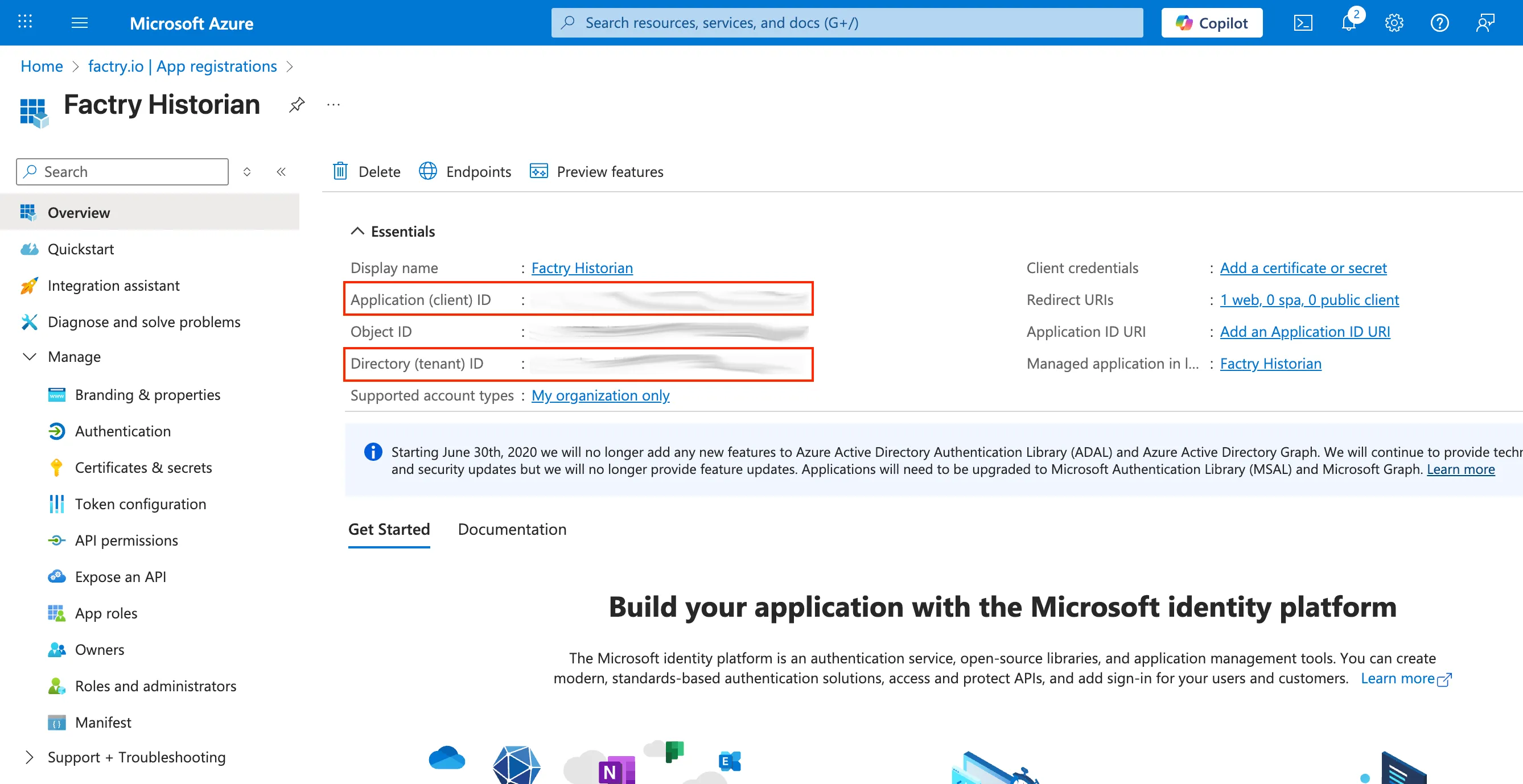
- Application (client) ID
- Directory (tenant) ID
You will need the Application (client) ID in the Next steps section when configuring Entra ID authentication for Factry Historian and Grafana.
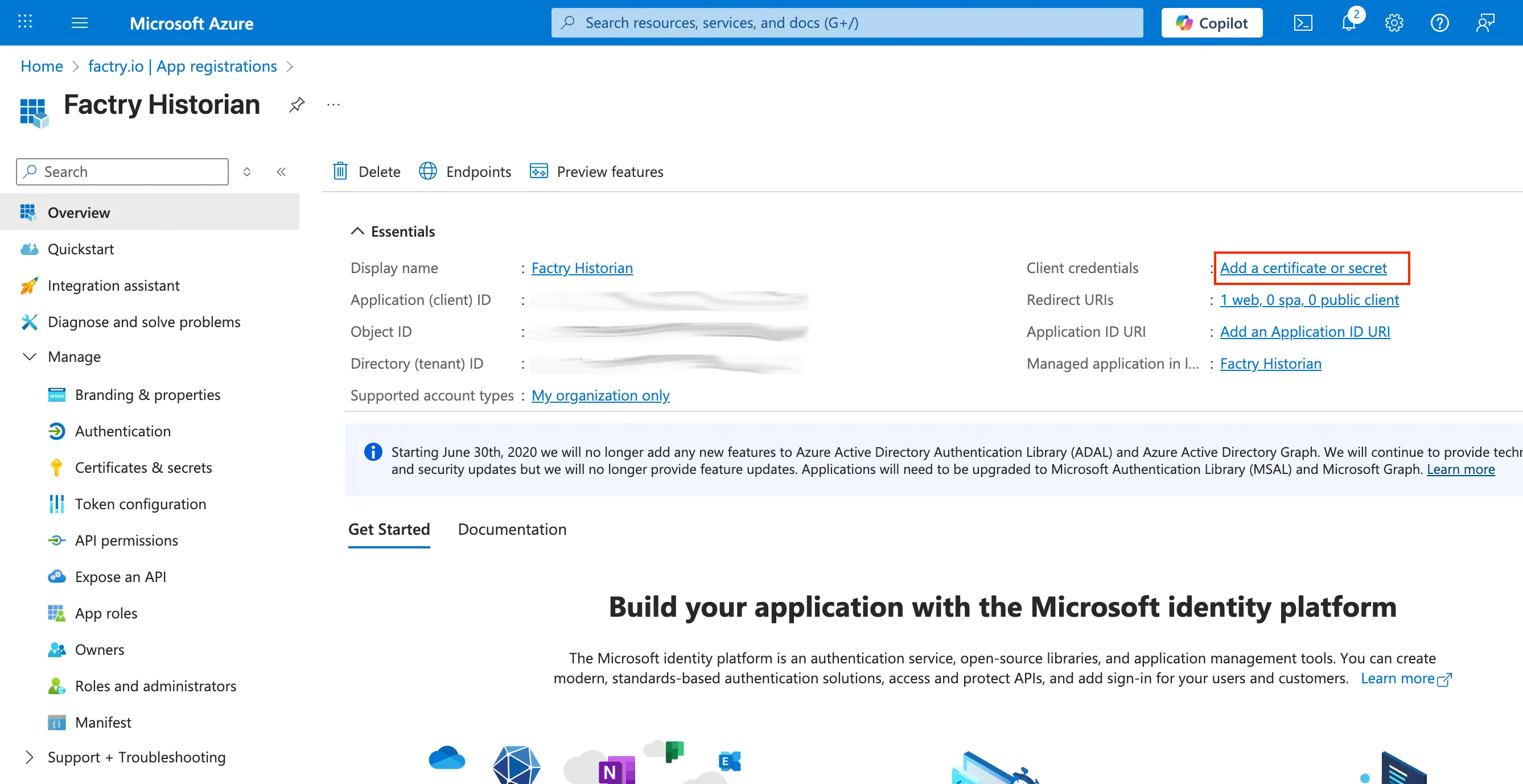
- Back on the specific App registration's overview in Entra ID, click Add a certificate or secret.
- Next, click New client secret.
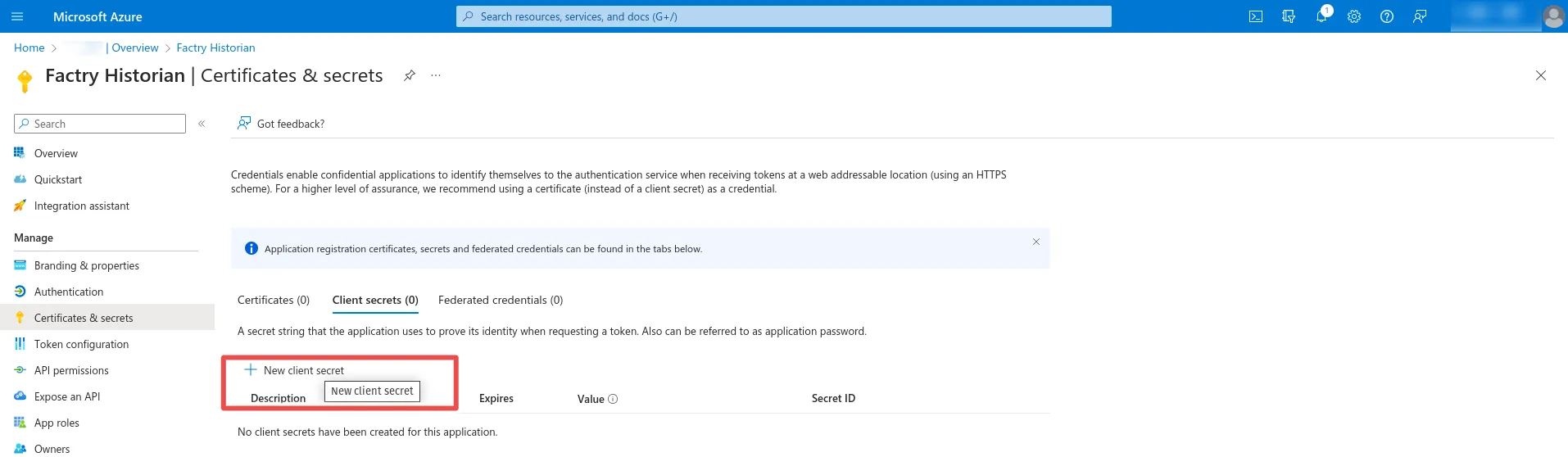
You will need the client secret in the Next steps section when configuring Entra ID authentication for Factry Historian and Grafana.
- Enter a name and expiration date for the client secret and click Add.
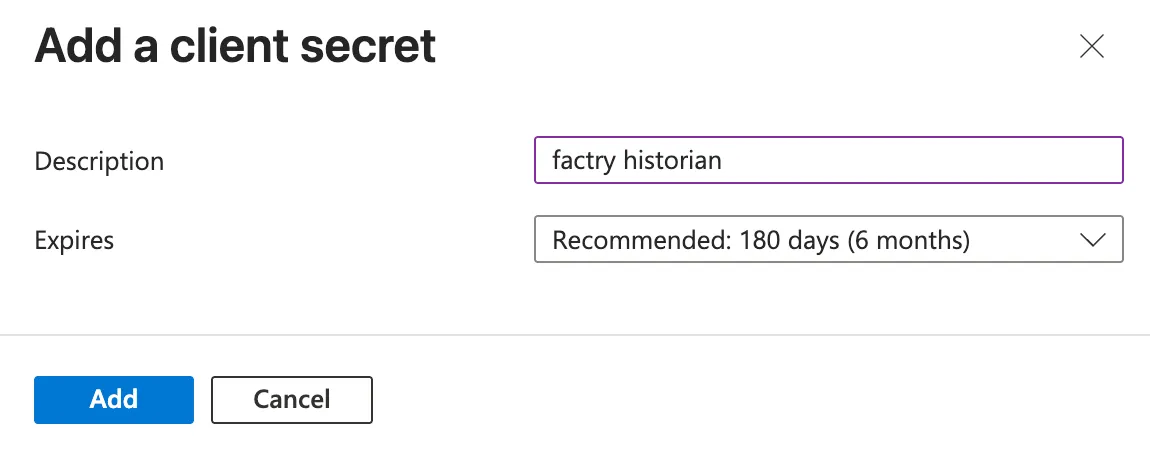
- Copy the Value.
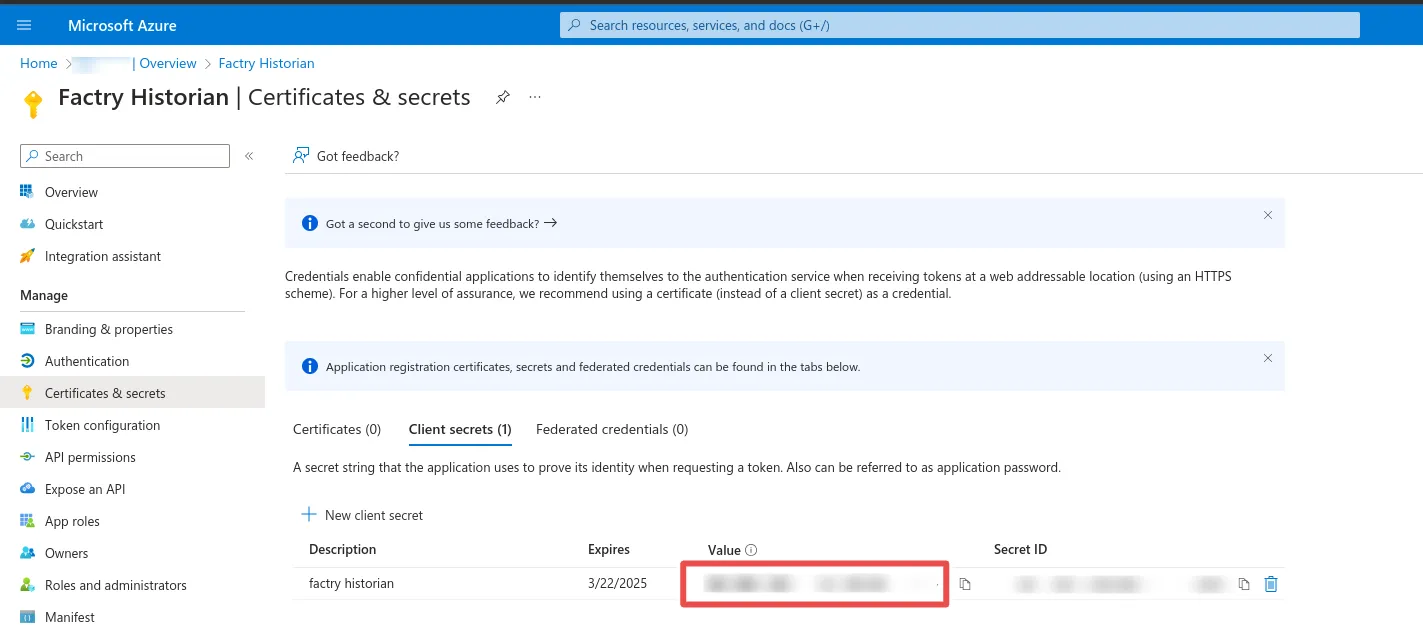
Track the client secret's expiration date: once expired, authentication will stop working. Renew the secret in advance and update the value in Factry Historian/Grafana.
Next steps
You now have all the required values, Tenant ID, Client ID, and Client Secret from your Microsoft Entra ID app registration. You can now continue by configuring authentication in your applications:
- For Factry Historian, see Setting up Entra ID authentication in Factry Historian.
- For Grafana, see Setting up Entra ID authentication in Grafana.