Setting up Entra ID authentication in Grafana
Requirements
Before configuring authentication with Entra ID, make sure you have:
- Grafana version 11.2 or newer.
- An Entra ID App registration for Grafana. If you have not done this yet, please first register an app in Entra ID.
- You’ll need the following details from the registration:
- Client ID
- Tenant ID
- Client secret
- A fully qualified Grafana root URL, starting with https:// (no IP address or localhost).
- Admin privileges in both Grafana and Microsoft Entra ID.
Configure authentication
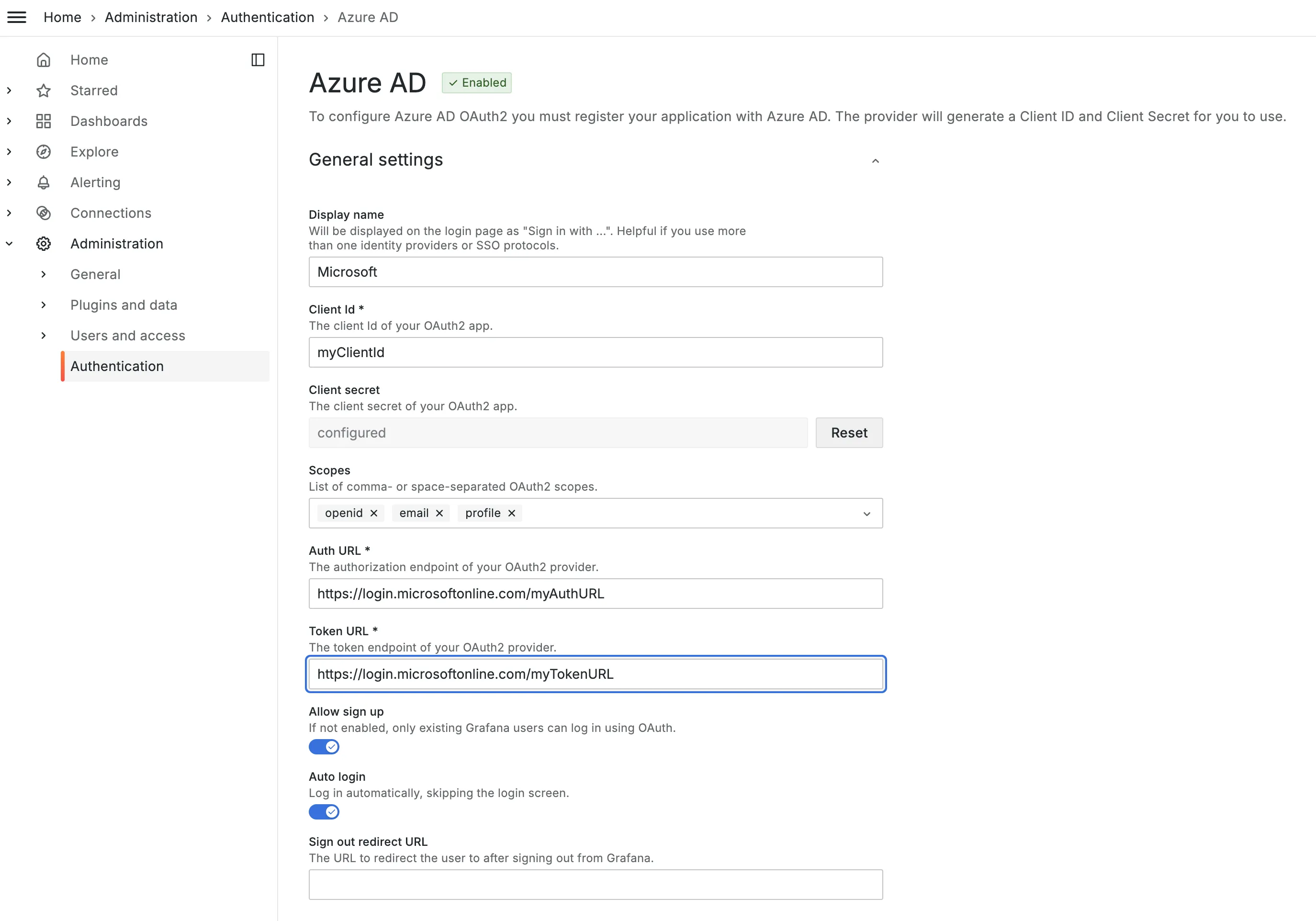
In Grafana, go to Administration > Authentication > Azure AD.
Step 1: Add Client ID and Client Secret
Copy the Client ID and Client Secret from your App registration and paste them in Grafana authentication configuration.
Step 2: Add Scopes, Auth URL and Token URL
- Scopes: openid, email, profile
- Auth URL: https://login.microsoftonline.com/<TENANT_ID>/oauth2/v2.0/authorize
- e.g. https://login.microsoftonline.com/12345678-abcd-4321-efgh-9876543210ab/oauth2/v2.0/authorize
- Token URL: https://login.microsoftonline.com/<TENANT_ID>/oauth2/v2.0/token
- e.g. https://login.microsoftonline.com/12345678-abcd-4321-efgh-9876543210ab/oauth2/v2.0/token
Note: Replace <TENANT_ID> with your Azure Tenant ID.
Step 3: Enable Sign up and Auto login
- Allow sign up creates a Grafana user when logging in the first time.
- Auto login skips the Grafana login page and redirects directly to Entra AD login.
Configure Group mapping
You can map Entra AD users to Grafana roles in two ways:
When group mapping is enabled, a user in Grafana can not be manually configured into a user group, since on each login the user will be linked to the user groups matching in Microsoft Entra ID. To manually assign users to groups in Grafana, skip this section.
Option 1: Map Microsoft Entra security groups
- In Entra AD, find the Security Group and copy its Object ID.
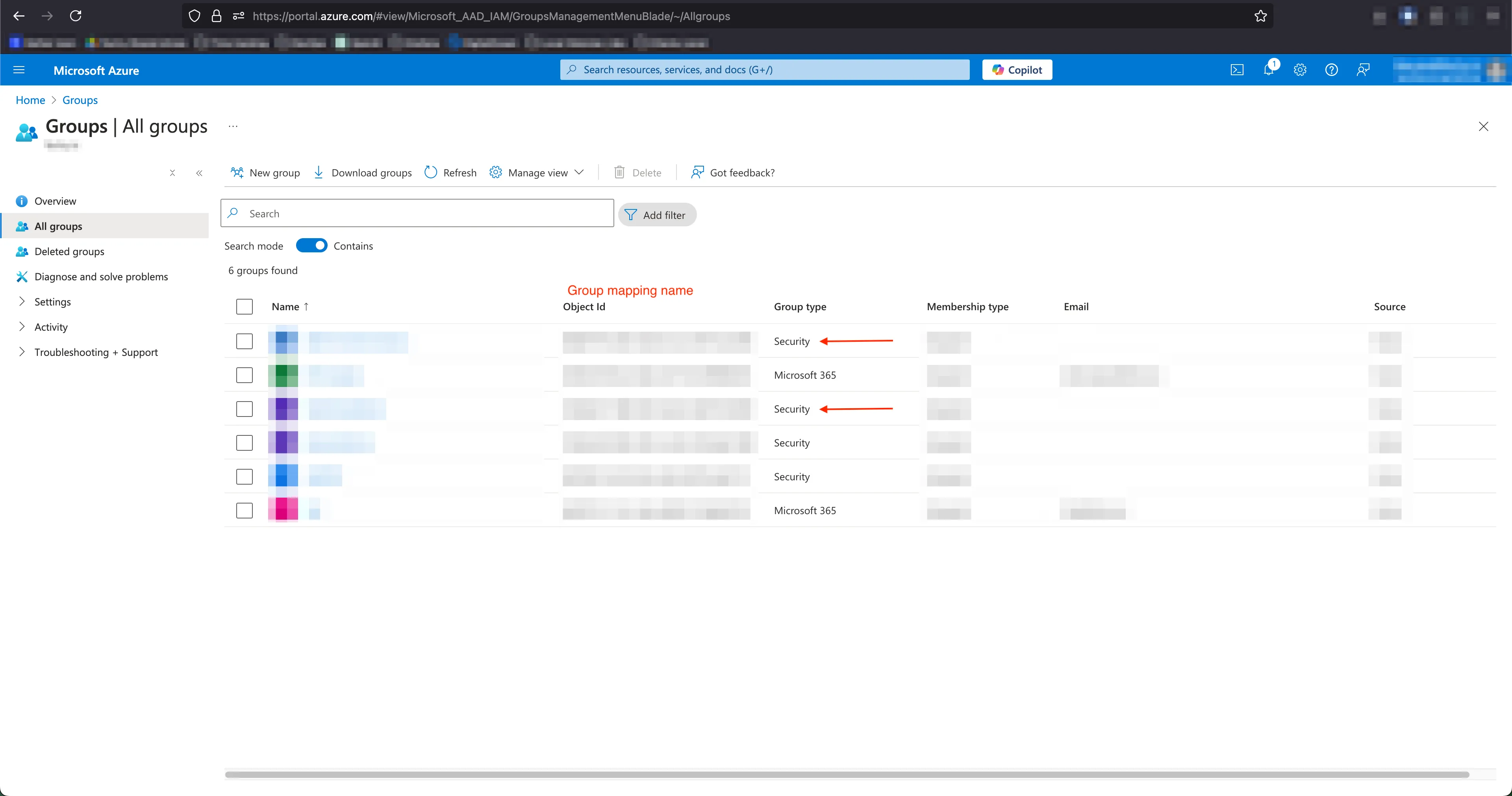
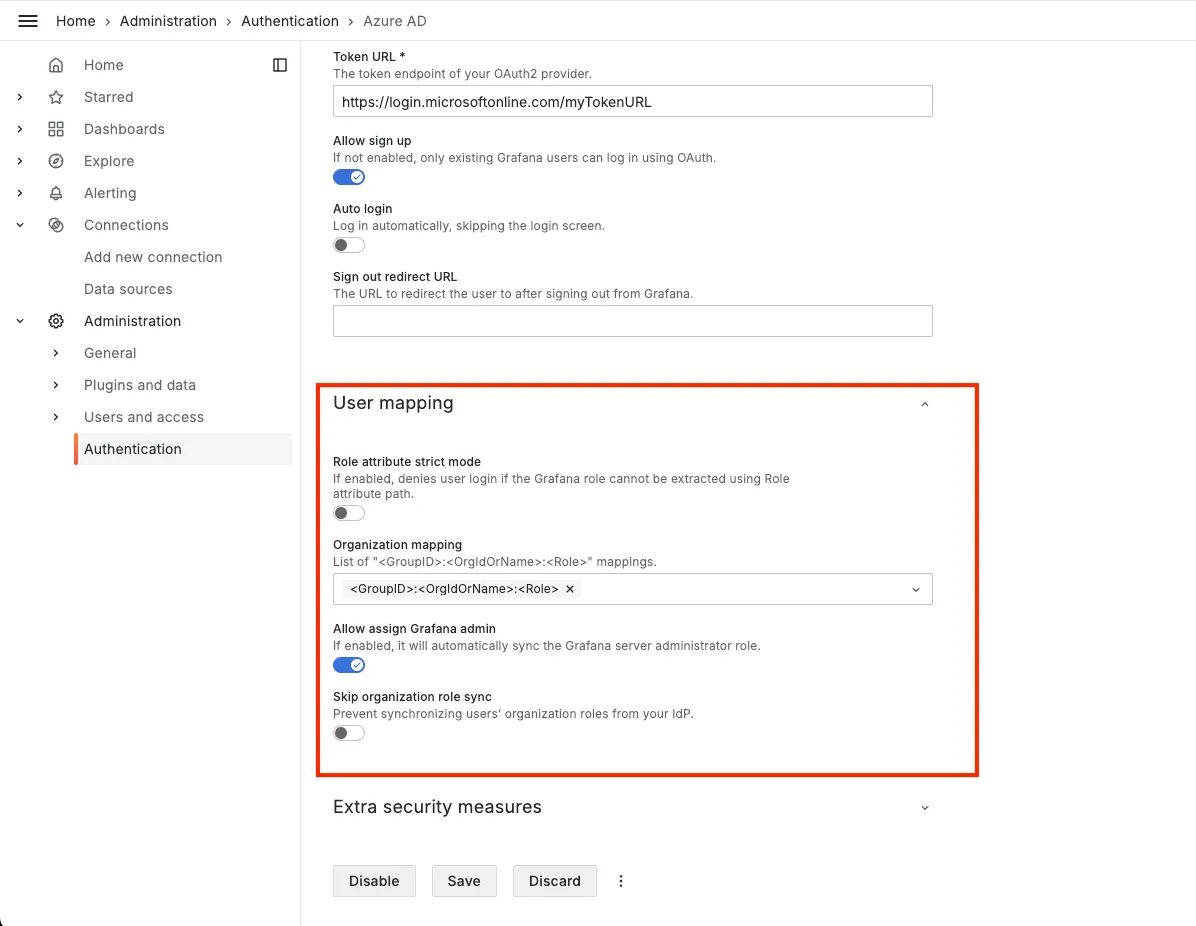
- In Grafana, go to Administration > Authentication > Azure AD > User Mapping.
- Add mapping in the format: <AZURE-GROUP-OBJECT-ID>:<GRAFANA-ORG-ID>:<GRAFANA-ROLE>
- Example:
- 488f1647-xxxx-xxxx-xxxx-7994b4f022f5:1:Viewer
- 5343xde2-xxxx-xxxx-xxxx-7994b4f022f5:1:Editor
For more info, please review the Grafana docs.
Option 2: Map Azure App roles
- Define an App Role for each Grafana role in Entra ID.
- Admin
- Editor
- Viewer
- Grafana Admin
- To be able to map the Grafana Admin role, the setting Allow assign Grafana admin needs to be enabled. This setting is located immediately underneath the Organization mapping field.
- Assign an App role to a security group (to apply to all users in that security group) or to a user to grant the user(s) a role in Grafana.
- In Grafana, add mapping in Organization mapping section in the format: <AZURE-APP-ROLE-VALUE>:<GRAFANA-ORG-ID>:<GRAFANA-ROLE>
- Example:
- grafana-viewer:1:Viewer
- grafana-editor:1:Editor
- grafana-admin:1:Admin
- grafana-server-admin:1:GrafanaAdmin
Test authentication and group mapping
In Grafana, first log out as the Server Admin user. Next, log in with a user that is part of a mapped Security group or App role via Entra ID.
- Case 1: Works
- User logs in successfully and gets the right Grafana role. 🎉
- Case 2: Error “You don’t have access to any resources”
- Problem: Authentication works, but no role mapping was applied.
- Solution: Check your group or role mappings.
- Case 3: Other errors
- Problem: Authentication fails.
- Solution: See Troubleshooting section below.
Troubleshooting
FAQ
Can users be part of multiple mappings?
All lines that match the user in Organization mappingwill be applied. This means a user can be assigned multiple roles in the same Grafana organization (highest role wins), or have a separate role in another Grafana organization.
Can users get a default role without mapping?
In Grafana, the setting role_attribute_path in file /etc/grafana/grafana.ini on the server can be used to set an expression to apply a default role to any user. Or alternatively, a role can be manually assigned to a user in Grafana. As long as no group mappings are added, the manually assigned roles will stay put.