Trending Event Periodic Properties
Periodic properties let you analyze how process values behave during recurring events, such as batches, shifts, or machine cycles. Instead of simply trending data over absolute time, you can align multiple runs of the same event type and compare their performance in one overlay.
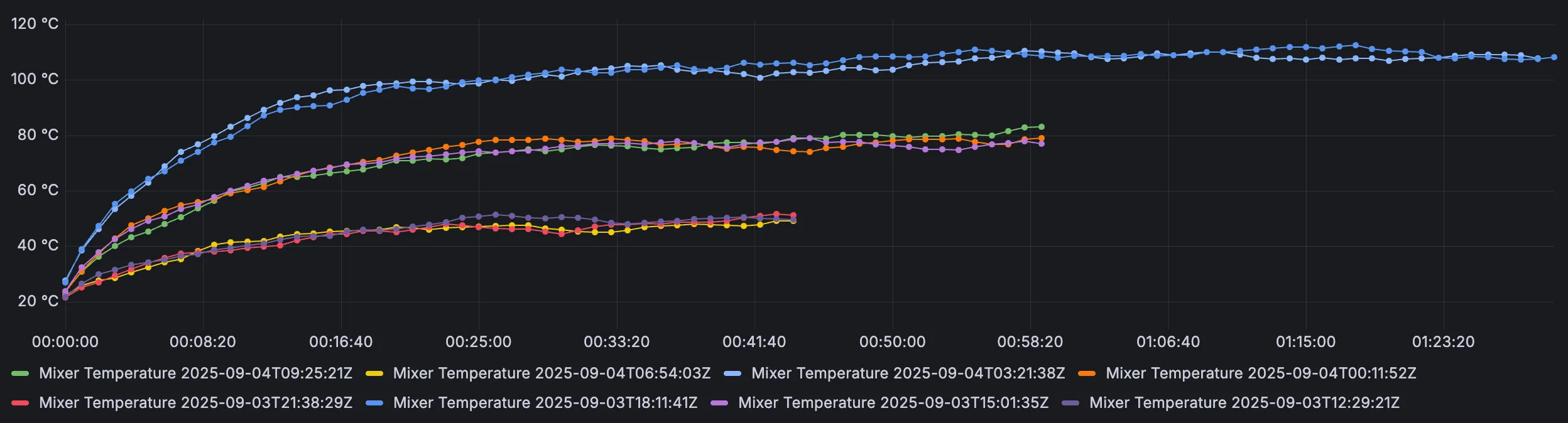
An overlay is a visualization where values from different events are plotted on the same relative time axis (time since the event start). This makes it easy to spot variations in process behavior between runs.
Prerequisites
Before displaying events in Grafana, ensure:
- Events are configured in Factry Historian.
- The Factry Historian datasource plugin is correctly set up in Grafana.
To learn more about EventsEvents, consult the Concepts documentation.
Why use the Factry datasource for periodic properties?
The Factry Historian datasource plugin is designed to work seamlessly with periodic properties. It allows you to:
- Use out-of-the-box overlay visualisation in Grafana without custom queries.
- Plot relative time since the start of the event on the x-axis, so multiple runs align at “time zero.”
- Show the range of property values (e.g. temperature, pressure, flow) on the y-axis, making run-to-run variations clear.
Time zero The reference point marking the start of an event. All measurements are shown relative to this moment, so multiple runs can be aligned and compared.
Default usage
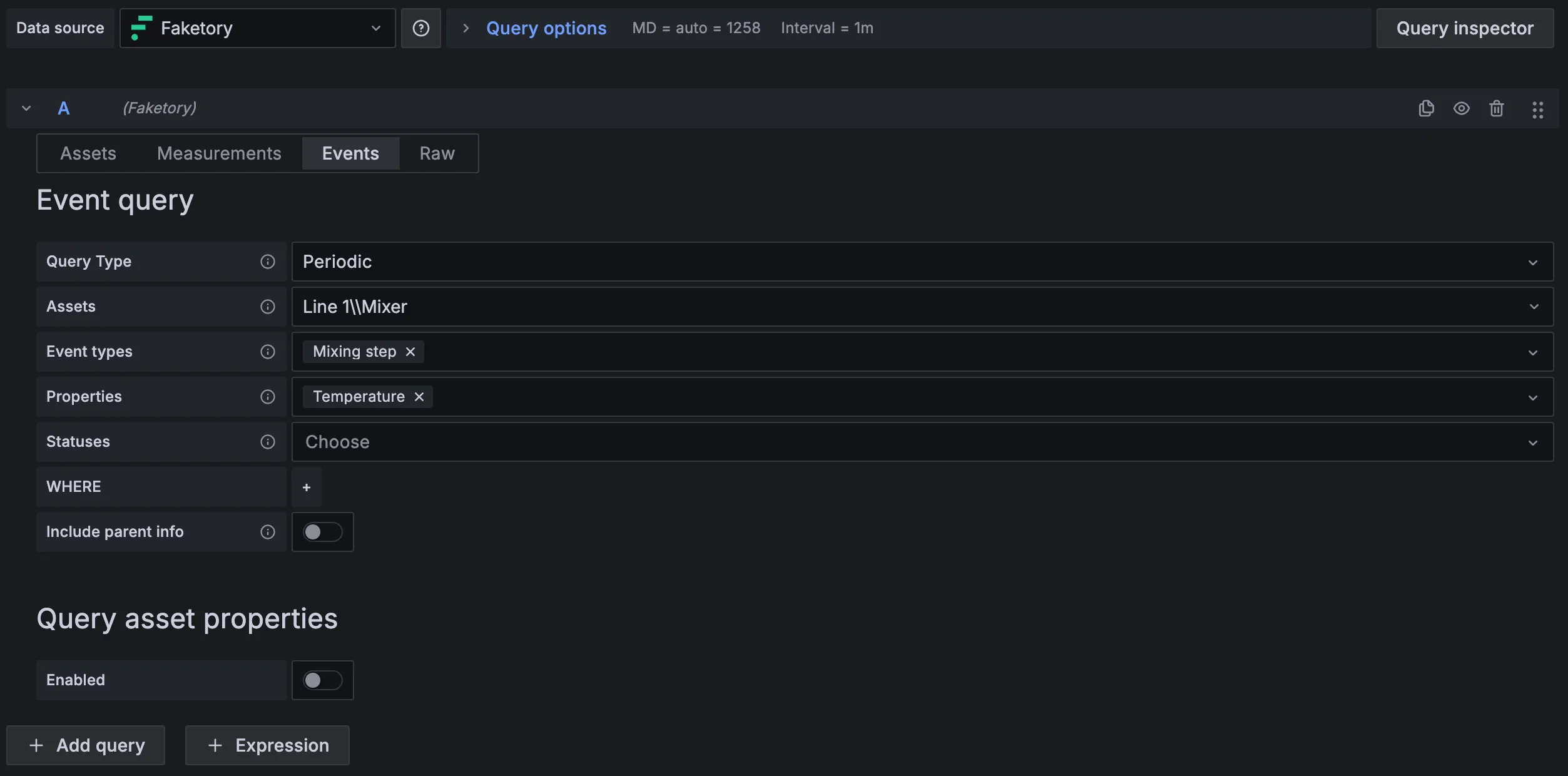
To display periodic properties of events as overlays, either create a new dashboard or use the explore functionality. Open or create a new Trend panel in Grafana. Select the Factry Historian datasource plugin as the Data source.
If it's not selected by default, then select the Events tab.
- Select Periodic as the Query type.
- Select an asset (with events configured on it) from the asset tree by clicking the Assets field.
- Select the Event type from which you would like to visualize periodic properties.
- Select the event's periodic properties from the Properties field.
- Optionally filter on status (e.g. only processed events).
- Optionally include a WHERE clause
- Optionally include simple properties from parent events.
Grafana will align the data on the relative time axis and draw multiple runs on top of each other for easy comparison.
Filtering overlays by event values
Filters help you narrow down overlays so operators only see the events or assets they care about.
- Filter by asset → Use the Assets field in the query editor.
- Filter by other event values → Use the WHERE clause.
Syntax:
Examples:
- WHERE BatchID = '12345'
- WHERE Product IN ('Pils', 'IPA')
See the Viewing Event properties as a table article for more details on filtering.
Configuring display names in Grafana
When you overlay multiple runs, the legend should clearly identify each line. Configure this in the panel overrides under Display name. You can build custom labels using field variables from the dataset.
Common variables:
- $ → field name with labels
- $ → just the field name
- ${__field.labels.<LabelName>} → the value of a specific label (e.g. Asset or BatchID)
- $ → all label key–value pairs combined
Step-by-step
- Edit panel → open the panel you use for overlays.
- Go to Overrides (right sidebar).
- Click Add override.
- Choose a matcher:
- Fields with name → select a specific series/field by its current name.
- Fields with regex → target multiple series that match a pattern.
- All fields → apply to every series in the panel.
- Click Add property → search for Display name (under Standard options).
- Paste your template (e.g. the example below).
- Apply / Save the panel.
If your override doesn’t seem to apply, check the matcher: field names may change after transformations/aggregations. Use Fields with regex to match more robustly.
Example
This automatically produces legend entries such as:
Using Grafana variables to populate dropdown lists
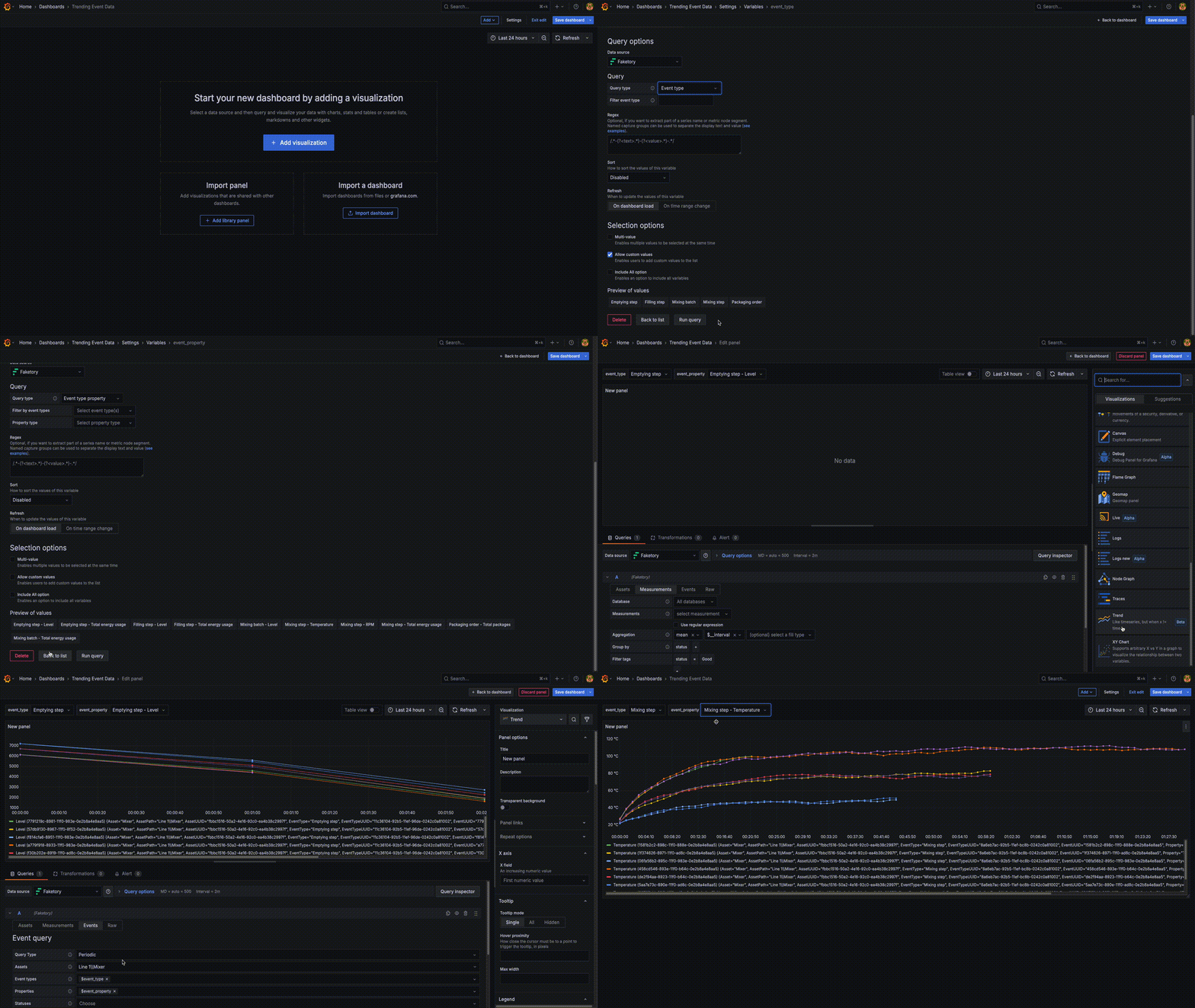
You can also connect filters to Grafana variables (e.g. dropdowns), so users can dynamically select which batch, product, or asset to display.
Troubleshooting
Wrong panel type
- Symptom: Your overlay appears as a standard time-series chart.
- Cause: You’re using the time-series panel, which plots absolute time instead of relative time.
- Fix: Switch the panel type to trends to correctly display overlays.