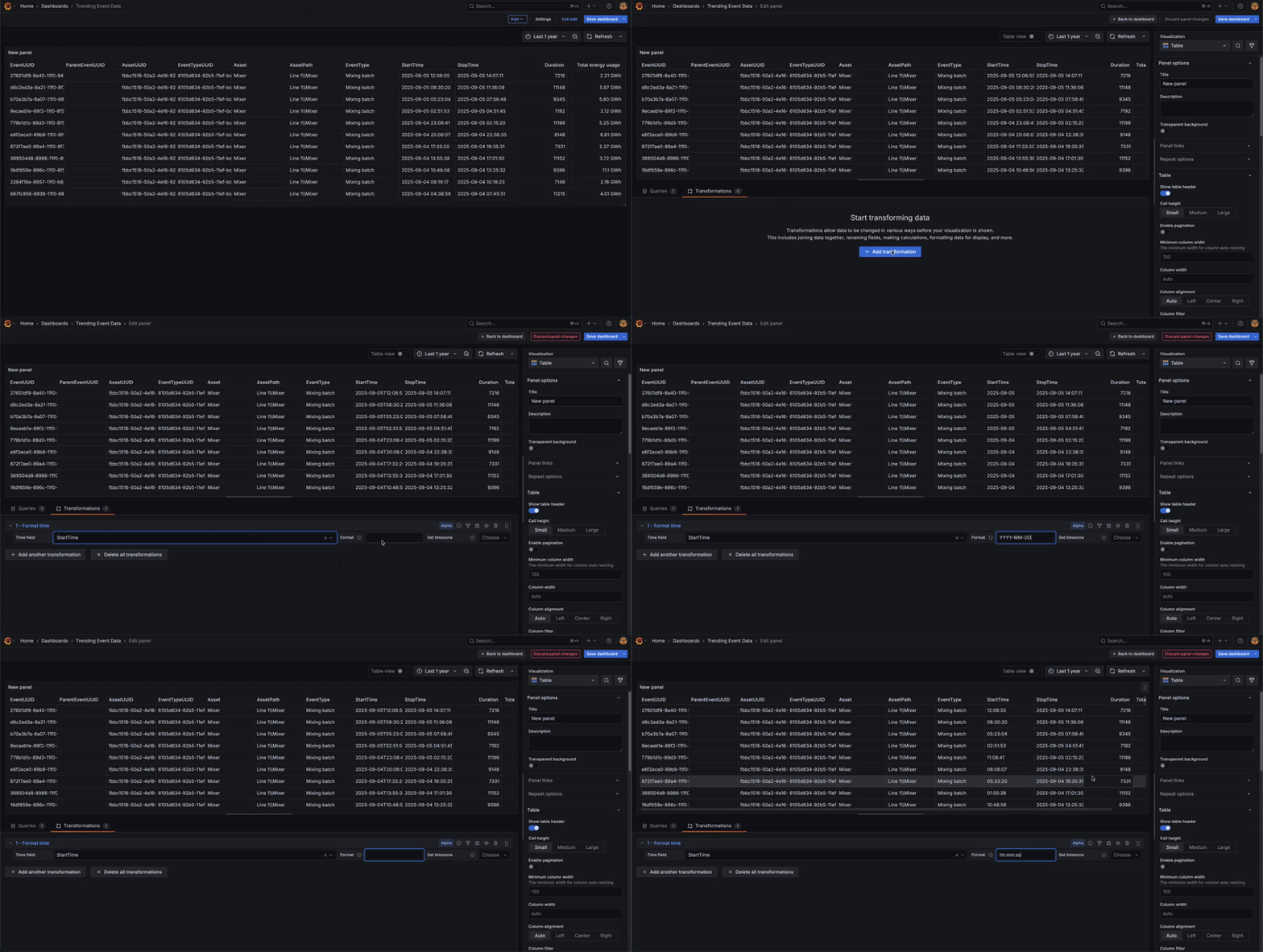
Viewing Event properties as a table
Prerequisites
Before displaying events in Grafana, ensure:
- Events are configured in Factry Historian.
- The Factry Historian datasource plugin is correctly set up in Grafana.
To learn more about EventsEvents, consult the Concepts documentation.
Why use the Factry datasource for simple properties?
The Factry Grafana datasource is built to make event data exploration simple. It allows you to:
- Query events and their simple properties directly, without writing custom SQL.
- Display events as tabular overviews with start/end times and context.
- Use built-in support for Assets and WHERE filters to focus on the data that matters.
- Seamlessly combine event data with time-series data for end-to-end process analysis.
Default usage
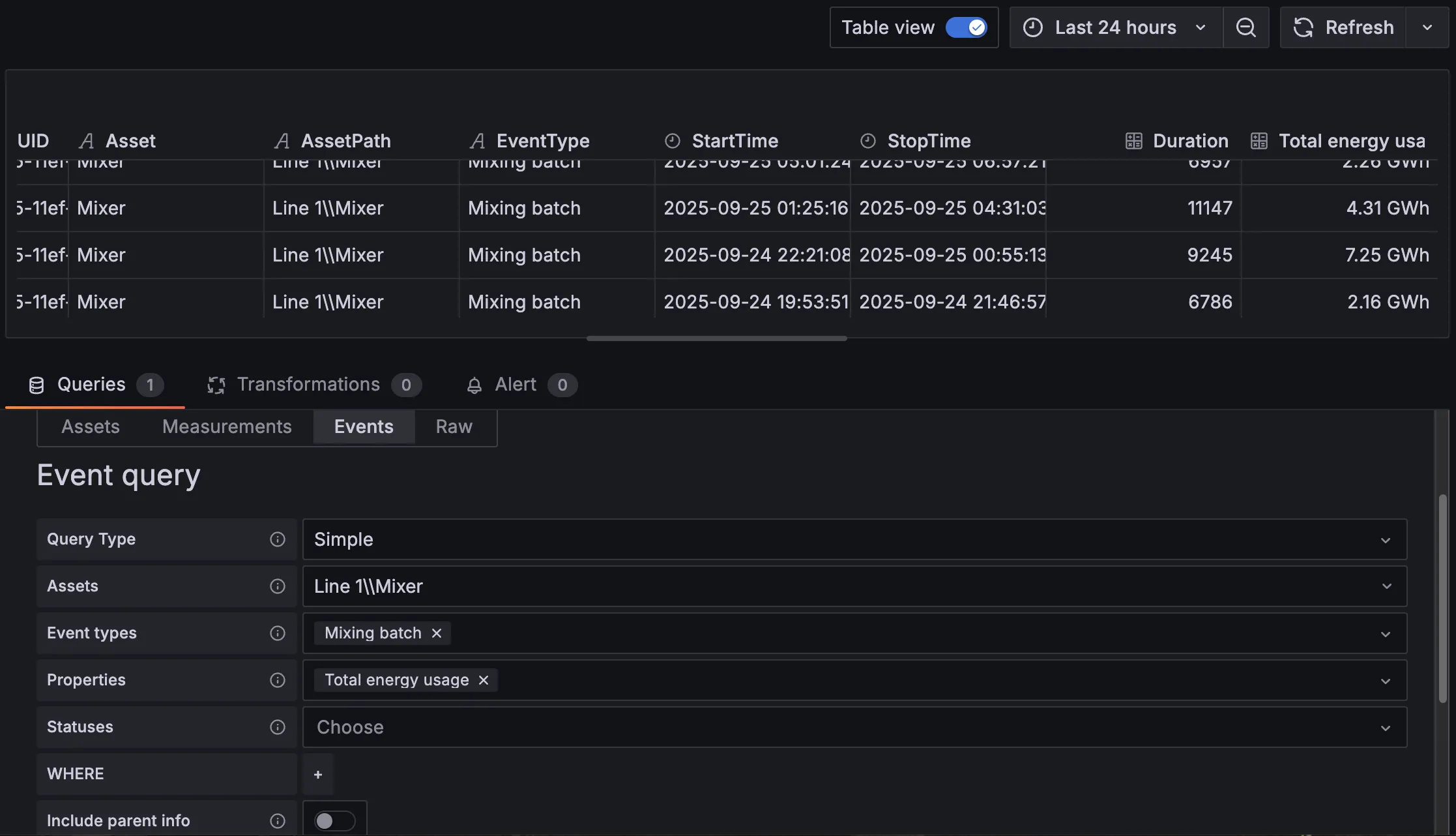
To display simple properties of events, either create a new dashboard or use the explore functionality. Open or create a new Table panel in Grafana. Select the Factry Historian datasource plugin as the Data source.
If it's not selected by default, then select the Events tab.
- Select Simple as the Query type.
- Select an asset (with events configured on it) from the asset tree by clicking the Assets field.
- Select the Event type.
- Select the event's simple properties from the Properties field.
- Optionally filter on status (e.g. only processed events).
- Optionally include a WHERE clause
- Optionally include simple properties from parent events.
Filtering event tables by event values
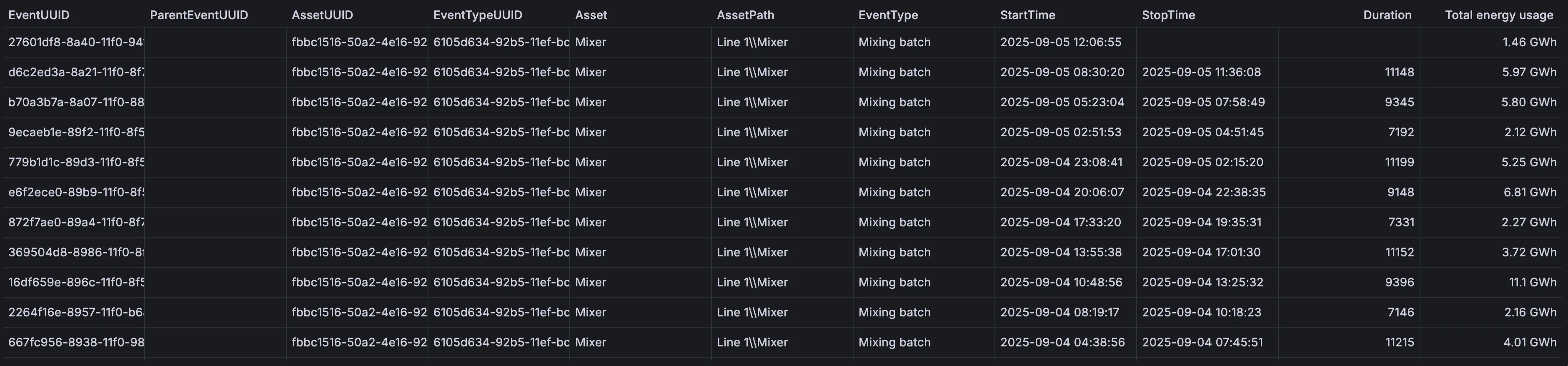
Event tables often contain many runs. Filters help you focus on the relevant ones.
- Filter by asset → Use the Assets field in the query editor.
- Filter by other event properties → Use the WHERE clause.
Syntax: WHERE <COLUMN> = <Value> WHERE <COLUMN> IN ('Value1', 'Value2')
Examples:
- WHERE Product = 'IPA'
- WHERE BatchID IN ('12345', '12346')
- WHERE Shift = 'Night'
- WHERE Usage >= 5
Transforming timestamps
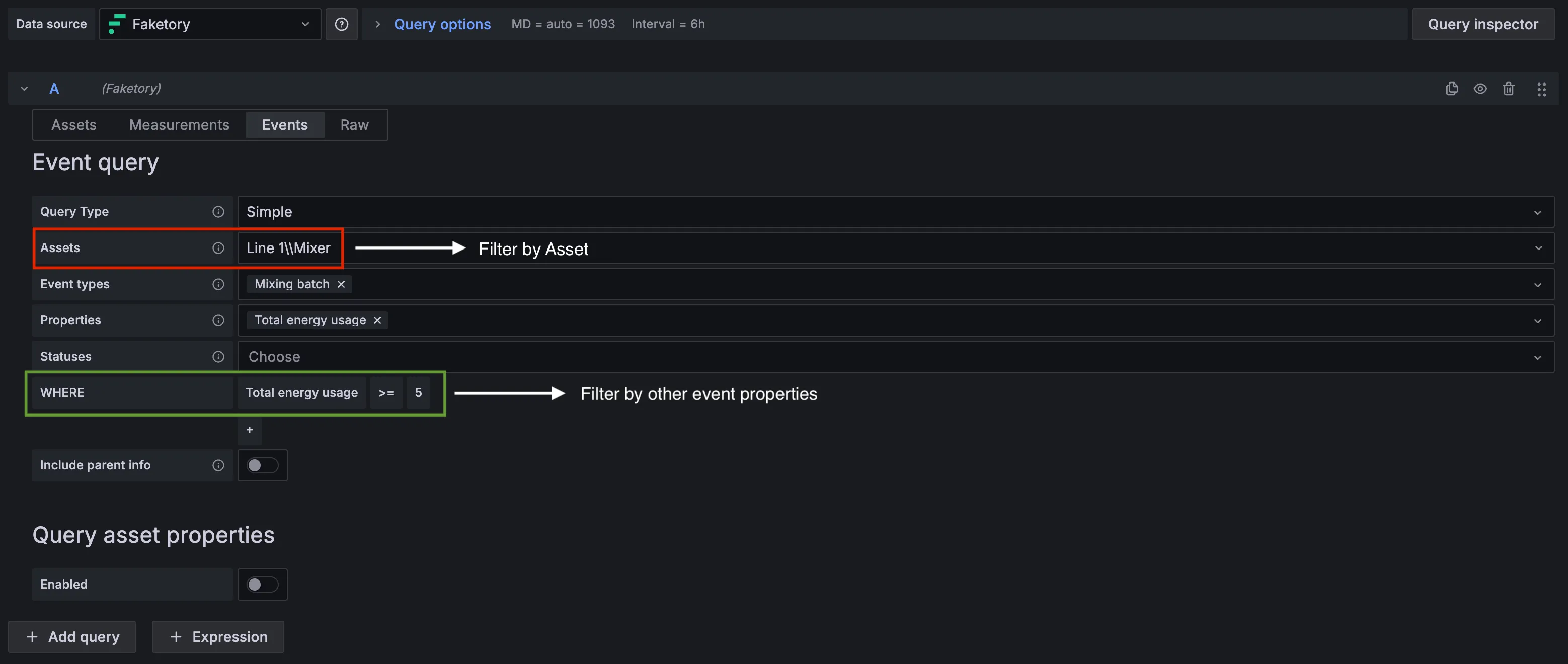
Event start and end times are returned in UTC timestamp format. To display them in a user-friendly way:
- In the panel editor, go to Transform.
- Add a Convert field type transformation.
- Select the timestamp fields and format them as Date/Time.
If you filter on event state, exclude open events (events that are still running). Otherwise, the missing end time may cause errors in timestamp transformations.