Importing measurements in bulk
Factry Historian supports importing measurements in bulk via a spreadsheet. This can be used for bulk creation, editing and deletion of measurements.
Prerequisites
- Permissions in Factry Historian to manage measurements. See PrivilegesPrivileges.
- An installed collector. If you have not done so already, first install a collector.
Adding Measurements in bulk
Open the Collectors page in the Factry Historian web interface and select the collector for which you would like to import in bulk.
Next, click the ellipsis vertical icon in the top right. Select Export template from the dropdown menu. You will be presented with an Excel file template to complete.
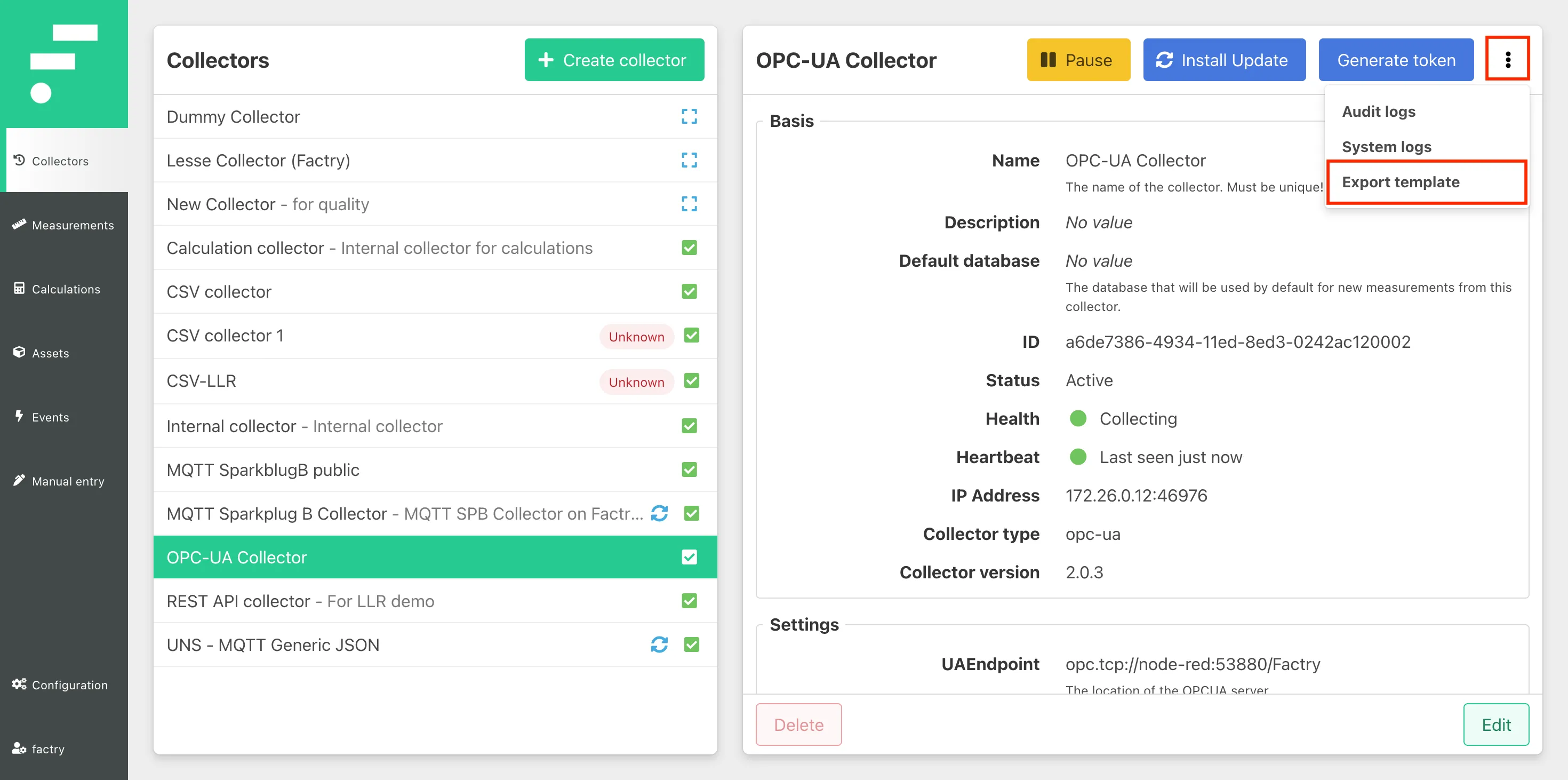
Enter the required information in the Excel file. This will be dependent on the collector type you are configuring. For more information, consult the collectors reference documentationcollectors reference documentation.
Then, proceed with importing measurements.
Editing Measurement in bulk
Open the Measurements page in the Factry Historian web interface and filter on your collector.
Next, click the dropdown icon next to Create measurement and select Export to Excel. You will be presented with an Excel file template to edit.
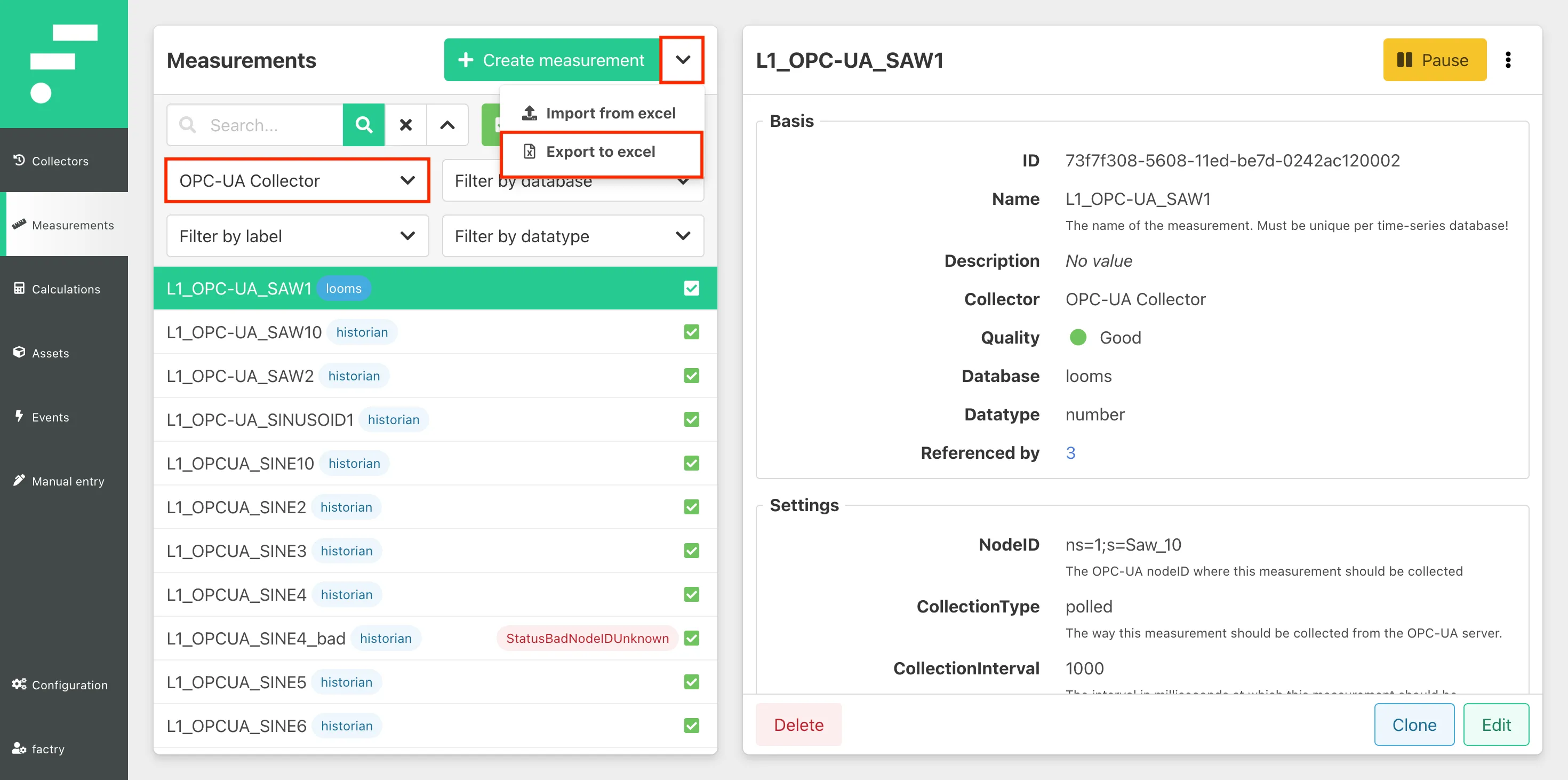
The Excel file will be populated with existing measurements. Make the required changes and mark with a 'X' in Column A (Import) whether the changes you made should be imported. For more information, consult the collectors reference documentationcollectors reference documentation.
Then, proceed with importing measurements.
Pause measurements in bulk
To pause measurements in bulk, set the status column of these measurements to Paused. If these measurements still exist in Factry Historian, their status will be updated and the data collection for these measurements will be paused until it is resumed again. To resume the data collection for these measurements, set the status back to Active.
Delete measurements in bulk
To delete measurements in bulk, set the status column of these measurements to Deleted. If these measurements exist in Factry Historian, they will be soft-deleted (they get a status Deleted but are still retrievable in the TSDB). Once a measurement is deleted, the measurement stops collecting data and will disappear from the historian webpage.
Renaming measurements in bulk
Renaming of measurements is not available in Factry Historian, yet if necessary it can be done manually for a few measurements. Alternatively, you can create a new measurement and delete the old measurement together with its data.
Renaming of measurements in a time series data model is a resource costly operation. After all, the name of a measurement exists as a hard reference to the measurement’s data upon the creation of the measurement. Therefore, renaming a measurement includes making a new measurement with a new name and migrating all the data of the old measurement to the new measurement.
Importing measurements in bulk
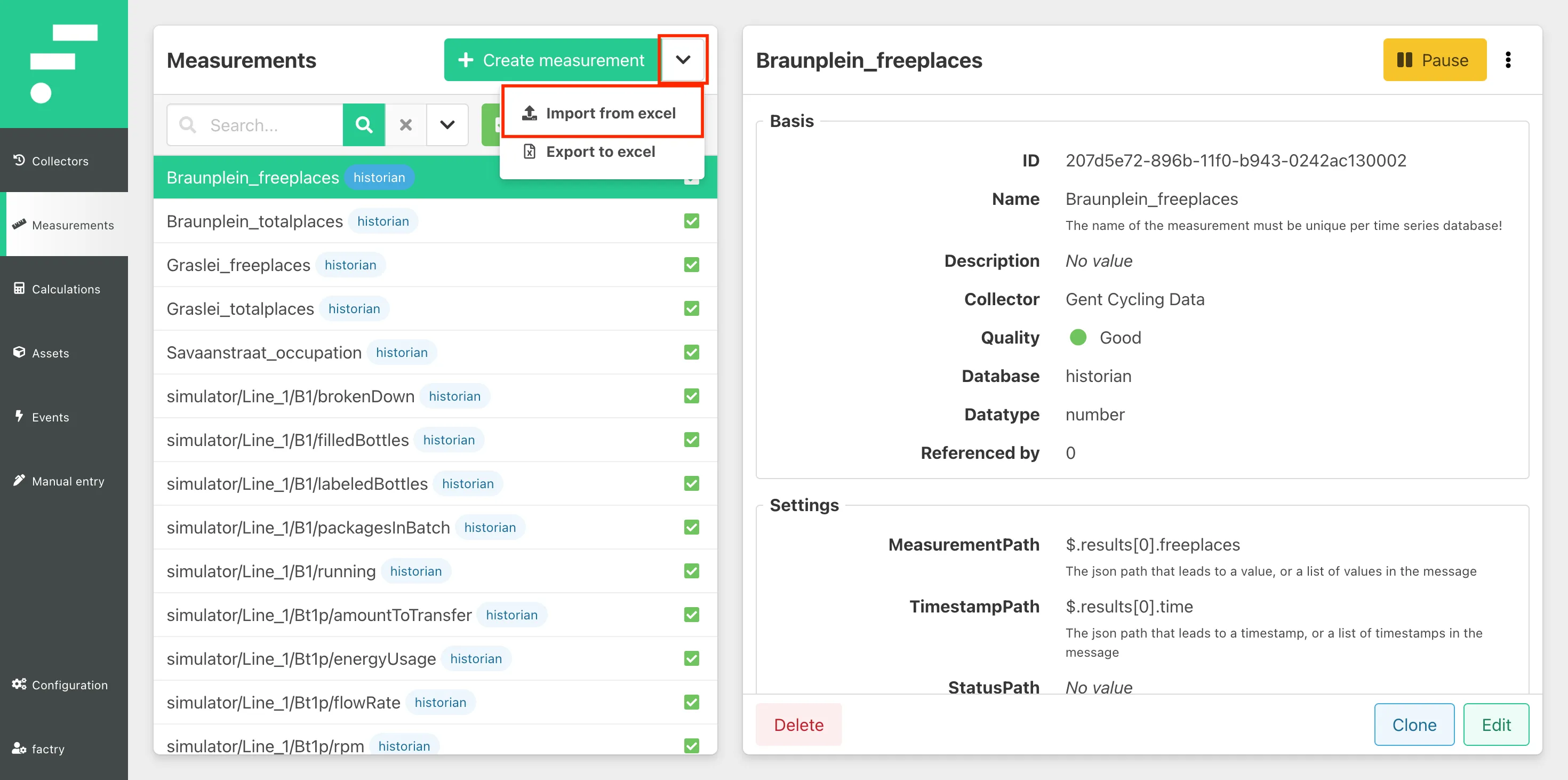
Open the Measurements page in the Factry Historian web interface. Next, click the dropdown icon next to Create measurement and select Import from Excel.
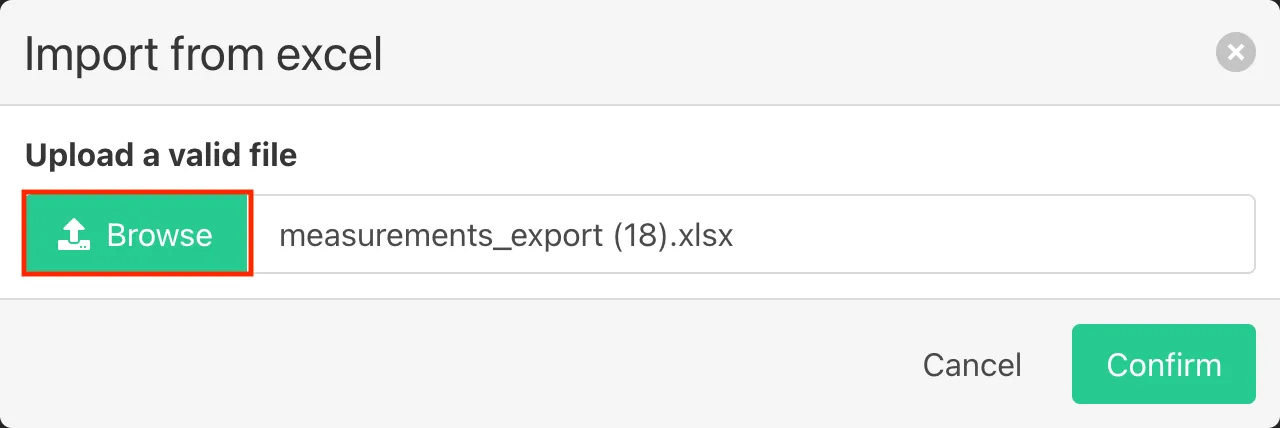
Click Browse, select the spreadsheet file you just edited, and click Confirm.
A green success notification will appear if the import was successful.
If the import failed, an error notification will show up. Click the question mark to retrieve more details about the error.
Spreadsheet
For a spreadsheet, the file extensions .xlsx and .ods are accepted. The table below provides a generic example of the different measurement settings. Next to some optional fields, most of the fields are required. Furthermore, the specific measurement settings are depending on the collector type selected. The left-most Import field should be used to mark which rows should be imported. Upon import of a spreadsheet, only rows where the Import column is not empty will be processed.
Import | UUID | Name | Description | Datatype | Database | Collector | Tags | Status | Labels | Engineering specifications | Specific measurement settings | Metadata |
|---|---|---|---|---|---|---|---|---|---|---|---|---|
Required | Optional | Required | Optional | Required | Required | Required | Optional | Required | Optional | Optional | Optional | Optional |
To give a clear overview of the measurements, it’s recommended to have separate tabs/spreadsheets for every collector type.
The spreadsheet parser reads rows until an empty row is found, any rows after that will not be imported.
Onboarding measurements in bulk with MQTT Sparkplug B
In the case of MQTT Sparkplug B, with measurement autodiscoveryautodiscovery turned on, bulk editing can be used to onboard measurements.
To onboard discovered measurements in bulk, the required field Database has to be filled in with the name of a configured time series database, and its status needs to be set to Active or Paused. Optionally, the name of the measurement to be onboarded can be changed. In this case, it is important not to alter the UUID field, as this would break the reference to the original measurement.