Retrieving LDAP connection details
LDAP environment
LDAP can be set up in different environments, depending on whether you are running a cloud directory service or managing your own domain controllers.
The table below lists the most common LDAP environments. To retrieve the connection details for your environment, follow the according section.
Environment | LDAP | Notes |
|---|---|---|
Microsoft Entra ID | via Microsoft Entra DS | Enable Microsoft Entra DS |
Google Workspace | via Secure LDAP service | Enable Secure LDAP in Google Admin console |
Windows Domain Controller (Local server) | Native | Integrates with Windows server systems |
Microsoft Entra ID
Microsoft Entra ID (formerly Azure Active Directory) is Microsoft’s cloud-based identity and access management service. It supports LDAP via a Microsoft Entra Domain services instance. This allows cloud and/or on-premises applications that depend on LDAP to work with Entra ID identities managed in Azure.
In the Azure portal, search for domain services to open your Microsoft Entra Domain services instance.
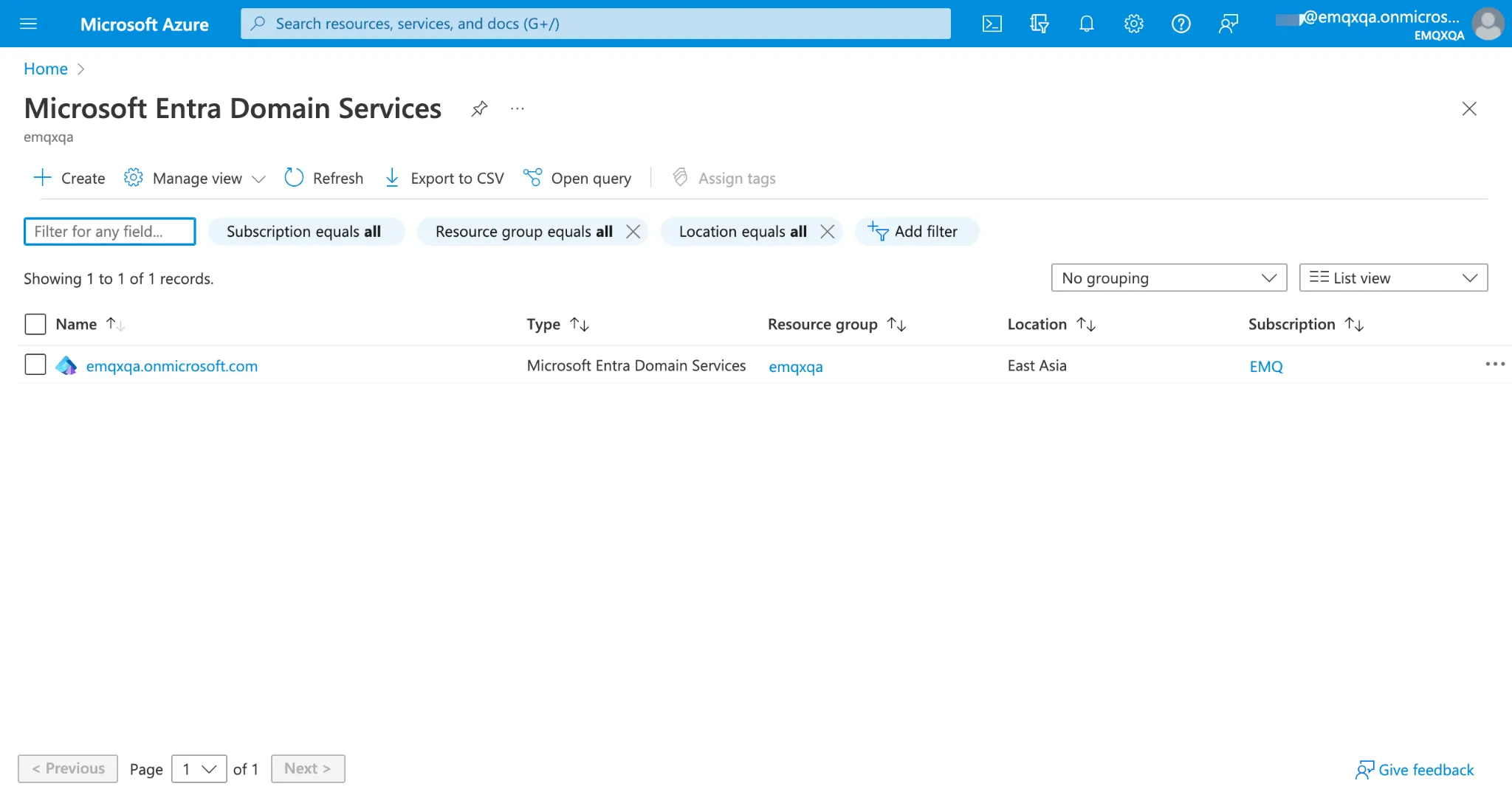
No Microsoft Entra Domain Services instance yet? Follow Implement LDAP authentication with Microsoft Entra ID.
Retrieve the connection details for Microsoft Entra ID
- Go to Microsoft Entra Domain Services instance > Secure LDAP: make sure Secure LDAP is enabled to use TLS encryption (recommended). This will enable LDAPS on port 636 (in favour of LDAP on port 389 without Secure LDAP).
- Is Factry Historian/Grafana located within the same (or peer) Azure VNet (Virtual Network) as the Microsoft Entra Domain Services instance? Yes: the LDAP host is similar as mydomain.onmicrosoft.com (replace mydomain with your domain mentioned in the Microsoft Entra DS instance). No: Go to Microsoft Entra Domain Services instance > Secure LDAP: enable Allow Secure LDAP access over the internet and go to Microsoft Entra Domain Services instance > Properties > Secure LDAP external IP addressesto get the LDAP host.
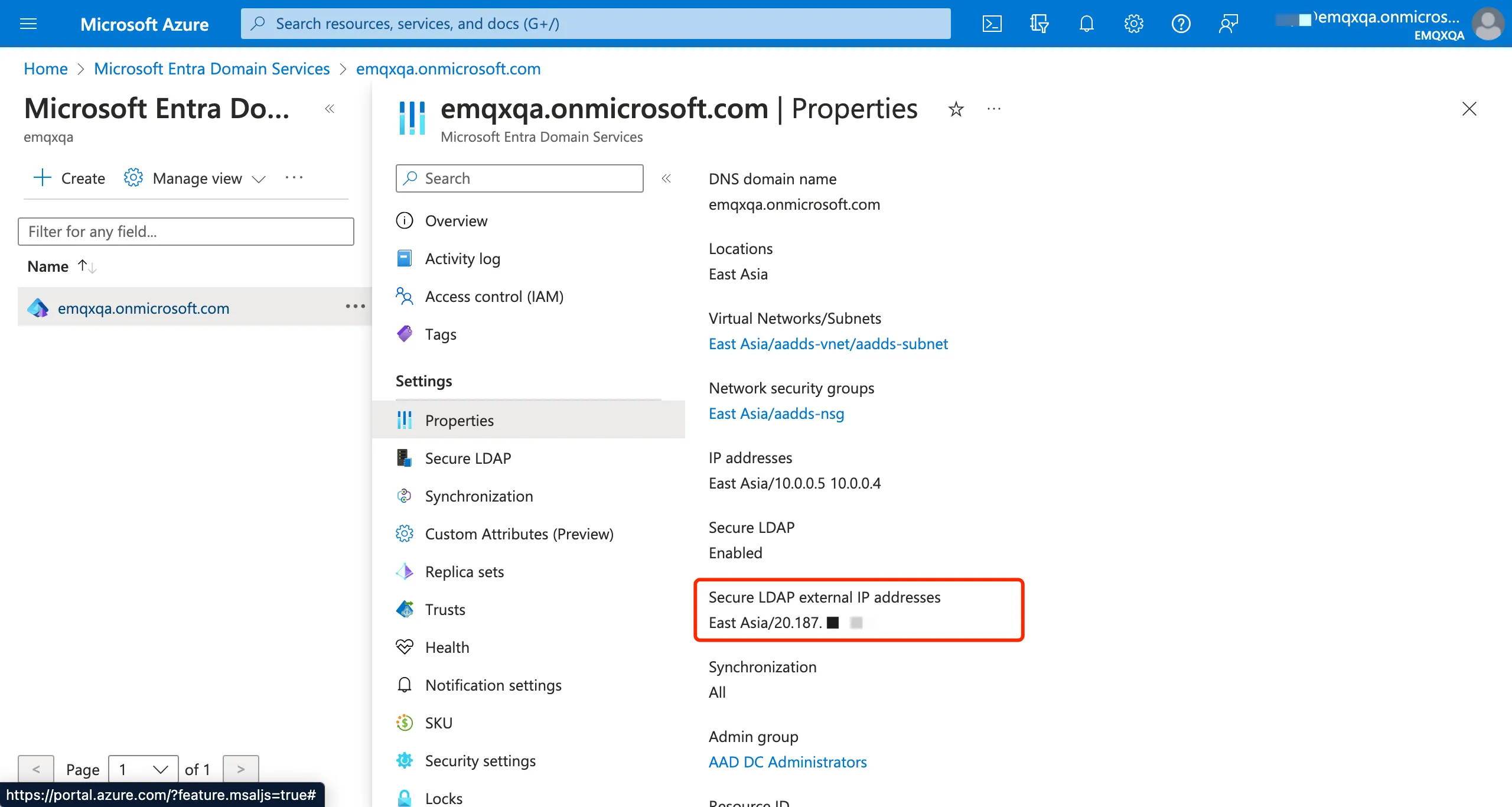
Use the table below to retrieve the remaining connection details.
Host | mydomain.onmicrosoft.com or mydomain.com or an Azure external IP address. |
|---|---|
Port | 636: default for LDAPS (recommended) 389: default for LDAP |
TLS/SSL | For port 636: • Enable Use SSL • Disable Start TLS • Disable Skip verify SSL For port 389: • Disable Use SSL • Enable Start TLS • Enable Skip verify SSL Skipping SSL verification accepts any certificate, so the connection is open to interception. Use only for testing. |
BindUser DN and password | The Bind DNis typically the UPN of a user in the managed domain, e.g: [email protected] The password is that user’s domain password. Service accounts are usually created specifically for this purpose. |
Root CA Certificate | None. |
Client certificate and key files | None. |
Base DN | Your Base DN in LDAP format. Examples: dc=mydomain,dc=com or dc=mydomain,dc=onmicrosoft,dc=com Replace mydomain with your domain mentioned in the Microsoft Entra Domain Services instance: mydomain.onmicrosoft.com. The longer and more specific the Base DN, the more you constrain the search to a smaller subtree of the directory. |
Search filter | (userPrincipalName=%s): If the Factry Historian/Grafana username is the Microsoft e-mail addres e.g.[email protected] (sAMAccountName=%s): If the Factry Historian/Grafana username is a shorter username e.g. jdoe |
Attributes (of each identity) | Uses the default attributes format. • Email: mail • FirstName: givenName • LastName: sn • Username: sAMAccountName (legacy system) or userPrincipalName • MemberOf: memberOf |
Google Workspace
Google Workspace provides a Secure LDAP service, which allows applications to authenticate users against identities managed in Google. With Secure LDAP, you can use Google Workspace as your centralized identity store for LDAP applications.
Go to the Google Admin console to Create a LDAP client.
Retrieve the connection details for Google Workspace
Host | LDAP.google.com |
|---|---|
Port | 636: default for LDAPS (recommended) 389: default for LDAP |
TLS/SSL | For port 636: • Enable Use SSL • Disable Start TLS • Disable Skip verify SSL For port 389: • Disable Use SSL • Enable Start TLS • Enable Skip verify SSL Skipping SSL verification accepts any certificate, so the connection is open to interception. Use only for testing. |
BindUser DN and password | Generate a DN username and password in the Google Admin console via the Secure LDAP service. For instructions, see Generate access credentials. |
Root CA Certificate | None. |
Client certificate and key files | Use the certificate and key file downloaded from the Google Admin console and put the client certificate and key file on the Historian server (requires command line access or ask Factry support). The path to these files on the Historian server has to be filled in when configuring LDAP in Factry Historian or Grafana. More information on managing the client certificate and key: Troubleshooting LDAP authentication |
Base DN | Your Base DN in LDAP format. For example: dc=MyDomain,dc=com (Search the entire domain) or ou=Groups,dc=MyDomain,dc=com (Search only within the Groups organizational unit) or cn=Engineering,ou=Groups,dc=MyDomain,dc=com (Search only within the Engineering group entry) Replace MyDomain with your domain mentioned in the Google Workspace. The longer and more specific the Base DN, the more you constrain the search to a smaller subtree of the directory. |
Search filter | (mail=%s): If the Factry Historian/Grafana username is the Google e-mail addres e.g.[email protected] (uid=%s): If the Factry Historian/Grafana username is a shorter username e.g. john.doe |
Attributes (of each identity) | Uses the default attributes format. • Email: mail • FirstName: givenName • LastName: sn • Locale: preferredLanguage • MemberOf: memberOf • Username: By default not available (can be added via custom attributes in the Google Admin Console → Directory → Users → User information). uid is typically used as the username. |
Windows Domain Controller (Local server)
A Domain Controller (local Windows server) supports LDAP against identitities stored in Active Directory. This setup is typically used for applications running in on-premises networks.
Go to Enable LDAP over SSL with a third-party certification authority to enable LDAPS (recommended).
Use the table below to retrieve the connection details.
Host | FQDN or IP address of the Domain Controller. Example: dc01.mycompany.local |
|---|---|
Port | 636: default for LDAPS (recommended) 389: default for LDAP |
TLS/SSL | For port 636: • Enable Use SSL • Disable Start TLS • Disable Skip verify SSL For port 389: • Disable Use SSL • Enable Start TLS • Enable Skip verify SSL Skipping SSL verification accepts any certificate, so the connection is open to interception. Use only for testing. |
BindUser DN and password | Use the User DN or UPN of a service account or user in AD. Example: cn=LDAP.service,ou=Service Accounts,dc=mycompany,dc=local or [email protected] |
Root CA Certificate | If the Windows Domain controller uses a: • (publicly signed) trusted certificate: No CA certificate needed. • self-signed certificate: Provide the root CA certificate with which the Domain controller server certificate has been signed and put it on the Historian server (requires command line access or ask Factry support). The path to this file on the Historian server has to be filled in when configuring LDAP in Factry Historian or Grafana. More information on managing the client certificate and key: Troubleshooting LDAP authentication |
Client certificate and key files | LDAP: None. LDAPS: Provide the certificate and key file downloaded from the domain controller LDAPS configuration and put them on the Historian server (requires command line access or ask Factry support). The path to these files on the Historian server has to be filled in when configuring LDAP in Factry Historian or Grafana. More information on managing the client certificate and key: Troubleshooting LDAP authentication |
Base DN | Root of your AD domain in DN format. Examples: dc=mydomain,dc=local or ou=Groups,dc=mydomain,dc=local or ou=Users,dc=mydomain,dc=local Replace mydomain with your domain. The longer and more specific the Base DN, the more you constrain the search to a smaller subtree of the directory. |
Search filter | (userPrincipalName=%s): If the Factry Historian/Grafana username is the e-mail addres e.g.[email protected] (sAMAccountName=%s): If the Factry Historian/Grafana username is a shorter username e.g. jdoe |
Attributes (of each identity) | Uses the default attributes format. • Email: mail • FirstName: givenName • LastName: sn • Username: sAMAccountName (legacy system) or userPrincipalName • MemberOf: memberOf • Locale: By default not available (can be added via custom attributes). |