Configuring LDAP authentication in Factry Historian
Requirements
Before starting, make sure you have:
- Administrator privilegesAdministrator privileges in Factry Historian
- Connection to LDAP server
Configure authentication provider
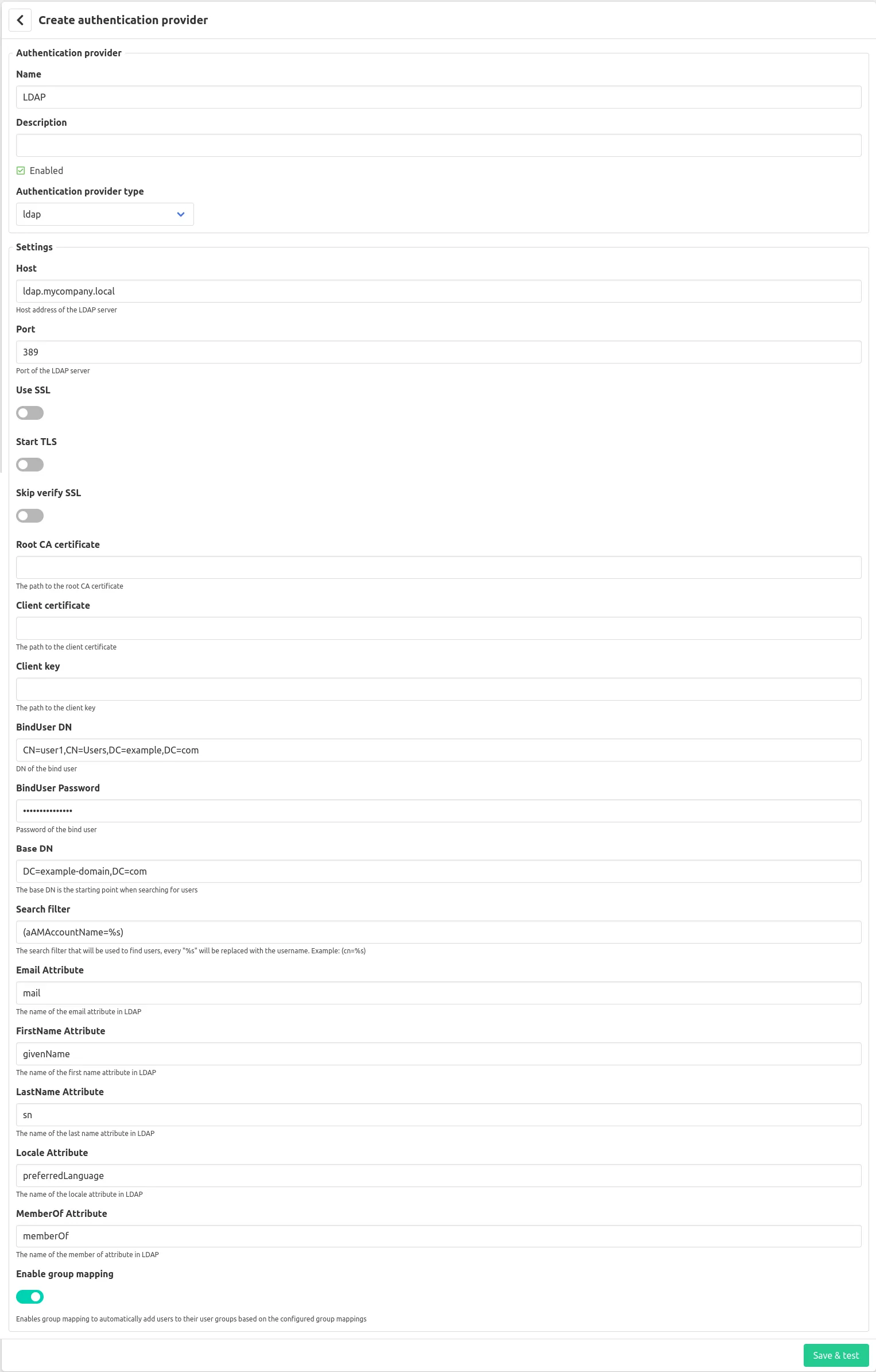
- In Factry Historian, go to: Configuration > Server Settings > Authentication providers and click + Create provider.
- Give your new Authentication provider a Name and optional Description. Select LDAP as Authentication provider type.
- Check the "Enabled" checkbox to enable the authentication provider.
- Fill in your LDAP connection details:
- Make sure to add the brackets ( and ) around the search filter field.
- Click Save & test to verify the configuration.
If the connection is successful, you will return to the Authentication providers overview. The icon next to the authentication provider you created should turn green.
Having issues configuring the authentication provider, or the authentication provider does not turn green? Have a look in Troubleshooting LDAP authentication.
Configure group mapping for LDAP
In Factry Historian, go to Configuration > Server Settings > Authentication providers and select the LDAP authentication provider to enable group mapping for it.
When group mapping is enabled on the authentication provider, a user in Factry Historian can not be manually configured into a user group, since on each login the user will be linked to the user groups matching the authentication provider. To manually assign users to groups in Factry Historian, skip this section.
- In the LDAP server, find the DN of the group(s) with identities (users) you want to give permissions in Factry Historian.
- In Factry Historian, go to Configuration > Groups and click the edit icon of the user group that you want to map.
- In the Manage user group screen, Click + Create user group mapping. Enter the DN from Step 1 in the Name field. Then, select the Authentication provider from the dropdown menu.
- Click Submit.
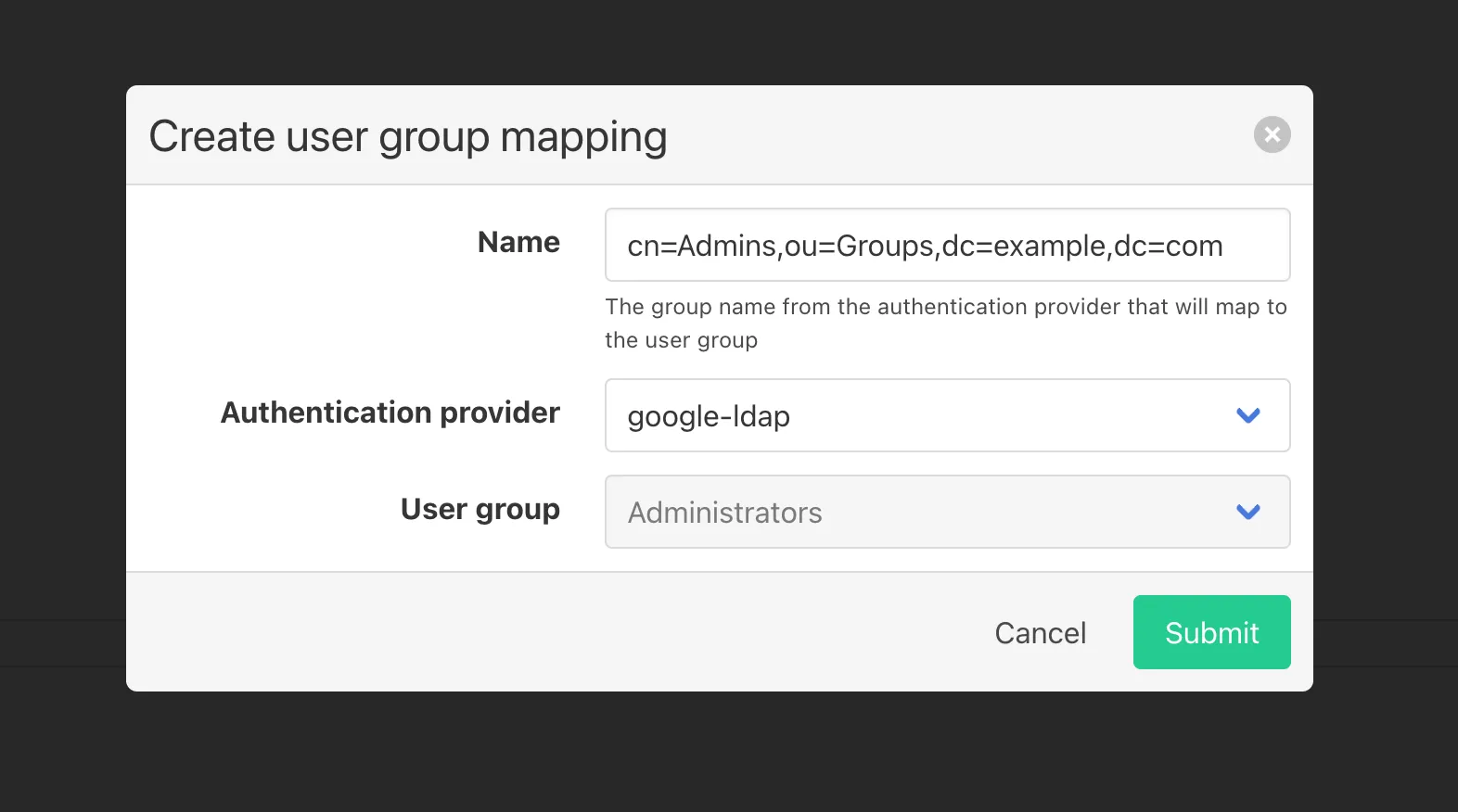
On saving a user group mapping, all the identities (users) in the LDAP group(s) matching the given DN will be granted the permissions of the mapped Factry Historian user group.
We recommend to continue by configuring a user group mapping for each user group in Factry Historian: Administrators, Managers and Readers.
Test authentication and group mapping
To test the authentication and group mapping:
- Log out of Factry Historian.
- Select the LDAP authentication provider in the login screen.
- Log in with your LDAP username or e-mail (depends on the search filter).
- Verify:
- If login succeeds without errors.
- If the correct user groups are applied to the user in Factry Historian.
When successfully logging in with an LDAP user in Factry Historian, the user will be automatically created in Factry Historian (if it does not exist yet).
Having issues logging in or testing group mapping? Have a look in Troubleshooting LDAP authentication.