Configuring LDAP authentication in Grafana
Requirements
Before starting, make sure you have:
- Server Admin permissions in Grafana (v11.3.0 or higher)
- Connection to LDAP server
Configure authentication
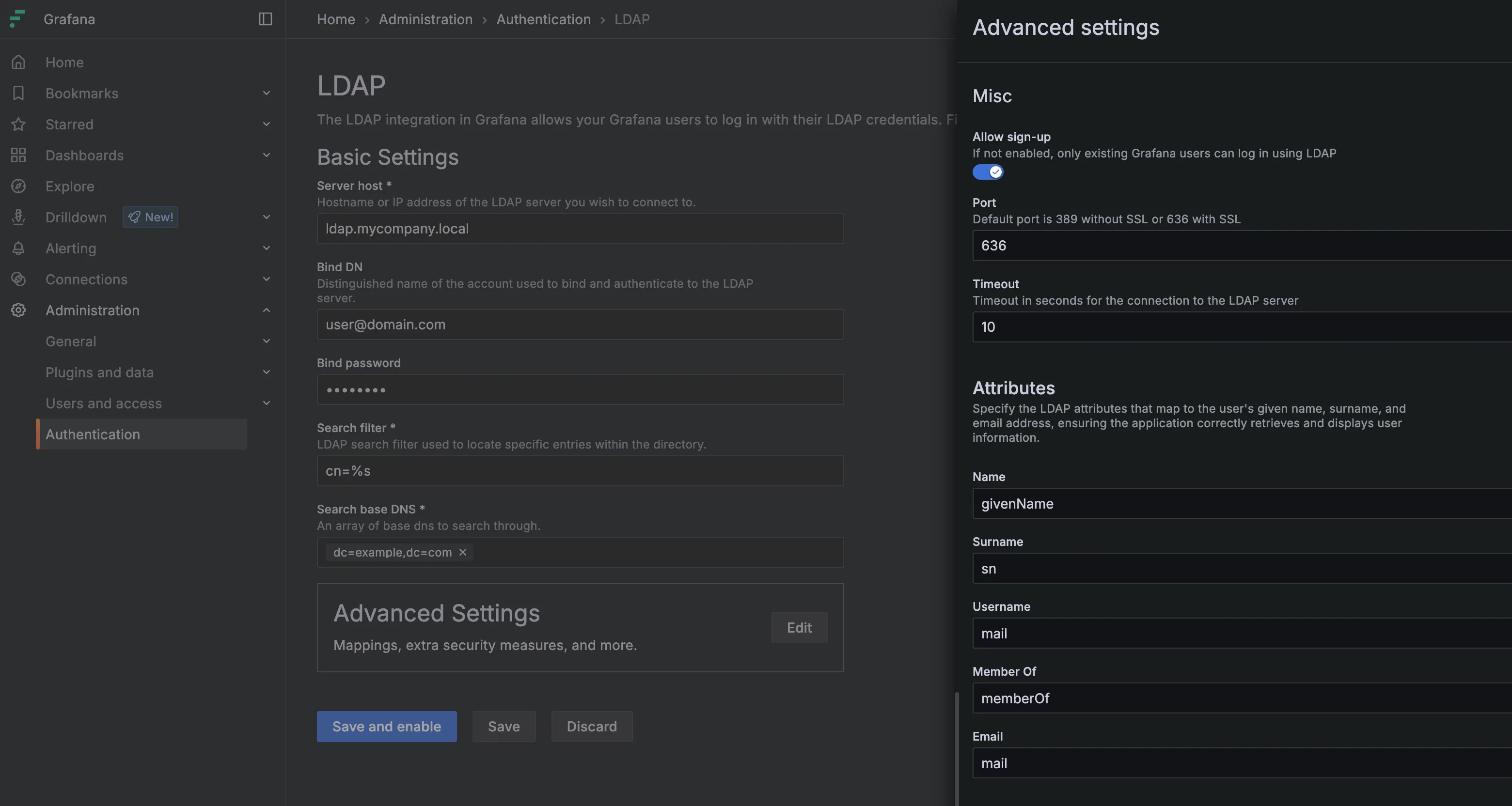
To configure LDAP authentication in Grafana, go to Administration > Authentication > LDAP.
Don't see LDAP? The ssoSettingsLDAP feature toggle must be enabled in the grafana.ini config file (requires command line access on the Grafana server or ask Factry support).
- Fill in the LDAP connection details:
- Fill in the Basic Settings.
- Don't add ( and ) around the search filter.
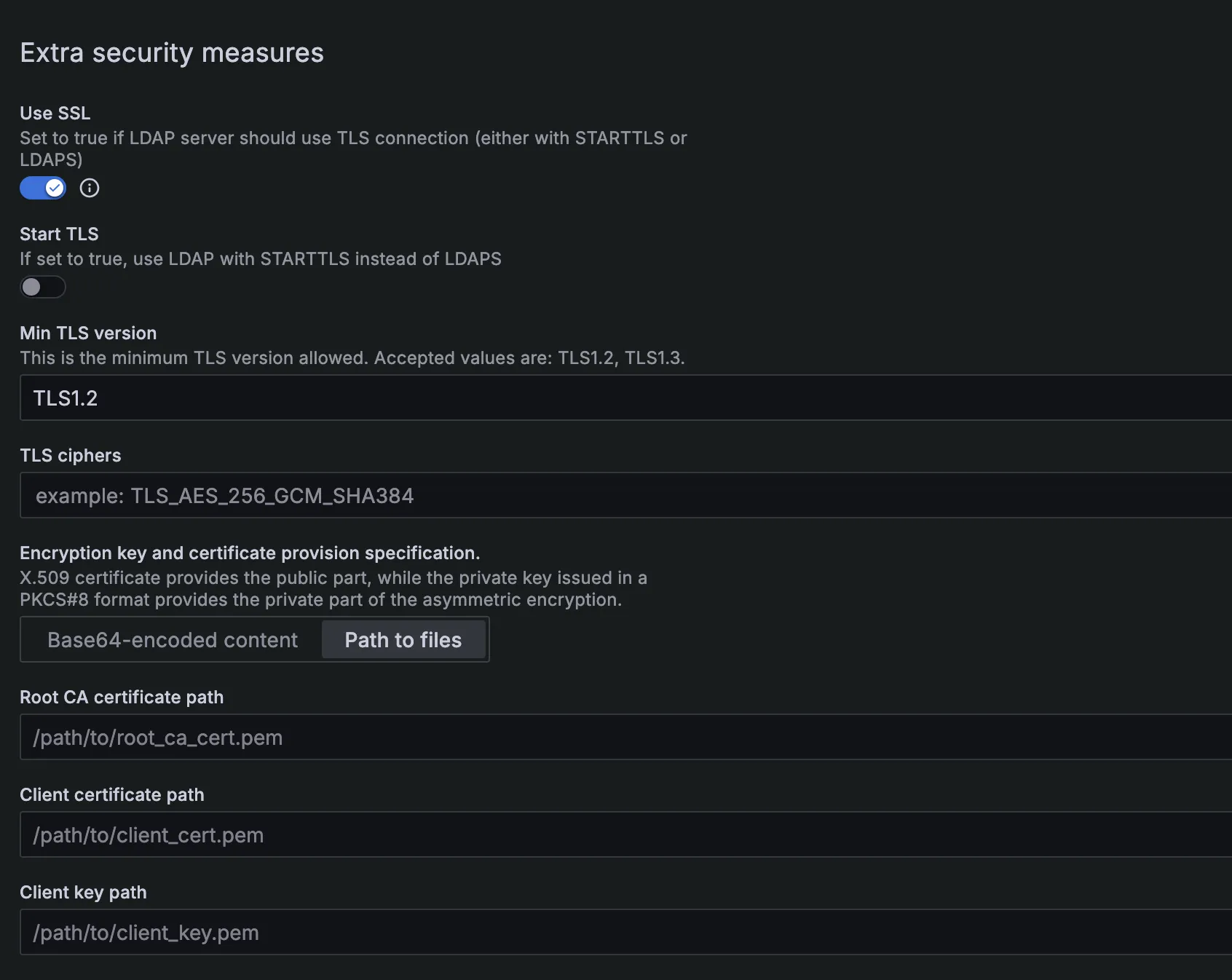
- Click Edit and fill in the Advanced Settings > Extra Security Measures.
- More information in the Grafana guide: Configure LDAP authentication.
- Click Save & test to verify the configuration.
If the connection is successful, the configuration should save without errors.
Troubles configuring the authentication? Have a look at Troubleshooting LDAP authentication.
Default role
If you log out and try to log in with a LDAP user (with a username that does not exist in Grafana), the user receives the default role in Grafana for the default organization (usually Viewer, which is set in grafana.ini). To manage permissions of the user, there are 2 options:
- Manually assign a role to a user: see Grafana's Assign roles to a user
- Configure group mapping via LDAP
If the LDAP user matches a username of an existing user in Grafana, that user will be logged in (when Skip organization role sync in Group mappingis enabled) as opposed to creating a new user.
Configure group mapping
Perform the following steps to create a user group mapping:
When group mapping is enabled, a user in Grafana can not be manually configured into a user group, since on each login the user will be linked to the user groups matching in LDAP. To manually assign users to groups in Grafana, skip this section.
- Go to Administration > Authentication > LDAP.
- Make sure to disable the Skip organization role sync.
- In the LDAP server, find the DN of the group(s) with identities (users) you want to give permissions in Grafana.
- In Grafana, find the Org ID of the organization for which the user needs to receive permissions. Go to Administration > General > Organizations for an overview of the Org ID's.
- In Grafana, add a user group mapping using the DN of the group.
The order of the group mapping in Grafana matters. Grafana uses only the first matching group mapping, so put higher-privilege mappings first. More information can be found in Grafana documentation here.
The Group search filter, Group search base DNS and the Group name attribute are optional and to be used if the Group DN is set as an attribute of the LDAP group rather than the DN itself.
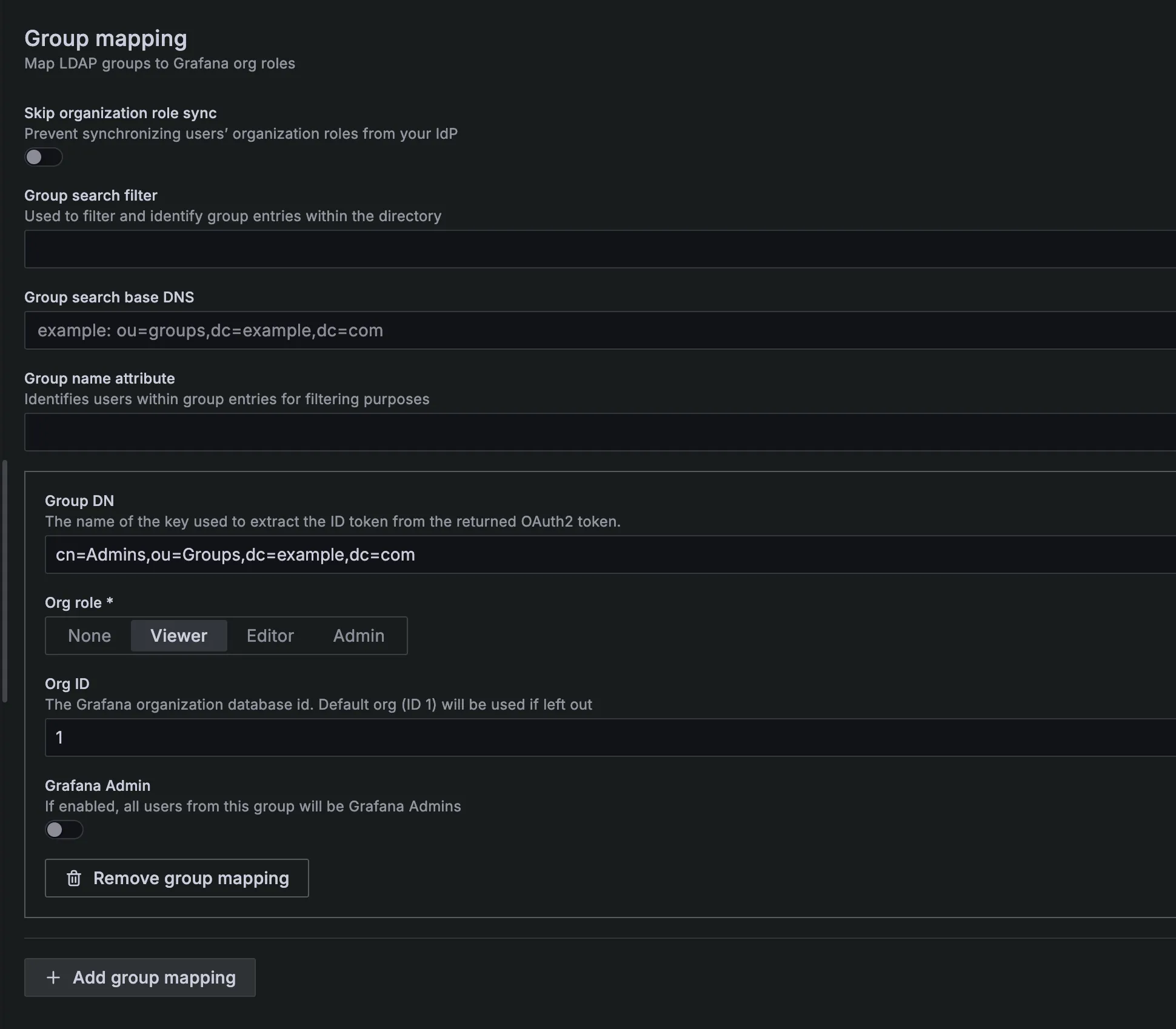
On saving a group mapping, all the identities (users) in the LDAP group(s) matching the given DN will be granted the permissions of the mapped Grafana role in the Organization with the indicated Org ID.
We recommend group mapping in Grafana for each role you plan to have: Grafana Admin, Admin, Editor and Viewer.
Test authentication and group mapping
When successfully logging in with an LDAP user in Grafana, the user will be automatically created in Grafana (if it does not exist yet).
To test the authentication and group mapping:
- Log out of Grafana.
- Log in with your LDAP username or e-mail (depends on the search filter) and verify:
- If login succeeds without errors.
- If the correct user groups are applied to the user in Grafana.
Troubles configuring the authentication? Have a look at Troubleshooting LDAP authentication.