Configuring an OPC-UA collector
The OPC-UA collector in Factry Historian allows you to connect to an OPC-UA server and collect process values. Once configured, the data is historized and made available for further processing in Factry Historian, and for trending, reporting, and analysis.
Prerequisites
- Permissions in Factry Historian to manage collectors. See PrivilegesPrivileges.
- An installed OPC-UA collector. If you have not done so already, first install the collector.
- A working OPC-UA connection to the OPC-UA server. If you are running into issues or setting this up for the first time, follow our guide to test an OPC-UA connection.
- A configured time-series database to write the collected data to.
Configure the collector
After installing the collector, you should see that the collector is in an initial state and is actively running. This means that the collector has established a connection to Factry Historian and is awaiting further configuration.
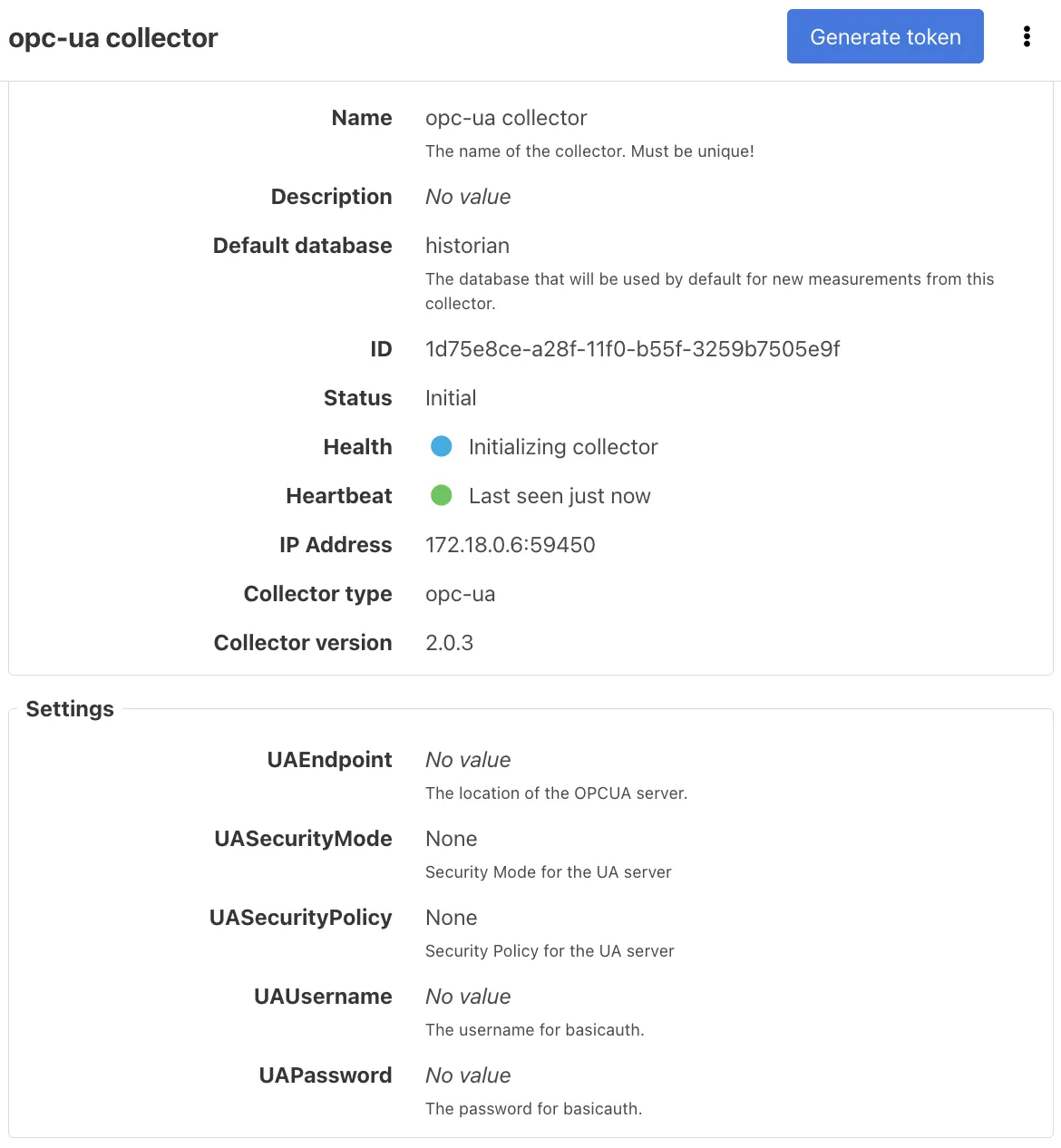
To configure the collector, select it from the Collectors overview in Factry Historian and click the Edit button. Configure the following fields:
UAEndpoint
This is the endpoint URL of the OPC-UA server to connect to.
The endpoint must exactly match one of the endpoints exposed by your OPC-UA server. If you are unsure which one to use, check the server’s endpoint list in your OPC-UA server configuration or discovery tool. It follows the format:
For example:
If you’re having trouble connecting to the OPC-UA endpoint, see this page:Testing an OPC-UA connection
UASecurityMode
The security mode controls how messages are protected during transmission between the collector and the OPC-UA server.
- None No protection is applied. Messages are exchanged in plain text. This option should only be used in test setups or fully isolated networks.
- Sign Every message is digitally signed. This ensures the data cannot be tampered with, but it is not encrypted, meaning that the values can still be read if intercepted.
- SignAndEncrypt Messages are both signed and encrypted. This protects data from tampering and ensures confidentiality. For production environments, this is the preferred option whenever the server supports it.
If you have set the Security Mode to Sign or SignAndEncrypt, make sure to accept the certificate presented by the OPC-UA collector in the administration interface of the OPC-UA server.
UASecurityPolicy
The security policy defines the actual cryptographic algorithms and key lengths used. It must always be compatible with the chosen security mode and the configuration of the OPC-UA server.
- None No encryption or signing, only valid when UASecurityMode is also set to None.
- Basic128 128-bit encryption using older algorithms. Considered weak today.
- Basic128Rsa15 128-bit AES with RSA PKCS#1 v1.5. Deprecated and not recommended unless your server only supports it.
- Basic192 / Basic192Rsa15 192-bit encryption variants, rarely supported.
- Basic256 256-bit AES with RSA key exchange. Secure and commonly available.
- Basic256Sha256 256-bit AES encryption with SHA-256 hashing. This is the strongest and most recommended choice if supported by your server.
Preferably pick the most secure combination that both the client (collector) and the server support. For example, if the server advertises SignAndEncrypt with Basic256Sha256, configure the collector with the same values.
For instructions on configuring Kepware for OPC-UA, refer to: Configuring Kepware for OPC-UA
UAUsername And UAPassword
Some OPC-UA servers require user authentication in addition to (or instead of) certificate security. In that case, provide a valid username and password.
If your OPC-UA server allows anonymous connections, you can leave these fields empty. Otherwise, make sure the credentials match exactly what has been configured on the server side.
Example
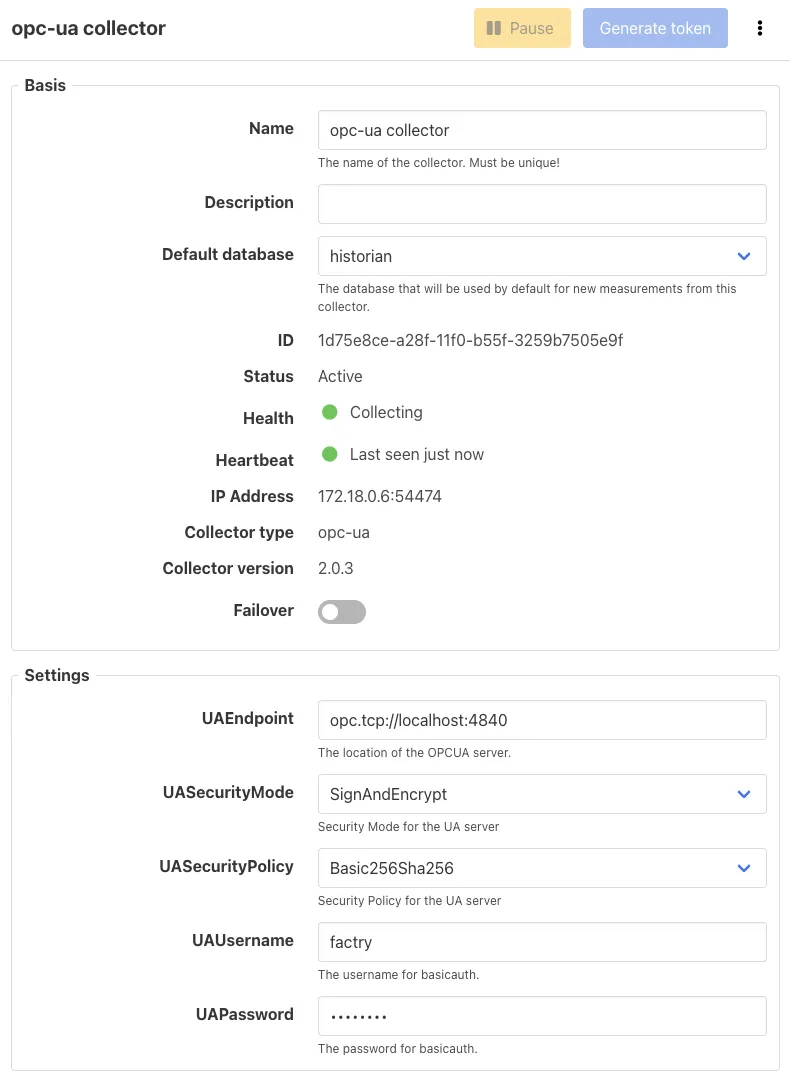
Then, click Save.
Expected outcome
After you have configured the collector, a green Start button will appear in the top right corner of the collector page.
- Click Start to launch the collector.
If the connection is successful, you should observe the collector status change to Collecting.
Troubleshooting
For guidance on common connection problems, status codes, and other collection issues, please refer to this page: Troubleshooting OPC-UA connections
Adding measurements
Follow the guide on Adding measurements to an OPC-UA collector
Best practices
Timestamps
Make sure all clocks (collector, server, devices) are synchronized, for example using NTP.
Multiple PLCs through a single OPC-UA server
If you connect to several PLCs via one OPC-UA server (e.g. Kepware), consider:
- Ignore unresponsive devices: Some servers can ignore unresponsive devices for a while or poll devices in parallel, so one slow or turned off PLC doesn’t influence others (for Kepware: see StatusBadTimeout).
- Timeouts: Set timeouts per device in the OPC-UA server so that slow devices don’t block data from others. Collector ReadTimeout should not be much higher than the fastest polling interval. OPC-UA server timeouts should be lower than the collector timeout.
Limits
One collector can handle thousands of measurements, even with different, high-frequency polling intervals. Limitations usually arise only in the OPC-UA server or PLCs (CPU, RAM, network speed).
If you hit limits that cannot be resolved even with the best practices in mind and after Troubleshooting OPC-UA connections, measurements can be split over multiple collectors as a last resort (for a OPC-UA request RTT< 1s, up to 15 000 measurements per collector is recommended)