Trending Measurements
Prerequisites
Before using measurements to build a trend in Grafana, ensure:
- Measurements are available in Factry Historian.
- The Factry Historian datasource for Grafana is correctly set up.
Default usage
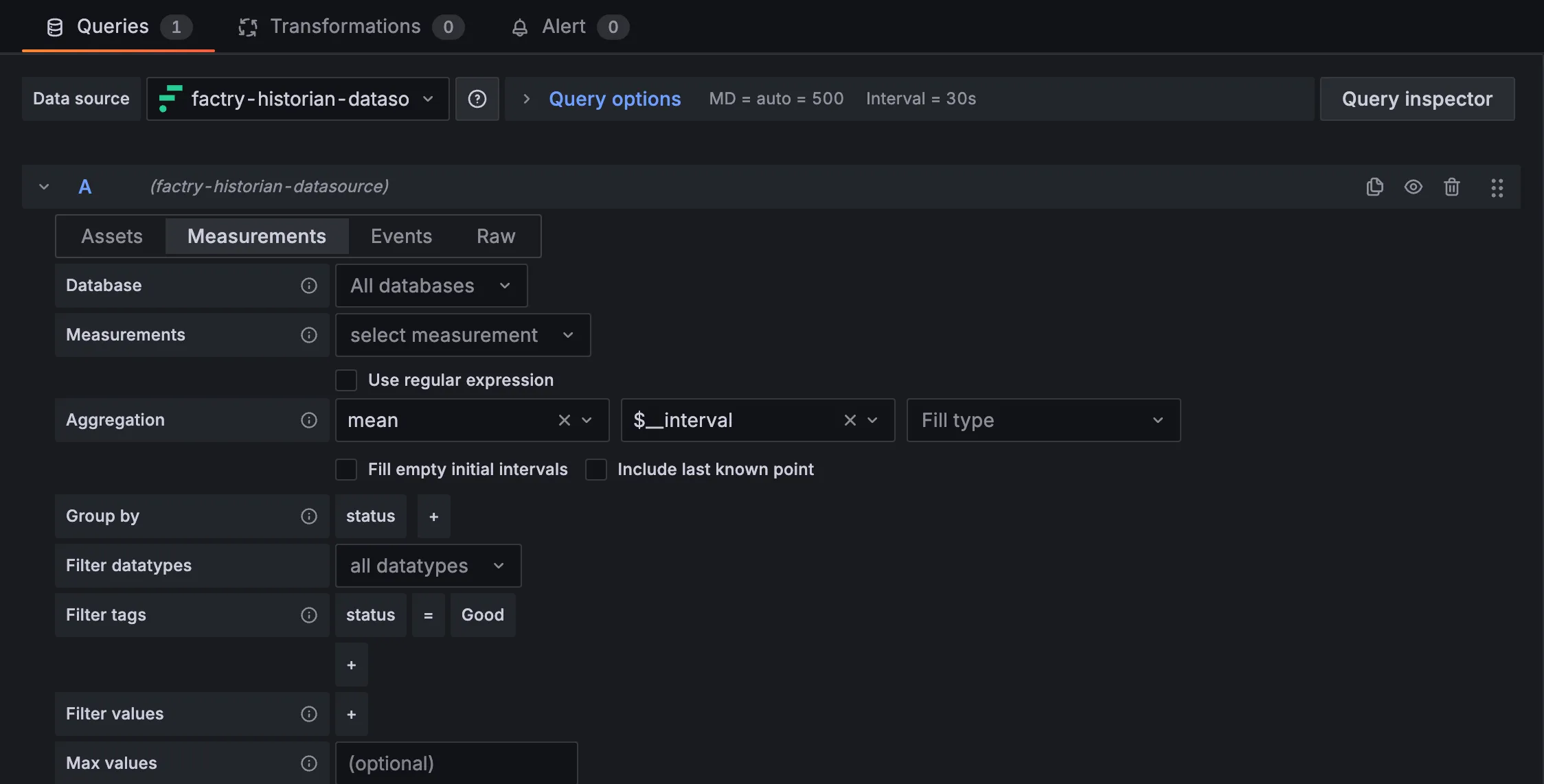
To trend measurements, either create a new dashboard or use the explore functionality. Next, select the Factry Historian datasource plugin as the Data source.
If it's not selected by default, then select the Measurements tab.
- Select a Database from the dropdown menu. By default, all Historian databases will be queried for a Measurement name. Begin typing for text suggestions. Multiple database can be selected.
- Select a Measurement from the dropdown menu. Begin typing for text suggestions. Both measurement names and descriptions will be searched. Multiple measurements can be selected.
- Tick the "Use regular expressions box" to use regular expressions.
- Select an aggregation function and aggregation window. The defaults are mean and $__interval. The $__interval variable is available in Grafana, and will adjust the aggregation window depending on the selected time range in the panel/dashboard.
- Optionally, select a Fill type for aggegration windows where not data is present.
- By ticking the "Include last known point" box, the last value in Factry Historian for the selected measurement(s) outside the selected time range will be displayed.
- Optionally adapt the Grouping By statement. By default, data will be grouped by status.
- Optionally filter on datatypes.
- Optionally filter on tags. For more information, consult Tags & LabelsTags & Labels information.
- Optionally filter on values (e.g. only return values >= 0).
- Optionally limit the max. amount of returned values.
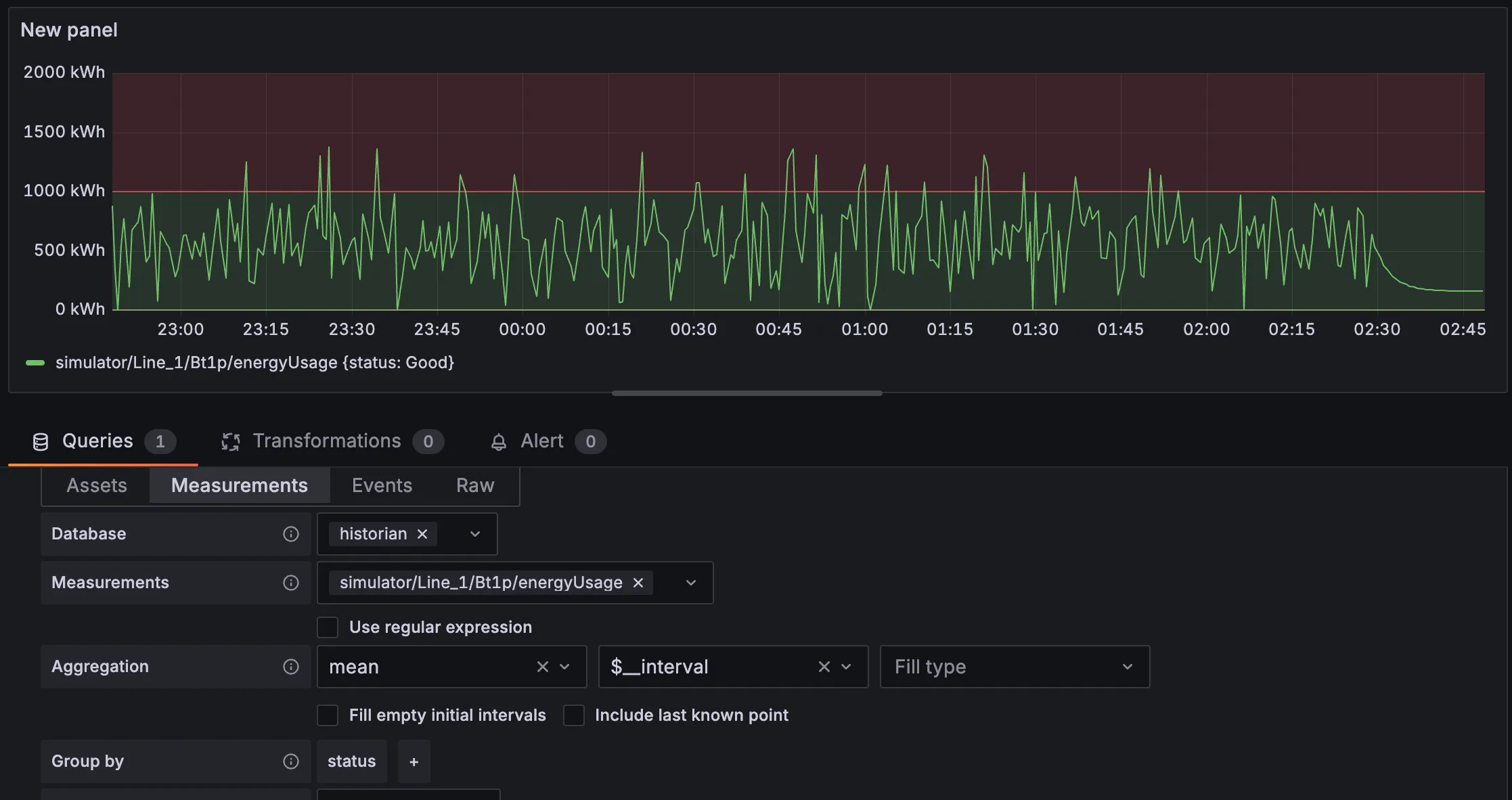
The Factry Historian datasource plugin will then fetch the data from Factry Historian and include all configured engineering specifications:
- Units of Measurement for labeling the y-axes.
- Scaling the trend's y-axis with the ValueMin and ValueMax settings.
- Providing the HI and LO boundaries for threshold colors.
Example
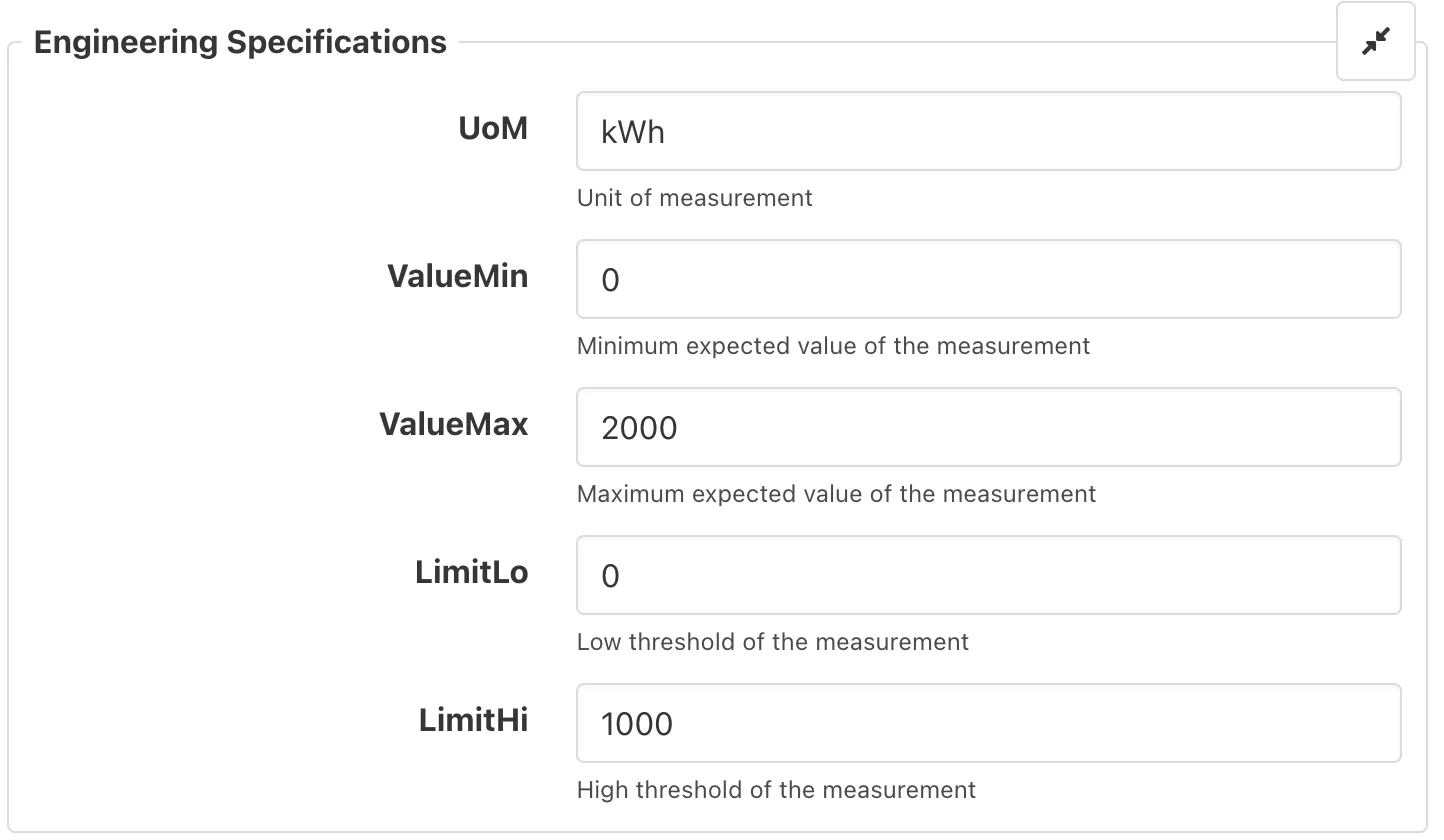
In this example, the measurement simulator/Line_1/Bt1p/energyUsage in Factry Historian is configured as follows:
- UoM: kWh
- ValueMin: 0
- ValueMax: 2000
- LimitLo: 0
- LimitHi: 1000
In Grafana, it will show up as:
Using regular expressions
Consult Query with regular expressions.
Using Grafana variables to populate dropdown lists
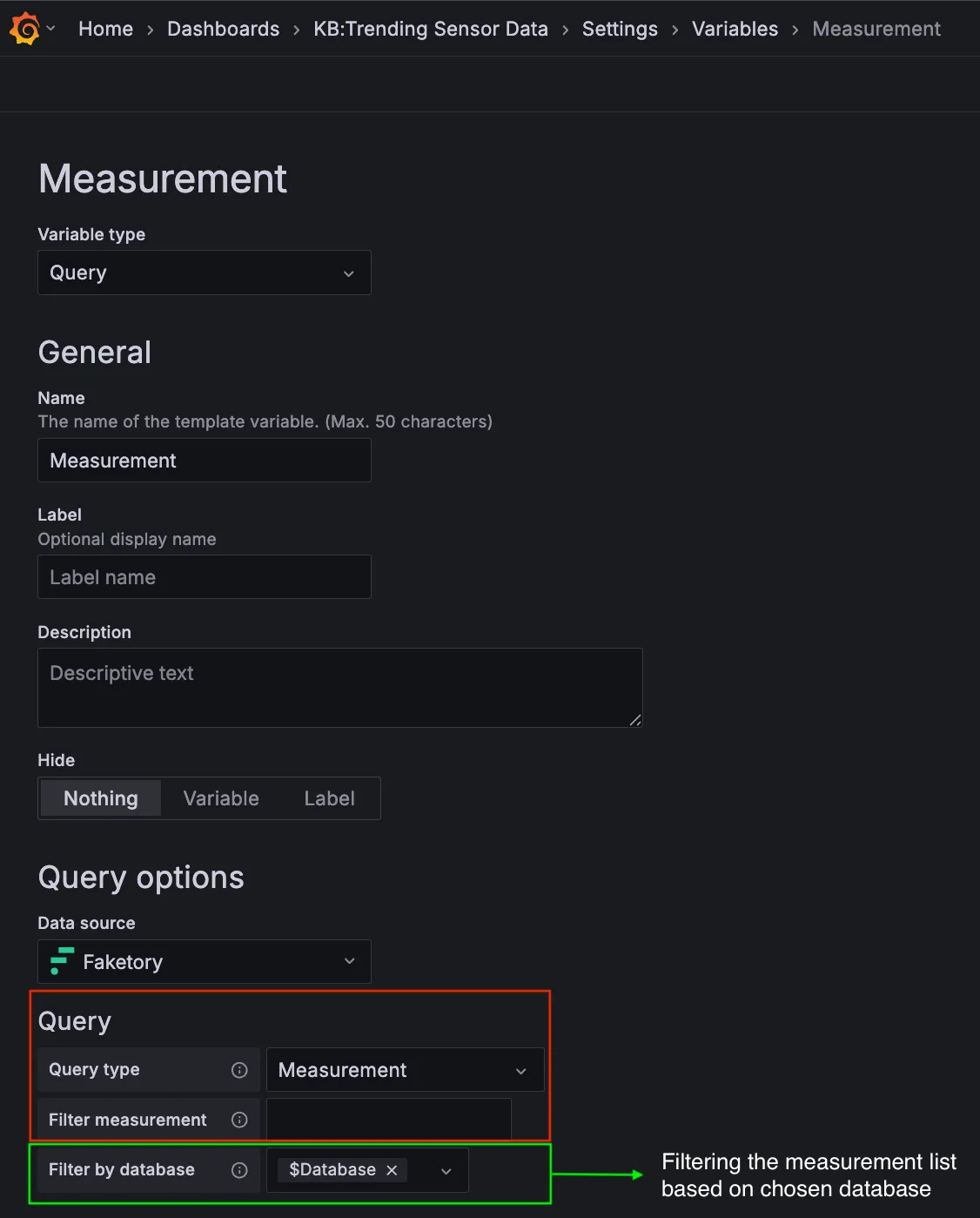
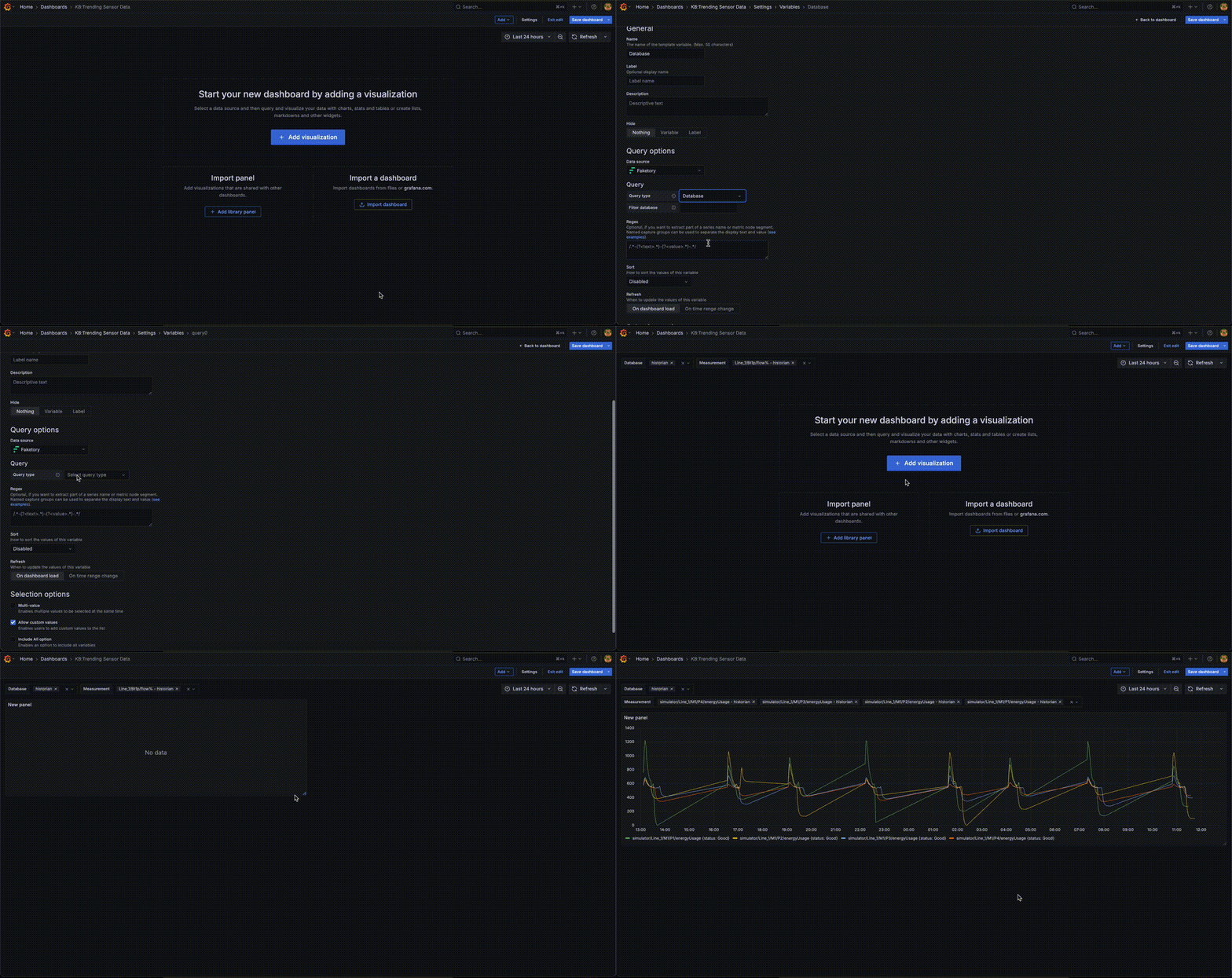
Use dropdown lists in Factry datasource to allow viewers to pick which database or measurement they want to see.
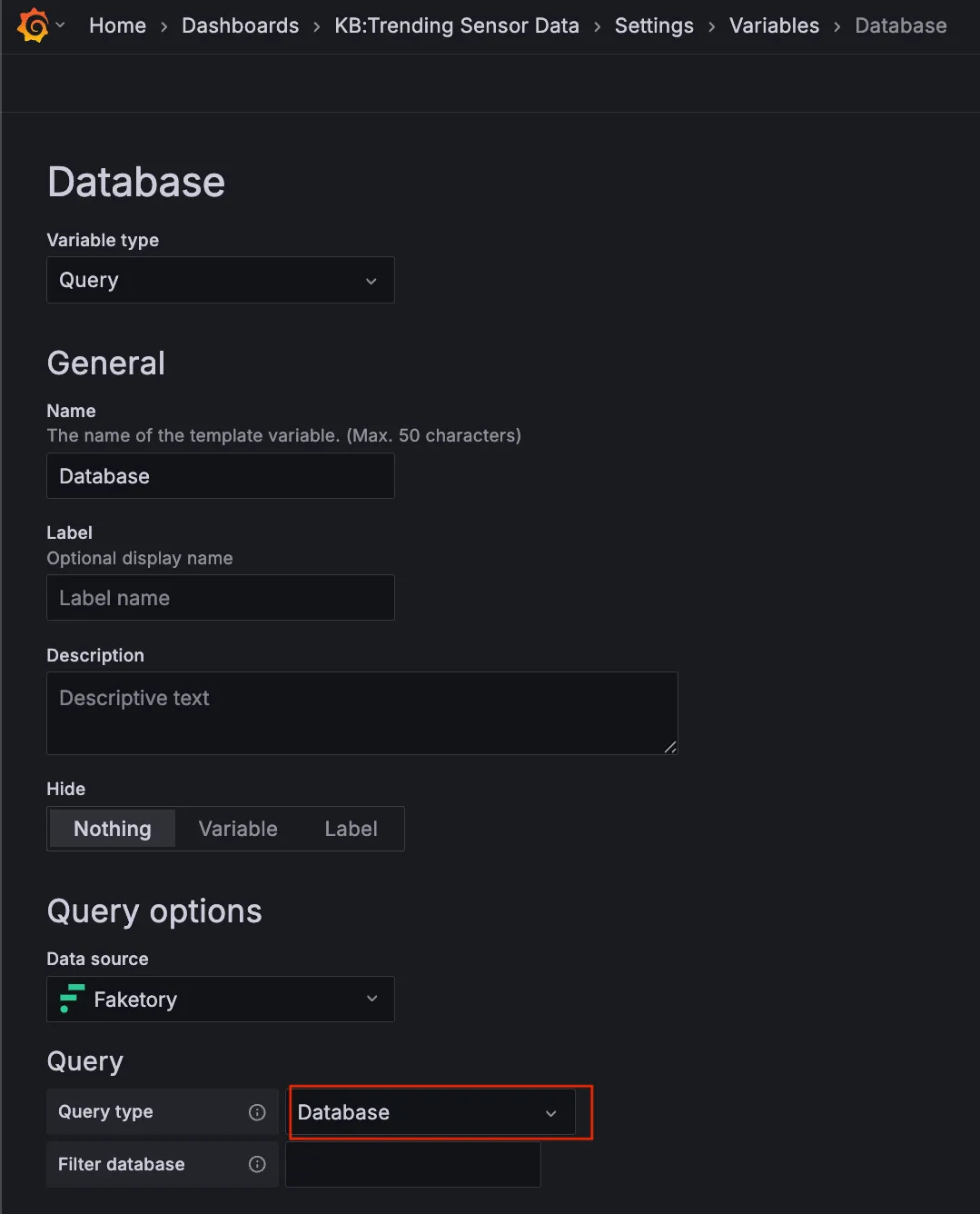
Filter with database name
Use the database dropdown in Factry datasource so measurement list updates when the user selects a different database.
- Multi-select is supported. Users can fetch data from more than one database at the same time.
Filter with measurement name
Similar to filtering by database name, use measurement dropdown to select a measurement.
- Supports multi-select so users can trend multiple measurements together.
- Can be combined with database selection for extra filtering.
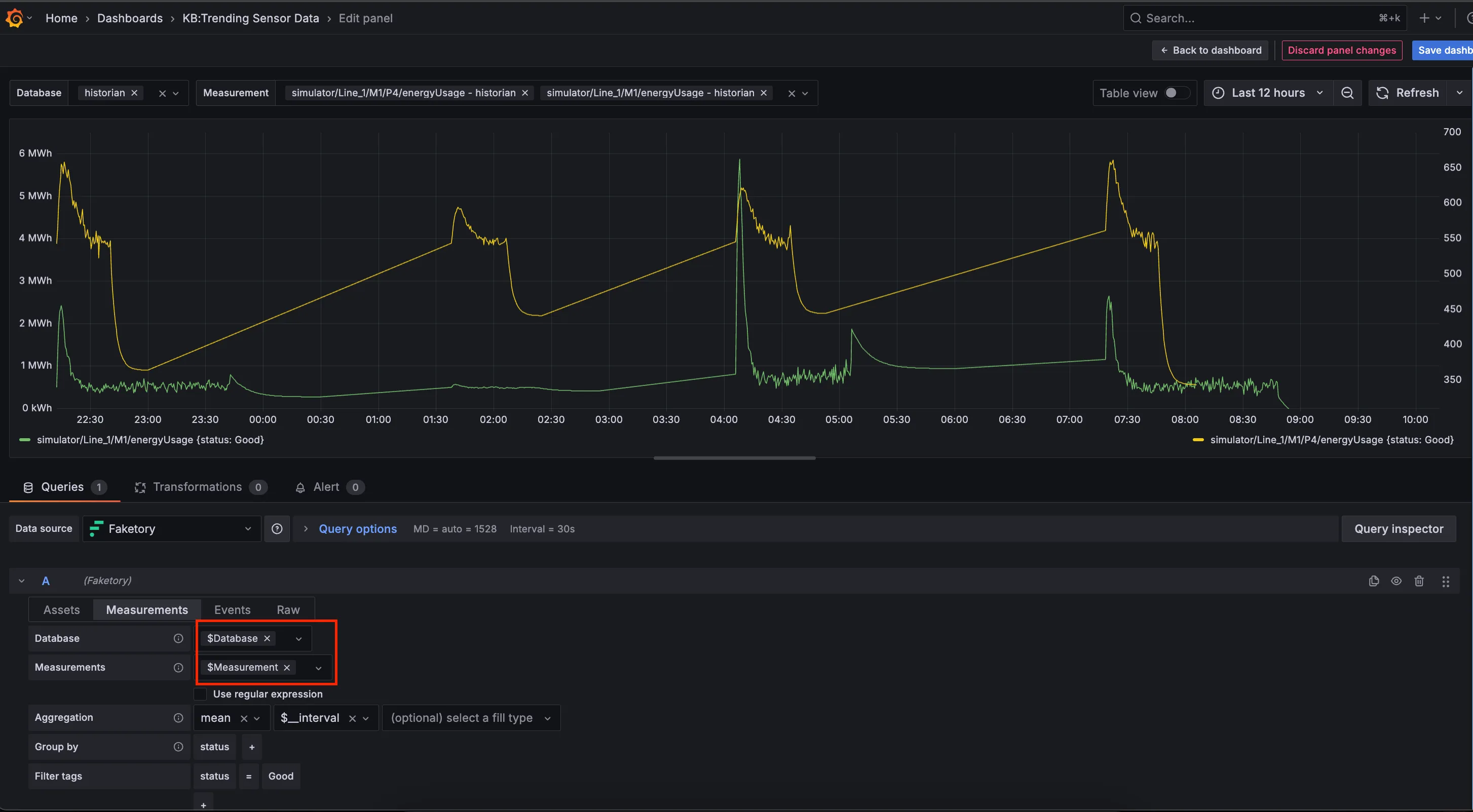
Use these variables in your panel.
Troubleshooting
Incorrect Aggregation for Datatype
If you select multiple measurements and choose an aggregation that is not suitable for all of the selected measurement data types, the Factry datasource will automatically switch the aggregation to last.
This is a safety measure to ensure that data is still displayed, even if the originally selected aggregation is incompatible with one or more of the measurements.
Example:
- You select both a numeric measurement (temperature) and a string typed measurement (status code) or boolean typed measurement (state).
- You choose the mean aggregation.
- Since mean cannot be applied to string and boolean data, the datasource automatically changes the aggregation for all measurements to last.
If you want different aggregations for different data types, you need to add multiple queries in your Grafana panel:
- One query for numeric measurements with applicable aggregations (mean, max, min, etc.).
- Another query for string or boolean measurements with applicable aggregations (last, first, mode, etc.).
This way, each data type gets the right aggregation, and you avoid issues with displaying trend of your data.