Trending Assets Properties
Prerequisites
Before using asset properties to build a trend in Grafana, ensure:
- Asset Properties are configured in Factry Historian.
- The Factry Datasource is correctly set up in Grafana.
Default usage
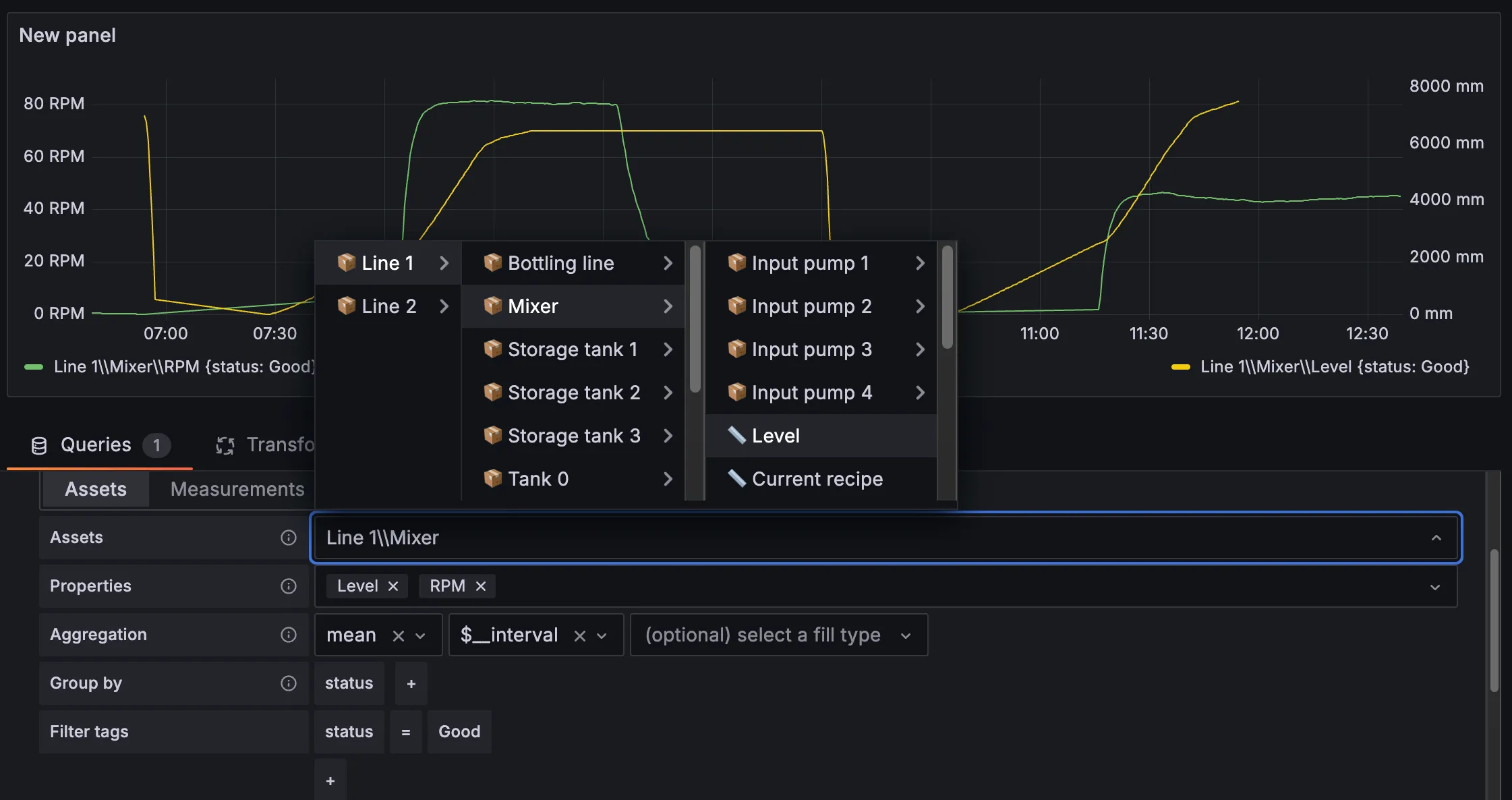
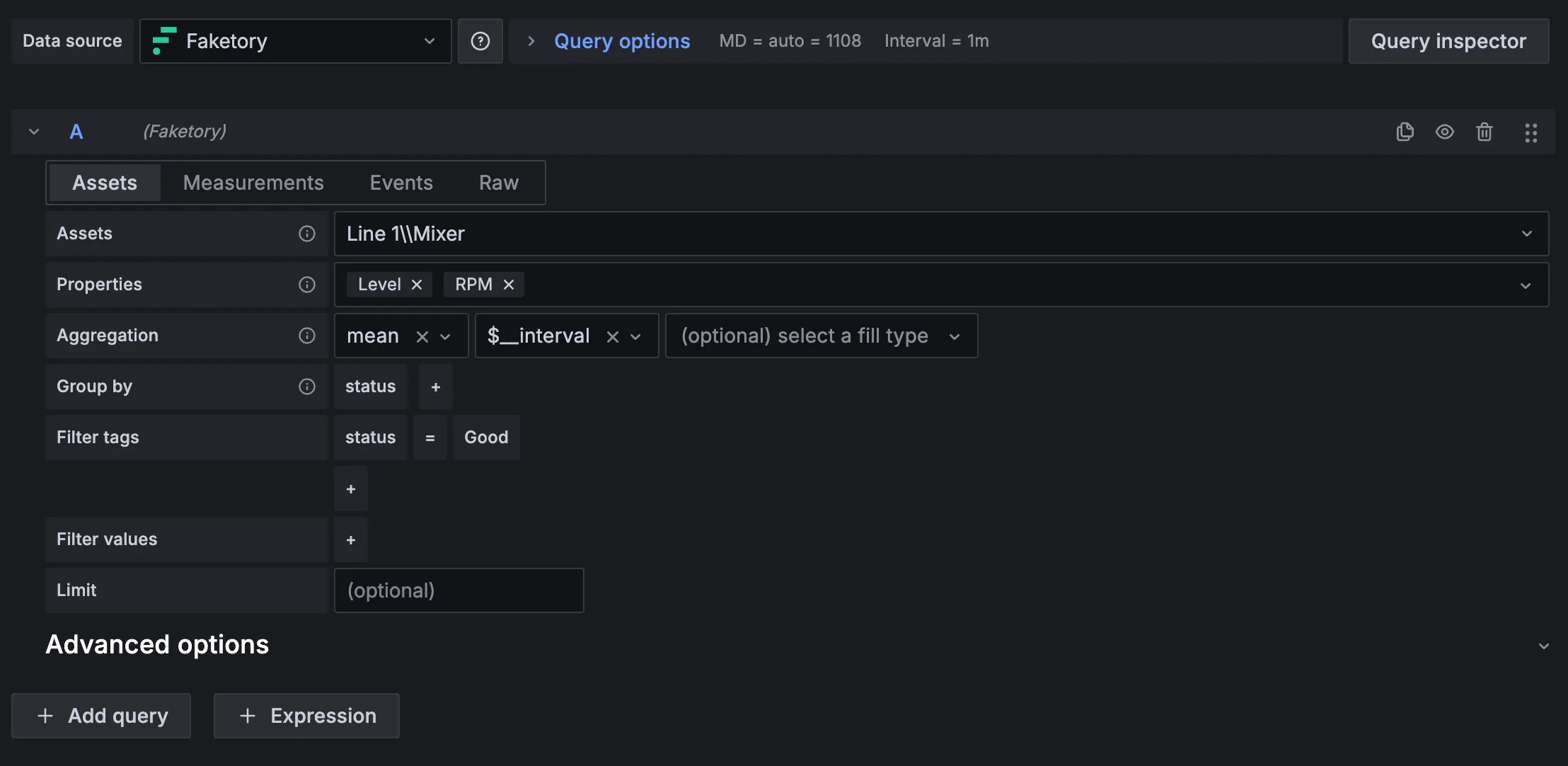
To trend asset properties, either create a new dashboard or use the explore functionality. Next, select the Factry Historian datasource plugin as the Data source.
If it's not selected by default, then select the Assets tab.
- Select an asset from the asset tree by clicking the Assets field.
- Select one or more properties from the Properties field. This field will be polulated by all asset properties configured on the selected asset.
- Select an aggregation function and aggregation window. The defaults are mean and $__interval. The $__interval variable is available in Grafana, and will adjust the aggregation window depending on the selected time range in the panel/dashboard.
- Optionally, select a Fill type for aggegration windows where not data is present.
- Optionally adapt the Grouping By statement. By default, data will be grouped by status.
- Optionally filter on tags. For more information, consult Tags & LabelsTags & Labels information.
- Optionally filter on values (e.g. only return values >= 0).
- Optionally limit the max. amount of returned values.
Asset properties vs measurements
- MeasurementsMeasurements are the raw time-series records stored by Factry Historian. They are tied directly to a sensor or signal (e.g. Mixer01_TT101 for a temperature tag).
- Asset PropertiesAsset Properties are a semantic layer on top of measurements. They link measurements to specific equipment and provide human-friendly context (e.g. Mixer 1 → Temperature).
When and why to use asset properties
- Easier to navigate: users can search by asset hierarchy instead of remembering tag codes.
- Cleaner queries: “Mixer 1 temperature” instead of “PLC1.DBT10.TT101”.
- Consistent naming: asset properties are centrally managed in Historian configuration.
Using regular expressions
Consult Query with regular expressions.
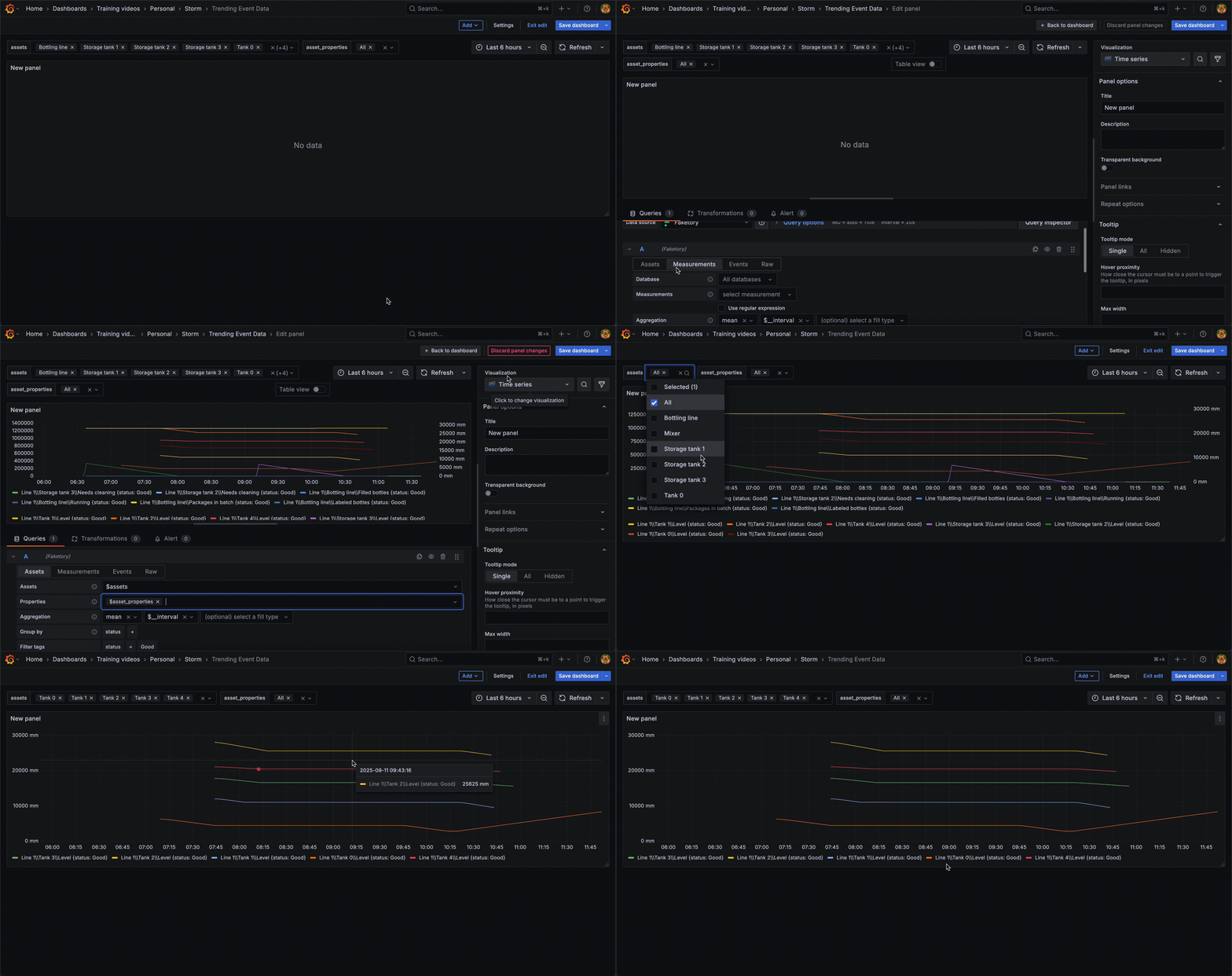
Using Grafana variables to populate dropdown lists
Dropdown filters make dashboards more interactive: operators can pick which assets or asset properties to display.
Filter with Asset
- Supports multi-select using regex (view trends from several assets at once).
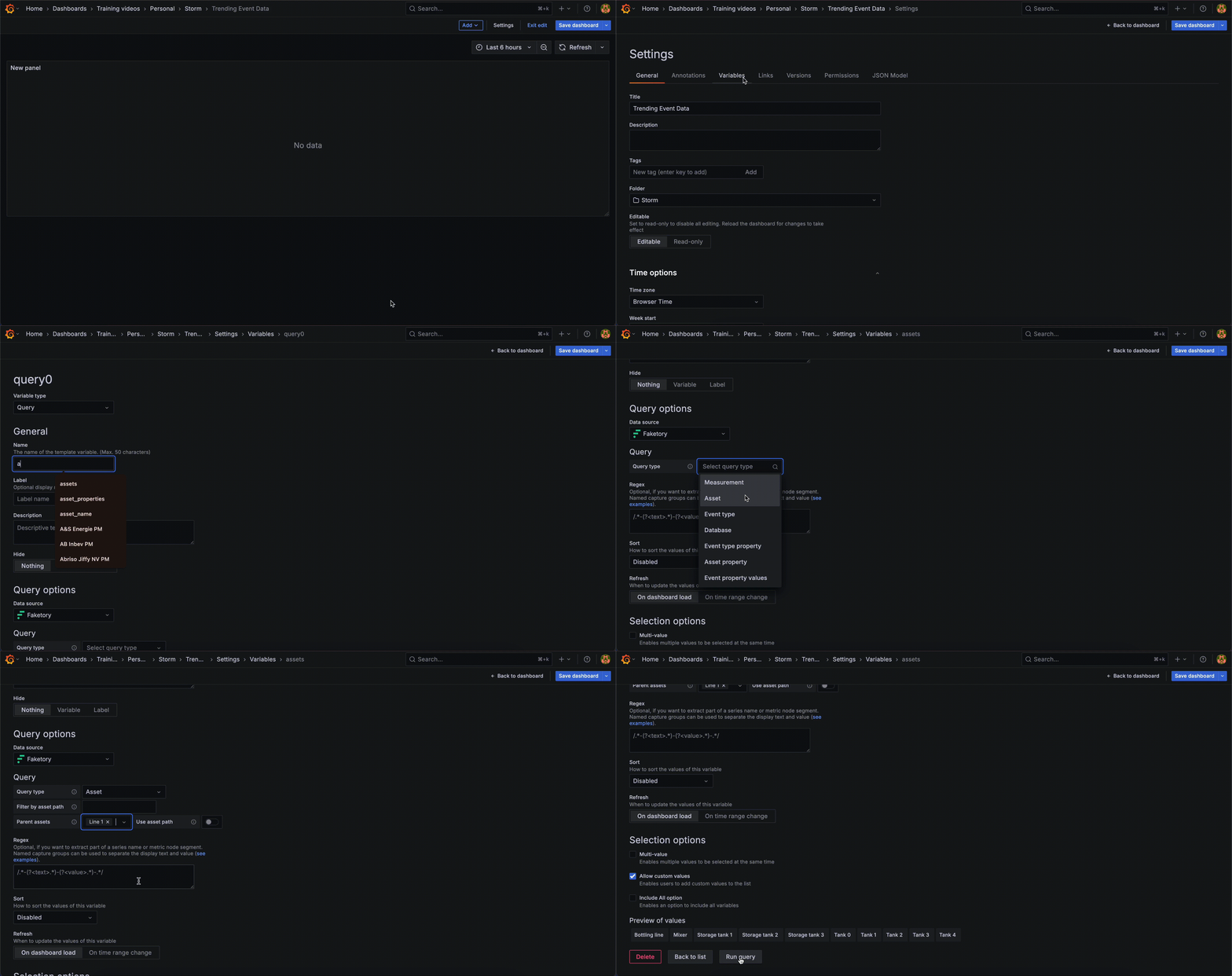
- Create a Grafana variable listing available assets.
- Use that variable in your Factry datasource query to dynamically switch assets.
Example Grafana variable:
Filter with Asset Property
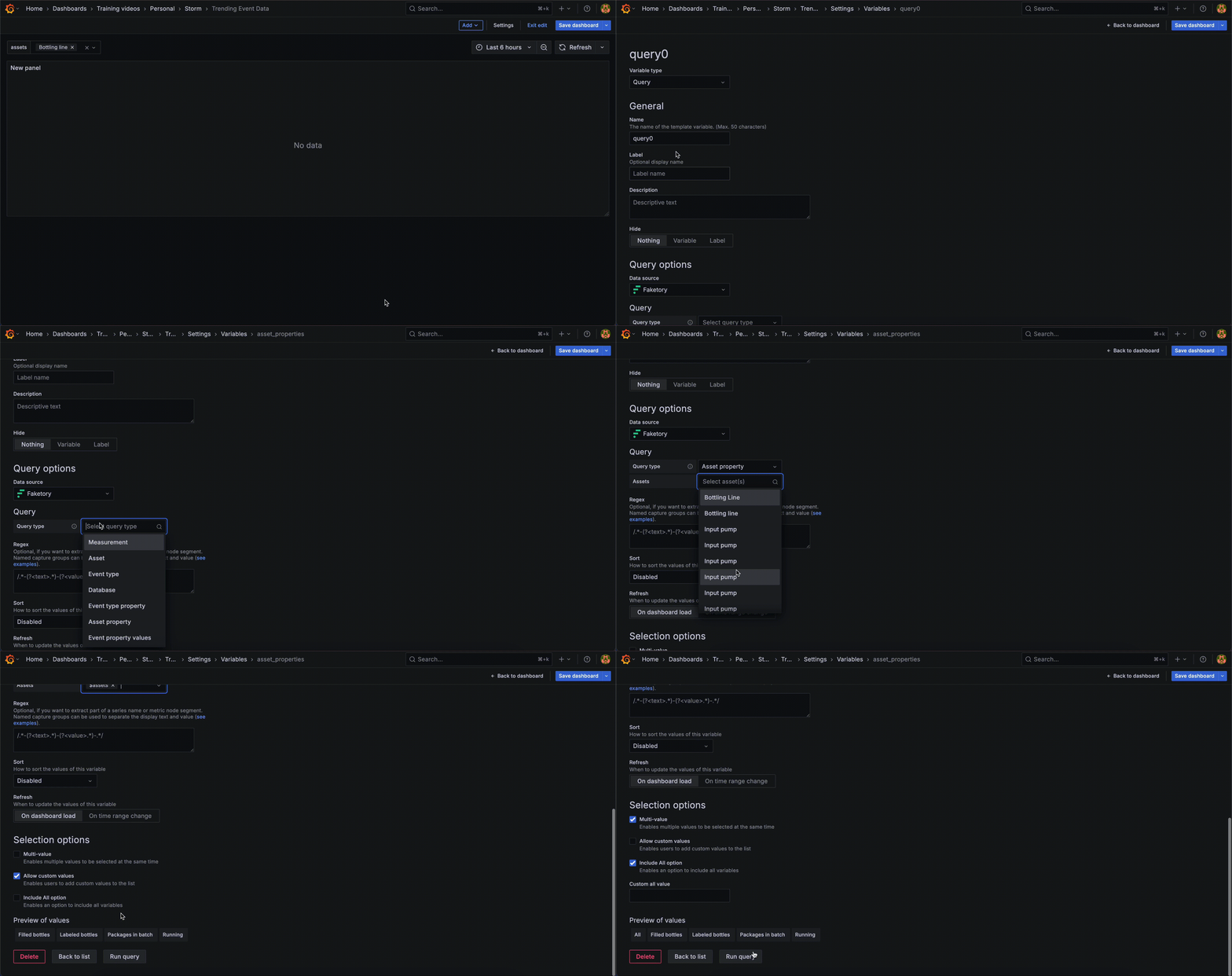
- Also supports multi-select (compare multiple properties across one or more assets).
- Create a Grafana variable listing property names.
- Use that variable in your Factry datasource query to toggle which properties are displayed.
Combine Asset and Property Filters
Using both filters together allows you to create very targeted dashboards:
- Operators can first select one or more assets (e.g. all mixers in a line).
- Then, they can refine which properties to show (e.g. Temperature and Pressure).
- This makes it possible to quickly compare the same property across multiple assets, or compare different properties within the same asset.
A combined filter setup is especially useful for:
- Cross-asset comparisons: e.g. trending temperature for all pumps in a plant.
- Multi-property diagnostics: e.g. showing vibration, temperature, and current on the same motor.
Troubleshooting
No data returned
If a property does not return data, check whether it is mapped correctly to a measurement in Historian.
Error when using mean with boolean/string
- The Factry datasource automatically falls back to last if you apply the mean aggregation function on boolean or string data.
- To keep meaningful results, either:
- Split queries into multiple datasources on the panel (numeric in one query with mean, string/boolean in another with last).
- Or explicitly set the aggregation to last for non-numeric data.