Assign a reason tree to equipment
Go to FactryOS > Equipments. Select a piece of equipment from the equipment tree on the left. Open the OEE tab in the detail panel on the right.
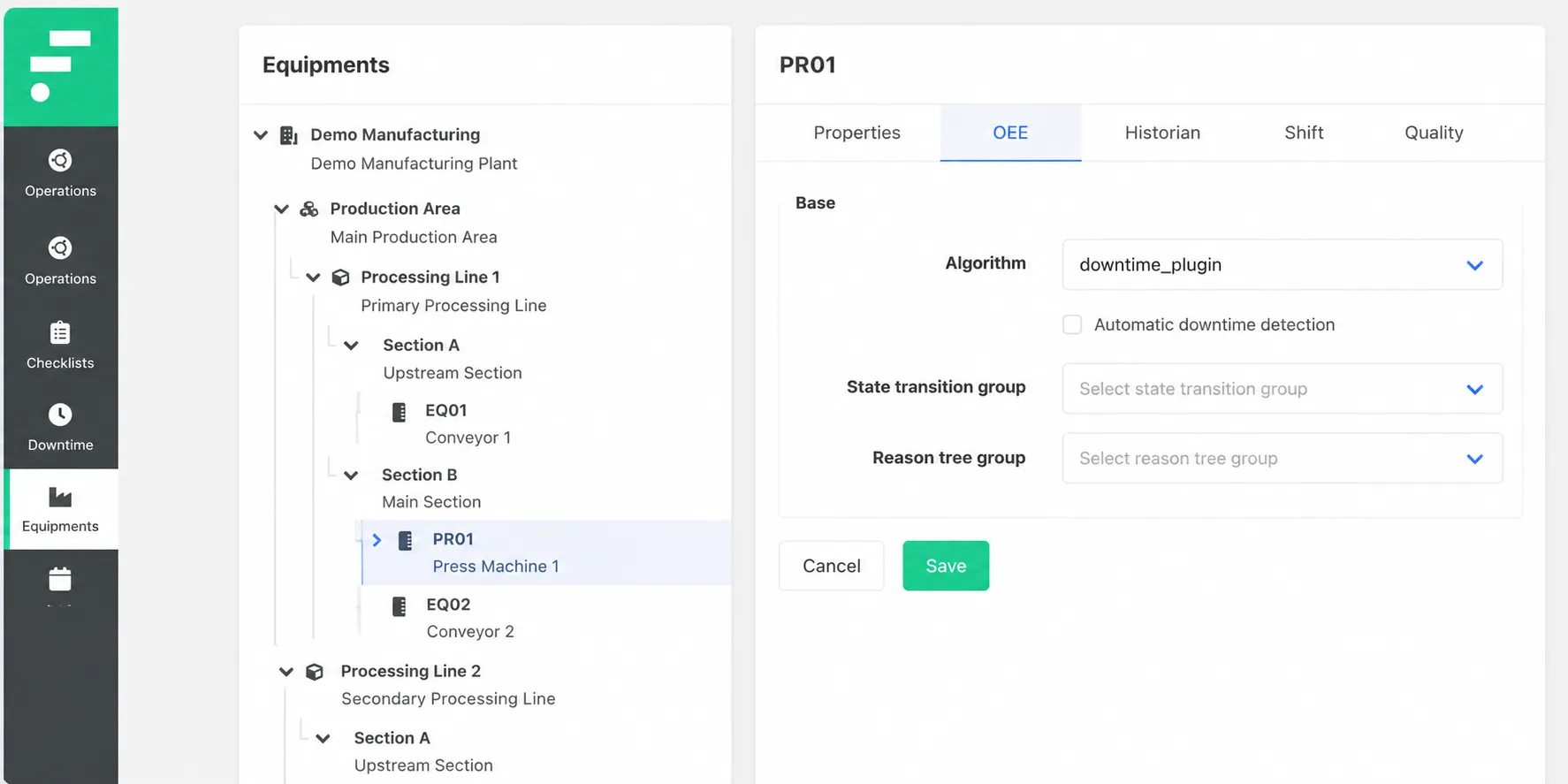
Under Base, configure the following fields:
- Algorithm — select the downtime algorithm to use for this equipment. For the Downtime Manager, select downtime_plugin.
- Automatic downtime detection — check this to enable automatic state detection for this equipment using the assigned state transition group. When unchecked, downtime events can only be created manually.
- State transition group — select the state transition group that defines how signals from Factry Historian are translated into downtime states for this equipment. This field is required.
- Reason tree group — select the reason tree operators will see when prompted to classify a downtime event on this equipment. If left empty, operators will not be guided by a tree when selecting a reason.
Click Save.
Repeat for each piece of equipment that should participate in downtime tracking. Equipment in the same tree branch can have different configurations, so individual lines or machine types can each have their own state transition logic and reason tree.