Create downtime reasons
Go to FactryOS > Downtime > Downtime configuration > Downtime reason tree editor.
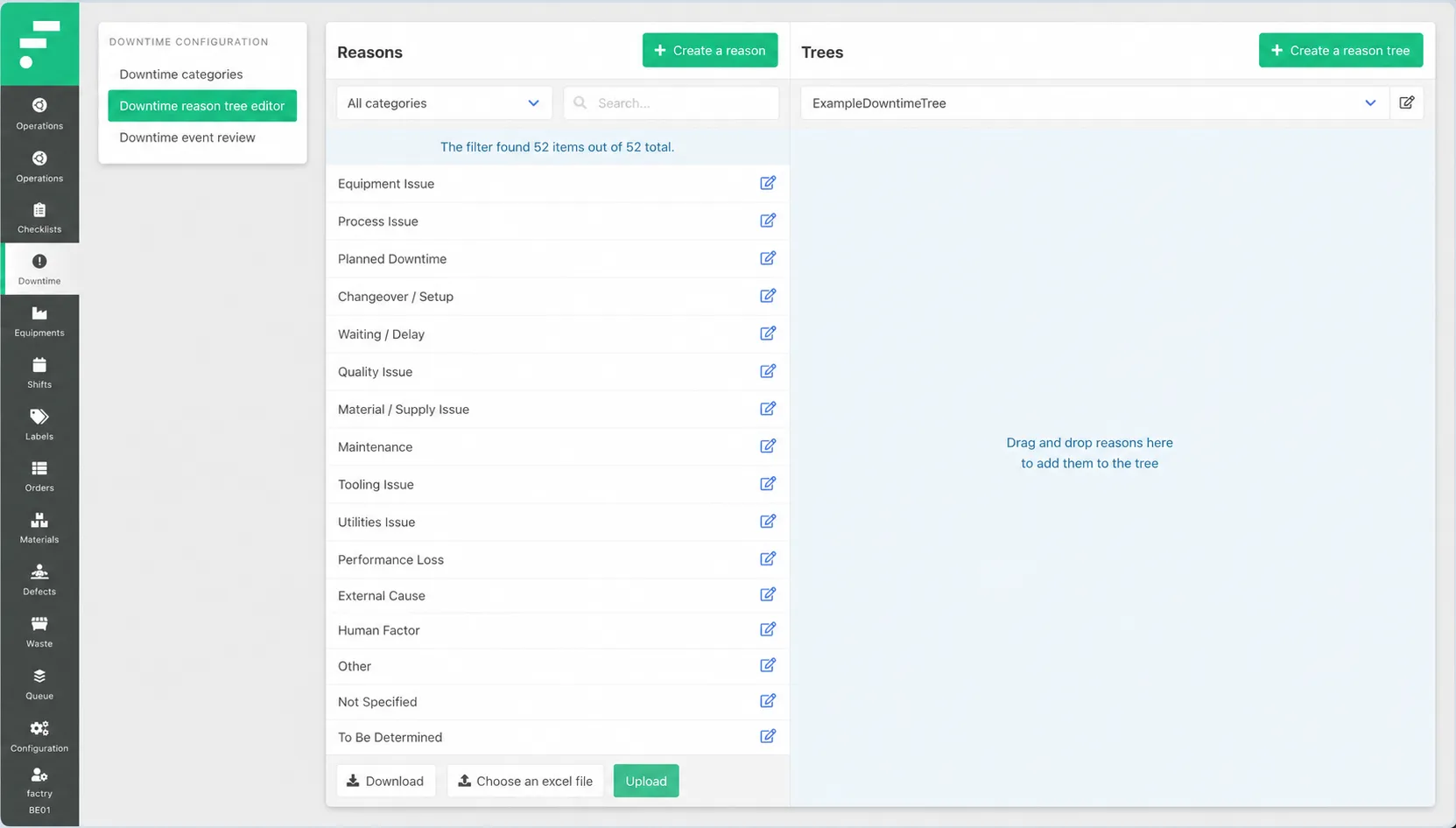
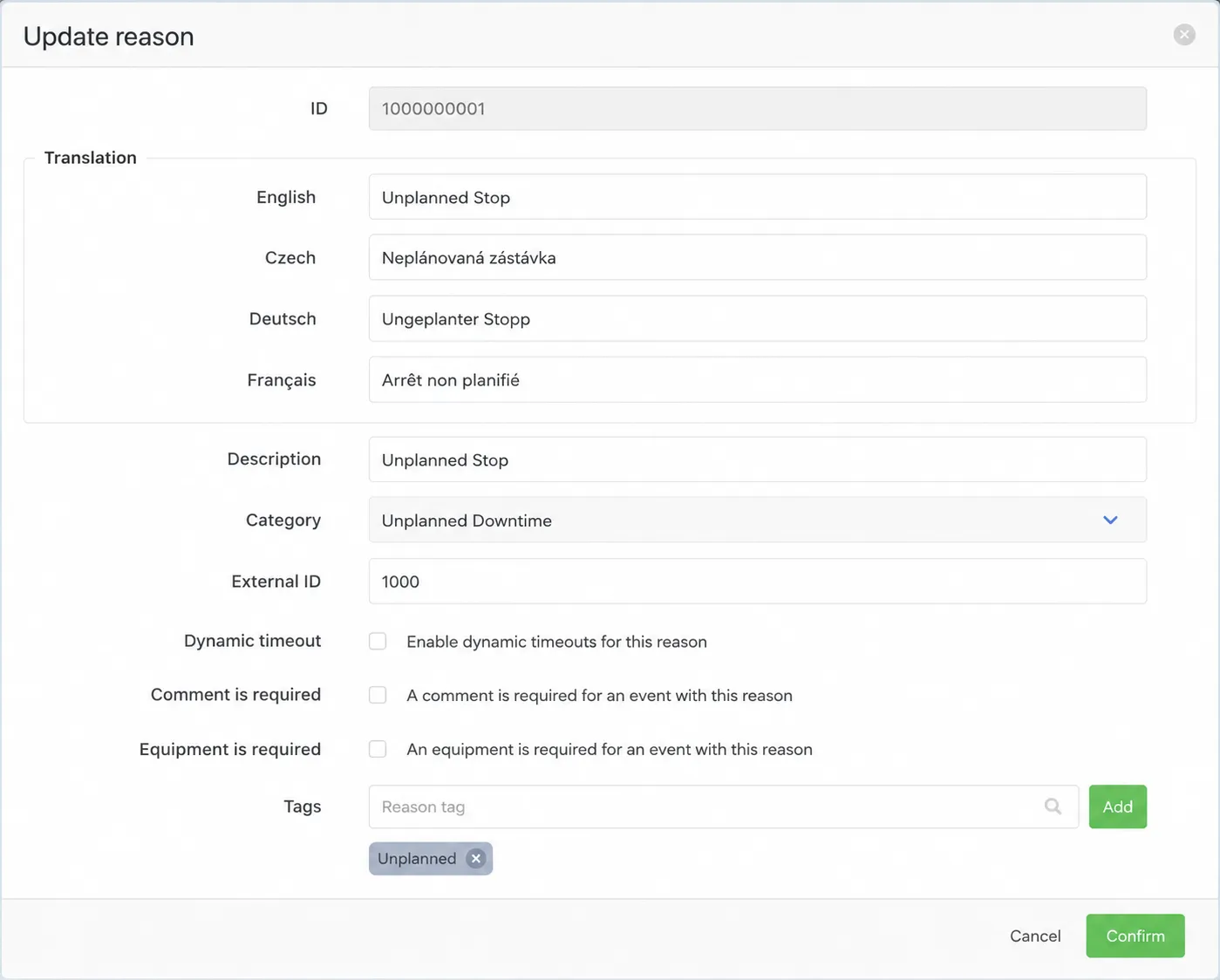
Click + Create a reason. A form opens with the following fields:
- ID — assigned automatically. Cannot be changed after creation.
- Translations — enter the display name in each language your operators use. FactryOS shows the translation matching the operator's account language. If no translation is set for a language, the description is used as fallback.
- Description — a short internal code or label for the reason (e.g. Good production, Failure time). Used in the reason list and as a fallback display value.
- Category — link to one of the categories created in step 1. This determines how the reason is counted in OEE calculations.
- External ID — optional. Use this to map the reason to an ID in an external system, for example an ERP.
- Dynamic timeout — if enabled, the timeout behavior for this reason can vary based on context. Leave off unless your setup requires it.
- Comment is required — if enabled, operators must add a comment when assigning this reason to a downtime event. Use this for reasons where more context is always needed.
- Equipment is required — if enabled, operators must specify a piece of sub equipment when assigning this reason. Use this for reasons that are always tied to a specific machine.
- Tags — add one or more reason tags, for example a Time Utilisation Code (TUC). Tags are used in reporting to group reasons across categories without changing the reason structure itself.
Click Confirm to save.
Repeat for each reason you need. The reason list supports filtering by category and free-text search. Reasons can also be bulk imported and exported via the Download / Upload Excel buttons at the bottom of the list, which is useful when setting up a large reason library for the first time.