Build a reason tree
Go to FactryOS > Downtime > Downtime configuration > Downtime reason tree editor.
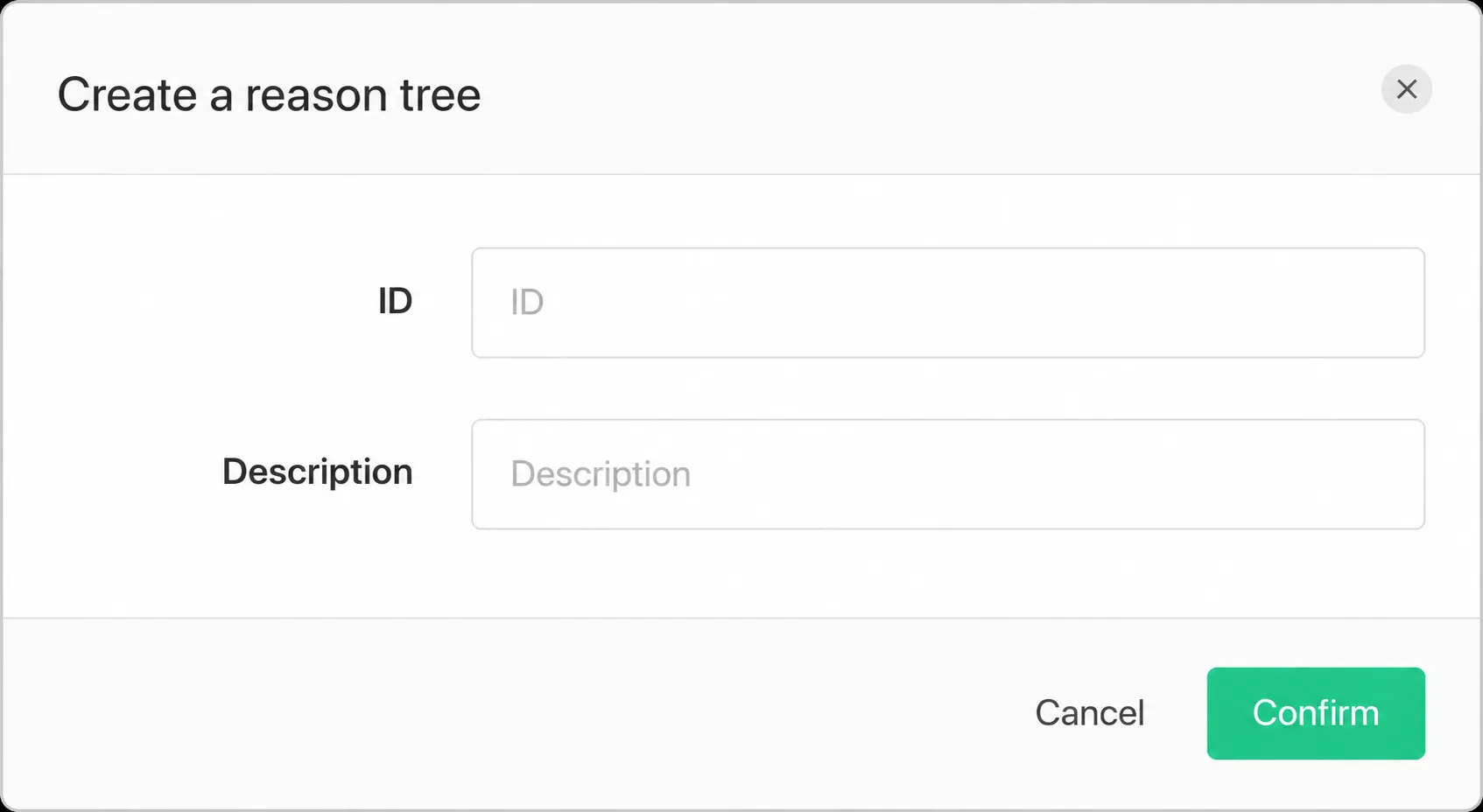
Click + Create a reason tree. A form opens with two required fields:
- ID — a unique identifier for this tree. Used internally and in equipment configuration.
- Description — a label that reflects the scope of this tree (e.g. "PackagingLine" or "Assembly_North").
Click Confirm. The new tree appears in the Trees dropdown on the right side of the screen.
To populate the tree, select it from the Trees dropdown. The right panel shows a drop zone with the instruction "Drag and drop reasons here to add them to the tree." From the Reasons list on the left, drag reasons one by one into the tree panel. Use the category filter or the search box to find specific reasons quickly.
You can create multiple trees. Different trees can be assigned to different equipments in the Equipment Manager, so operators only see reasons relevant to their line.