Available Item Types
When adding a new item, several item types are available depending on the type of input required from the operator.
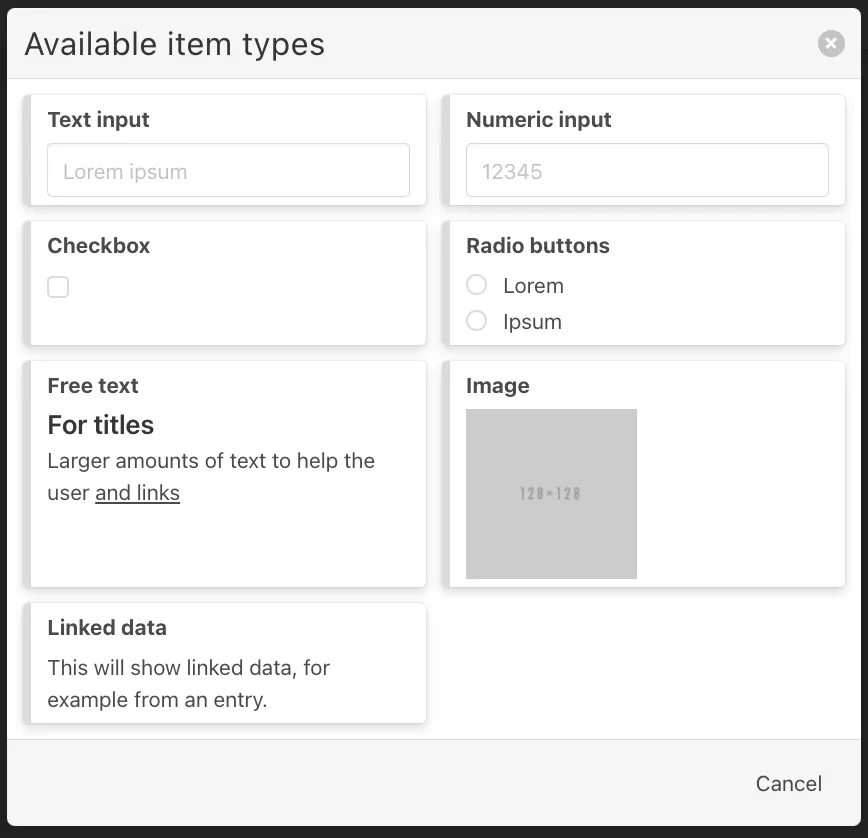
Text input
Allows operators to enter short text values.
Example use cases:
- comments
- identifiers
- manual notes
Numeric input
Allows operators to enter numerical values.
This is typically used for measurements such as:
- temperature
- pressure
- weight
- dimensions
Numeric inputs can also be combined with validation rules unlike text input such as warning or error thresholds.
Checkbox
Checkbox items allow operators to confirm something
Example:
- Safety guard installed
- Area cleaned
- Procedure completed
Radio buttons
Radio buttons allow operators to select one option from multiple predefined options.
Example:
Machine condition:
- Good
- Acceptable
- Not acceptable
Free text
Free text fields allow larger text fields and can also contain links or examples.
This item type is typically used for:
- extended operator comments
- instructions
- explanatory text
Image
Image items allow images to be displayed inside the checklist.
These images can serve as visual work instructions or reference examples.
Images can be used to:
- show correct machine setup
- display product quality examples
- guide manual procedures
- Images as work instructions
Example Scenario A packaging line produces different products. Each product has a material definition property containing an instruction image. When the operator opens the checklist, it will ensure the operator to always see the correct visual instructions for the active product.
Basis configuration Images can be configured in two ways: This allows checklists to show context-specific visual instructions depending on the product, equipment, or process. The simplest way to display an image is by adding a direct URL. The checklist will load and display the image from the provided link.
Example: by using the URL https://example.com/images/assembly_step_1.png, the image will be displayed directly in the checklist. If no image is available, the alt text will be shown. Example Use Case A: static image The maintenance checklist could display an image showing the correct position of a valve. This can be configured by entering the URL to the check valve position image, e.g. https://example.com/images/valve-position.png. This helps operators quickly verify the correct configuration.
Example Use Case B: dynamic image
Using the dynamic URLs via Connections instead of hardcoding an image URL, the URL can be retrieved dynamically through a connection. For example: This allows the system to display different images depending on the context.
Linked Data
Linked data items display values retrieved from connected production data.
For example, the checklist can show:
- values from a production entry
- equipment properties
- order information
This allows operators to see relevant contextual information while executing the checklist.